

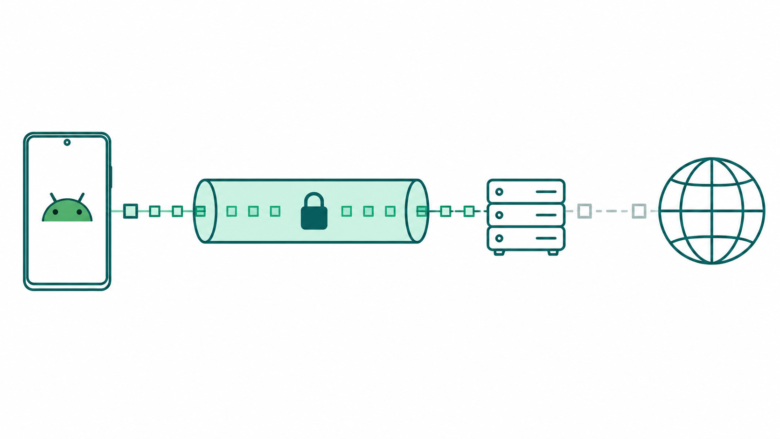
Before changing DNS
Save your current option and hostname. Use values from the provider's guide. Test Wi-Fi and mobile data. DNS protection and a VPN do different jobs.
Key Takeaways
- Android’s Private DNS protects DNS queries, not every part of your internet use.
- Automatic and a chosen provider hostname are different settings.
- Use the provider’s hostname in that field. Do not copy a random address from a social post.
- Save the original setting and compare one change at a time if your connection stops working.
Private DNS on Android protects DNS lookups. Your phone uses these to find internet names. It is useful, but it does not hide everything you do online. Learn what the setting does first. Know how to undo the change before you choose a provider.
Google recommends keeping Private DNS enabled on networks that support it. Its Android help page offers Off, Automatic and Private DNS provider hostname. Those choices do different jobs. Changing them is not a guaranteed way to raise download speeds or repair a weak mobile signal.
This guide explains the difference. It lists hostnames from official guides. You can also learn how to test a change. The steps use Google and Cloudflare guidance checked on October 25, 2026. Menu names can vary by phone, so use Settings search if the listed path differs.
What Private DNS on Android Actually Protects
DNS is the system that helps turn an internet name into an address a device can use. Your phone asks a resolver to help with that lookup. Private DNS adds protection to that part of the connection.
Google’s Android guide is clear about the scope. The feature secures DNS questions and answers. It does not protect everything else. Keep that limit in mind when a video claims a DNS setting makes a phone anonymous.
Imagine a simple task: you open a website by name. The lookup and the later exchange with the website are separate parts of the task. Protecting the lookup is useful. It does not remove the website’s own sign-in records or the information you choose to submit.
That is why a DNS change should have a clear purpose. You might want to choose a resolver or a service with documented filtering. Keep your accounts safe too. Check app permissions and take care with links. This setting does not replace those steps.
Before changing anything, write the problem in plain words. “I want encrypted name lookups” is a DNS goal. “My phone has no mobile signal” is a different problem that calls for a different check.
Choose Between Automatic and a Provider Hostname
Automatic uses the network’s DNS setup. It uses private DNS where the network supports it. A provider hostname tells the device which supported resolver to use. Google documents both options; neither is a universal speed ranking.
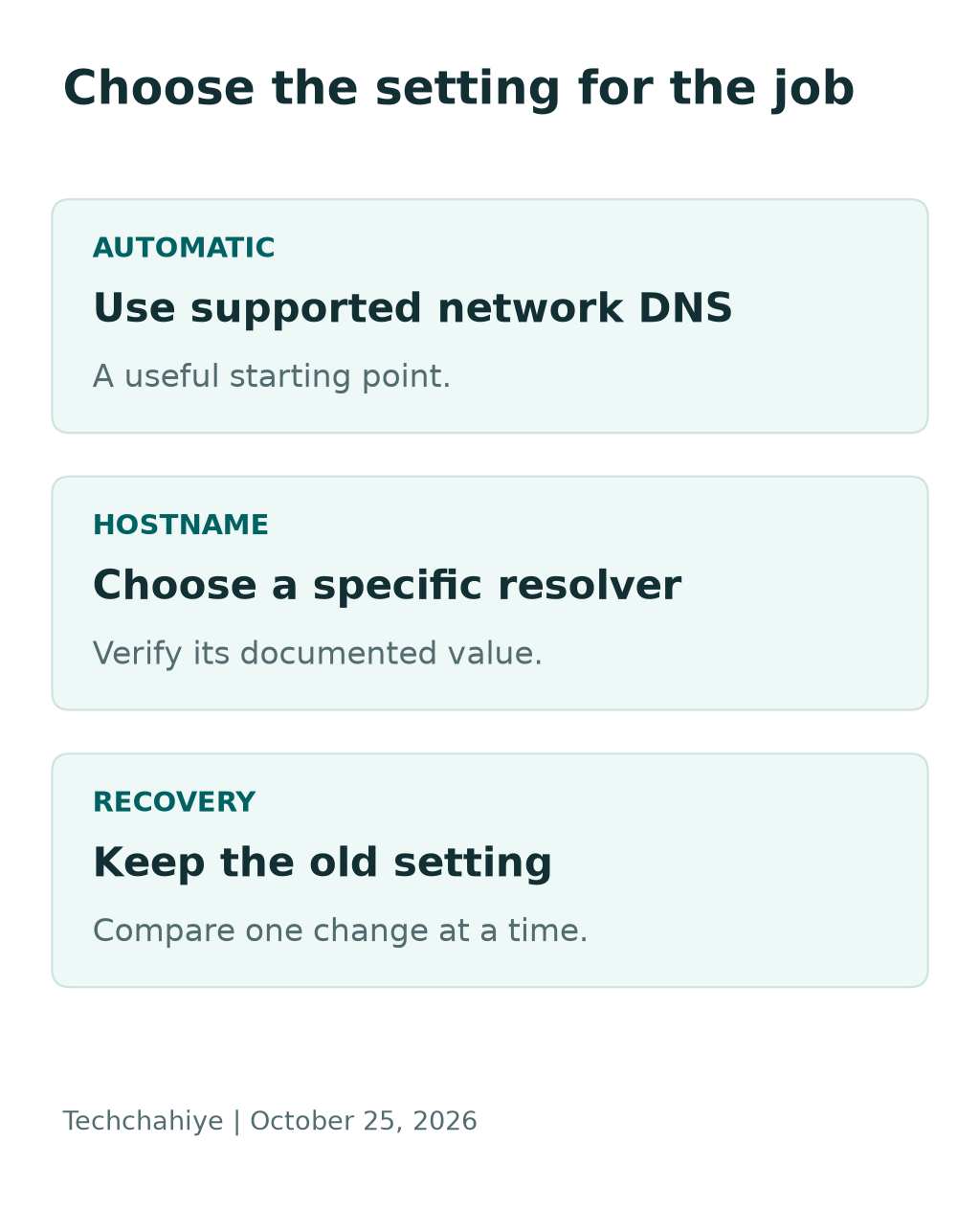
Is your connection working? Do you need a specific provider? Be clear about your goal before you change it. A “fastest DNS” list may not fit your network or location. It also tells you little about how a provider handles your data.
| Option | Useful question | Practical caution |
|---|---|---|
| Automatic | Does the current network offer supported private DNS? | Do not assume a particular outside provider is selected |
| Provider hostname | Do I want this specific resolver? | Verify the hostname and its policy |
| Off | Am I doing a limited diagnostic check? | Google recommends keeping Private DNS on |
Treat Off as a setting with a purpose, not a routine performance trick. Note why you turned it off for a test. Turn a suitable enabled option back on when you finish. Do not leave a change unexplained on a shared device.
For a work-managed phone, check with the administrator before overriding the network setup. A work network may need its own DNS setup. Your choice on a personal phone may not fit those needs.
Save Your Starting Point Before You Change It
Take a note of the selected option and any existing hostname. Google Public DNS says to keep your old settings. You can then restore them if needed. That note is more useful than trying to remember the old screen after the internet stops working.
Write down your phone model and Android version. Add the network type and old setting. Note why you want to change it. You do not need to publish that record. Keep it where you can read it without internet access.
Then test a few ordinary tasks before the change. Open a familiar website, use an app you rely on and check whether the problem already exists. A before-and-after comparison needs a known starting point.
Do this when you have a few spare minutes. Avoid changing the setting just before a payment, an important call or a journey. There is little value in a test you cannot finish or undo calmly.
Ask the network owner before you change router settings. This guide focuses on the phone’s setting. You do not need to reset the router. Nor does this step require a new password or certificate.
Set a Documented Private DNS Hostname
Google Public DNS documents support from Android 9 onward. Its example path is Settings, Network & Internet, Advanced, then Private DNS. Choose the provider-hostname option, enter dns.google and save. A newer phone may show the same control in a different place.
Follow this sequence on a personal device you manage:
- Open Settings and search for Private DNS.
- Read the current option and save a note of it.
- Choose Private DNS provider hostname.
- Type the exact hostname from your chosen provider’s documentation.
- Save, then repeat the ordinary tasks you checked before the change.
Do not paste a complete web link into a field that asks for a hostname. A hostname example is dns.google. It is different from adding a protocol prefix, a path or a copied tracking link.
Also check for spaces before or after the value. A phone keyboard can insert an unwanted character when you paste. Read the field rather than assuming a successful paste means the value is correct.
If you cannot find the option, check the manufacturer’s guide for your exact phone and version. Do not install an unknown “unlock settings” app to obtain a menu described for a different device.
Compare Hostnames by Purpose, Not by Hype
The following examples come from Google and Cloudflare documentation. They illustrate distinct purposes. They are not a speed league table or a promise that one provider is right for every reader.
| Provider or mode | Documented hostname | Intended choice |
|---|---|---|
| Google Public DNS | dns.google | Google resolver |
| Cloudflare standard | one.one.one.one | Standard Cloudflare resolver |
| Cloudflare Families security | security.cloudflare-dns.com | Malware-domain filtering |
| Cloudflare Families family | family.cloudflare-dns.com | Malware and adult-content filtering |
Read the provider’s current terms and privacy policy before making a lasting choice. A memorable address does not tell you how a service handles data. Nor does a hostname’s popularity prove better performance on your connection.
For family use, agree on what you want the filter to do. A parent may want a broad domain filter. Another household member may need a site that the filter classifies differently. Decide how you will handle that situation before changing every device.
If you are troubleshooting a filter, record the exact service selected. Cloudflare has several DNS options. Its standard and Families services do different things. Name the exact one you want. Clear names prevent confusion when you later seek support.
Understand the Limits of DNS Filtering
Cloudflare says Families can block DNS lookups for malware. Another option also blocks adult content. This is a domain-level choice. An allowed service can contain many pages, messages and videos. Do not assume DNS can judge each one.
Use filtering as one part of a household plan. It can support a rule, but it does not explain that rule to a child. Make time to talk about those limits. Set up the device account and content controls for the person using it.
Before enabling a filter broadly, test the websites the household needs. A school portal, a work service or a shared resource may need a closer look if it stops opening. Record the address and the observed result instead of making repeated random changes.
If a provider offers a way to report a wrong classification, use the official route. Do not ask a child to search for a workaround. Fix the classification question with the adult who manages the setup.
Also distinguish an unwanted site from an unwanted advertisement. A service that filters certain domains is not a promise to remove every ad in every app. Avoid making a privacy choice on the basis of that unsupported claim.
Does Private DNS Make Your Internet Faster?
A DNS change is not the same as upgrading the connection. A page has to do more than find an address. Its server, file sizes and the network path still matter.
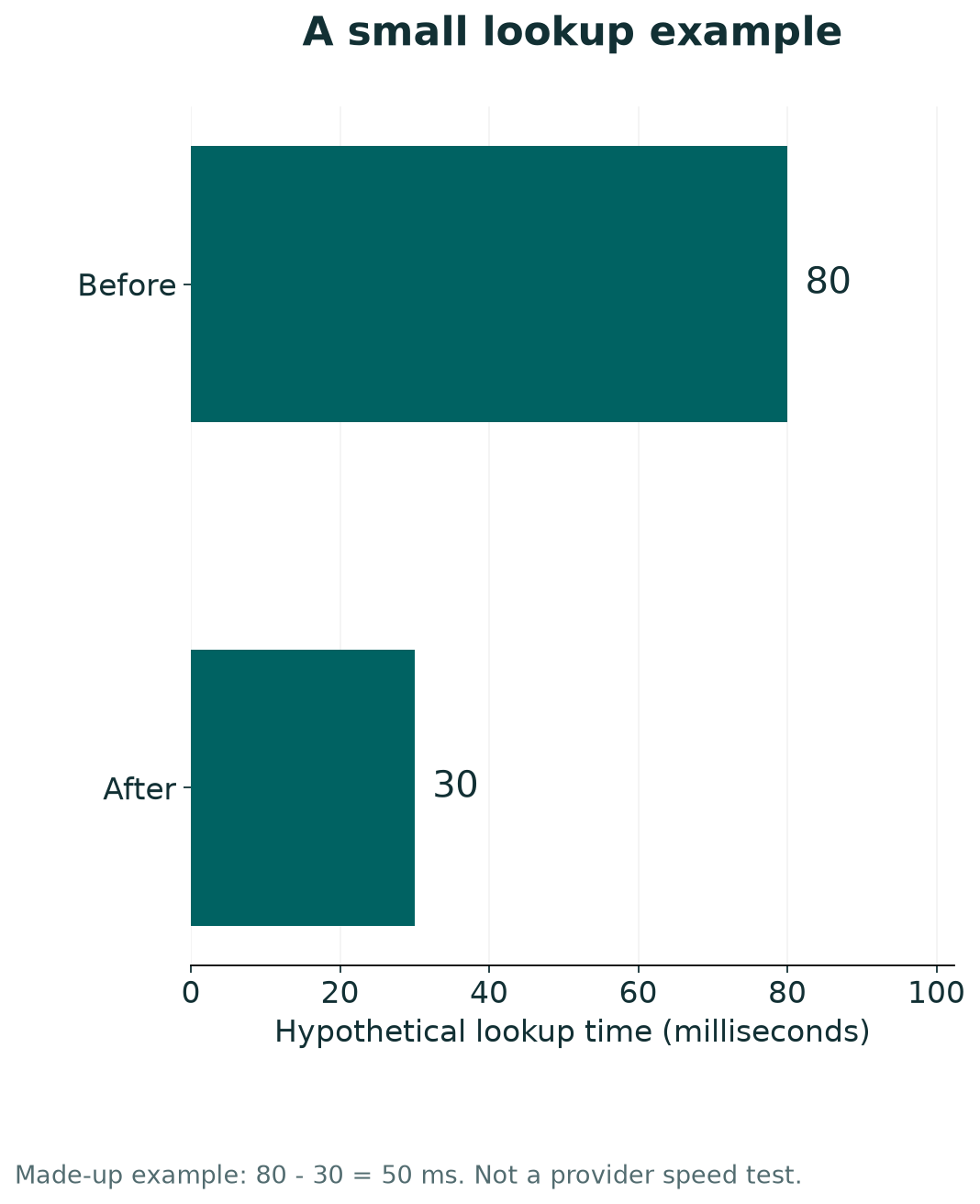
Use a made-up example to see the scale. Here is a made-up example. A page’s lookup takes 80 milliseconds before a change. It takes 30 milliseconds afterward. The calculated difference is 50 milliseconds. That would not turn a slow multi-second file transfer into an instant download.
These are made-up numbers. They do not measure Google, Cloudflare or your phone. Actual results need measurements on the same device and connection. Do not quote the example as a provider comparison.
If you want to compare, keep the test small and fair. Use the same network, the same few tasks and similar conditions. Note failures as well as apparent improvements. A quick impression from one page load is weak evidence.
Most readers need reliability more than a tiny difference they cannot consistently reproduce. Choose a setup that works with the tasks you depend on. Do not keep changing providers merely because another video promises a lower number.
Fix a Private DNS Connection Error Step by Step
Start by checking what changed. If the phone worked before you entered a new hostname, review that value first. If the problem began before the DNS change, do not assume the new setting caused the original fault.
Use this controlled sequence:
- Record the exact error and network you are using.
- Check the hostname for typing errors.
- Return to the recorded original option, or Automatic if that was the prior setting.
- Repeat the same simple task on the same network.
- Compare Wi-Fi with mobile data if both are available within your plan.
A successful rollback is useful evidence. It suggests the custom setup or its interaction with that network needs attention. It does not prove the whole provider is down for everyone.
If the original setup fails too, widen the investigation. Check whether other devices on the same network have the issue. Keep the scope clear: one app, one phone, one network or many sites.
Do not jump straight to a factory reset. A reset is a large response to a problem you may be able to isolate with one reversible setting. Keep your saved configuration until you know the test is complete.
Check Wi-Fi and Mobile Data as Separate Tests
Home Wi-Fi and a mobile carrier can behave in different ways. Test each network you plan to use. Cloudflare’s Android guide says a configured resolver applies across networks, including cellular. That makes both types relevant when you check a lasting change.
Start with a task you can repeat, such as opening a familiar public page. Note which connection is active. If you test Wi-Fi and mobile data at once, you may not know which path the phone used.
For mobile data, stay aware of your plan. A large download is unnecessary for a basic name-lookup check. Small routine tasks can give you a useful first answer without using much data.
If the issue occurs only on public Wi-Fi, check whether the network requires a sign-in page. Follow that network’s normal access process. Do not bypass a certificate warning or install a profile from an unexpected pop-up.
Cloudflare warns about older manual static-IP setups. These can disrupt a network’s sign-in page, or captive portal. Use the dedicated Private DNS control if your phone offers it. An old Wi-Fi static-IP guide describes a different setup.
Check VPN and Browser Settings Before Drawing Conclusions
Other networking tools can affect the path your requests take. Google notes a Private DNS issue on Android 9. It involves VPNs and apps that change DNS. Do not generalize one older-version caveat to every current Android device.
List the tools in use before you test. Include phone DNS, a VPN and any filter app. Check secure DNS in your browser too. You do not need to disable everything. You need to know which controls are part of your normal setup.
Change one layer only when you understand its purpose. If a work VPN is required, leave that policy in control. Ask the network manager which resolver to use. Do not try to work around the network’s rules.
For a personal device, note whether a test uses a VPN or direct access. Compare like with like. Several changes can alter the route. You may then give DNS credit for a change caused by something else.
Keep login and payment tasks out of casual experiments. Finish the test, settle on a working configuration and then return to normal use. Finish each test and record the result. You will have fewer loose ends to sort out later.
Create a Useful Support Note
If you still need help, give support a short reproducible description. “Internet broken” is much less useful than a clear account of one task and one setting.
Record the phone model, Android version, selected DNS option and hostname. State whether Wi-Fi, mobile data or both fail. Include the exact error and whether restoring the old setting changes it.
Do not include passwords, account tokens or your full network history. Crop or cover private details before sharing a screenshot. The goal is to show the setting and error, not every item on the phone.
Also say what you have not tested. If you only tried one website, write that. If another device was unavailable, do not claim the whole household has the fault. Honest limits make the next diagnostic step clearer.
Keep the final working setting with the note. If you later update the phone or change networks, you will have a useful reference. You can compare a new problem with the earlier result instead of starting from memory.
Did You Know?
Android 9 introduced a system Private DNS setting with a provider-hostname option. Google’s Public DNS guide gives dns.google as its example. A dotted numeric address is not a hostname. Both can point to the same firm’s services. The field still needs the right type.
Conclusion
Private DNS on Android protects a specific part of your connection. Choose Automatic or a documented provider hostname for a clear reason. Keep the previous setting and test ordinary tasks before making the change permanent.
If it fails, check the value. Compare networks. Restore the setup that worked before. That gives you a better answer than treating DNS as a universal speed switch. Once the connection is stable, keep a short note of the choice you made.
FAQs
Is Private DNS the same as a VPN?
No. Google’s Android guide says Private DNS protects DNS questions and answers. It does not protect all traffic. A VPN is a different networking tool with its own scope and provider. Check what each tool does. Two tools with privacy in their name may have different jobs.
Should I put 8.8.8.8 in the provider-hostname field?
Use the documented hostname for that field. Google’s Android example is dns.google. Numeric DNS addresses belong to settings that ask for those addresses. Read the field label and the provider’s setup guide before pasting a value. Do not add a web protocol or path to a hostname.
Can I use Private DNS on mobile data?
Cloudflare says Private DNS works across networks on supported Android versions. This includes cellular data. Check your device’s instructions and test the tasks you use on mobile data. A Wi-Fi test only checks that network. Test mobile data too.
Will a family DNS filter block every harmful item?
Do not assume that. Cloudflare describes filtering at the DNS-domain level. A domain filter judges the domain. It cannot fully judge each page or post inside an allowed service. Use suitable device controls and household rules together. Give people a clear way to report troubling content.
What should I do if the internet stops after a change?
Check the hostname and restore the setting you recorded before changing it. Repeat the same small task on the same network. If the original setup also fails, investigate the wider connection. Keep the exact error and test results so support can identify the next step without guessing.
