

Check before you send
Choose your account and context mode. Remove private details. Decide if you need to save the result. Gemini uses different temporary-chat rules.
Key Takeaways
- ChatGPT Temporary Chat stays out of history while temporary. Choose personalization and it can use context you saved before.
- New memory, model training, saved history and service retention are separate questions.
- Gemini’s temporary mode has different account requirements and feature limits.
- Remove private details before you send a prompt; a temporary label is not a reason to share secrets.
ChatGPT Temporary Chat is useful for a conversation you do not want kept in your normal history. It is not a promise that nobody processes or retains the content. Before you send, check the account rules and context mode. Decide if you need to save the result.
This guide uses OpenAI and Google documentation checked on October 25, 2026. That date matters. OpenAI’s current guide describes a choice between personalized and unpersonalized temporary chats. Older advice that every temporary conversation ignores all existing context misses that distinction.
Start by naming your goal. You may want a clean history or a fresh answer. You may want to save a normal chat but keep it out of model training. These are different goals. Choosing the right control is easier once you know which one you mean.
What ChatGPT Temporary Chat Changes
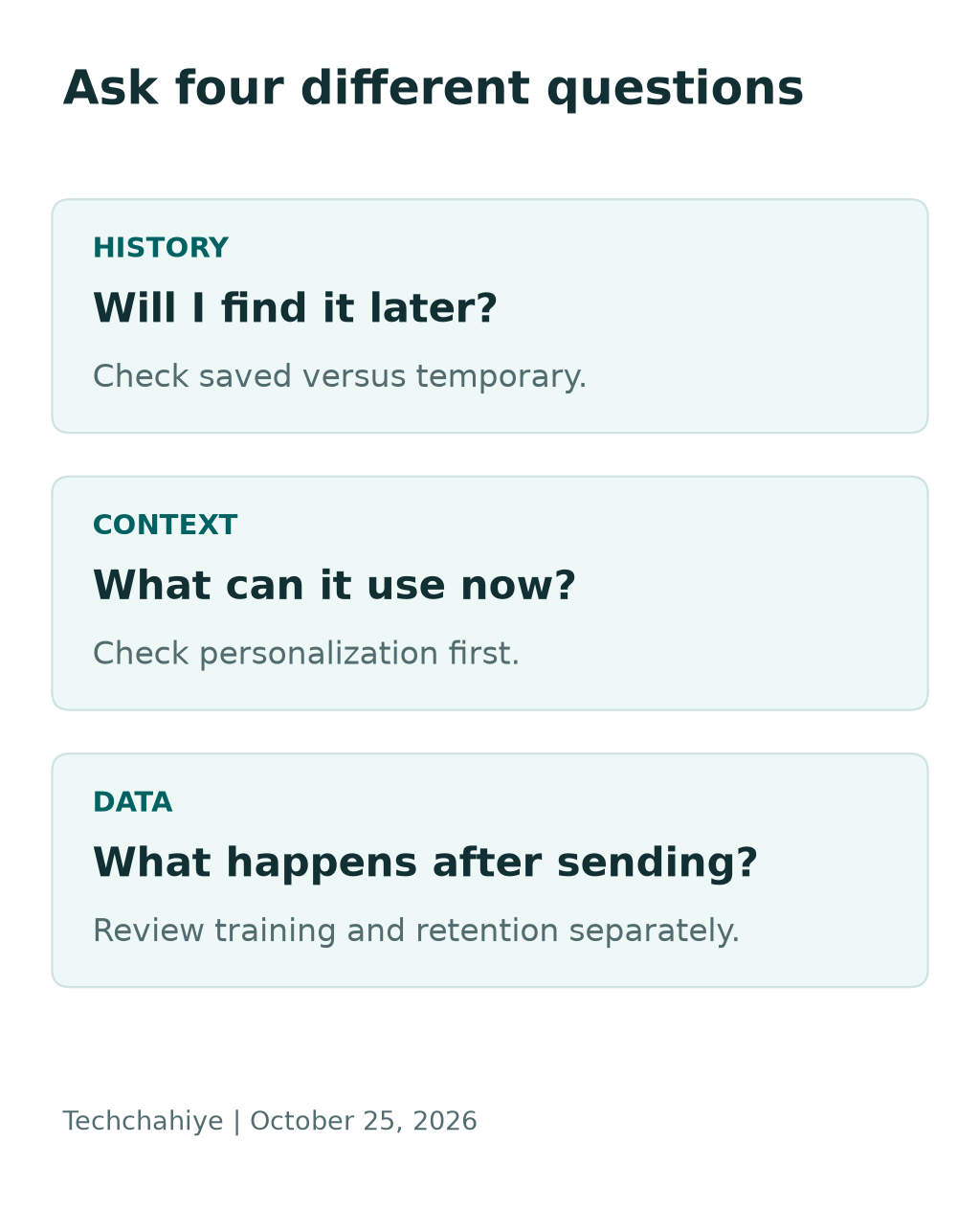
OpenAI says the chat stays out of history while temporary. It does not create new memories in that mode. It also stays outside model improvement. A copy may remain for safety for up to 30 days. These are four separate properties of the mode.
Think of them as four questions rather than one “private” switch. Will you see it later? Will it shape future answers? Can it help train a model? How long can the service keep a copy? A clear answer to one does not answer the others.
For example, you may want help rewriting an awkward sentence. You do not need the chat next month. Temporary mode can fit that task. Yet you can still replace a colleague’s name with a role and remove the exact workplace before asking.
That small edit often improves the prompt too. The model needs the sentence’s purpose and tone, not a full personnel file. Give enough context to solve the writing problem and leave out details that do not affect the answer.
Choose Personalized or Unpersonalized Before You Start
OpenAI’s current instructions let you choose the context used before the first message. The unpersonalized option excludes memory, custom instructions and plugins. The personalized option can use existing context. Neither choice creates new memories while the chat remains temporary.
Choose based on the job. If you want a fresh explanation for a beginner, an unpersonalized start is a sensible choice. Want the answer to use your saved preferences? Review the context mode first.
Suppose you often ask for very short answers but now want a careful comparison. A fresh chat with an explicit request for detail may be easier to assess. State who will read the answer. Tell the model which format you want. You do not have to rely on saved preferences.
Conversely, there is no need to hide harmless context that makes the answer useful. “I use an Android phone and prefer large text” is enough for many app questions. You do not need to include your phone number or address.
OpenAI says the personalization choice cannot change after the conversation starts. Treat the first message as a checkpoint. Read the label, confirm the account and decide how much context belongs in the task before sending it.
Keep These Privacy Questions Separate
Use this table to identify which setting you need to investigate. It is a decision aid, not a replacement for the account’s actual controls. Managed accounts can add their own restrictions.
| Your goal | Question to ask | What not to assume |
|---|---|---|
| Keep the sidebar clear | Will this chat enter history? | Hidden means deleted everywhere |
| Get a fresh answer | What context can this chat use? | Temporary always means unpersonalized |
| Avoid model training | Which model-improvement setting applies? | Turning it off removes saved chats |
| Keep the result | Can I return to this conversation? | A temporary result will remain accessible |
| Reduce data exposure | What can I remove before sending? | The service needs every detail |
Write your goal in one sentence before changing several settings. For example: “I want to keep a reusable answer without sharing new chats for training.” That is more precise than “make everything private.”
Then check the control that matches that goal. Changing several unrelated settings at once makes it hard to know what happened. It can also lead you to lose a useful conversation when all you wanted was a training choice.
Start a Temporary Conversation With a Clear Prompt
Open a new chat. Choose Temporary. Then review the context choices you see. These are the steps in OpenAI’s current help page. Account and workspace restrictions still apply.
Before you type, reduce the task to the information needed for a good answer. Give the role, desired result and useful constraints. Leave out account credentials, private contact details and unrelated documents.
Here is a made-up example. Instead of pasting a full customer email chain, ask: “Rewrite this reply in a calm tone. A delivery arrived late. Offer the next step without promising a refund.” Then paste only the sentence that needs work.
The example still gives the model a job. It names the reader’s problem, the desired tone and a limit on the answer. It does not need the customer’s name, order number or home address.
After receiving the reply, check that it says what you can actually offer. A temporary setting does not make the answer correct. Edit any invented promises and keep your real policy in control of the final wording.
When a Saved Chat With Training Off Is a Better Fit
If you need to return to a project, a saved conversation may be more useful. OpenAI’s Data Controls guide explains the training switch. Turn off Improve the model for everyone to exclude new chats from training. They can still stay in history.
This is a practical choice for a study plan or a long writing task. You may want yesterday’s outline available today. Start fresh each time and you may have to repeat the context. You can also lose your record of past choices.
Consider a made-up language-learning plan. You want weekly exercises, corrections and a record of topics covered. The useful question is how to keep that continuity with the data controls you prefer. A disappearing conversation is not the only option.
Before choosing, decide what the saved chat should contain. A practice essay can use fictional names. A work example can replace customer details with broad roles. Keeping a chat does not require keeping every private detail in it.
Also review the final answer before you save or reuse it. Separate the parts worth retaining from rough ideas. A short verified note may serve you better than a large transcript that is hard to search later.
What Changes if You Save a Temporary Chat?
OpenAI says saving converts a temporary conversation into a regular chat. It then follows the account’s personalization and model-improvement settings. Those normal rules apply after you save the chat. Its earlier temporary state does not change that.
Treat saving as a new choice. Ask whether you want the whole conversation retained or only a small result. If your need is a short checklist, copy that checklist into the document where you plan to use it.
For example, a temporary discussion may produce a useful packing list. The list is what you need for the trip. You may only need the final plan. Saving the whole chat may keep private details you do not need.
If you do save, give the conversation a clear title where the product allows it. Use a title that names the task rather than private details. Use a clear label such as “Weekend packing list.” That reveals less than your full travel route.
The same habit helps when exporting or sharing results. Before moving text to a document, review what comes with it. A good answer can still contain names or examples you no longer need to keep.
Compare Gemini Temporary Chat Before Switching Apps
Google offers temporary chats to signed-in personal accounts. Its guide covers Gemini’s web and mobile apps. They do not support work or school accounts in this mode. Google also excludes Gemini in Chrome and Google Messages from this feature.
That means a missing button may be an account or product mismatch. One screenshot may show a different version of the app. A missing option does not prove your phone has a fault. Check where the chat is running and which account is active.
Use this table to choose a mode. It does not rank the services for overall privacy. Different controls can suit different tasks. Read your account’s rules first. This matters for work and school files.
| Check | ChatGPT documentation | Gemini documentation |
|---|---|---|
| Personal context | Personalized or unpersonalized choice | Temporary mode does not personalize responses |
| Return through history | Save as a regular chat to keep it | Leaving loses access to the temporary chat |
| Feature limits | Account and workspace rules apply | No Gems or Keep Activity-dependent Connected Apps |
| Safety retention | Up to 30 days | 72 hours with the account |
Use this table to choose the workflow, then confirm the current in-app notice. A shorter listed retention period is only one factor. It does not tell you what another service will do if you send data onward.
Understand What the Retention Numbers Mean
Google says it keeps temporary chats with the account for 72 hours. We checked its Privacy Hub on October 25, 2026. It says temporary chats do not train Google’s AI models. OpenAI’s temporary-chat guidance gives a safety-retention period of up to 30 days.
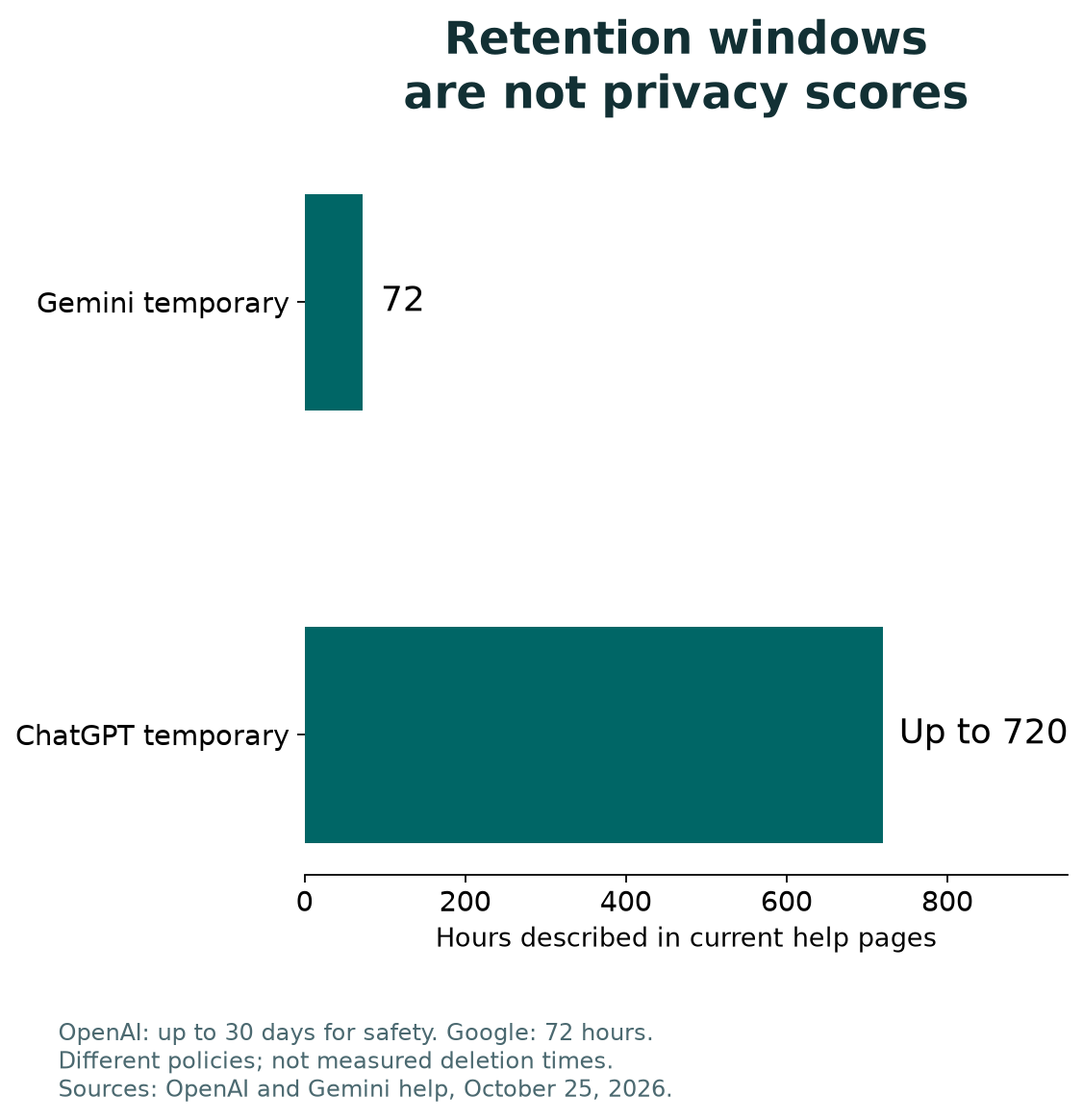
For scale only, 72 hours equals three days. Thirty days equals 720 hours. Those are unit conversions, not measured deletion times. The services have different rules. The chart does not give them an overall privacy score.
Ask what risk you want to reduce. If the concern is someone using your signed-in device, visible history matters. If the concern is an outside tool receiving a file, the recipient’s policy matters. If the concern is accuracy, retention settings are not the solution.
Do not put every privacy question into a single numeric ranking. A short time limit is only one factor. Check who can access the account. Think about data sent elsewhere and details in your prompt.
The strongest habit works before either timer begins: send less private material. That is a choice you can make without waiting for a deletion window or a new product setting.
Check Files and Outside Tools as Separate Copies
OpenAI’s retention guide says Library files can exist separately from a conversation. Deleting a chat does not delete a file that remains in Library. Review saved files as well as chats when your aim is to remove stored material.
Also consider the destination of a tool action. OpenAI says a GPT’s action can send data to a third party under that party’s privacy policy. The recipient may retain it beyond the temporary-chat window.
A useful question is: “Which copies exist now?” Count each copy. You may have the source file, an upload and a saved Library item. You may also export the answer. The temporary label describes the conversation mode, not every copy in that chain.
Make a small map for tasks that use documents. Write the starting location, the service used and the destination of the output. That exercise often exposes a copy you would otherwise forget.
For a simple rewrite, you can often avoid the chain altogether. Paste a short edited passage instead of a full file. Use fake names in examples. Keep the original private document in the place where you normally manage it.
Build a Prompt That Shares Only What Is Needed
Start with the smallest useful version of the task. Ask whether each detail changes the answer. If it does not, remove it before sending the message.
For example, a spreadsheet question may need column names and a few sample rows. Use made-up values when they preserve the structure of the problem. A formula does not need real employee salaries merely to show how a range works.
A software error may need the error text, the app version and the action that failed. Remove access tokens and private file paths. Keep enough surrounding context that the error still makes sense.
A writing task may need audience, tone and the exact sentence. It may not need the full conversation that led to it. Write a brief summary in your own words. Ask the model to keep your meaning.
After editing the prompt, read it once as if it were a public example. That does not make the service public. It is a practical check for details you may have included out of habit rather than need.
Troubleshoot a Missing Temporary Chat Option
Check the account and app surface first. For Gemini, check Google’s account and app limits. They can explain a missing mode. For ChatGPT, read the current help page. Then check the options in your account.
Then start a new conversation. An old regular chat does not change mode on its own. Finding Temporary elsewhere does not convert it. Confirm the mode indicator before you send the next message.
If the interface differs from an old guide, record the date and device. Use the current product wording to find the right help page. Be wary of an extension that needs broad access to add one button.
For a managed account, ask the administrator which workflow is allowed. A personal temporary chat is not a workaround for an organization’s rules on where work files may go. Choose the approved account before sharing the file.
If you need help, describe what you see without publishing private chat contents. The account type, app version and missing control are often enough to explain the problem. A screenshot can hide the conversation area and account details.
Choose the Right Mode for Three Common Tasks
For a one-off wording question, try a short temporary conversation with names removed. Keep the final sentence in the document where you need it. There may be no reason to save the discussion.
For an ongoing study plan, decide whether saved history is useful. If it is, inspect training and personalization controls separately. Keep your lesson notes in order. Use them to judge progress. Do not rely on a vague memory of past replies.
For a work document, begin with the approved workspace and data policy. Ask whether a redacted passage can answer the question. Use a fictional sample if the task is about format rather than the real content.
These are editorial examples, not findings from a user survey. Their purpose is to connect a task to a suitable workflow. Your choice should follow the information involved and what you need to retain.
Did You Know?
Turning off training does not delete saved chat history. OpenAI’s Data Controls guide treats those as separate choices. First decide what you want. Do you want to remove the chat? Or keep it and change its model-training settings?
Conclusion
ChatGPT Temporary Chat can keep a one-off chat out of normal history. Check its context choices first. Compare Gemini’s account limits and retention rules on their own terms. Do not treat either mode as a complete privacy guarantee.
Name the task before you send your next prompt. Choose the account. Remove details the answer does not need. Then decide whether to save the useful result. That simple sequence gives you more control than relying on the word “temporary” alone.
FAQs
Does ChatGPT Temporary Chat always ignore my memories?
No. OpenAI says personalized temporary chats can use saved memory. They can also use custom instructions and plugins. Choose the unpersonalized option before the first message if you want those excluded. Temporary chats do not create or update memories in that mode. Account rules still apply.
Can I recover a temporary conversation from history?
An unsaved ChatGPT temporary chat does not appear in history. OpenAI now provides a way to save it as a regular chat. Decide before leaving whether you need to keep the conversation or just its result. Google’s guide says leaving a Gemini temporary chat ends your access to it.
Is Temporary Chat the same as turning training off?
No. Training controls affect whether eligible new conversations help improve models. Temporary mode also changes history and memory use. Want to save a chat but exclude it from training? Check Data Controls. Temporary Chat is not your only choice.
Can I use Gemini Temporary Chat with a school account?
Google’s current guide restricts the mode to personal Google Accounts. It does not offer it for work or school accounts. Check the account shown in the app and your institution’s policy. Do not move school files into a personal account just to obtain a different chat mode.
Should I paste passwords into a temporary conversation?
No. A temporary setting does not create a need to share a password. Describe the problem without the secret. For troubleshooting, use the service name, error message and steps that failed. Check screenshots and logs before you send them. Remove tokens, recovery codes and private sign-in details.
