

Update the right TV with the right file
Start with the full model code and installed version. Use the online menu first, or follow the exact model's USB instructions. Leave power connected during installation, then check the version and the original fault.
Key Takeaways
A Samsung TV software update starts with the exact model, not a firmware file that looks close.
- Use the TV’s update menu first when its internet connection works.
- If the option looks grey, leave the app. Try the TV source.
- For USB updates, match the full model code and follow the file’s own instructions.
- Leave the power and USB drive alone during installation. Check the result after the TV restarts.
A Samsung TV software update can fix bugs and bring changes to a supported set. Start in the TV’s settings, then use Samsung’s model-specific download page if you need a USB update. Do not install a file meant for another TV.
The hard part is often knowing which step has failed. An unavailable menu, a missing file and an app that still crashes are different problems. Treating them as one fault can lead to needless resets or the wrong download.
This guide uses Samsung’s US and India support pages, checked on October 26, 2026. Menus vary by model and software version. It does not identify one firmware version as the latest for every Samsung TV. A specific security fix needs a notice for that model. This guide makes no such claim.
Check the Model Before a Samsung TV Software Update
Find the full model code in the TV’s support information. Samsung’s guides use About TV or About This TV under Support. You can also check the label or product records when the menu is unavailable. Keep the full code, including its suffix, for the download search.
The model code and serial number do different jobs. Use the model code to find the right product page. Keep the serial number private unless Samsung’s official support process needs it. A public forum does not need a clear photo of every label on your TV.
Write down the software version shown on the set too. This gives you a before-and-after check. It also helps you explain a problem without guessing whether the installation finished.
Do not choose firmware from the screen size alone. Two sets can share a size and look alike while using different software. A retailer’s short name may also omit details that matter on the support page.
Use the Samsung support site for the market where the set belongs. A US model and an India model may have different product pages. An imported television needs care here. Use its full model details. Do not swap firmware regions to match where you now live.
Before you continue, make this short record:
- Full model code from the television or its records.
- Installed software version, if the menu shows it.
- Country or market of the matching Samsung support page.
- Exact symptom, such as a grey menu or an update-file error.
Choose Online or USB Without Guesswork
Samsung supports updates over a network and through a USB drive. An online update is the simpler starting point when the TV can connect. USB helps when the TV cannot download the file itself. Check what its support page offers.
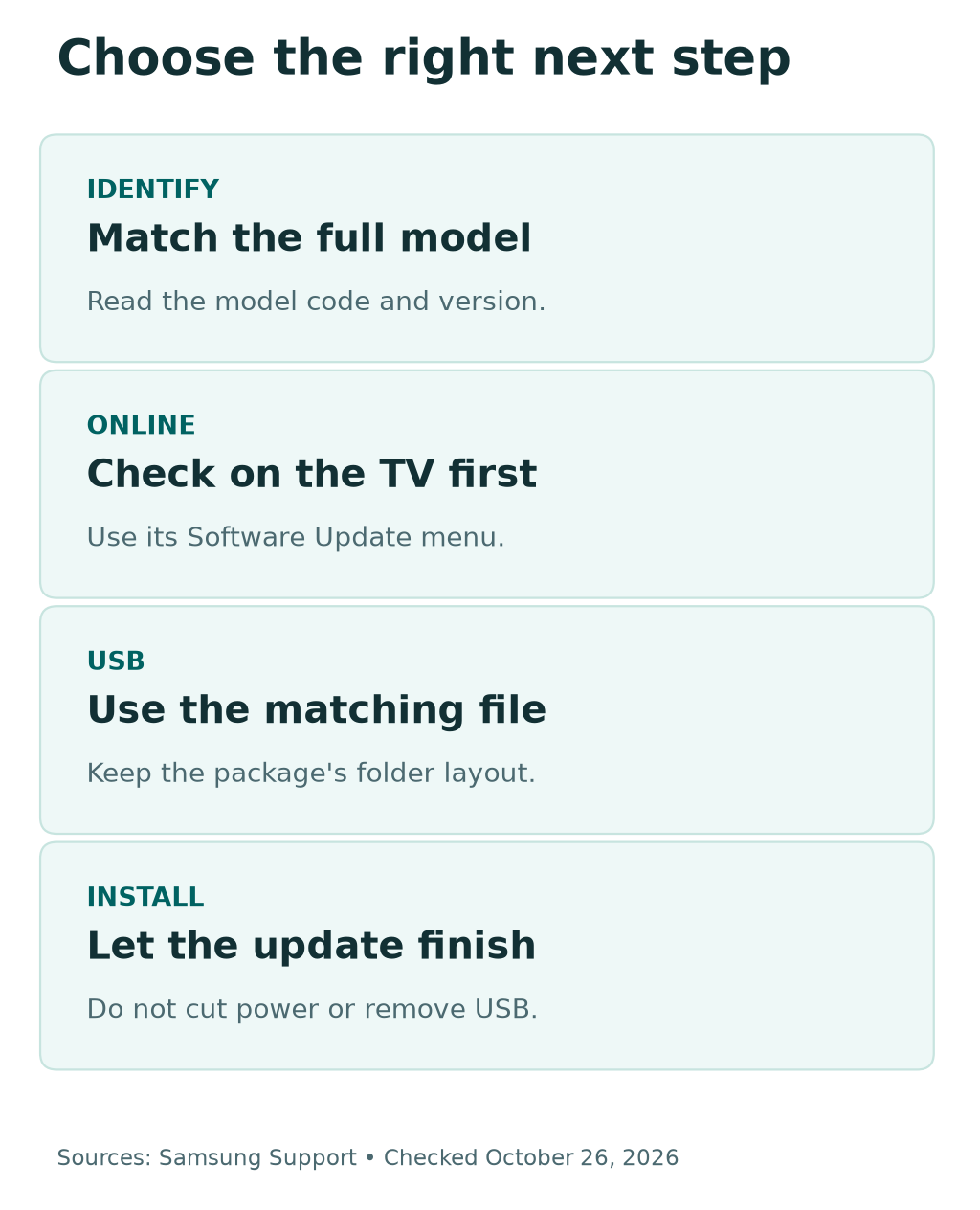
Both routes have the same goal. Install the right software for the exact TV. USB is not an upgrade to a different product family. It is also not a way to make an unsupported package safe.
| Situation | Start here | Check before moving on |
|---|---|---|
| TV is online and the update menu works | Use Update Now | Read the result and let installation finish |
| Update menu looks grey inside an app | Leave the app and use the TV source | Try the menu again outside streaming playback |
| TV has no reliable network connection | Review the matching Samsung download page | Confirm model, file and USB instructions |
| TV cannot find the USB file | Recheck the package and folder layout | Do not rename files or try another model |
| Firmware is current but one app fails | Follow app-specific troubleshooting | An app fault may remain after firmware updates |
Make one change at a time. Change the network first, if needed, then test. Replacing the USB and resetting an app at the same time hides the cause. A clear sequence makes the result easier to trust.
Run a Samsung TV Software Update Online
On many current sets, open Settings, then All Settings, Support and Software Update. Choose Update Now. Follow the screen’s instructions. Use the model’s manual if your TV presents the path differently.
Samsung says a detected update can begin installing from that check. Choose a time when the television can stay powered and unused. Do not start the process as someone is about to switch off the outlet or unplug the entertainment unit.
Before starting, note any picture or sound settings you care about. Samsung warns that an update may return those settings to defaults. A short note can help you restore your preferences after the installation, if needed.
A sensible order is:
- Confirm the TV has a working network connection.
- Open the model’s Software Update menu.
- Choose Update Now and read the response.
- Leave the TV powered while the update runs.
- Let it restart, then review its software information.
The screen may change during the update. Do not keep pressing the remote’s power button. Samsung says the set can restart as part of the process. Wait for it to complete the on-screen sequence.
There is no useful universal promise that every update takes the same number of minutes. Package size, model and connection can differ. Follow the current screen and the model’s guide. An unrelated video cannot set a deadline for your TV.
If no update appears, record that result. It means the check did not offer a package at that time. It does not prove that every app or network problem has gone away. The next step depends on the problem you were trying to solve.
Fix a Greyed-Out Software Update Menu
An app may leave the update option grey. Samsung’s US guide describes this background-app problem. It advises switching to the TV source or using Samsung TV Plus. Leave the app, then open the update menu again.
That is a narrow, useful first check. It does not call for a factory reset. A dim option inside one app does not end update support. Check the normal TV source first.
Read the screen before you choose the next step. Is the menu present but dim? Does it open and return a connection message? Does it say no update is available? Those are three different states. Write down which one you see.
Older models may need time to finish starting. Samsung’s UK guide notes this delay. Then check the option again. Allow the set to finish starting before you decide the menu has failed.
If the option stays unavailable, use the model’s own manual or support page. A menu path from another year may not apply. Find the exact setting name on your set. Leave unrelated service options alone.
Do not enter hidden service menus to unlock updates. This guide does not need them. A normal setting may remain unavailable. Give Samsung the model and installed version. Describe the exact screen state too. That is a better support starting point than a list of speculative changes.
Prepare the Correct Samsung TV USB Update
For a USB update, open Samsung’s official support page for the full model code. Find its software downloads and read the package notes. Download the matching upgrade file and its instructions. Keep them together until the job is complete.
Check the product name and code again on the download page. A search result can lead to a similar set. Do not treat the first result as a match simply because the screen size or series number looks familiar.
Samsung’s US guide calls for an empty FAT32 USB drive. Prepare a drive that holds nothing you need. Formatting a drive erases its contents. Copy any valuable files elsewhere first. Follow any specific rule in the model’s guide.
The downloaded package may be compressed. Extract it as the instructions describe. Samsung’s guides place the extracted files or package folder at the top level of the drive. Do not add your own outer folder around that package.
For example, an extra folder named “TV update” can keep the TV from finding files inside it. That is a file-layout example, not a required folder name. Preserve the names that come from Samsung’s package.
Check the drive from the computer before removing it. Confirm that the extracted contents are there and that the copy finished. The original compressed download alone may not be what the TV expects to read.
If the support page has no file for your model, stop there and ask Samsung about that model. A package from another product is not a safe substitute. An unofficial download mirror is not proof that the file suits your TV.
Before you prepare the USB drive
Confirm the full model code and matching official package. Back up anything you need from the drive before formatting it. Preserve the extracted package names. Keep the files at the top level as Samsung instructs.
Install the USB Update and Leave It to Finish
Connect the prepared drive to the television’s suitable USB port. Open Software Update and use Update Now if the TV does not prompt you. Follow the on-screen confirmation for the matching update.
During installation, do not remove the drive, unplug the television or turn it off. Samsung warns that interruption can cause a firmware error. Keep this rule separate from normal troubleshooting advice to restart a TV.
Tell other people in the room that an update is running. A family member may see a dark screen and think the set needs help. A simple note prevents an accidental power change while you wait.
If the TV says it cannot find an update, read that message before changing anything. Compare the package with your recorded model and software version. Then review the extraction and top-level folder layout.
Samsung’s support guidance notes that an installed version can already be current. A missing USB update is not proof that a newer file must exist somewhere else. Check the exact model page and its instructions before you download again.
If the same file still fails, keep the details for support. Record the message, model, installed version and package name. Do not keep trying packages from neighboring model numbers. That adds risk without answering why the TV could not find the correct file.
Check What Changed After the Restart
After the TV completes its restart, return to its software information. Read the version on screen. Compare it with your note and the package you chose. This is a clearer check than assuming a changed loading screen proves success.
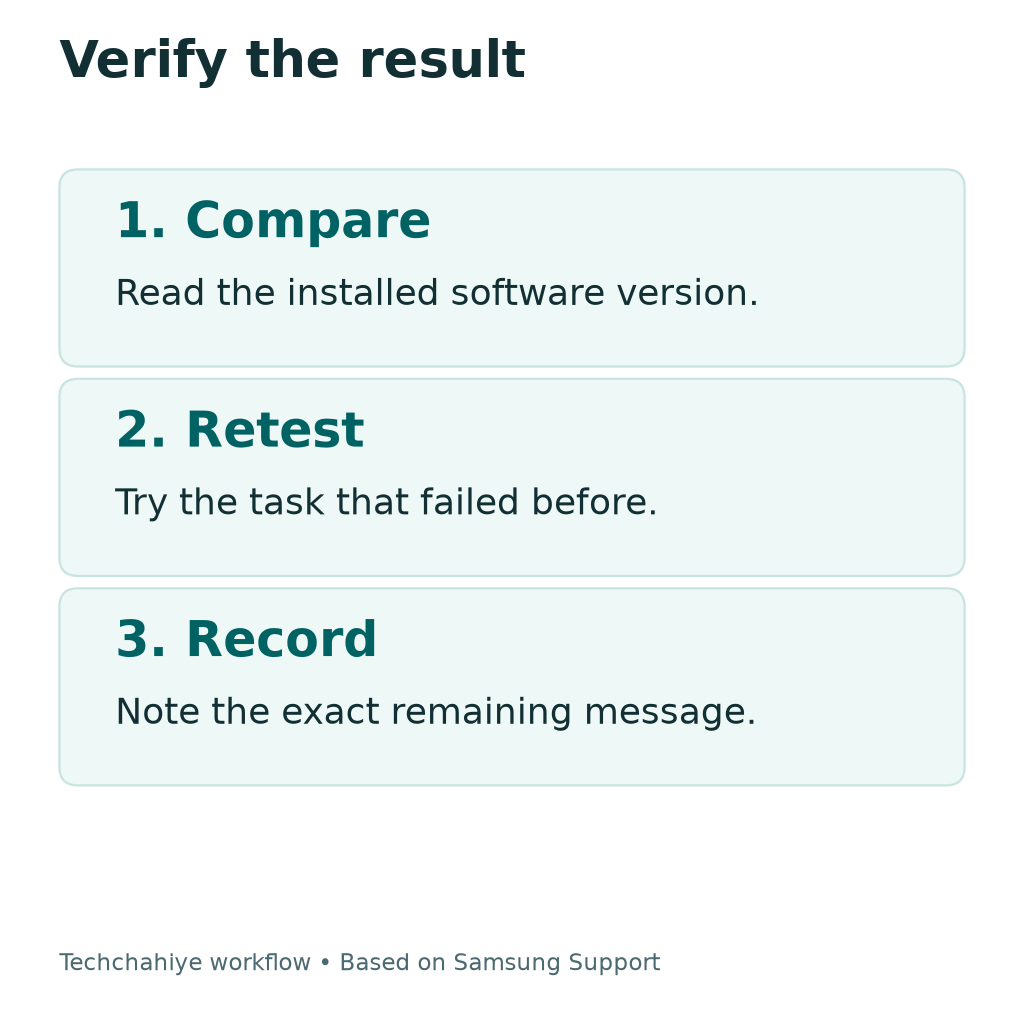
Next, test the specific task that led you to update. If an app froze at launch, open that app. If a setting failed, review that setting. Keep the test small enough that you can describe the result.
Review picture and sound preferences if they look different. Samsung warns that these may reset. Restore your chosen settings only after the installation has finished. Do not interrupt an update to change how the screen looks.
Here is a made-up support note: “The update finished and the TV restarted. The version now matches the package. The video app still stops on its sign-in screen.” This gives useful facts without claiming that the firmware failed.
Another useful note is: “The version did not change, and the TV said the installed software was current.” That may be a normal outcome. It differs from a process that stopped with an error message.
Keep the result with the model code. You do not need a long log. Keep the last version and update date for support later. Avoid posting a serial number or account details in public screenshots.
When a Streaming App Still Does Not Work
A firmware update and an app fix are related tasks, but one does not guarantee the other. Samsung’s app guide starts with a cold boot and software checks. Later steps include an app reinstall and a Smart Hub reset.
Use that sequence only after an update has fully ended. Never unplug a television in the middle of firmware installation to try a cold boot. The timing changes the meaning and risk of that advice.
First, confirm whether the fault affects one app or several. Try a separate task that normally works. Note whether the app fails before sign-in, during playback or when opening a certain title. That detail helps separate an app issue from a wider connection problem.
Check the provider’s own support information too. A service outage or account problem may not respond to another TV update. Keep your login details private and use the provider’s normal sign-in process.
Read the model’s guide before deleting an app or resetting Smart Hub. Check what you will need to set up again. Those are later steps, not a required part of every firmware update. Do not reset the whole television merely because one video failed to load once.
If the problem remains, give support the result of each stage. A clear note can say which app fails, which version the TV uses and whether a cold boot changed anything. That is more useful than “I tried everything.”
Set a Sensible Auto Update Routine
Samsung offers Auto Update in the software menu on supported sets. Review its state and choose it if you want the TV to receive updates through its network connection. The exact behavior and menu depend on the model.
An enabled switch is not a record of the last successful installation. When a problem calls for a version check, open the software information and read it. Keep automatic maintenance and a specific troubleshooting result separate.
If you unplug the television for a long period, review its software when it returns to use. The same applies to a set you have moved to another room or network. Check the connection before assuming an automatic process already completed.
For a shared household, choose a quiet time for manual checks. Keep the remote and outlet controls alone during installation. Once the update ends, test the main viewing task and let everyone know the TV is ready.
Did You Know?
A Samsung TV software update option can look dim. A streaming app in the background may be the cause. Samsung advises leaving that app and switching to the TV source. Check that simple state before considering a reset.
Conclusion
Start a Samsung TV software update with the full model code and installed version. Use the online check when it works. If you need USB, match the official package and preserve its file layout.
Let the installation finish before you troubleshoot anything else. Then confirm the version and retest the original problem. Record one clear result. Is it updated or already current? Did the file fail to appear? Does the app still fail?
FAQs
How do I start a Samsung TV software update?
On many sets, open Settings and All Settings. Choose Support, then Software Update. Select Update Now. Menus differ by model. Use the television’s manual when your screen shows a different path.
Why is Samsung TV Software Update greyed out?
Samsung says a streaming app running in the background can cause this. Leave the app and switch to the TV source, then try again. If it remains unavailable, check the model’s instructions and the exact screen state.
Can I update a Samsung TV with a USB drive?
Yes, when Samsung provides a suitable package for that model. Use the full model code on the official support page. Prepare the drive and extract the files exactly as the package instructions describe.
Is there one latest Samsung TV software version?
No single version applies to every television. Check the full model’s support page and installed version. Do not use another model’s package because its version number looks newer.
Should I unplug the TV if an update takes time?
Do not interrupt an active installation. Samsung warns against cutting power or removing the USB drive during an update. Follow the on-screen steps. Contact official support if an error remains unresolved.
References
- Samsung US — Smart TV software update guide
- Samsung India — Update the firmware or software on a TV
- Samsung India — Update TV firmware with a USB drive
- Samsung UK — Update software on a Samsung Smart TV
- Samsung US — Troubleshoot an app that will not work
- Samsung US — Download Center
- Techchahiye — Apps and productivity guide
