

Read the number before setting a limit
Open Digital Wellbeing. Check the date and each app's time. Keep minutes, opens, alerts and battery use separate. Choose a timer, mode or alert rule that fits your question.
Key Takeaways
- To check screen time on Android, open Settings. Choose Digital Wellbeing and tap the usage chart.
- Treat time, app opens and alert counts as different measures. A count of alerts is not a count of minutes.
- Check the day and device before comparing totals. A partial day and a full day answer different questions.
- Choose a control for the problem you found. An app timer, Focus mode and notification settings serve different needs.
- Samsung’s weekly report and Google’s own controls can look different. Follow the labels on your model.
To check screen time on Android, start in Settings, open Digital Wellbeing, then tap the chart. Google’s Android Help describes this as a view of today’s device use. Tap an app in the list to read its details.
The total is only the start. Suppose your phone shows three hours. That could include work, directions and a film you chose to watch. The useful question is what you want to understand or change. Read the breakdown before you set a limit.
This guide covers Google’s documented route and Samsung’s separate report. Menu names depend on the phone and software. The worked examples are hypothetical. We did not measure these values on a device. They do not set a daily target or describe an average user.
Find the report without changing your settings
Open the phone’s Settings app. Look for Digital Wellbeing. Some phones use the longer label Digital Wellbeing and parental controls. Tap the usage chart. Choose the app you want to learn about.
You can inspect a report before changing a timer or a notification rule. Start with the screen that is already available. Read its date, total and app names. A picture from another phone can help explain the idea. The menus may look different from yours.
If you cannot find the item, use Settings search for Digital Wellbeing. Check your phone brand’s help for your model if the search has no useful result. Google’s guide covers some phones, and Samsung also warns that screens vary. Do not assume every Android phone has every control described here.
Write down the question you want the report to answer. You may want to know where an evening went. You may keep checking the phone during a task. A clear question helps you choose the right number. The open count may answer that better than the time total.
Tell minutes, app opens and alerts apart
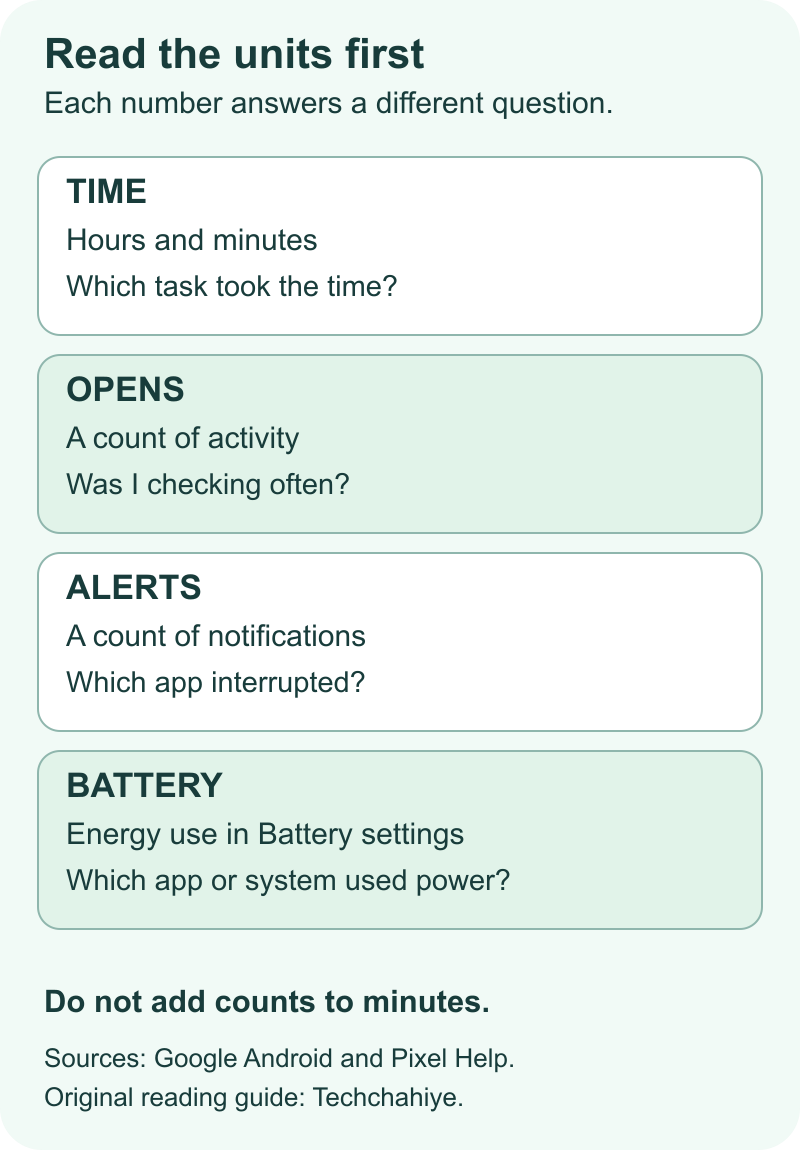
Google’s usage guide shows app time on screen. It also lists app opens, phone unlocks and received alerts. Keep the units beside each value. Hours and minutes describe duration. Opens and notifications are counts. Read each measure in its own unit.
| Measure | What to read | A useful question |
|---|---|---|
| Screen time | Time apps spent on screen | Which task took the time? |
| Opens and unlocks | The number shown for each | Was I checking often? |
| Notifications | Alerts received from apps | Which app kept interrupting? |
| Battery use | Energy use in Battery settings | Which app or system used power? |
Consider two made-up results. A reader app shows 50 minutes. A chat app shows 12 minutes and many opens. The reading session used more screen time. The chat app may still be the one to review if you want to check the phone less often. Name that concern before choosing a rule.
Do not add 40 notifications to 50 minutes and call the result 90 minutes. That combines unlike units. Nor does a notification count tell you whether every alert led to a reply. The report gives clues to review. It is not a diary that explains every choice you made.
Check the day before comparing totals
Read the date or period shown on the report. A number collected by lunchtime is a partial-day result. Yesterday’s final total covers a full day. Label the two clearly if you write them down.
Here is a made-up example. Today’s value is 90 minutes at noon. Yesterday’s full-day value was 180 minutes. You can say the displayed total so far is half of yesterday’s total. That does not mean today’s final total will fall by half. The rest of today has not happened yet.
Use similar days to compare your routine. A travel day with maps is different from a quiet day at home. A long video call can also change the app mix. Keep a brief note about those tasks instead of judging the number without its context.
A short log can hold the date, the time you checked, the displayed total and one relevant task. There is no need to record private messages or every page title. Keep only the detail you need to understand the pattern. That makes a later comparison easier to assess.
Read Samsung’s weekly screen-time report
Samsung’s US guide starts in Settings. Open Digital Wellbeing, then the Weekly report icon. It describes that icon as four vertical lines. The report shows daily average screen time and the apps used most during the week. You do not need to set a goal first to view it.
Check which week is on screen before reading the average. An average summarizes several days. It does not mean each day had that exact total. Look at the daily entries when you want to understand one day.
Samsung also documents a Screen time goal tracker. That goal is a value you choose. The recorded use is an observation. Keep those roles clear when you read the page. Setting a goal does not, by itself, show that your actual use has changed.
For a Galaxy phone, use Samsung’s current help when a control has moved. Its guide notes that some options now sit under Modes and Routines. Avoid following an old screenshot through menus that your phone no longer shows. A missing label can be a layout difference rather than a fault in the report.
Convert hours and minutes before doing the math
A time written as 2 hours 30 minutes is 150 minutes. It is not 2.30 hours. Convert the hours to minutes first, then add the remaining minutes. That helps you compare the times without a math mistake.
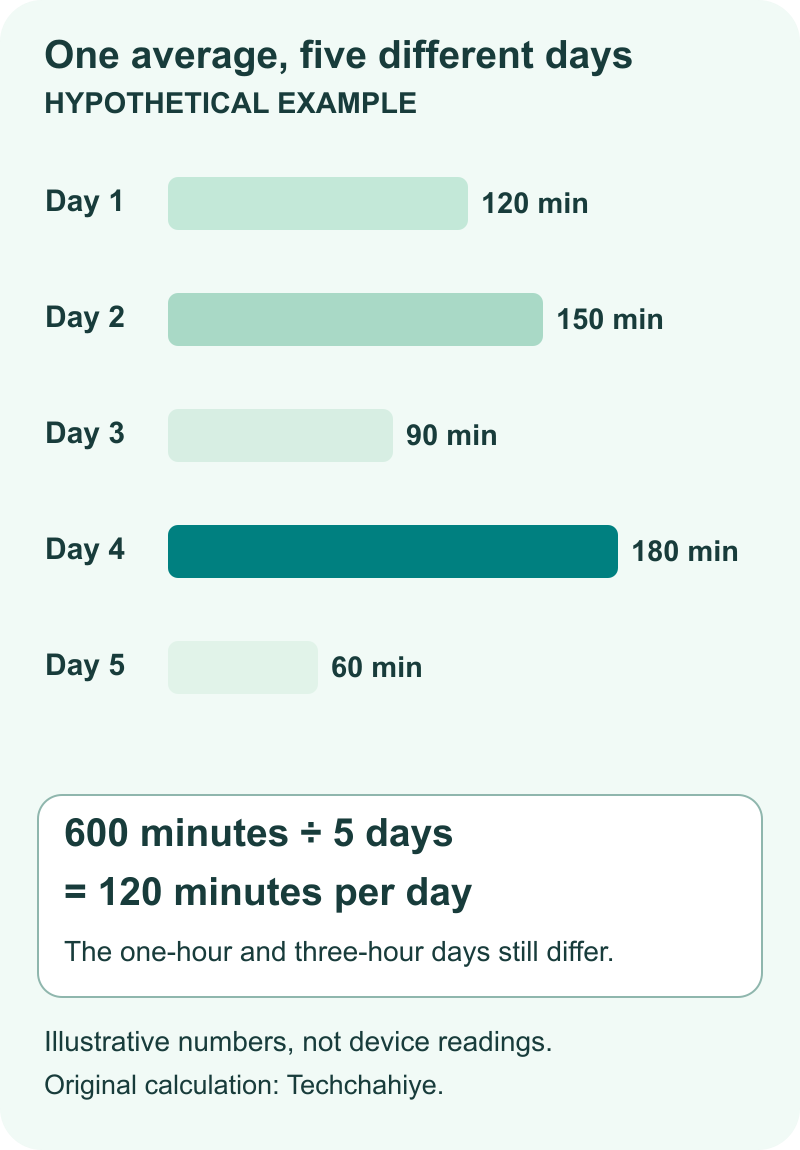
Here is a hypothetical five-day record: 120, 150, 90, 180 and 60 minutes. The total is 600 minutes. Divide that total by five days and the daily average is 120 minutes, or two hours. These numbers illustrate the calculation. They do not describe actual Android users.
That two-hour average hides a range from one hour to three hours. If your question concerns the longest day, the average alone will not answer it. Read the app list for that day, along with your own notes. Then ask what task made it different from the others.
Also keep the denominator clear. For an average of five recorded days, divide the total by five. Do not divide by seven merely because a week has seven days. First check what period and data the screen includes. Write the period beside the number. Do not guess what to enter for a missing day.
Review one app with its purpose in mind
Open the app detail that relates to your question. Read its time value and the selected day. Then ask what you were doing in that app. You may work, read or watch a film in a browser. The app name alone does not tell you which task took that time.
Use a simple note such as “course reading” or “trip planning” when that context matters. Keep the note separate from the phone’s measured value. That distinction lets you tell an observation from your explanation of it. You can revise the explanation without changing what the report displayed.
Does an app name look strange? Check its app information to find out what it is first. Do not label an unknown entry as harmful solely because it has a high number. A usage chart is not a security verdict. Ask the phone maker or the app’s support team when the identity remains unclear.
Choose one result worth following up. A full list of every app can make a review harder to finish. For example, start with the app you keep checking during a task. Read the other values for context. Then decide whether a small change would help with this task.
Separate browser use from individual websites
Google describes a website view for Chrome. Open the Digital Wellbeing chart, choose Chrome and look for Show sites. It also describes a separate site timer. Check what your phone offers. Not every browser has the same report.
A browser’s total and a site’s total have different scopes. A large Chrome entry does not tell you that one website took every minute. Read the site breakdown when it is available, then decide which part of browsing you meant to review.
Take care when sharing this view. Site names can reveal private tasks. A support question may need the phone model, date and affected control. It rarely needs an unedited picture of every website in the list. Review a screenshot before sending it to a public forum.
Our Chrome Memory Saver guide is in References. It covers memory used by desktop tabs. This Android report concerns time. Removing a bookmark or changing a desktop memory mode is not a way to explain a phone’s daily usage total. Pick the guide that matches the problem you actually found.
Choose between an app timer and Focus mode
Google says an app timer closes the selected app and dims its icon when time runs out. The daily app timer resets at midnight. Samsung’s timer setup uses its own app and schedule controls. Follow the steps for your device. Keep the two versions separate.
An app timer lets you choose how long to use an app. For example, choose a game limit that fits the break you planned. Decide how you will handle a necessary task in that app before the limit arrives. A timer should support your plan rather than surprise you halfway through it.
Google’s Play listing explains Focus mode. It pauses chosen apps and can work on a schedule. That fits a different question: which apps should stay out of the way during a particular task? You may want a quiet work block even when your total daily use is modest.
Do one small change first, then inspect the result in a similar part of your routine. Note what you changed and why. If you alter timers, alerts and several modes at once, a later difference will be harder to explain. A single before-and-after pair is still an observation, not proof of a lasting result.
Treat notification settings as a separate choice
A high alert count is a reason to review notifications. The time spent in the app may be a separate issue. Google’s Pixel guide describes notification filters for people, apps, alarms and other interruptions. Read those choices before enabling a mode that may affect an alert you need.
Start with the source of the interruption. A routine store alert and a message from a person you are waiting to hear from have different roles. Choose the narrow control that fits the unwanted alert. Keep important contacts and scheduled reminders in mind as you review the options.
After making a change, check the actual setting and the alerts you still need. Do not judge it only by whether the screen feels quiet. A setting can achieve silence while also being too broad for your day. Google says to check Modes if a call or alarm fails to sound when you need it.
This is also separate from Bedtime or Sleep mode. Google’s app listing describes Bedtime’s schedule and display changes. Samsung places Sleep mode under Modes and Routines. Those controls change how the phone behaves at chosen times. Use the app time report to see which apps you spent time in.
Keep battery figures separate from screen time
Google’s Pixel battery guide places energy details under Battery usage. It describes a battery-level chart since the last full charge, along with app and system views. The battery report has a different purpose. Its time window can differ from today’s Digital Wellbeing report too.
Read the label on each screen before comparing them. A value about power use is not a duration. A screen-time total also does not tell you which background task used energy. Start in the battery report when power use is the problem. A time chart alone cannot explain it.
Imagine a made-up example. You spent the evening in a reading app. You need to check a different app in Battery settings. That example shows why two questions need two checks. It does not claim a measured power pattern for a particular app or phone.
Our Samsung Battery Protection guide explains charging limits and modes. That guide answers a question about charging. Use it when your concern is where charging stops. Use the screen-time report to see how long you used apps on screen that day. Find those related guides in References.
Turn the report into one useful change
Decide when to check the report based on the period you want to review. If you want to compare finished days, make sure each selected day is complete. Keep the same units in your notes. Did a task change your usual day? Add a short note about it.
Then write a specific next step. “Review the chat app’s alerts” is easier to act on than “use the phone less.” “Check the game timer for the evening” names a control and a task. You can return to those choices later and see whether they still fit your needs.
Keep the goal personal and concrete. A chart alone cannot tell you whether a work call, reading session or message was worthwhile. Use the breakdown to inform your decision. Avoid turning someone else’s total into a universal target for your phone.
For a child’s managed device, use Google’s Family Link guide. Your own dashboard does not show what the whole family used on their phones. Google documents daily limits for supported child devices. Confirm the child and device in that workflow. Do not assume your phone’s timer controls have set a rule on somebody else’s device.
Did You Know?
Google documents a screen-time widget that shows the top three apps used each day. Its widget instructions cover Android 9 and later. Where available, it can make a quick check easier. Open the full report when you need the date, wider app list or context behind a headline number.
Conclusion
Check screen time on Android through Settings and Digital Wellbeing. Read the chart’s date and app details next. Keep minutes, opening counts, alerts and battery figures separate. On a Galaxy device, Samsung’s weekly report can add another view of the pattern.
Choose one clear next step from what you found. That might be an app timer, a focused work block or a narrower notification rule. Record the change, review a comparable period and keep the result in context. A useful report helps answer your question about the day.
FAQs
Does a phone’s app timer also limit the service on my laptop?
Google’s guide shows how to set a timer for a chosen phone app. Do not assume that this creates a rule for its website on a laptop. Review the controls on that other device or service when that is your goal. Keep a phone setting separate from an account-wide claim.
Can a screen-time report prove who used a shared phone?
A list of app activity does not, on its own, identify the person holding the phone. Keep the device record and a claim about a person’s behavior separate. If several people use the device, add that context when reading the totals. Avoid presenting the chart as proof of identity.
Should I reset the phone if a total seems wrong?
First note the exact day, phone model and software version. Save a specific example of the value you question. Then check the current help for your phone. Do not reset the phone to make a chart match a guess. Keep the existing evidence while you ask for support.
What if app timers do not work with a work or school account?
Google warns that some work and school accounts may not work with app timers. Check which account and device rules apply. Ask the organization’s support team about a missing control. Do not remove management or change security rules as a way to force a timer to work.
Does Family Link give one shared daily limit across all child devices?
Google says a daily limit applies to each Android device or Chromebook the child uses. Its example gives two hours on each device when the daily limit is two hours. Keep that separate from other Family Link app rules. Check which device the rule covers. Read the type of limit too.
References
- Google Android Help — Manage time with Digital Wellbeing
- Samsung US — Digital Wellbeing features on Galaxy phones and tablets
- Google Play — Digital Wellbeing, published by Google LLC
- Google Pixel Help — Modes and Do Not Disturb
- Google Pixel Help — Check battery level and battery use
- Google For Families — Manage a child’s screen time
- Techchahiye — Chrome Memory Saver
- Techchahiye — Samsung Battery Protection
- Google — official company logo reference
