

Return to a specific driver, then test it
Record the symptom and installed version. Review Device Manager, NVIDIA App or a compatible official package. Restart as required, check the active version and test the same workload.
Key Takeaways
- Start an NVIDIA driver rollback with a clear symptom and the current driver version. Keep the last known working version if you know it.
- Windows Device Manager can restore a retained previous driver. A missing rollback option means you cannot use that route.
- NVIDIA App has its own previous-driver route. Check the listed version before choosing Reinstall.
- Use NVIDIA or the PC maker for a manual download. Verify the hardware, Windows version and result after restarting.
An NVIDIA driver rollback can help when a graphics problem starts after a driver change. First, record the symptom and installed version. Then choose the route that offers the correct previous driver. Afterward, repeat the task that failed.
Rolling back is a targeted change, not a general speed boost. A game crash, display flicker and missing display can have different causes. The timing of an update makes a driver worth checking, but it does not prove the driver caused every problem.
This guide uses current Microsoft Windows and NVIDIA guidance. We checked it on October 27, 2026. It focuses on a PC you can still use. If the screen stays blank, use the matching recovery help. Do the same if Windows cannot start. These steps need a working desktop.
Decide Whether a Driver Rollback Fits the Symptom
First, identify what changed and when. Did the problem begin after a graphics driver install? Did a game, Windows update, display cable or display setting also change? Keep those events separate in a short note.
Then describe a repeatable failure. For example, a fictional reader sees one game close after reaching its menu. Another sees a display lose its image after waking. Those are specific tests you can repeat after a driver change.
Do not use a broad feeling that the PC is slower as the only test. Choose a task, settings and result you can compare. If you measure frame rate, keep the game scene and graphics settings consistent too.
A rollback is most useful as one controlled change. Changing game settings and a cable adds more variables. You may fix the problem without knowing which step mattered. That makes future decisions harder.
Finally, check whether the task works elsewhere on the same PC. If only one app fails, review its official help and release notes too. A driver may still matter, but the scope of the symptom helps you choose the next check.
Record the Current NVIDIA Driver Version
Microsoft’s Device Manager provides a Driver tab for the selected device. Use it to record the current driver version and provider. Confirm that you opened the NVIDIA display adapter, especially on a laptop with more than one GPU.
NVIDIA also describes a version view in NVIDIA Control Panel. Open Help, then System Information. Record the driver version from that view if you use it, and note where the value came from.
Keep the before-and-after values from the same tool when practical. A Windows driver field and a vendor’s shorter version format can look different. Do not decide that a rollback failed merely because two formats do not look identical.
A screenshot can help, but check what else it reveals before posting it publicly. You need the adapter and driver details for the task. You do not need to expose account names or unrelated device information.
If you know the last version that worked, record how you know. Use a saved installer or prior note as evidence. An unrelated forum post may name a different setup. Do not label a random old release as known-good for your PC.
Choose the Rollback Route Before Removing Anything
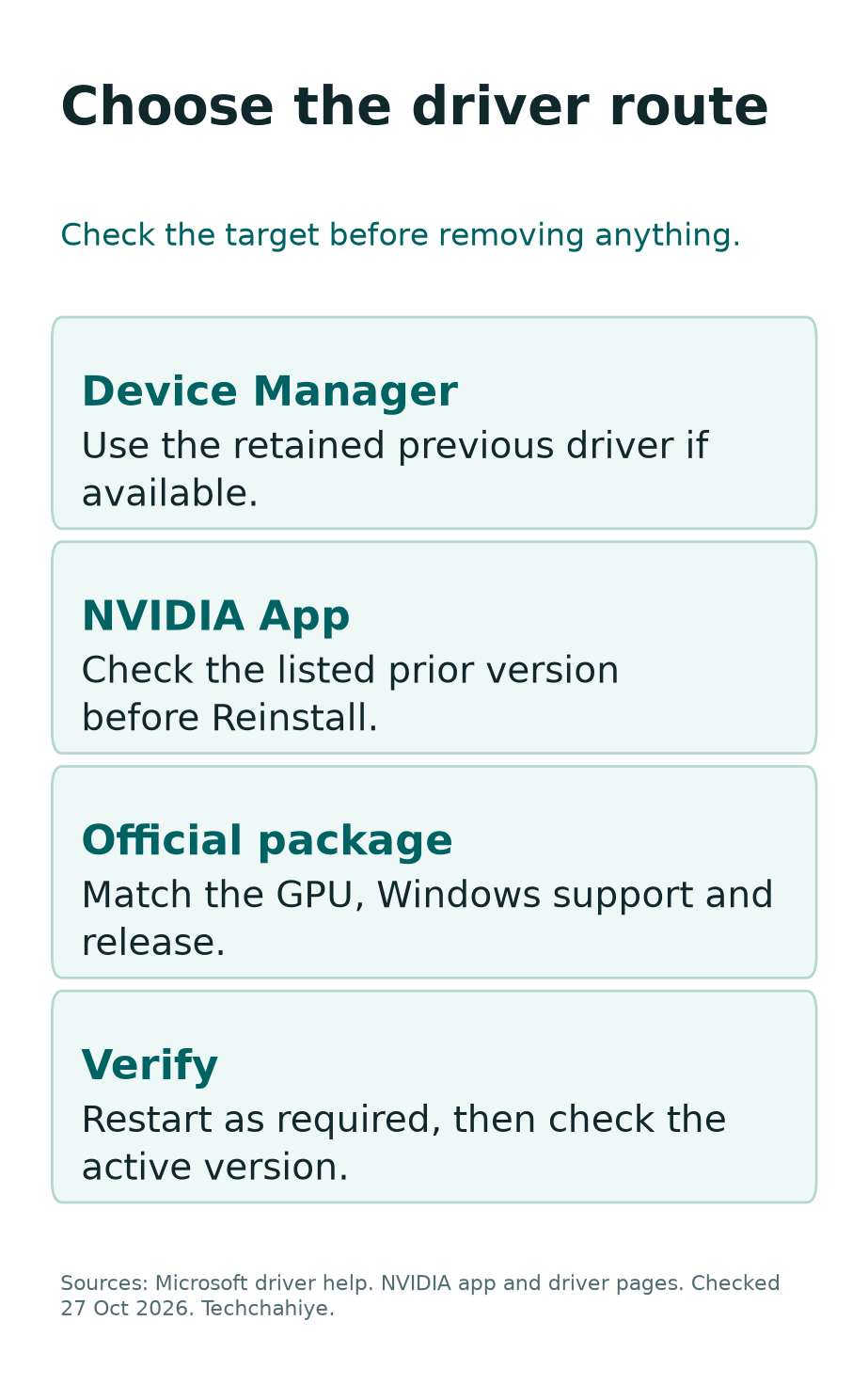
There are three practical routes to review. Device Manager uses the previous driver Windows retains. NVIDIA App can offer a driver installed through the app. A manual install uses a compatible package from an official source.
| Route | What to verify first | What the result should show |
|---|---|---|
| Device Manager | Correct adapter and available Roll Back Driver button | Previous driver installed, with any requested restart complete |
| NVIDIA App | Correct earlier installed version in Drivers | That listed version installed, not a different current package |
| Official manual package | GPU, Windows support and exact release | Intended compatible version installed and checked |
Do not uninstall the current package merely to look for rollback. Removing retained files can change what recovery options remain. First, read the available choices and decide which route fits the evidence.
Also, keep the PC’s purpose in view. A managed work laptop may need its support team’s package. A personal gaming desktop may use NVIDIA’s public driver route. Those situations can call for different sources.
If you cannot identify a compatible target driver, stop at the research step. The goal is a specific supported version, not simply an older date on a download page.
Roll Back Through Windows Device Manager
Save your work before changing a driver. Microsoft says rollback needs administrator permissions. On a managed PC, ask the administrator to handle the change. Keep the permission rule intact.
Open Device Manager from Start. Expand Display adapters. Right-click the NVIDIA adapter and choose Properties. Select the Driver tab, then Roll Back Driver if it is available.
Read the prompt, choose the reason that fits and confirm. Restart if Windows requests it. Leave time for that restart. Avoid starting another graphics-heavy task during the change.
Afterward, reopen the same adapter’s Driver tab. Record the version and check the device status. Then test the original symptom. Use the same conditions you recorded before the rollback.
If Windows reports an error, keep its exact text. Do not treat a button click as proof that the driver changed. The installed version, status and test result are the evidence that matters.
When Roll Back Driver Looks Gray
Microsoft explains the missing option: Windows has no previous driver for that route. Repeatedly reopening the same dialog does not create one.
First, confirm that you selected the intended display adapter. A laptop may list integrated graphics as well as NVIDIA hardware. Choosing the wrong entry can lead you to inspect the wrong driver’s history.
If the correct entry still lacks the option, review NVIDIA App or an official manual package. Those are separate routes with their own checks. Do not assume that a grayed-out button proves the GPU has failed.
Avoid random archives that promise to unlock rollback. Microsoft advises using the manufacturer’s official site. Check the PC maker too when the device has model-specific graphics support.
Keep your original driver record. If you need support, say that Device Manager lacks a previous-driver option. That is a useful observation. It is more precise than saying Windows refuses all older drivers.
Use NVIDIA App’s Previous-Driver Option
NVIDIA documents rollback in the app’s Drivers area. Its feature guide describes a earlier installed driver below the newest-driver details. The three-dot menu provides Reinstall for that entry.
Read the version attached to the entry before acting. Reinstall is a label, not proof that every entry points to the older driver you want. Confirm the target and compare it with your note.
Is the previous-driver entry absent? Installing the app now may not recreate every old package. NVIDIA describes a history-dependent feature. Review the available entry rather than promise a full archive inside the app.
Complete the chosen install and any requested restart. Then check the active version and repeat the failing task. Keep this verification separate from whether the app itself opens normally.
If the current app layout differs from the feature guide, use NVIDIA’s current app help. Do not follow an old GeForce Experience screenshot as if it must match today’s interface.
Download a Previous Driver From the Official Source
NVIDIA’s Advanced Driver Search provides product and operating-system filters. Use the exact GPU and Windows version. Match the product family as well as the familiar brand name.
Read the result page before downloading. Check Supported Products, release details and the operating-system listing. A package for a similar card or another system is not a safe substitute because its date looks right.
Then review the release notes for the task that matters to you. A previous version can differ in supported games, fixes and features. Older does not automatically mean more stable for every workload.
Keep the downloaded file and its source page together in your note. That note identifies the intended package later. You do not have to rely on a generic filename. Avoid renaming it into a misleading model or version.
Use the official installer instructions for that package. If it reports incompatible hardware or software, stop and check the match. Do not force installation by changing device files or disabling system protections.
Laptop Owners Should Check the PC Maker
NVIDIA says notebook makers provide certified drivers for their specific systems. It recommends checking the notebook maker’s software guidance. A laptop can have custom graphics behavior beyond the name of its NVIDIA GPU.
Start with the exact laptop model and the maker’s support page. Check the operating system and any relevant graphics notes. A desktop-card driver may not fit the laptop maker’s advice.
If you use a dock or external display, include that setup in your support note. Keep the cable, port and display arrangement steady while testing. Otherwise, a changed display path can confuse the driver comparison.
For a company laptop, let its support owner choose the source and version. They may need to preserve a validated setup. This is a reason to coordinate a change, not to remove their management tools.
Do NVIDIA and the maker offer different packages? Review the reason and intended support route. A newer version number does not settle that question alone. Ask the maker when its required package or feature is unclear.
Keep Game Ready and Studio Choices Deliberate
NVIDIA describes Game Ready and Studio drivers for different primary workflows. Its Advanced Search explains the categories. Read the relevant notes for your games or creative apps before switching branches.
Changing the branch and version together changes more than one variable. If your purpose is to test the last working version, keep the original branch in view. Record any deliberate change so the result stays understandable.
A creator with an export failure should test that export. A player with a game crash should test the game. A successful desktop login is not enough to show that the original workload works again.
Do not promise that one branch always produces higher frame rates or fewer errors. This guide has no hands-on benchmark for your hardware. Use the vendor’s support notes and your own repeatable task.
Does a work app name a certified driver? Check that need before choosing another package. That compatibility need may outweigh general gaming advice.
Test the Result After Restarting
First, confirm the installed driver version. Then check the original workload with the same settings and display setup. Record whether the failure returns, changes or disappears.
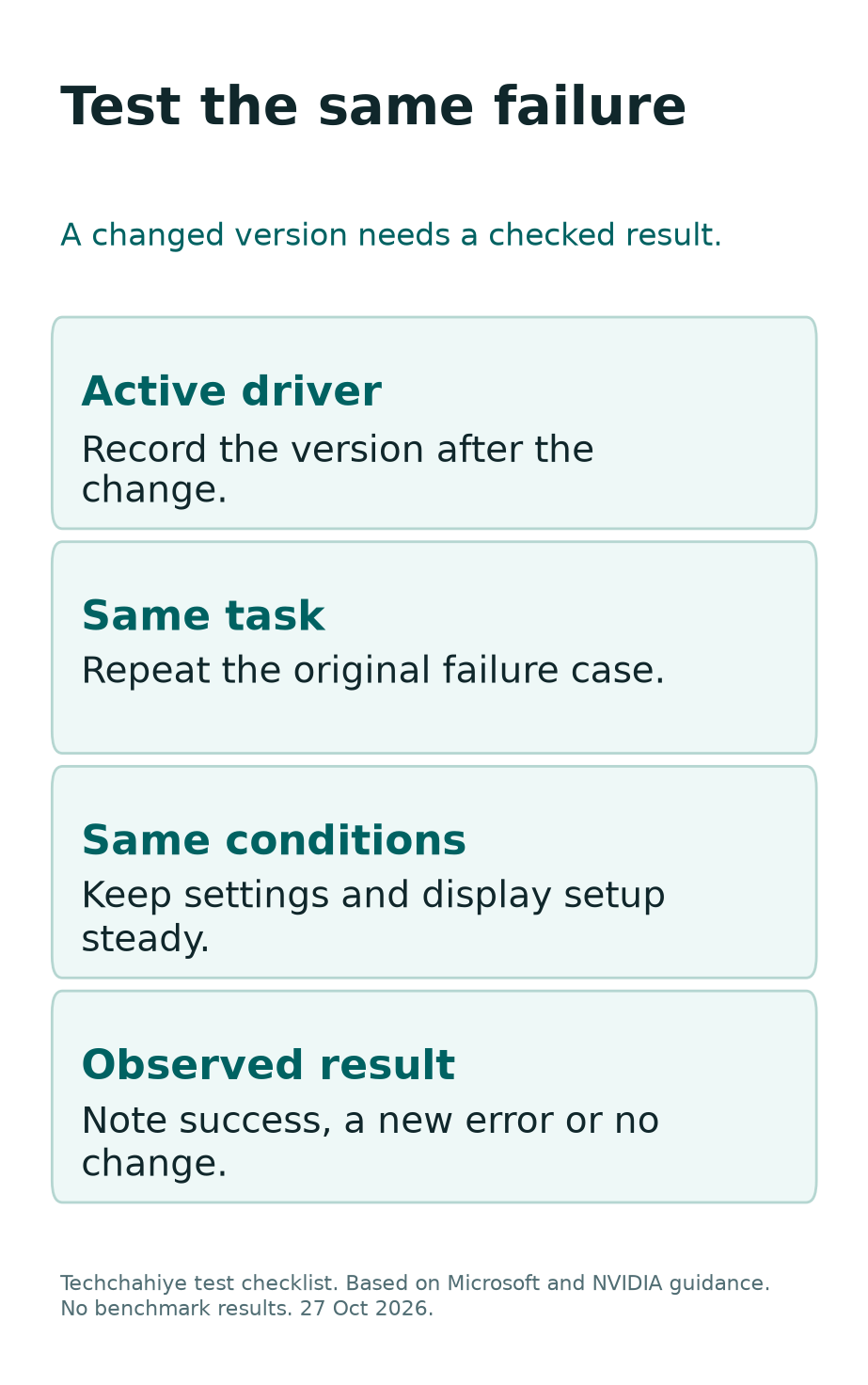
Use a small test plan rather than open every app at once. Start with the exact failure. Then check another ordinary task you rely on, such as playing a video or using the external display.
If you collect a frame-rate result, label the scene, resolution, settings and conditions. Do not turn one short run into a universal percentage gain. A crash-free session and a performance measurement answer different questions.
Also, check whether game or app settings changed during the install. If they did, note that limit in the comparison. You may have a useful result without a clean one-variable test.
Stop changing the driver once you have a clear working state. Keep the version and result so that a future update has a baseline. Repeatedly moving between releases without notes makes the next problem harder to trace.
If Windows Installs Another Driver Later
Microsoft explains that Windows Update can deliver driver updates. Does the active version change after your test? Verify the new value. The rollback may have worked before a later change.
Record the timeline: rollback completed, test result, later update and current version. That sequence is different from an installer that failed to change the driver in the first place.
Do not judge the package by its date alone. Microsoft says driver dates are provider-set information. Windows uses targeting data to select a suitable driver. An old-looking date alone does not prove a bad choice.
If a problem returns after a later change, give support the before-and-after versions. Include the original symptom and repeatable test. Use that evidence before considering a broad update-policy change.
On a managed device, ask its administrator about the intended driver policy. Keep security and management controls intact. A temporary compatibility investigation should not silently become a long-term unsupported configuration.
Do Not Confuse Driver Rollback With Windows Recovery
A display-driver rollback targets one device’s software. System Restore and Windows recovery affect a broader part of the system. Read the scope before choosing a tool with a similar-sounding name.
Microsoft’s recovery guide distinguishes several options and their effects. Some remove apps or settings, and some can remove files. Do not choose Reset this PC merely because a display-driver button is unavailable.
If Windows cannot start, use the blank-screen guidance. Use it for a screen that stays blank too. You may need a route that works outside the normal desktop. Do not assume the steps above remain visible in that state.
Before broader recovery, protect needed files and understand any needed recovery key. For an encrypted or managed device, use its proper support route. Keep the data question separate from the desire to restore a driver.
For a working desktop with one graphics symptom, begin with the narrow evidence. Escalate only when the smaller path does not fit or does not work. That keeps the scope of each change clear.
Did You Know?
A driver date is not a reliable ranking of which package Windows should choose. Microsoft says providers set that date and Windows uses targeting information. Compare the actual version, hardware match and result too.
Prepare a Support Note That Helps
Include the GPU, PC model, Windows version and current driver. Add the previous version if known and how you installed each. Describe the repeatable symptom and when it began.
Then list the route you tried and its actual result. Was rollback unavailable? Did the installer reject the package? Did the version change but the crash remain? Those are different next questions.
Keep logs and screenshots limited to what support needs. Remove private account details from public posts. Send private device or account records through the vendor’s official support route.
Finally, state which changes you have not tried. That boundary helps support understand the work so far. They should not have to assume a reinstall or hardware swap happened. Honest notes are more useful than an inflated list of attempted fixes.
A private driver support note
Record the PC model, GPU, Windows version and driver versions. Add the install route, exact failure and test result. Note any other changed setting. Omit private account details.
Conclusion
Start an NVIDIA driver rollback with a specific symptom and version record. Review Device Manager, NVIDIA App or an official compatible package. Choose one route, finish the restart and verify the active driver.
Then repeat the task that failed. Keep the result and any limits in the comparison. A supported working setup is the goal; an older number alone does not prove you solved the problem.
FAQs
Why is Roll Back Driver unavailable?
Microsoft says Windows lacks a previous driver for that route. Confirm the correct adapter, then review NVIDIA App or a compatible official package. The missing button alone does not establish a hardware fault.
Can NVIDIA App return to a previous driver?
NVIDIA documents that option in Drivers for a earlier installed version. Check the entry and its version before using Reinstall. An absent entry does not promise that the app can rebuild all prior driver history.
Should I use a driver from a third-party archive?
Use NVIDIA or the PC maker’s official source. Microsoft advises avoiding other driver sites. Check the exact hardware and Windows support before installing a manual package.
Will rollback improve every game’s frame rate?
No. It is a targeted troubleshooting change, not a universal performance upgrade. Test the same workload and settings. Keep any measured result limited to the conditions you actually checked.
Does driver rollback reset Windows?
No. A device-driver rollback and a broader Windows recovery option have different scopes. Read each tool’s effect before using it. Do not substitute a PC reset for an unavailable driver button.
References
- Microsoft: Update, reinstall and roll back drivers
- Microsoft: Troubleshoot screen flickering
- Microsoft: Understanding driver updates
- Microsoft: Recovery options
- Microsoft: Troubleshoot blank screens
- NVIDIA: App features and previous-driver route
- NVIDIA: Official Advanced Driver Search
- NVIDIA: Official drivers
- NVIDIA: Notebook driver source guidance
- Techchahiye: RTX 3060 12GB vs 8GB hardware checks
