

Find the files worth a closer look
Ask Codex to find large files in one Mac folder. Check each file in Finder, then measure your free space after the cleanup.
Key Takeaways
- Check your free space in System Settings. Write down the number and the name of the drive.
- Ask Codex to scan one folder in read-only mode. Start with Downloads if that is where you keep old installers and exports.
- Check the file names and paths in Finder. Keep files you may still need or cannot replace.
- Move or remove files yourself. Check the same Storage screen to see how much space you gained.
Your Mac needs room for an update. You open Storage and see a long bar full of color. It tells you what takes up space in broad terms. What you need is a short list of files you can do something about.
You can use Codex to free up space on your Mac by asking it to find large files in one folder and rank them by size. Give it read-only access. Then use Finder to check each file and decide what to keep, move or remove. The scan tells you where to look. The changes you make after the review free up space.
Start with one folder. You can find a few large items there in less time than it takes to make sense of a long report about your whole Mac.
Get Your Free Space Number First
On your Mac, open the Apple menu. Choose System Settings > General > Storage. Apple shows how much space is in use and how much is free. Give the bar a moment to fill in if the parts are still loading. Write down the drive name and free space. Use that same screen and drive for your final check.
Pick a goal that fits what you need to do. For example, say a video export needs 8 GB and you have 3 GB free. The gap is 5 GB. You may want more room if the app needs space for temp files while it works. Check the space the app asks for if it gives you a number.
The colored bar can guide your first choice. Large items in Documents can be a cue to check your own files. Downloads is a good first try if you often grab installers, ZIP files or clips there. If you save work in a Downloads subfolder, choose a smaller folder with fewer files you need to keep.
Keep two numbers apart. The Storage screen shows free space on a drive. The scan shows the size of files in a folder. You can use both to make a plan, but the scan cannot tell you how much space the drive will gain.
Open One Local Folder in Codex
Use a local Codex task that can see the folder on your Mac. If your desktop app has a project picker, choose or add a project for the folder you want to check. OpenAI’s project guide explains how to attach a local folder. A chat that syncs to another device can still lack access to the files on this Mac.
Pick one folder you can sort yourself. If the folder is Downloads, get its full path from Finder so that your next prompt names the right place. You can select the folder, hold Option and use Copy as Pathname from its shortcut menu. Then paste the path in your prompt. A path can show your Mac account name, so use care if you share the chat or a copy of the report.
Use the read-only option in Codex if you have it. OpenAI describes a read-only permission mode in Codex and ChatGPT Work. In the Codex terminal app, enter /permissions. This lets you check and change the mode. In the desktop app, check the permissions on the task. Confirm that the tool can read the folder in read-only mode. Keep prompts and tool approvals in view as the scan runs.
The read-only setting controls what the tool can change. Your prompt sets a tighter limit on what it should look at. Both matter. For a size scan, names and file sizes are enough. Leave private work folders and cloud drives out of the scope. Decline any request to change the disk or gain broad access. If the tool cannot read the folder with the access you chose, start with a folder it can read or use Finder for this check.
Use This Copyable Mac Storage Audit Prompt
Replace the path with your own folder. Keep the limits in the prompt. This first pass looks for files of at least 100 MB, which means 100,000,000 bytes in this example. You can raise that floor if the report is too long.
Copy this prompt to find large files
I want a read-only Mac storage audit. Scan only [PASTE THE FULL PATH OF ONE LOCAL FOLDER HERE]. Use file names, sizes and dates if needed. Do not open file contents. Skip aliases, symbolic links and app packages. Stay inside my folder and do not fetch cloud files.
Show at most 15 files at or above 100 MB (100,000,000 bytes). Sort by file size. Give each file’s path relative to my chosen folder, size in bytes, size in MB or GB and last modified date. Say when a file or folder could not be checked. Keep estimates for unknown files out of the total.
Put file types I can review, like old installers and exports, in a separate part of the report. Say why each might be worth a look. Treat all files as keep until I check them. Do not delete, move, rename, compress or change any file. Do not change settings, request more access or run any cleanup command. Stop after you show the report.
If Codex names a folder other than the one you gave it, stop and fix the path. Do the same if the report includes files that sit on another drive or in a storage app. A clear scan shows what it checked and what it skipped. A path or size you cannot check should stay off your removal list.
A date in the report is a clue. A file’s last modified date tells you when it changed. It can stay the same even if you opened the file last week. Use your own notes, the app that made it and the file path to see whether the file still matters.
Read the Report Before You Pick Files
Check the top entries for a good place to start. A disk image can be an old app installer. A ZIP file can be a spare copy of a folder. A video can be a draft export. In each case the file type helps you ask a question. It cannot tell you what the file is worth to you.
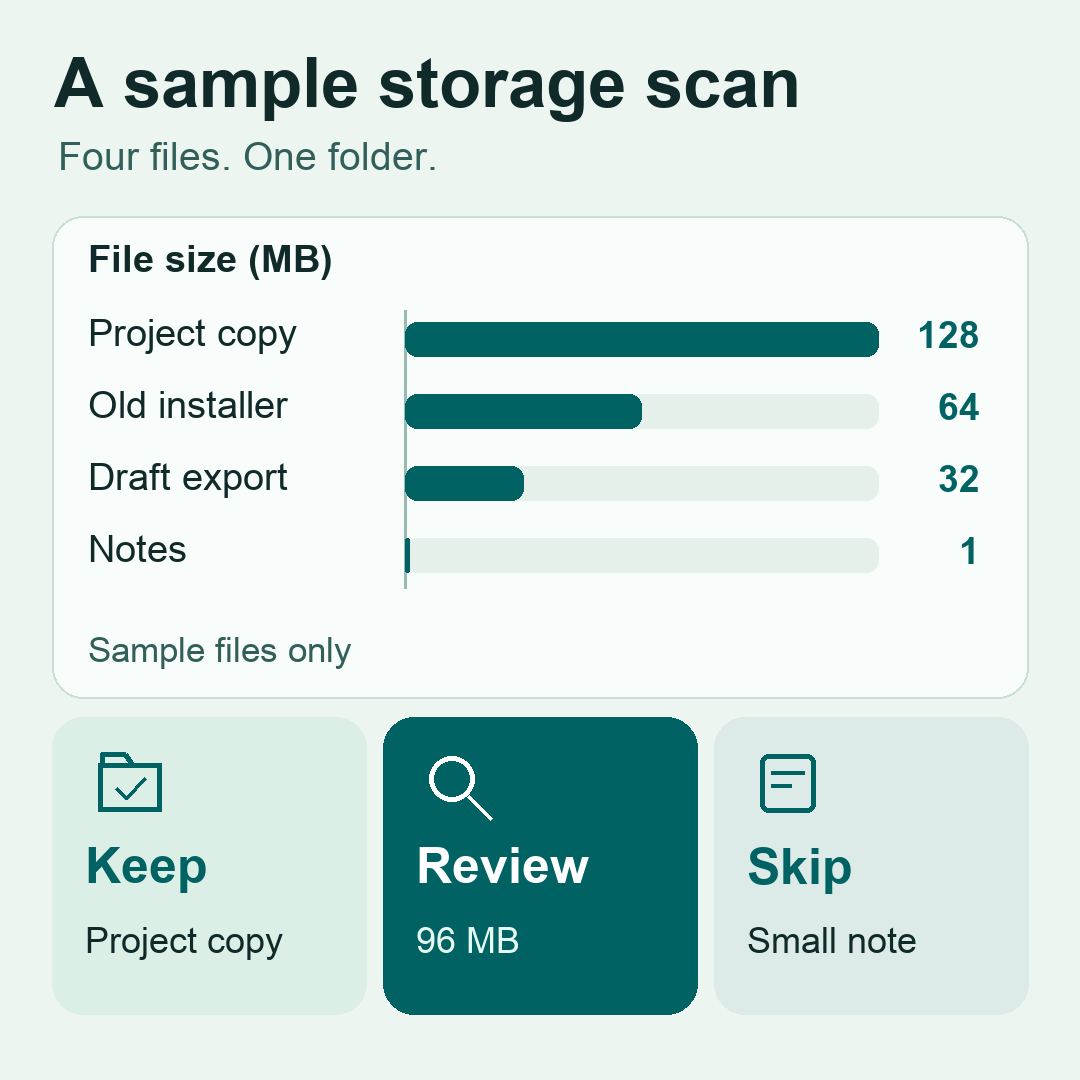
Here’s how those choices look in a test folder. Techchahiye made four sample files with set sizes. We checked their byte counts in a local folder on November 28, 2026. The file names stand in for things you might find. They contain test data, so the scan shows how sizes can guide a review. It does not show a savings result or what Codex can read on your Mac.
In the sample, we keep the project copy. The old installer and draft export go on the review list. Together, those two files add up to 96 MB. In a real audit, that would be your review list. You would check the files and measure drive space after acting. The sample shows all four files, including a small note. This small test uses smaller files than the prompt’s first-pass limit.
Check one path at a time in Finder
Open the folder and find the first item from the report. If there are several files with the same name, open the folder printed next to the file name. Select the file and press Command-I for Get Info. Check the location and size. If you use Quick Look, check that you have the right local file first so you do not fetch a cloud copy by mistake.
Work from the place where the file came from. If it is an app export, open the source project and make sure you can still reach its clips or images. That makes it easier to tell a spare export from the only copy of a finished job. For a ZIP, make sure you know what it holds. An unpacked folder with the same name can hold a different version.
If you think two copies match, compare them before you remove one. File names and sizes alone can match for different files. You can skip that pair if either copy is hard to replace. Keep any files you cannot check today. A short list of clear choices can be enough.
Ask Codex for a Review List
You may get a list of files that are big but have names you do not know. Ask Codex to group those entries so you can see which ones are worth your time. Tell it to use only the report it already has. This pass is about what you should verify before you make a change.
Copy this prompt to plan your review
Use only the storage report above. Do not scan again or touch any files. Pick up to five items I could check in Finder. Show the full relative path and reported size for each one. Say what I need to confirm before I move or remove it.
Mark files with an unclear purpose or location as keep for now. Keep work files, backups, cloud files, app data and system folders off the removal list. Flag any names that could refer to more than one copy. End with the total reported size of the files up for review and say that it is only a file-size total. Do not run any cleanup.
Use the list in the order that helps you. If a smaller item is clearly a downloaded installer you can get again, check it first. Set aside the large, hard-to-name files until you have time to open the app they came from. You can run the same audit in one more folder later if you need more room after your review.
Decide What to Keep, Move or Remove
Most candidates fit one of three choices. You can keep the file where it is, move a verified copy to a different drive or remove a file you no longer need. Think about what you would do if you had to get the file back next week.
| What you find | What to check | What you can do |
|---|---|---|
| An old app installer | The app works and you can get the right installer again | Move the installer to Trash if you no longer need it |
| A large media export | The source project and all media you need are still there | Archive the export on another drive or remove it if you can make it again |
| A project, photo library or backup | You know why it exists and have checked how to restore it | Keep it in place until you have a plan that fits the app |
| A cloud file with a local copy | The upload is complete and the remote file opens | Use the cloud app’s option to remove the local copy if it offers one |
Make sure a move gives you room
Moving a file from Downloads to a new folder on the same drive can tidy Finder. It still takes up space on that drive. If you want to keep the file and free up space, copy it to a different drive with enough room. If the Finder sidebar shows two named volumes, confirm which physical drive they use. Apple says volumes in the same APFS container can share free space.
Open the copied file from the target drive before acting on the local copy. Check that it plays, opens or imports as you need it to. For a folder, check the files that matter and the parts the app could load from somewhere else. A copied project file without its source clips may open but fail when you make a new export.
Keep another backup of files you cannot replace. Check that the backup includes the folder or drive where the files now live. Apple lets you exclude items from Time Machine, so a drive you can see in Finder may still be outside your backup. If you need the file on the road, plan for the cases where the drive is at home.
Treat a sync folder as a special case
If a file lives in iCloud Drive, check that it is in sync before you change its local status. In Finder, look for Remove Download. Apple documents this option for files stored in iCloud Drive. It removes the Mac download and leaves the file in iCloud Drive. When you need it offline, you will need to download it again before you lose access to the internet.
Deleting from the sync folder can remove the file from other devices that use the same account. Check the name of the action before you choose it. Other cloud apps may use a different label. When in doubt, check the sync status in the app before you act. The same care applies to Desktop and Documents if you sync them with iCloud.
Check How Much Space You Actually Gained
After you review each choice, make the change in Finder or the app that owns the data. Move files you no longer need to Trash yourself. If you leave them there for a while so you can get them back, be aware that the drive can still store those files. Review what’s in Trash and make sure you can let those items go before you empty it.
Open System Settings > General > Storage again. Wait for the storage view to refresh and check the same drive you wrote down before. Subtract the earlier free-space figure from the new one. For example, if you started with 3 GB free and now see 9 GB free, the display shows a gain of about 6 GB. It is approximate because the screen may round the figures and other apps also use the drive.
If you have less room than you expected, check the action you took. A copy to another folder on the same drive adds another copy. A move within the same drive can leave your free space the same. A file still in Trash can still take up room. An app that saves or syncs in the background can use some of the space while you work.
Once you have enough room, return to the job that prompted the audit. It could be a macOS update, a video export or a copy from your phone. If the job still asks for more room, read the app’s error. Check that it needs space on the drive you cleared. Some apps let you pick a separate drive for exports or temporary files.
Did You Know?
Time Machine can save local snapshots on a Mac. These saved views can help you get back an old version of a file. They can work while your backup drive is away. Apple says macOS counts that space as available. The system can clear these snapshots when it needs the room. A large number tied to snapshots is a poor reason to weaken or turn off your backup. Start with the files and apps you can check.
Conclusion
Use Codex to narrow your search. Start with one folder and ask it to list the largest files it can see without making changes. Take the few entries you can check in Finder and decide what to keep, move or remove. Then go back to the same Storage screen and see what changed. Start with the folder where you last saved a big download or export.
FAQs
Can I free up space on a Mac without giving Codex write access?
Yes. Give Codex read access to the folder you want to check. Ask for a report. Then make any changes yourself in Finder or the app that stores the files. You can also use Finder for the whole job if you would rather leave Codex out of your local files.
How do I start if Codex cannot read Downloads?
Check that the task runs locally and the folder path is right. If the Mac or app blocks access, look for large files in Finder. You can also scan a folder that Codex can already read. A one-folder scan usually does not need full access to your Mac.
Can the report tell me which files are safe to delete?
It can point to file types and names you may want to check. You still need to know what each file holds, whether you need it and how you could get it back. Even the biggest file in your report could be your only copy. Leave it in place if you cannot check it.
Why does a large file in the report give me less space than I expected?
A file’s reported size measures the file. Free space measures room on the drive. Some files use less storage than their size suggests. The file may still be in Trash. Look for a spare copy on the same drive, too. Another app could have used some of the space. Check the same drive before and after.
Is a storage audit the same as clearing System Data?
A folder audit lists files in the spot you chose. Apple uses System Data to group files that do not fit other storage categories. If that category seems large, start in Storage. Check the apps you know and use their own controls. Keep system folders outside the scan.
References
- OpenAI — Agent approvals and security
- OpenAI — Projects and chats
- Apple — Get file, folder, and disk information on Mac
- Apple — Change Storage settings on Mac
- Apple — Work with folders and files in iCloud Drive
- Apple — About Time Machine local snapshots
- Apple — Exclude files from a Time Machine backup on Mac
- Apple — APFS volumes and shared space in Disk Utility
- Techchahiye — How to free up space on Mac
