


Clear the right cache for the problem
Use your browser or app's own controls. Check what they remove, then test the same page or project.
Key Takeaways
- Start with the app or site that has a problem. Use its own cache controls.
- Chrome and Firefox let you clear cached files while keeping cookies and history.
- Safari lets you remove data for one site. That action can sign you out of the site.
- Save your work before you clear an app cache. Check the same file or page after the change.
A page on your Mac looks wrong. It might show an old version of a site or leave part of an image blank. Or a video app keeps a large cache on a drive that is close to full. Both cases can lead you to the same search. How do you clear cache on a Mac without losing what you need?
Start in the app that made the files. For a web page, use the browser’s cache or site data controls. For an app like Adobe Premiere, use the media cache settings. Save your work and choose the smallest change that fits the problem. Then test the page or project that gave you trouble.
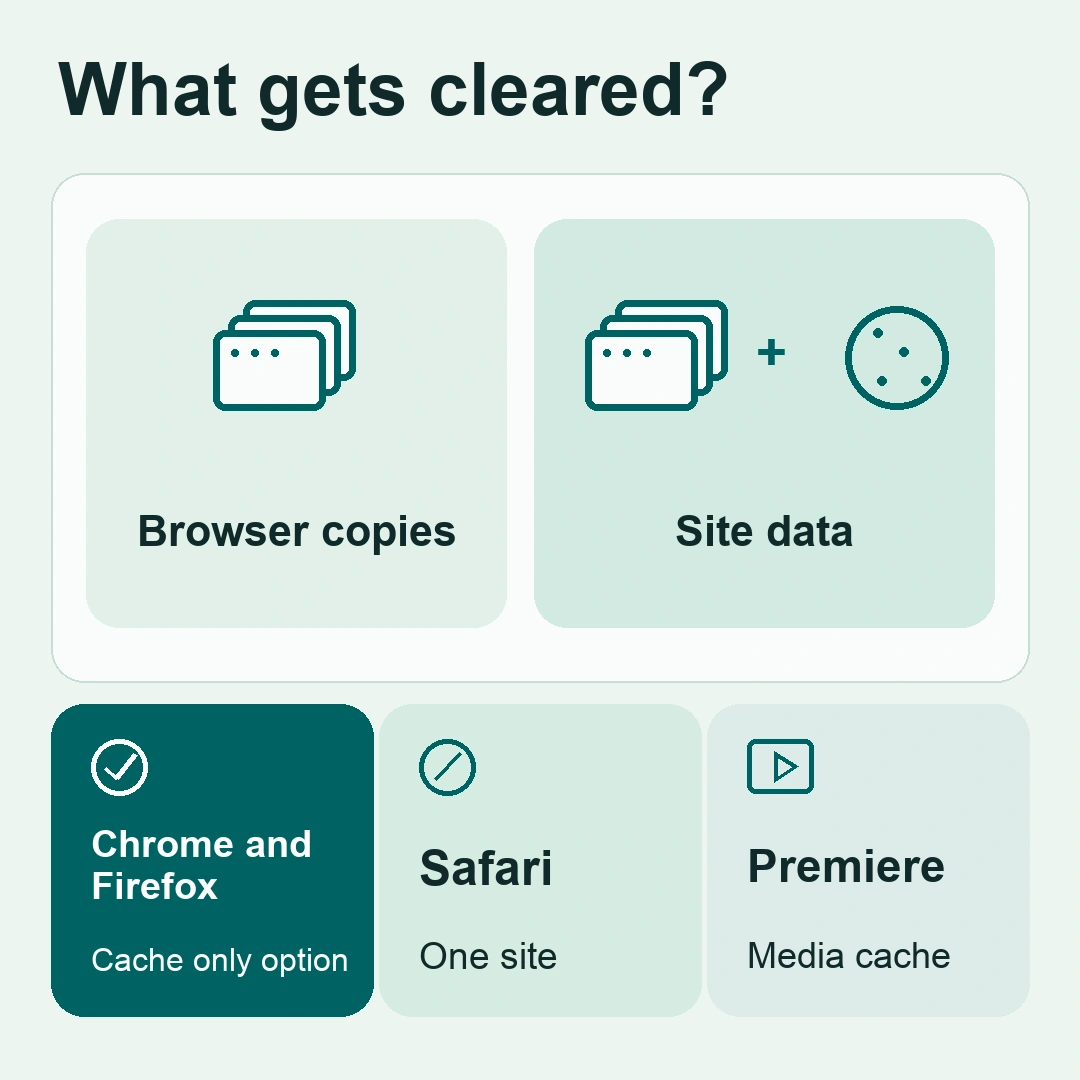
A cache is a set of saved copies. Apps use these copies to load or work with data faster. Some caches hold web images. Others hold files an app made from a video clip. Cache files can often be made again. First find out what the app’s button removes, since some tools group a cache with other kinds of stored data.
Pick the Right Cache for the Job
Use the clue that brought you here. You may have one broken web page. You may have one app that keeps a lot of data. You may have a Mac that says it has little free space. Those are three paths with different first steps.
| What you see | Where to start | What to check after |
|---|---|---|
| One site fails in Safari | Try the site in a private window | See if it loads there before you remove its saved data |
| Several pages show old images in Chrome or Firefox | Use the browser’s cache control | Open one affected page again |
| A video app stores scratch files | Find the app’s media cache settings | Check the project and the drive that held the cache |
| Storage is low across the Mac | Open Storage in System Settings | Work on a file or app that you can identify |
Think about the thing you want to keep. A saved password is one thing. A cookie that keeps you signed in is another. A page’s images and style files are a third kind of data. A control marked Cached images and files can treat these as separate groups. A control marked Website Data can remove more than cached images.
If the issue is low space, first note how much room the drive has. On a recent Mac, open System Settings > General > Storage. Apple shows the free space and the kinds of data on the drive. Use the same view later so you can see what changed. Do not assume a slow page and a full drive share the same cause.
Save open work before you start. This matters when you have a form in a browser tab or a timeline in a video app. An old page may still hold text you typed into it. Copy that text to a safe place or finish the task before you reload the tab. In an app, check that the file saved and that you can open it again.
Clear Browser Cache on Mac
Try a reload first if a page has a small visual fault. You may need nothing more than a fresh page load. If the issue goes away, you can stop. If it comes back, note the web address and check it again after each change. One saved address gives you a quick test you can repeat.
For a signed-in page, be ready to sign in again if you clear site data. Check that you have the right account and can get a code if the site asks for one. This is worth doing for school, work and bank sites. Avoid making a broad change just before a task with a deadline.
Clear data for one site in Safari
Apple suggests a private window as an early test when a site fails in Safari. Choose File > New Private Window or press Shift-Command-N. Paste the full address into that window. If the public part of the site works there, its normal stored data may be involved. A private window can also use a different sign-in state. Treat the test as a clue.
If the test points to stored site data, follow Apple’s steps in your normal Safari window.
- Choose Safari > Settings and open Privacy.
- Click Manage Website Data.
- Search for the site by its domain. Select the matching entry.
- Click Remove, then Done.
- Go back to the site. Load the same page and sign in if needed.
Use the domain that serves the part of the site that breaks. For example, a sign-in page can use a different address from the main store. Read the domain in the address bar. If you are unsure which entry to remove, start with the one that matches the problem page. There is no need to remove unrelated entries as part of this test.
Safari’s command can clear both cache and cookies for the site. Apple notes that removing website data can also affect other apps. Use Remove All only if you intend to remove data from all the listed sites. Clearing browsing history is a separate choice. It can affect history on other Apple devices if you sync Safari through iCloud.
If the same page fails in a private window too, check for a wider site issue or test the page in another browser you already use. Apple also lists checks for Safari extensions and network settings. Make one change at a time. It is easier to learn which one helped.
Clear only cached files in Chrome
Google names cached images and files as a distinct type in Delete browsing data. This is the control to use when you want fresh web files and want to keep your sign-in cookies.
- Open Chrome and choose the three-dot menu at the top right.
- Choose Delete browsing data.
- Pick the time range that covers the issue. Select Cached images and files.
- Clear the boxes for history and cookies if you want to keep them. Check the other boxes before you go on.
- Click Delete data and test the same page again.
Use a short time range if the fault began today and your goal is a small test. A site may use a copy from before that range. You can try a longer range if the short one fails and you still have reason to suspect the cache. The change applies to the browser profile where you do it. Check the profile icon if you use both a work profile and a personal one.
Google explains that the browser stores parts of pages to help them open faster on later visits. After you clear those copies, the next load may take more time. That is a good reason to test the same page twice. The first visit shows if the fault is gone. The later visit shows how the page runs with fresh copies in place.
Clear the Firefox web content cache
Mozilla gives Firefox users a separate checkbox for the web cache. Open the Firefox menu and choose Settings > Privacy & Security. In Cookies and Site Data, open Clear Data. In the dialog, choose the time range you need and select Temporary cached files and pages. Leave cookie or site data options off if you want to keep them. Confirm the clear action and load the test page again.
In some Firefox releases, the label may say Cached Web Content. Look for the option that names the cache on its own. The wording matters when you also see a choice for cookies and site data. Read the boxes you selected before you click to clear them.
If you use both Firefox and another browser, keep your test in one of them. You can use the second browser to see if a page works at all. Check the same page in the one where you cleared data to see whether your change helped.
Clear an App Cache Where the App Stores It
The cache controls for a Mac app depend on that app. Start by looking in Settings, Preferences, or the app’s help. Search for its name and the term cache in the vendor’s help site. Read what the option removes and what the app makes again.
A video app can keep files on more than one drive. It may use a folder you chose months ago. Check the cache location in the app first. Then check free space on that drive. When the cache is on a separate drive, clearing it may leave the space on your Mac’s internal drive the same.
Quit or close open projects as the vendor directs. Make sure the app has finished any export, import or background task you need. A progress bar can hide in a small window or on an app icon. If you are in the middle of a job, it may be better to let it finish before you change how the app caches its work.
Use Premiere’s Media Cache settings
Adobe shows a separate cache control in Premiere for macOS. Choose Premiere > Settings > Media Cache. Look for Delete by the option to remove media cache files. The dialog offers a choice of files to remove.
The option for unused media cache files targets cache made for source media Adobe Premiere can no longer find. That can include media on a drive that is not connected at the time. Know which drive your project needs before you act. The option to clear all media cache files covers the current cache location. Adobe says those files will be made again when source media needs them.
If you need to clear all media cache files, Adobe says to close projects. Its instructions also say you can restart Premiere and choose the all-cache option before you open a project. The app may need time to rebuild the cache when you edit again. Plan that time if a large job is due soon.
Check the project you had open before you changed the cache. Make sure it can find the source clips. Play through the part that gave you trouble if you were fixing a fault. If the goal was space, check the drive that held the cache once the delete action finishes. Recheck after you open a project, since Premiere may start adding new cache files.
Handle Final Cut Pro render files with care
Apple documents a different kind of generated file in Final Cut Pro. Render files can take up space as the app makes them for clips and effects. Apple says you can choose a library, event, project or clip and use the Delete Generated command for that item.
Read the choices in the dialog. Apple lists render files, optimized media and proxy media as types the command can remove. If your goal is render files, select the render option and check that the other types stay clear. Proxy media can help you edit with fewer demands on your Mac. If your source media is on a drive that is away, you may still need those proxies to work.
Apple says the command can affect generated files stored outside the library too. Check where your media and generated files live. First try a small project you know well. That makes it easier to see what the app clears and what it needs to make again.
Protect the Files You Need to Keep
Use the app’s own controls when you have them. Stay out of a folder when you cannot tell what’s in it. A name that looks like a cache may sit beside an app’s saved work, settings or local files. The app is in the best place to tell you what it can rebuild.
Be careful with files the app calls offline, downloaded, proxy, or local only. Those names describe how you can use the item. It may take a long download to get that file back. Some copies are there because you chose to keep them on hand while away from the internet. Read the help for that specific file type before clearing it.
Before you use a cache cleaner, check what it lists. A large figure can include data from many apps. Start by looking at each file class and seeing what lives there. If you have one broken site or one large app cache, its own controls can be enough. Keep your work and its backups in place while you test.
See Whether the Cache Clear Helped
If you cleared a cache to fix a page, open the address you wrote down before. Test the exact action that failed. For instance, if a form lost its buttons, check the buttons and make sure the next part of the form loads. Avoid drawing a conclusion from a different page on the same site.
If you cleared a cache to get space, use the same drive reading as before. For example, say the drive showed 9 GB free before an app cache clear and 13 GB free after it. That would be a gain of about 4 GB at that moment. This is an example. Your result depends on what the app stores and what else your Mac is doing.
Check once more after you reopen the app if it will be part of your daily work. A cache can grow as you view pages or work on a project. A short-lived gain may still be enough to export a file. If the Mac soon runs low again, check for larger items that are safe to move. The Mac storage audit in References can help you build a list to review.
Did You Know?
A cache can be useful even when it takes up space. The same web images or app files can be used on your next visit or when you open a project. That is why the first load after a clear may feel slow. Give the site or app a chance to make new copies and run your test again.
Conclusion
To clear cache on Mac safely, choose the app or site that needs help. Use its cache control and check what else the control removes. Then test the same page or project. If you need room on the drive, measure the free space before and after so you can see the change.
FAQs
Can I clear Chrome cache and stay signed in?
Yes. Choose Cached images and files in Delete browsing data. Leave cookies and other site data off if you want to keep them. Check which Chrome profile you are in before you confirm.
Will removing one site in Safari erase all my history?
The site data control in Safari lets you target one site. It can remove its cookies and cache, so you may need to sign in again. Clear History is a separate command. Use the one-site control when a single domain is the issue.
Can I delete every cache folder in Library?
Use the app’s own cache command if it has one. It can show what will be cleared and which data it can make again. Leave folders alone if you cannot tell which app made them or what it stores there.
Why did free space drop again after I opened the app?
Apps can make new cache copies when they need them. Open Storage and look at the same drive once the app has had time to settle. If you need room for regular work, look for a larger file you can archive or an app you no longer use.
Should I clear Mac cache on a set schedule?
Clear it when you have a reason, such as a page that loads wrong or an app cache you can see taking up room. Keep caches that are helping your apps run well. Use the app’s own size or age controls when it offers them and they fit how you work.
References
- Apple — If Safari doesn’t work as expected on Mac
- Apple — Clear your cache and cookies in Safari on Mac
- Apple — Clear your browsing history in Safari on Mac
- Google — Delete browsing data in Chrome
- Mozilla — How to clear the Firefox cache
- Adobe — Clear media cache in Premiere
- Apple — Manage render files in Final Cut Pro for Mac
- Apple — Change Storage settings on Mac
- Techchahiye — How to free up space on your Mac using Codex
