


Match the offer to your phone
Use the official rollout plan and a current device notice together. Keep old beta signup dates separate from an official release. Back up first, check feature limits and plan time to test your essential apps.
Key Takeaways
- The ColorOS 17 update has a global rollout plan. A listed month does not prove that your phone can download it today.
- Match the model, region, current build and release channel. An old beta notice is not a new invitation to join.
- Back up first and check the apps you rely on. Plan the update around your work, travel and access to another device.
- Use OPPO’s official notice for your phone. Update steps for one model do not apply to every OPPO phone.
The ColorOS 17 update is real, but finding your phone on a list is only the first check. Check which build applies and where the offer is open. Then check whether the notice describes a beta or an official release. Those details matter more than a screenshot that says an update is live.
This guide checks OPPO and Google sources on October 25, 2026. It serves US owners of imported OPPO phones and readers in India. We have not installed or tested ColorOS 17. Use the dated official sources in References and the offer on your own device before you act.
ColorOS 17 Update: What Has OPPO Announced?
OPPO announced ColorOS 17 globally on October 13. It said the software would debut on the Find X10 series. Other devices would follow in stages. The company calls the new look Living Flow Design. It also describes changes to rendering and resource scheduling. Those are vendor descriptions, not results from our own tests.
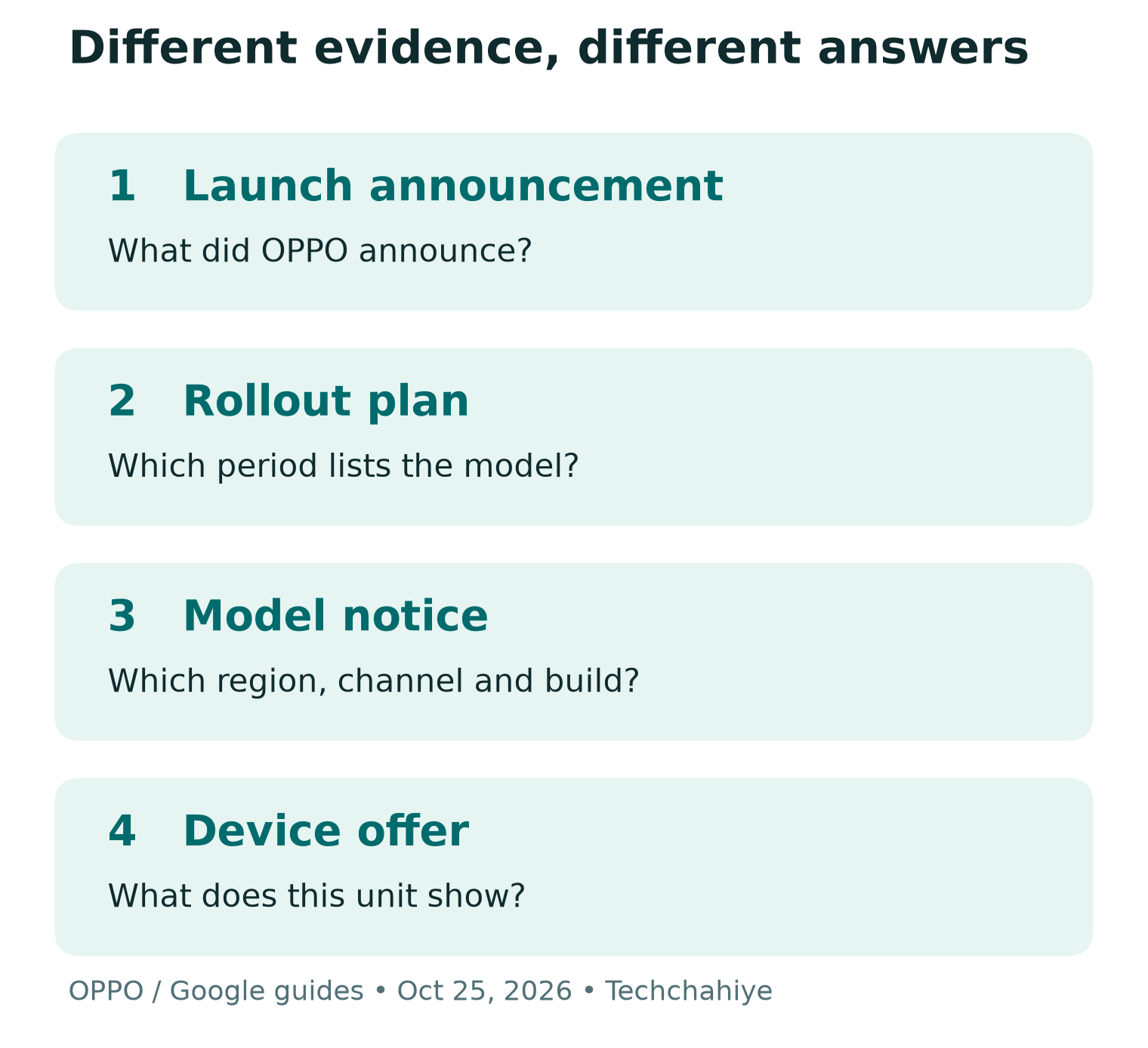
However, the practical question is whether the software fits your phone now. A launch event announces a product. Rollout plans group devices into expected periods. A device notice can add the region, channel and required current build. Finally, the phone’s update screen shows what it offers to that unit.
Treat those as different kinds of evidence. A global event does not establish a US carrier schedule. Product family names do not identify every model in the group. A friend’s update does not identify the software on your phone. Keep each claim tied to the evidence that supports it.
For example, an owner might see a phone named in an October plan but find no download. That situation alone does not prove a fault. It means the broad plan and that unit’s current offer differ. The next step is to check the exact notice, rather than trying random files.
ColorOS 17 Rollout: Read the Month With Its Limits
OPPO’s official plan has four groups. They cover October, November and December 2026, then Q1 2027. Here are a few examples from that page, not the complete device list. Check the full source for the exact suffix on your model.
| Planned period | Examples on OPPO’s global list |
|---|---|
| October 2026 | Find N6, Find N5, Find X8, Find X8 Pro |
| November 2026 | Find N3, Find N3 Flip, Reno14 5G |
| December 2026 | Reno13 5G, K13 5G, Pad 3 |
| Q1 2027 | Find N2 Flip, Reno12 5G, Pad SE |
OPPO calls the schedule approximate. Timing can change with the model, region and carrier. Carrier-exclusive devices follow their carrier’s schedule. This makes the list useful for planning, but not a day-by-day promise for every unit. It also means a tablet entry should not be read as a phone entry.
Read the model name letter by letter. For example, a Pro, Flip or 5G suffix is part of the name, rather than a decorative label. If your exact model is absent from these examples, open the full official list. Do not treat a short table in a guide as proof that a missing model will never get an update.
Save the page date with your notes. A rollout article can stay online after its timing changes. Our check date tells you when we read the source; it cannot freeze OPPO’s plan. If the official page changes later, read the new details. Use the current notice for your model.
ColorOS 17 Beta: The October Signup Window Has Ended
OPPO’s community roundup advertised open-beta applications from October 9 through October 12. It named selected Find X9 and Find X8 models in India, Indonesia and Malaysia. Its Reno15 Pro Mini and Reno15 Pro 5G notices covered India and Malaysia. Those dates have passed as of this guide’s check date.
An old heading saying a beta is live does not extend its application window. Read the dates inside the post. Then look for a new official notice if you want to test a later build. Do not assume that a missing signup button means your phone needs repair.
The Find X8 Pro beta notice also warned about instability and app conflicts. It asked users to back up important data and check the required current software. That warning belongs to a test program. Joining for early access also means accepting work that a normal user may not want to do.
Ask what you gain from testing. If the phone is your only route to work, payments or travel, an unfinished build can be a poor fit. Waiting for a suitable official offer is a valid choice. You do not need to join a test program to prove that your phone is up to date.
Keep the region in view too. However, the notices above do not establish a US beta program. A US owner with an imported device should check the support route for that exact unit. Physical location alone does not answer which software branch the phone uses.
Official Version and Release Candidate: Read the Exact Notice
A separate OPPO Community post covers the Find X9 Ultra. It showed an October 23 date when checked. Its markets are India, Indonesia and Malaysia. Its recruitment label is Official version. The application date is October 22. Its steps use the Release candidate option inside the Beta program menu.
That wording can be confusing. The menu’s location does not by itself explain the build’s status. Read the notice’s title, details and scope together. This post names one phone and specific markets. It does not tell every OPPO owner to use that menu now.
The notice lists three current builds for that Find X9 Ultra. They are CPH2841_16.0.10.500(EX01), CPH2841_16.0.10.600(EX01) and CPH2841_16.0.10.602(EX01). The path starts in Settings, then System & update and Software update. Next it uses the top-right menu, Beta program and Release candidate. Apply that path only when the current notice matches your unit.
We are not using a commenter’s predicted date as a public rollout promise. Replies can help reveal questions, but the official post is the source for the process above. If the notice and your screen disagree, ask OPPO to confirm the route. Do not substitute a file from another model.
Build a Four-Part Device Check
Before deciding to update, make a four-part note. List the full model name and model code. Add the current software build and market of sale. Then add the date and source of the offer you found. This gives you a small record that you can compare with a support notice.
Keep that record private where it includes device identifiers. A model code and a full serial number are different things. Public posts rarely need a full serial number, account details or personal screenshots. Use a private support channel if the manufacturer needs those details to help you.
For a made-up example, imagine two owners with phones from the same product family. One bought a local unit and one imported a different variant. The first owner receives an offer. That does not establish that the second should install the first owner’s file. Compare the units before drawing a conclusion.
This check also prevents a common mistake in help requests. A post saying only that an OPPO phone has no update leaves out the facts needed to investigate. A clear model and build, paired with a dated notice, lets support address the real mismatch. It saves guessing without exposing private data.
Keep a private device note
Record the full model, model code, current build, market and notice date. Keep full serial numbers and account details out of public reports.
Back Up Before the ColorOS 17 Update
Google’s Android backup guide says not every app can back up or restore all settings and data. It also notes that a Google One backup can take up to 24 hours. Turning on a backup switch starts a task. Check that the copy is ready before you update.
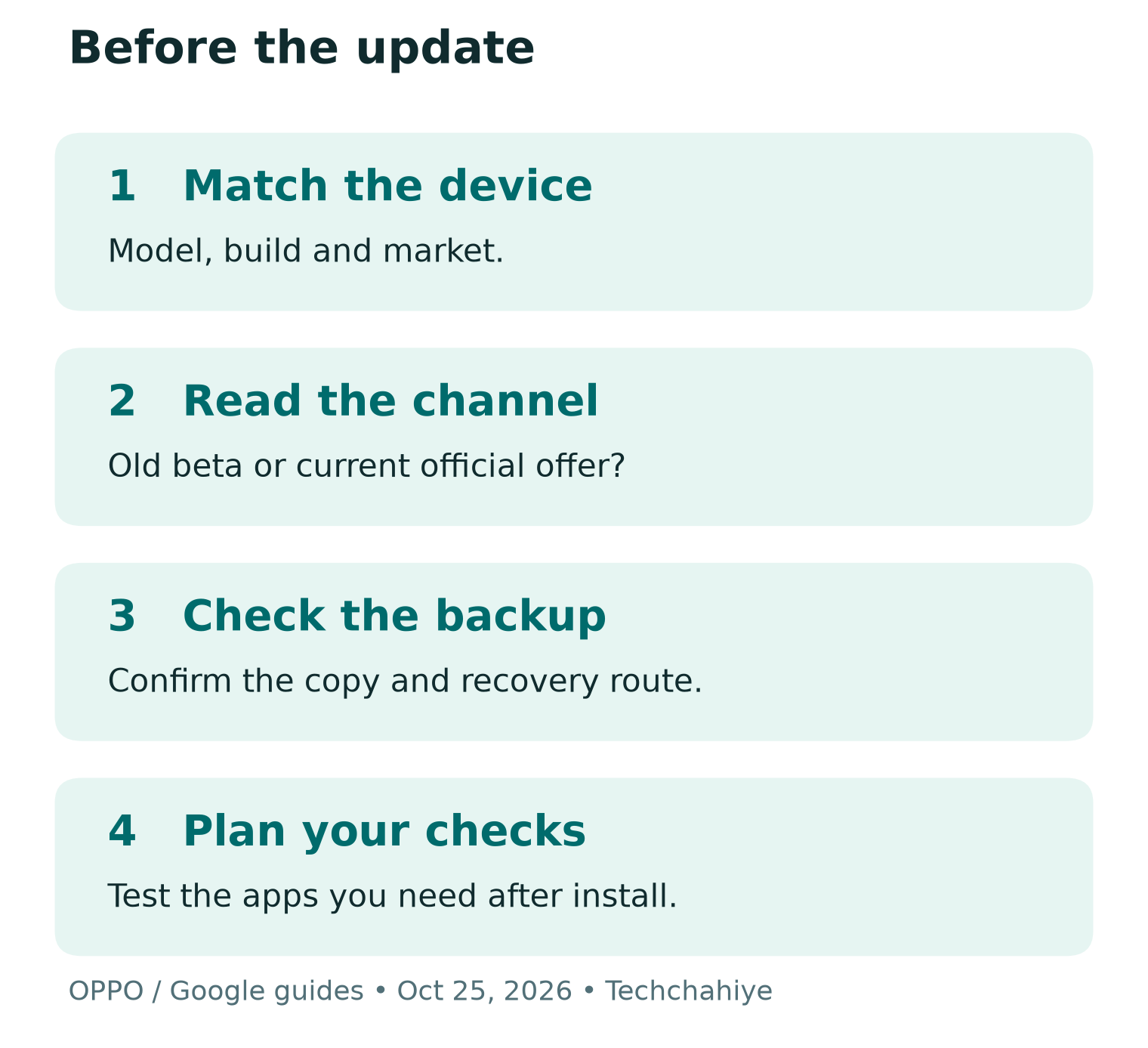
Next, review the backup details in Settings and confirm the account in use. Google’s guide places manual backup under Google, All services, Backup and Back up now. The names can vary by device. Check the current guide and your own screen, then allow the task to finish.
Make a short list of what would be painful to lose. It might include local notes, photos, work files or an app’s own records. Check each app’s own support guidance for its backup and recovery route. Do not assume that one general backup switch covers every item on the list.
Also, check access as well as files. Before changing the phone, check how to sign back into key accounts. Use each service’s official recovery process. Keep recovery details secure. This is preparation, not a reason to share passwords or codes with a forum helper.
Google also warns about restoring a backup to older Android software. A copy from a newer version cannot restore onto an older one. That matters if you are thinking about returning to older software. However, a successful backup is useful, but it does not make every rollback simple. Read the exact model’s rollback rules before joining a test program.
Choose a Sensible Time and Connection
Google advises Wi-Fi before an Android update. It also says to charge the battery to at least seventy-five percent. Follow the device’s own instructions too. Leave enough time to read the screen and let the task finish. Avoid starting when you need to leave with the phone in a few minutes.
Use a connection you trust and understand. If you rely on a metered plan, check its terms before a large download. The size shown on your device is the relevant figure. There is no single size in this guide for every phone. The build and starting version can differ.
Next, think about what happens after the restart. You may need time to check apps, accounts and settings. Schedule that work before a flight, a shift or an important call rather than during it. A convenient download time is not always a convenient time to test the result.
If the phone belongs to your employer, follow its device policy. An admin may manage updates or restrict beta software. Do not work around that control with an unofficial package. The right next step is a check with the person who owns that policy.
Check AI Features Separately From the OS Number
OPPO describes several AI tools. AI Mind Space organizes saved information. With AI Mind Pilot, the focus is tasks across files and photos. AI Photo Agent offers image edits. Those features are part of the launch story. The OS number alone, though, is not proof that each tool is ready on every supported device.
The launch notes say AI Photo Agent arrives in stages. Europe follows later. Monthly limits depend on the region. They also say it supports static images. Check those details before relying on a tool. Do not assume every owner gets the same features without limits.
Before relying on a feature, check its model, language and region notes. Then read any permission and service terms on the device. Decide whether you want to use it for the task at hand. An update can be useful even if an optional AI feature does not suit your needs.
Keep an original copy when trying photo edits. Compare the result with what you wanted. Take extra care when an image must stay accurate. For work files, use your organization’s rules before giving a service access. These are choices about your content. We have not tested OPPO’s AI quality.
No ColorOS 17 Download? Work Through the Evidence
Start with the notice, not a reset. Check the exact model and market. Read its date, channel and required build. Next, compare the software offered in your phone’s Settings. If the broad schedule is all you have, treat it as a plan rather than a missing-download error.
Google notes that Android update timing varies by manufacturer, device and carrier. Its guidance also says a failed download can retry in the following days. Follow the message your phone shows and the manufacturer’s instructions. A download error and no offer at all are different problems.
If the phone reports too little space, review your files. Decide what you can safely copy elsewhere or remove. Confirm that a backup works before deleting a unique file. Do not clear an app’s data merely because a guide says to free space. That can be a different action from removing a file you no longer need.
Finally, if you still need help, prepare a short report. Include the model, current build, market, exact message and steps already tried. Add a cropped screenshot only if it helps. This gives support a clear issue to investigate. It avoids a long list of unrelated changes.
After Updating: Test the Things You Need
Once the install finishes, check your own essential tasks. For example, make a normal call if appropriate. Open your needed apps and check that local files are where you expect. Test Wi-Fi and mobile data in ordinary use. These are personal checks, not a benchmark of every ColorOS 17 device.
The Find X9 Ultra notice warns about the period after the update. It says optimization can cause temporary heat, lag or battery drain. It also flags possible third-party app conflicts and suggests app updates. Do not turn that warning into a promise that every problem will disappear on its own. Record what happens and seek support for persistent trouble.
For a useful record, note the task, time, build and result. Name the task that fails. For example, note an app closing when you open one file. That gives support more to work with than a broad complaint. Keep private files out of public reports. Use an official private support route for sensitive details.
However, avoid judging battery life from one busy setup period. Compare like tasks and conditions when making your own notes. We are not promising a certain battery gain or a fixed settling period for every model. The point is to collect evidence that helps resolve your specific issue.
Did You Know?
An official-version notice can use an unexpected menu path. Eligible owners may reach Release candidate through Beta program. That is why a menu label alone is not enough. Read the notice for your model and the build it names. Then decide what kind of update you found.
Conclusion
The ColorOS 17 update decision starts with your exact phone, region, build and channel. Read the rollout plan as a plan, keep expired beta dates separate and check the offer on your device. Back up, choose a suitable time and verify the tasks you need after the install.
FAQs
Is the ColorOS 17 update available to every OPPO phone now?
No. OPPO publishes an approximate rollout schedule with model, region and carrier limits. A global launch does not mean every unit can download the update today. Use your exact model’s current notice and update screen.
Can I still join the October 9–12 ColorOS 17 beta?
That advertised application window has ended. An old post remains readable after signup closes. Look for a new official notice. An old heading does not prove that applications are still open.
Does the Find X9 Ultra release-candidate path apply to all phones?
No. The checked notice names the Find X9 Ultra, specific current builds and three markets. Do not copy its process to another model without a matching official notice. Ask OPPO if your unit’s status is unclear.
Will every AI feature arrive with ColorOS 17?
Do not assume that. OPPO’s notes include staged availability, regional limits and feature conditions. Check the current model and market details for the tool you want, even if your phone already runs the new OS.
Should I back up before installing an official update?
Yes. Check the backup’s status and the recovery route for important apps. Not every app can restore all its data through the general Android backup. Keep needed files and account recovery details secure before you begin.
References
- OPPO — ColorOS 17 features and official version rollout schedule
- OPPO — October 13 global ColorOS 17 announcement and feature limits
- OPPO Community — October 9–12 open-beta roundup
- OPPO Community — Find X8 Pro open-beta requirements and cautions
- OPPO Community — Find X9 Ultra official-version notice
- Google — Back up or restore an Android device
- Google — Check and update your Android version
- Techchahiye — Android and iPhone updates, battery and safety guide
