

Test one guest reply
Create a WhatsApp event for guests outside your chat. Test the invite link, set guest rules and track replies.
Key Takeaways
- Open WhatsApp Settings and look for Events. Use an event with a shareable link if you need to invite someone outside a chat.
- Test the link with a guest before you send it to everyone. Check the day, local time and reply options.
- Pick a rule for extra guests and reminders. Use the reply list to get a count before your event.
- Check that someone who does not use WhatsApp can reply from the link. The new Events tools are still rolling out.
To create a WhatsApp event for people outside a chat, look for Events in WhatsApp Settings. Use the new Events tools to make an invite and get a link you can share. A guest who does not use WhatsApp can open that link to see the invite and reply. You can test the link with one person before you send it to the rest of the list.
This is useful when one person in a family or club does not want a new app just to say yes to lunch. It also gives you one place to check the replies. It only helps if you set up the right kind of invite. A message for a group chat and a link a guest can open are two separate things.
Check Which WhatsApp Event You Can Create
Meta announced the new WhatsApp Events options on 5 November 2026. They include a home for your events and a shareable invite. Meta says the change rolls out over the next few weeks. Your app may show a chat event but still lack the new way to share it with a guest who does not use WhatsApp.
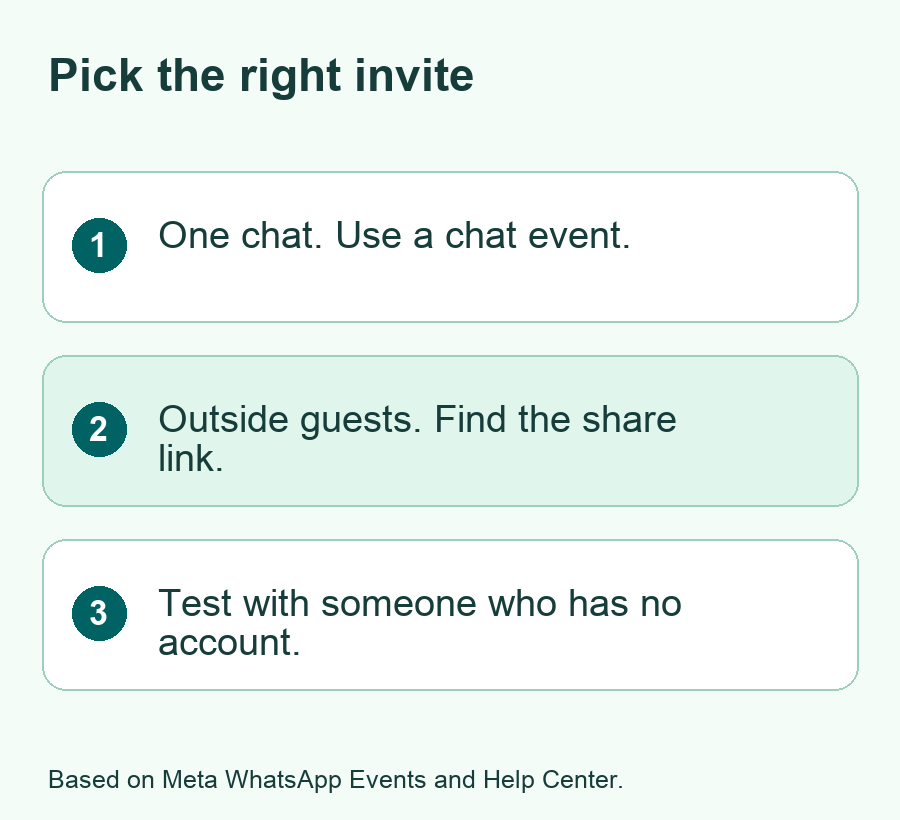
Open WhatsApp on your phone. Go to Settings and look for Events. If it is there, open it and check whether there is a way to create a new event. After you add the details, look for a way to copy its invite link. This is the link to test. If you only see a way to add an event within a chat, use that path for people who are already in the chat.
WhatsApp’s Help Center also describes basic events for individual and group chats. In that guide, the chat event is for its members and you cannot invite people from outside that chat. Meta’s newer announcement describes links with wider access. Both can show up in search. Check for the share link in the event you made before you promise that anyone can join.
| Who you want to reach | Where to start | What to check |
|---|---|---|
| People in one WhatsApp chat | The event tool in the chat | The invite appears where those people can see it |
| People in more than one chat | An event with a share link | The link opens outside the chat where you made it |
| Someone who has no WhatsApp account | An event with a share link | They can view the invite and reply in a browser |
If your account does not show the new Events tools, check for an app update in the official store. Reopen WhatsApp and check Settings again. If the feature is still missing, it may not be on your account yet. Use a message, email or another way to collect replies for an event that needs to go out today. Keep the plan in one place so you can update guests if it changes.
Set the Time, Place and Guest Rules
Give the event a name that a guest can tell apart from another invite. Include the thing you will do, or the group that will do it. If the invite will go outside a chat, add a brief note about who is hosting. A name such as Friday Book Club Lunch gives a guest more context than Meetup.
Put the date and time in the event fields. In the note, state the time zone when people may read it from more than one place. Write the day and month in words if the group uses more than one date format. A date like 6 December is easier to read the same way than a pair of numbers. Send a test invite to a guest who can tell you what the time looks like on their screen.
For a call with relatives in India and the U.S., put the host’s time zone next to the start time. Include the U.S. city or zone if you give a second time. Check the time for that date before you send the invite. A time difference can change during the year where clocks change. Ask guests in each place to check the time they see before you use a reminder.
For a place, check the address before you use it. Use a short note for a door, room or meeting point when the main address would leave guests guessing. If it is a private home, decide who should get the link before you share it. For an online event, check how the guest will join the call. The invite link lets them reply. The call or meeting may have rules of its own.
Pick a simple rule for extra guests
Meta says the new Events tools include a plus-one option and reminders. A plus-one lets an invited person say that someone else will come with them. Turn it on if the space and plan can take extra people. If the number of seats is tight, keep the rule clear in the note and check the count before you add more people.
You can use a reminder to tell guests when you need their answer. For a small lunch, ask for replies by a day that gives you time to book. For a group walk, send details early enough for people to plan how to get there. Choose one time that fits the event. Use a separate message for a late change that someone could miss if they do not reopen the invite.
If you add a cover photo, use one you have a right to share. An image can help guests tell apart two events with close names. Keep the day, time and place in the fields as well. A guest who cannot view the image should still be able to see how to reply and where to go.
Make and Share a WhatsApp Event Link
Start from the Events tools you found in Settings. Create the event and fill in the name, time and other details you want to share. Review the event before you copy or send its link. Use the share action for the event itself. If you find yourself in a screen for a group invite or a call link, go back and check what kind of link it is.
- Make the event and check that the date and venue are right.
- Use the event’s share option to copy the invite link if your app shows it.
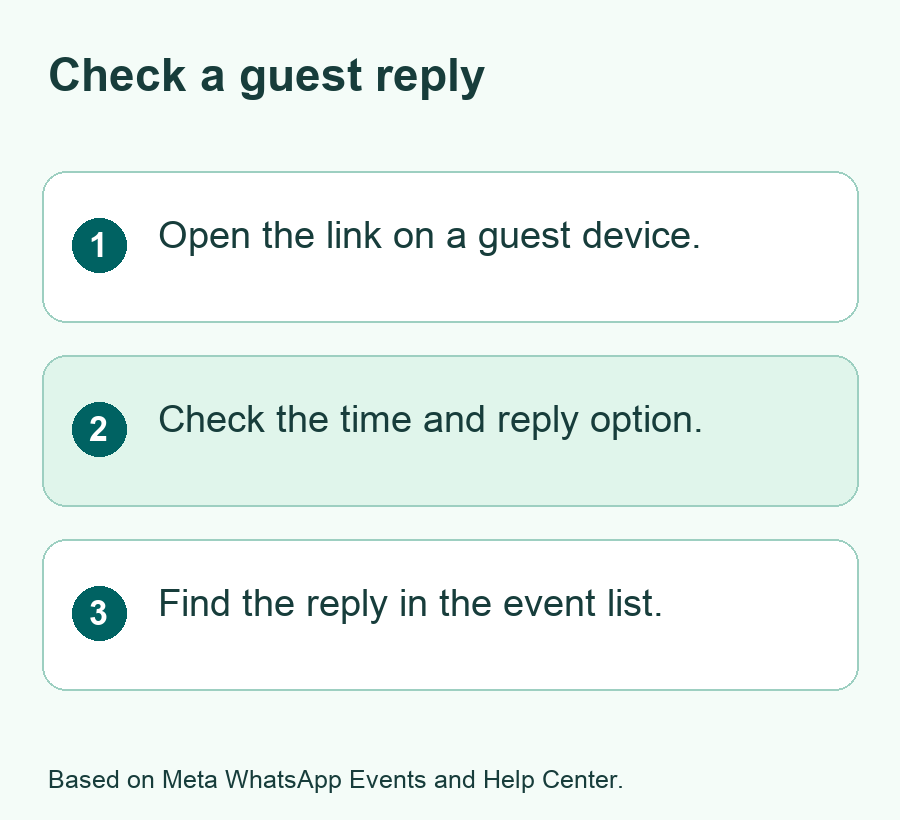
- Send it to one person you trust to test the invite. Ask how it opens and what they see.
- Check that a reply appears in the event list on your phone.
- Send the tested link to the people you want to invite.
Write a short message to go with the link. State what it is, who sent it and when you need the reply. A text like Please use this link to reply to our book club lunch by Thursday gives someone a clear reason to open it. Keep details like a door code out of the message if there is a chance the link or text could reach a person you do not know.
For a public event, think about how you want to handle a link that guests can pass on. For a private event, send the link only through the channels you want to use. If the guest list changes, check the reply list and share any new details with the guests you expect. Treat a forwarded link as one that may reach more people than the first set you picked.
If someone asks for the link on behalf of a friend, you can ask them to check with the host first. That helps when you have limited room or need a count for food. For a private meetup, use direct messages to share details that guests need only once they are coming. Put the public parts in the event and keep sensitive details out of anything people might forward.
Test What a Guest Without WhatsApp Will See
Ask someone who does not use WhatsApp to do a test if you have a person willing to help. Tell them it is a test so they do not plan around the sample time. Look for the invite title, date and way to reply. If you want to test it on your own, try a browser that is not signed in to WhatsApp and see where the link leads. A browser test is a good first check. A guest test tells you more about their device.
Meta says people without an account can see details and reply without downloading the app. It also says those guests will see the event address after they reply. If the street address does not show up right away, ask your test guest which details they did see and whether they found the reply option. That can help you tell normal guest behavior from a link that leads to the wrong place.
After they reply, open your event and check the list. Ask the guest if a confirmation appeared on their screen. If you try another test after you edit the date, open the same link and look at the new details. Note what you can verify. Then send a short update to real guests if the test shows a change may be easy to miss.
Count Replies Before You Make a Booking
An RSVP is a reply to an invite. Keep the response list open near your deadline. Check which people said yes and which said they might come. If you allowed an extra guest, count that person too. Make the booking based on the number of people you can confirm. You can keep a separate note for people who reply by email or a call.
Here is a sample count for a group lunch. Four people say yes. Two of them each bring one guest. That is six confirmed seats. Three people say maybe. If your table holds eight, the six confirmed people fit, and three more would put you over by one. Ask the people who said maybe for a final answer before you book the table. Those numbers are only an example.
If one person replies both in the event and by text, count them once. Make a note if someone needs to bring an extra person or come late. You can give the venue the total without sending it the whole guest list. For an informal event, a short count on the day may be enough. For a class or a trip, agree with the host on when replies close.
Send changes to people who need them
Open the event to edit it if the date or place changes. Check what the shared link shows after the edit. WhatsApp’s help for chat events says that guests who reply Going, Going with guest or Maybe can get a notice about edits or a cancellation. Check the guest flow for your share link as well. Send any urgent change by a direct message or email if you need the guest to see it in time.
For a cancellation, tell people what you called off and which date it was for. If you make a new event, say so and send the new link only after you check it. An old invite in a text thread can otherwise lead someone to the wrong place. Use the same event name in the update so the guest can match it to the first message.
Fix a Link That Sends Guests to the Wrong Place
If a guest sees a group join screen, check whether you sent a link to join the chat. Open the event inside WhatsApp again and look for its own share option. If there is no share option, your event may use the chat-only flow. Make the event from Events Home when the feature is available and test the new link with one guest.
If the phone shows an app prompt, ask what appears in a browser after the guest opens the precise link you sent. You can compare the title in that view to the event name in your app. Check that the message did not cut off part of the link. Copy it again from the event. If the reply still fails after you verify the link, give the guest another way to respond.
If the reply list looks wrong, compare the exact event names and dates. You may have made a test invite and a real invite with close names. Ask the guest which one they opened. You can use clues like the date or photo rather than asking someone to copy private information from their phone into a group chat. Update your count once you see what happened.
Did You Know?
Meta says the new WhatsApp invite keeps your phone number from guests you do not know. It also says guests without an account see the event address after they reply. Those details describe the invite itself. Any address or phone number you write in a message that goes with the link can still be read by whoever gets that message.
Conclusion
To create a WhatsApp event for someone who does not use the app, look for Events in Settings and use an invite with a share link. Check the date and time. Then test the link and one reply before you send it to everyone. If your app has only a chat event, collect outside replies through a channel your guests can already use.
FAQs
Do my guests have to install WhatsApp to reply?
Meta says the new shareable event invite lets guests reply without the app. Create an event with that share link and test it with a guest who does not use WhatsApp. If the link you sent belongs to a WhatsApp group instead, open the event and copy its own invite link.
Why can I make a chat event but see no link to share outside it?
WhatsApp’s chat event flow can appear without the newer Events tools. Open Settings and check for Events. Look for a way to make a shareable invite there. Check for an app update if it is missing. Meta announced the broader feature as a rollout, so it may not have reached your account yet.
Can I invite someone who does not want to join my WhatsApp group?
Use the new event share link when it is available. It lets outside guests open an event invite and reply. Check the guest view before sending the link widely. For a private event, choose who gets the link and put extra details such as an entry code in a message to those people.
Can I let a guest bring a friend?
Meta says the updated Events tools include a plus-one option. Check for it while you create the event. Use it if you have enough room for extra people. When you read the reply list, include extra guests in the total. That makes the count more useful when you book seats.
What should I do if I have to change the event time?
Edit the time in the event and open the link to check the new value. Tell guests about the change if it is urgent or if they made plans around the old time. Include the day and time zone in the update so guests can tell exactly what changed.
