

Separate runtime, charge progress and the meter
Nintendo estimates roughly 2 to 6.5 hours of battery life on a full charge. Charging takes about three hours while off or asleep. Check the 90% setting before treating a charge stop as a fault. An inaccurate percentage has its own support route.
Key Takeaways
- Nintendo Switch 2 battery life is roughly 2 to 6.5 hours on a full charge. Nintendo says software and functions affect that range.
- A full charge takes about three hours with the console off or asleep. Playing while charging takes longer.
- A charge that stops near 90% may reflect the console’s charge-limit setting. It does not by itself prove a fault.
- Short runtime and a wrong percentage are different problems. Nintendo gives each its own support route.
Nintendo Switch 2 battery life is about 2 to 6.5 hours from a full charge, according to Nintendo’s US support. That is a rough range, not a promise for every game. Check the game and starting charge first. Then note whether the charge reading matches how long you can play.
You may need a console for a flight. Or your console may show low charge sooner than you expect. Or it stops charging near 90%. Those questions need different answers. A battery range helps you plan, but it cannot explain every number on the HOME Menu on its own.
This guide uses Nintendo’s US specs and support pages. We checked them on October 30, 2026. It explains the stated figures and the steps Nintendo gives for each symptom. It is not a game-by-game battery benchmark. Use your own session notes when planning play away from power.
What Nintendo Switch 2 battery life actually means
Nintendo lists about 2 to 6.5 hours for the console on a full charge. Its support page says software and the functions in use affect the result. The technical specifications page also calls these rough estimates. Keep those limits beside the number when you compare it with your own session.
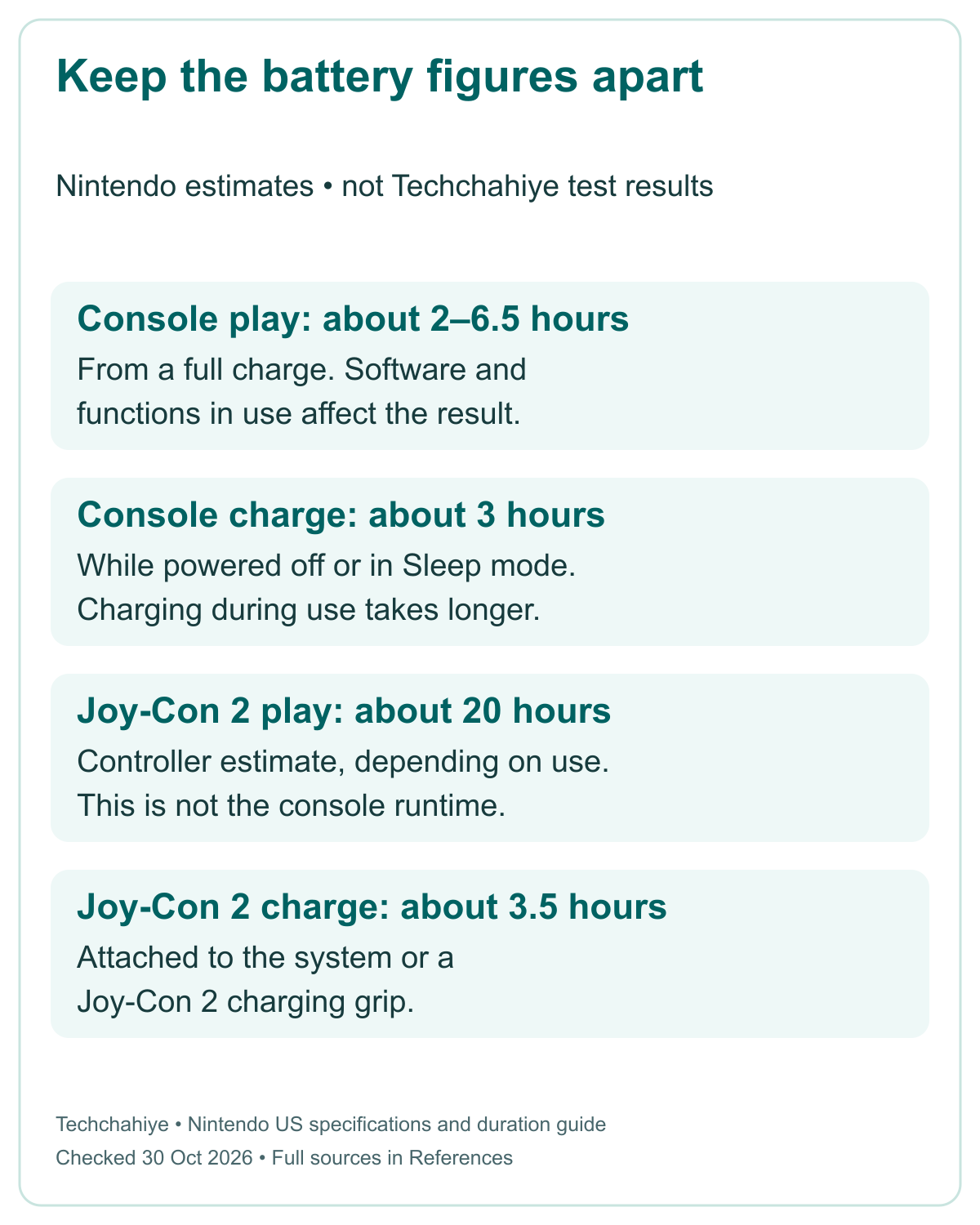
The upper estimate does not apply to every game. A session that lasts less than 6.5 hours does not alone show a defect. Nor does a single percentage reading tell you how long a different game will last tomorrow. Start with the full range and the conditions Nintendo states.
Use the same care with reviews and friends’ results. A number from another game or another setup may answer a different question. Ask which software they used and whether they began with a full charge. A shared model name is not enough to make two sessions a fair comparison.
Use the figures for the right purpose
For planning, decide how much unplugged time you need. A long journey can exceed the published range. Plan where you can charge. Do not count on the upper end of the estimate. Check the rules and power options for your actual trip before relying on them.
| Nintendo figure | What it describes | What it does not promise |
|---|---|---|
| About 2 to 6.5 hours | Console runtime from a full charge | The same result in every game |
| About three hours | Full charge while off or in Sleep mode | A full charge in three hours while playing |
| 5,220 mAh | Listed internal battery capacity | A direct hours-of-play formula |
| About 20 hours | Joy-Con 2 battery life, depending on use | Twenty hours for the console |
| About three hours 30 minutes | Joy-Con 2 charging time | The same figure for the console |
These figures come from Nintendo’s specifications and duration guide. They refer to different parts or states. Keeping them separate is the first useful check. A controller figure is not console runtime. Charge time and capacity are different measures too.
Check the console percentage before you time a session
Nintendo offers several ways to see the approximate charge. For a brief view, press ZL and ZR together. In Handheld or Tabletop mode, you can also tap the battery icon at the top right. Use that reading to record the starting point, rather than guessing from the shape of the icon.
To keep the number on the HOME Menu, open System Settings. Select System, then find System Battery (%). Turn it on to show the percentage or off to hide it. This changes the display. It does not add capacity or change the runtime range.
Keep the word approximate in mind. A displayed percentage is a status estimate. It is not a stopwatch for the remaining minutes in every game. If the number and the time you can still play seem far apart, note both. That pattern matters for Nintendo’s separate meter guidance.
Check the right device too. The console and each controller have their own charge. A low controller reading is not the console battery. If the game stops responding, check which part needs power. The handheld itself may still have charge.
You do not need to watch the number every minute. Note the starting and ending charge. Add play time and a short note about the session. The goal is a clear account of what happened, not a new distraction while you play.
Keep charge time separate from play time
Nintendo says the console takes about three hours to charge fully when off or in Sleep mode. It says charging takes longer while the console is in use. So a long play session connected to power is not the same charging condition as an idle console left asleep.
Check the state when you compare your result with that figure. Was the console asleep, off, or running a game? Did you check after a short top-up or a full charging period? Without that detail, “it charged for three hours” can describe several different situations.
This distinction also helps with a trip. A short stop near an outlet is a top-up opportunity, not a verified full charge. Check the actual percentage before leaving. A brief top-up does not restore the whole stated range.
Use the right charging equipment for the route. Nintendo names its Switch 2 AC adapter, model NGN-01, in its guidance. The older Switch adapter is model HAC-002. It can charge Switch 2 through a direct console connection. Nintendo says it cannot power charging or TV mode through the Switch 2 dock.
The same older charger can work directly but fail through the dock. That follows the stated limit. It does not mean the battery suddenly changed. Check the adapter model and path first. Then compare the charging result before buying parts.
Check the 90% setting before treating a charge stop as a fault
Nintendo’s cannot-charge page gives a specific warning. If “Stop battery charging at approximately 90%” is on, the console will not charge past that point. A stop near that level can be the chosen setting doing its job. Read the setting before diagnosing a failed full charge.
Keep the starting charge in a runtime note. A start near 90% is not a full charge. Nintendo’s 2-to-6.5-hour range uses a full-charge start. This is a reason to state the starting point. It is not a basis for a precise claim about how many minutes the setting costs.
Do not multiply the upper runtime estimate by 90% and present the result as a tested limit. The published range already depends on software and functions. A sum based on percentage cannot replace a test in your game.
You can decide whether the setting fits your needs. This guide does not tell every reader to disable it. First name the test. Does charging work as set? Or do you want to check runtime from a full charge? Those are different tests.
Does charging still fall short of the chosen setting? Use the power-path guidance. A known limit near 90% does not explain a blank charge icon or a system that never gains charge. Name the exact symptom so you use the page that addresses it.
Did You Know?
Nintendo lists about 20 hours for Joy-Con 2 battery life, with use affecting the result. That number belongs to the controllers. The console’s own range is about 2 to 6.5 hours. A controller can still have charge when the console needs power. Compare the correct device.
Make a useful runtime note without turning it into a lab claim
Nintendo’s short-runtime page gives a direct check. Charge fully, then observe how long the charge lasts. Record the software and functions in use beside that observation. This gives support more context than a single statement that the battery feels poor.
Start with a clear session. Do not combine play, downloads, sleep, and charging into one vague total. If the console rests in Sleep mode for part of the period, write that down. Elapsed clock time and active play time answer different questions.
You can keep a simple note with these fields:
- Date, console model, and game or app.
- Starting charge and whether the charge-limit option is on.
- Time unplugged and the period of active use.
- Functions and play mode in use.
- Ending charge and any unexpected shutdown or percentage behavior.
For example, a hypothetical note might say the session began at 100% at 2 p.m. and ended at 4 p.m. That is two hours of elapsed time. It does not prove two hours of active play if the console slept for part of it. The example shows how to label a record, not a test result.
Avoid extrapolating a few minutes into a full runtime claim. A short sample may not reflect the rest of the session. If you share a result, describe the observation you made. Do not turn it into a guarantee for other games, players, or future battery age.
A session note to keep for support
Date and software: [ ]. Starting charge: [ ]. Charge-limit option: [ ]. Time unplugged: [ ]. Active play versus sleep: [ ]. Functions in use: [ ]. Ending charge and symptom: [ ]. Adapter model and charging route: [ ].
Choose the short-runtime route when the console truly runs out early
Nintendo’s short-runtime page has a clear scope. The console charges fully and turns on. It then loses charge fast after unplugging or undocking. That scope matters. A console that cannot charge at all needs a different route. So does a low percentage that stays there through hours of play.
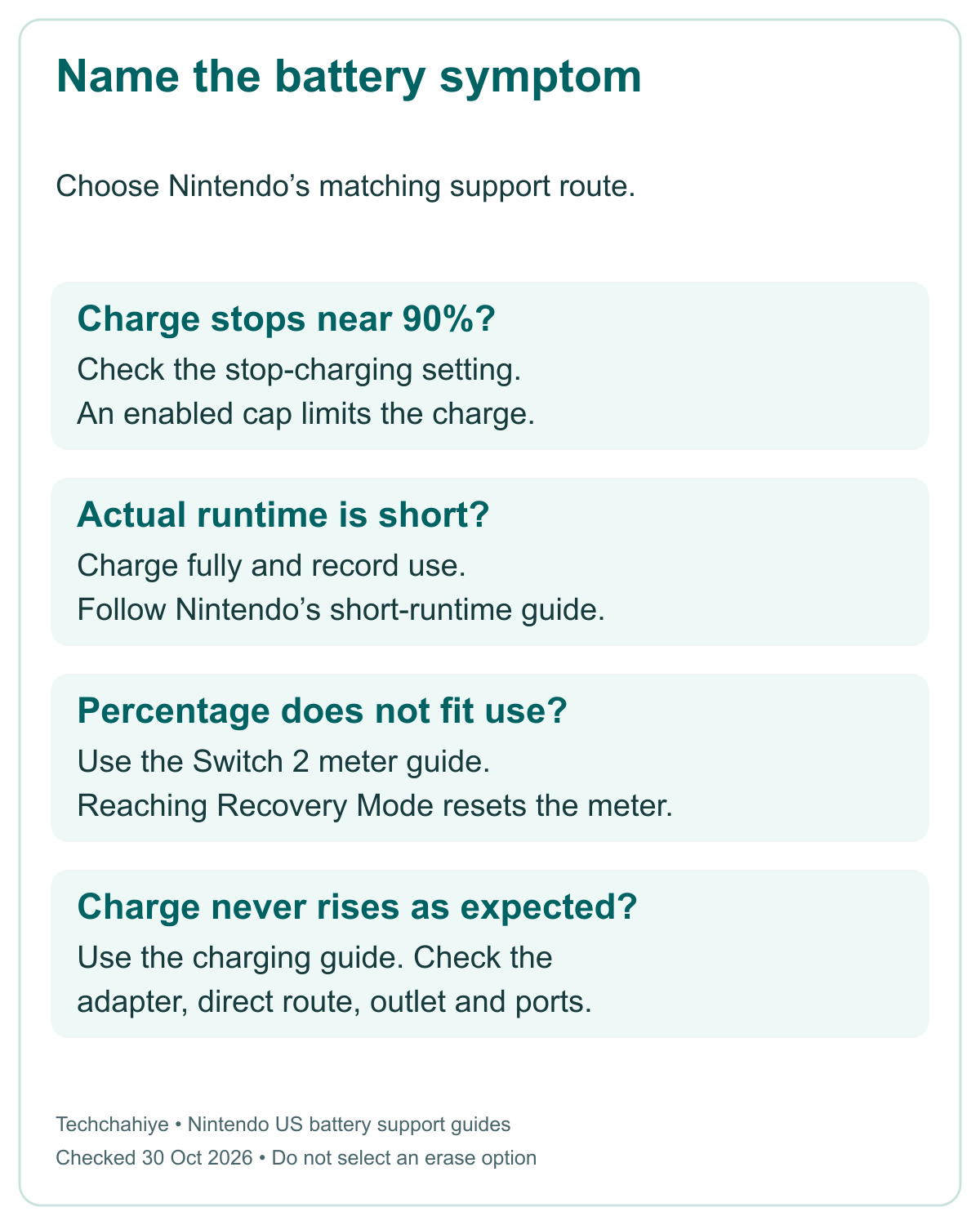
The page repeats the approximate 2-to-6.5-hour range. It asks you to charge fully and observe the runtime. Does a full charge fall short of the listed times? Nintendo directs the console to service. Use that official route rather than opening the battery yourself based on this guide.
Provide the session note when asking for help. Include the starting state, game, functions, elapsed use, and what happened at the end. A statement such as “it turned off during play” differs from “the icon showed 1% but I kept playing.” Support can use that distinction to select the next check.
Nintendo also says lithium-ion battery life gradually decreases over time. That is normal aging, not by itself proof of a console defect. The statement does not mean every sudden or severe issue should be ignored. Keep the observed behavior and Nintendo’s symptom-specific service guidance together.
Do not import a cycle-count limit or health percentage from a phone or laptop guide. Nintendo’s pages here do not give such a threshold for this decision. The relevant starting point is its own runtime check and the actual symptom on the Switch 2.
Use Nintendo’s meter route for a percentage that does not fit use
An inaccurate display can look like short battery life. Nintendo gives an example of this fault. The meter says almost empty, but play continues for a few hours. Its page addresses that mismatch between the number shown and actual remaining use. It is not a general trick to create more battery capacity.
The page asks for the Switch 2 console, its NGN-01 AC adapter, and internet access. First confirm a suitable adapter and the latest system update. Follow the linked update and power-off instructions for the console. Save your work before starting a power-state troubleshooting process.
Nintendo’s current meter-reset steps use Recovery Mode. With the console off, hold Volume + and Volume –, then press POWER once. Keep holding both volume buttons until the Recovery Mode menu appears. Nintendo says reaching that menu should reset the battery-level meter.
Then power the console off again by holding POWER until it turns off. Turn it back on and observe the result. The instruction is to reach the menu; it does not tell you to choose an erase or initialization option. Read Nintendo’s full page beside the device before you begin.
Do not substitute older full-discharge instructions from another model’s guide. The US Switch 2 page checked for this article gives the Recovery Mode menu route. Does the display stay wrong after those steps? Nintendo directs the console to service. A meter reset does not repair a worn battery.
Use the charging route if charge never rises as expected
If the issue is charging rather than runtime, use Nintendo’s cannot-charge page. It says to remove the console from the dock for its checks. Keep the adapter, USB-C cable, and power outlet in view. This checks the direct route. Keep the dock and battery questions separate.
Its sequence begins by unplugging the adapter from both ends for 30 seconds. It then calls for a forced shutdown by holding POWER for 20 seconds. Reconnect the adapter to an outlet and directly to the console, then press POWER once. Follow the full source for the exact order and your symptom.
Nintendo also suggests another outlet. Test directly at the wall, without a power strip. Its unresolved-case guidance includes testing the other USB-C port. The console has one at the top and one at the bottom. A result that differs by port is useful evidence for support.
Check for the charging icon rather than looking for a console power light. Nintendo says Switch 2 consoles lack a power light. The specs confirm both USB-C ports can charge the console. The bottom port also connects it to the dock.
These are power-path checks, not runtime optimizations. Do not repeat them to chase the upper end of the battery estimate when charging already works. Is the icon or charge progress still absent? Keep the adapter and port results. Follow Nintendo’s service direction.
Plan portable play around the session you need
Use the runtime range as a planning boundary with uncertainty. If you need several hours of a particular game, learn what your own console does in that game before the journey. Keep the same charge starting point and note the functions in use so the comparison has meaning.
Check controller charge too. From the HOME Menu, choose Controllers. You can see the charge for each actively paired controller. Nintendo lists about three hours 30 minutes to charge Joy-Con 2. It says they charge while attached to the system or a Joy-Con 2 charging grip. Keep that figure separate from console charging.
Nintendo lists an operating environment of 41–95°F and 20–80% humidity. Treat those as environment specifications, not an internal chip-temperature target. Choose a suitable place to use and charge the device. Do not use an unverified heat trick to claim a fixed increase in battery life.
Before buying a charger or other accessory, check the actual product’s support details. A connector shape alone does not prove that a power route meets the console’s needs. This article does not test power banks or rank third-party adapters. The supported equipment and connection path come first.
Conclusion
Nintendo Switch 2 battery life is roughly 2 to 6.5 hours on a full charge. Software and functions affect the result. Charge time, controller life, and the console’s displayed percentage describe different things. Keep each number tied to the part and state Nintendo specifies.
For a problem, choose the right branch. Check the 90% option for an intentional charge stop. Record actual use for short runtime. Use Nintendo’s meter guide for a wrong percentage. Use its charging page for missing charge progress. Those distinctions lead to a clearer next step.
FAQs
Should every Switch 2 game last 6.5 hours?
No. Nintendo gives about 2 to 6.5 hours as a rough full-charge range. Software and functions in use affect the result. The upper estimate does not apply to every game. Record the game and starting charge. Keep both beside your runtime note.
Why does my console stop charging near 90%?
Nintendo provides a setting to stop charging at about 90%. When on, it prevents charging past that point. Check the option before diagnosing a fault. That start differs from a full charge. The runtime estimate uses a full-charge condition. The setting alone does not prove a charging problem.
How long does a full console charge take?
Nintendo says about three hours with the console off or in Sleep mode. Charging takes longer during use. Check the state and adapter route when comparing your result. Do not treat a short top-up or a long plugged-in play session as the same condition as idle charging.
Does a meter reset add battery capacity?
No. Nintendo’s meter page concerns a mismatch. The displayed percentage differs from actual remaining use. Its current Switch 2 steps use the Recovery Mode menu. Follow the complete source and do not select an erase option. This changes a meter state, not the physical capacity of an aging battery.
Are the Joy-Con 2 battery figures the same as the console’s?
No. Nintendo lists about 20 hours for Joy-Con 2, depending on use. The console has its own 2-to-6.5-hour range. View paired controller charge from Controllers on the HOME Menu. Check which device is low. A controller power issue differs from short console runtime.
References
- Nintendo US — Switch 2 technical specifications
- Nintendo US — How long the Switch 2 battery charge lasts
- Nintendo US — Short Switch 2 battery runtime
- Nintendo US — Battery indicator or percentage displays incorrectly on Switch 2
- Nintendo US — Check battery life on Switch 2
- Nintendo US — Switch 2 cannot be charged
- Techchahiye — Nintendo Switch 2 Bluetooth headphones: setup and limits
