

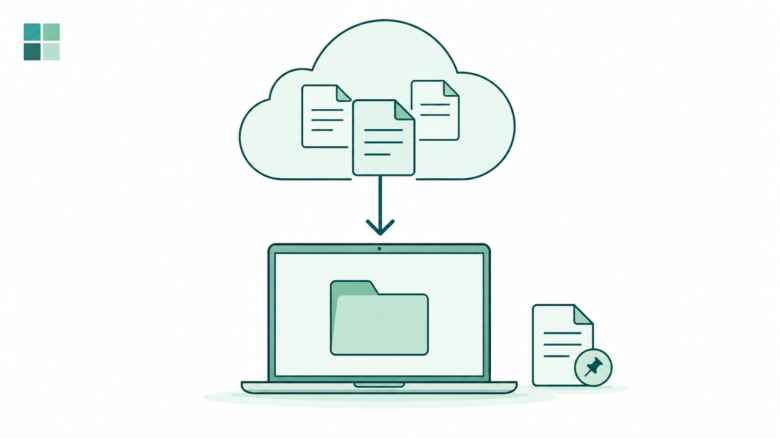
Choose the file state you need
Read the status icon in the correct OneDrive account. Use Free up space for online-only files. Keep your offline working set on the device and test it before travel. Check cloud storage and local disk space as separate limits.
Key Takeaways
- OneDrive Files On-Demand shows cloud files in Windows. You do not need to keep all their contents on the PC.
- A cloud symbol means the file needs an internet connection. A filled green check marks a file set to stay on the device.
- Free up space removes the local file content while keeping the cloud file. Delete is a different action that can sync across devices.
- Before travel, choose the files you need, wait for their downloads, and test them offline in the apps you plan to use.
OneDrive Files On-Demand can help when a Windows laptop has little free space. You can keep a folder visible while storing some file contents online. But the choice that saves disk space is not the same as deleting a file, hiding a folder, or making it ready for a flight.
For most readers, the useful starting point is File Explorer. Open the right OneDrive folder, check a file’s status, then choose whether you need its contents on this PC. Use Free up space for a cloud file you do not need offline. Use Always keep on this device for one you do.
This guide focuses on Windows 11. We checked Microsoft’s current support pages on October 26, 2026. It covers local disk space, cloud storage and offline access as separate tasks. The storage graphic below is a made-up calculation to explain the choices. It is not a measured result from a real laptop.
Read OneDrive File Availability First
Microsoft’s icon guide describes three common file states. A blue cloud means online-only. The white circle with a green check means the file has local contents. A filled green circle with a white check means you chose to keep it on the device. Read the status before you change it.
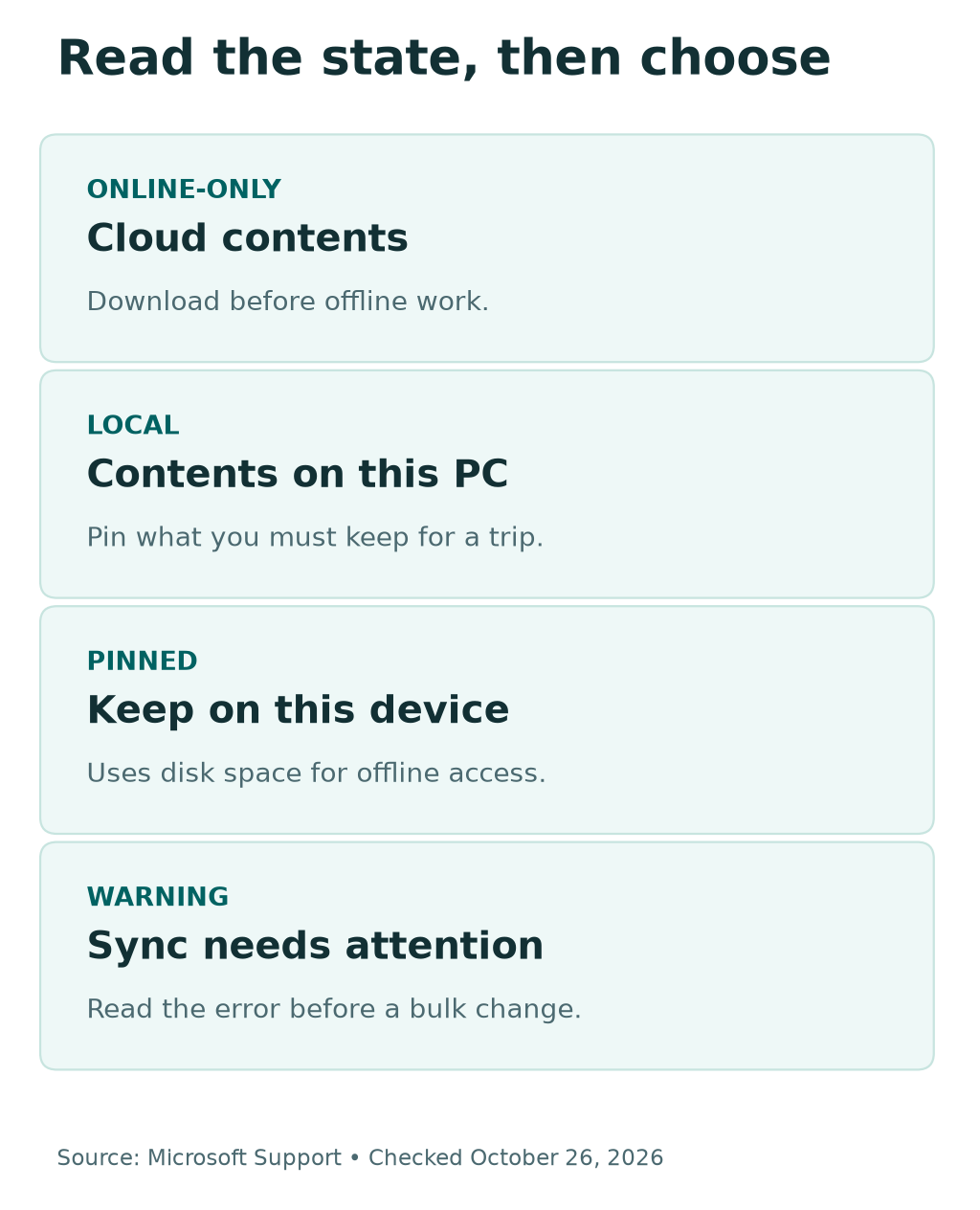
An online-only file needs the internet when you open it. Opening it downloads the contents and makes it locally available. A locally available file can work offline. The keep-on-device choice goes further. It marks the item to stay available. A normal local copy may become online-only under space-management rules.
Do not judge availability from the file name alone. A document can appear in a folder even when its full contents are not on the PC. The name helps you find it. The status tells you whether you can rely on its contents without a connection.
Use the same check for each device you plan to take. A file’s presence on your desktop PC does not prove that the travel laptop has downloaded it. Open the right folder on that laptop and inspect the actual state there.
| Status in File Explorer | What it means | A useful choice |
|---|---|---|
| Blue cloud | Contents are online-only | Download before working offline |
| Green check in an outlined circle | Contents are locally available | Pin if you must keep them for a trip |
| White check in a filled green circle | Set to stay on this device | Keep while you need offline access |
| Red cross or sync warning | A sync issue needs attention | Read the error before a bulk cleanup |
Find the Right Account and Folder
Microsoft’s setup guide says Windows 11 includes OneDrive. You can sign in with a personal account or a work or school account. File Explorer separates those folders by account. Check that label before you manage files. Similar folder names can appear in both places.
For example, imagine two folders named Reports. One belongs to a personal account and one to an employer. This is a made-up example. A storage change in the personal folder will not prepare the work report you meant to take. Read the full folder path and account name first.
Then check the OneDrive app’s status. A folder on screen is not enough if the app needs attention. Microsoft’s icon guide uses warning symbols for sync and account issues. Open the relevant OneDrive cloud icon and read its message. Keep a note of the exact error if it does not make sense.
Do not sign out of a working account as the first step in a space cleanup. First identify the file, its account and the action you need. Does an organization manage the device? Ask its help desk about missing or restricted options. Keep work documents in approved locations.
Use OneDrive Free Up Space Carefully
In File Explorer, find the correct OneDrive file or folder. Right-click it and choose Free up space. Microsoft’s Files On-Demand guide says this returns local files to online-only status. The cloud file stays in OneDrive. You can download it again when you need it and have a connection.
Start with a small, noncritical item. Check the result before applying the choice to a large folder. Look for the cloud status. Then check the correct account on OneDrive’s website. Confirm the file still appears there. This gives you direct evidence of the state you wanted.
Consider a completed project that you rarely open. Keeping it visible but online-only may suit that use. By contrast, a document you need during a train trip may be a poor candidate. Choose based on the next task, not the size of the folder.
Do not press Delete because its label sounds like a faster way to remove a local copy. Deleting an item in the OneDrive folder can delete it from OneDrive too. Microsoft explains this in its deletion guide. It also warns that deleting a shared item can affect everyone who shares it.
If a confirmation mentions deleting shared content, stop and read it. That is a different operation from the online-only choice described here. Confirm the goal before you proceed. You do not need to remove the cloud file merely to reduce local file content.
Free up space is different from Delete
Before a bulk action, confirm the intended account and folder. Keep the cloud file if your goal is local disk space. A Delete command can affect the cloud and shared users. If a warning mentions deletion, stop and review the action.
Use Always Keep on This Device Before Travel
For an item you need offline, right-click it in the OneDrive folder and choose Always keep on this device. Microsoft says the contents download to the device. The file gains a filled green status circle. Wait for that state rather than assuming a click finished the download.
Prepare a focused set of files. Imagine a made-up training trip: you need a slide deck, a PDF handout and a small data sheet. Pin those items or a suitable trip folder. You may not need to download years of project files to give a one-hour presentation.
Next, open the files in the actual apps you plan to use. A successful download does not install the software needed to read a file. Check the deck in your presentation app, the PDF in your reader, and the data sheet in the right spreadsheet app.
Then briefly disconnect from the network and reopen the needed files. This is a practical check you can perform; it is not a test we ran on your device. Reconnect afterward. If something fails, fix it while you still have time and a working connection.
Keep enough free disk space for the download and your work. Do not choose the whole cloud library if you do not know whether it fits. A smaller verified offline set is more useful than a huge download that is still in progress when you leave.
Compare Local Disk Space and Cloud Storage
OneDrive Files On-Demand controls how file contents occupy this PC. It does not turn a large cloud library into a smaller cloud library. Microsoft’s guide says making a file online-only leaves it in OneDrive. You still have to account for that cloud file when reviewing cloud storage.
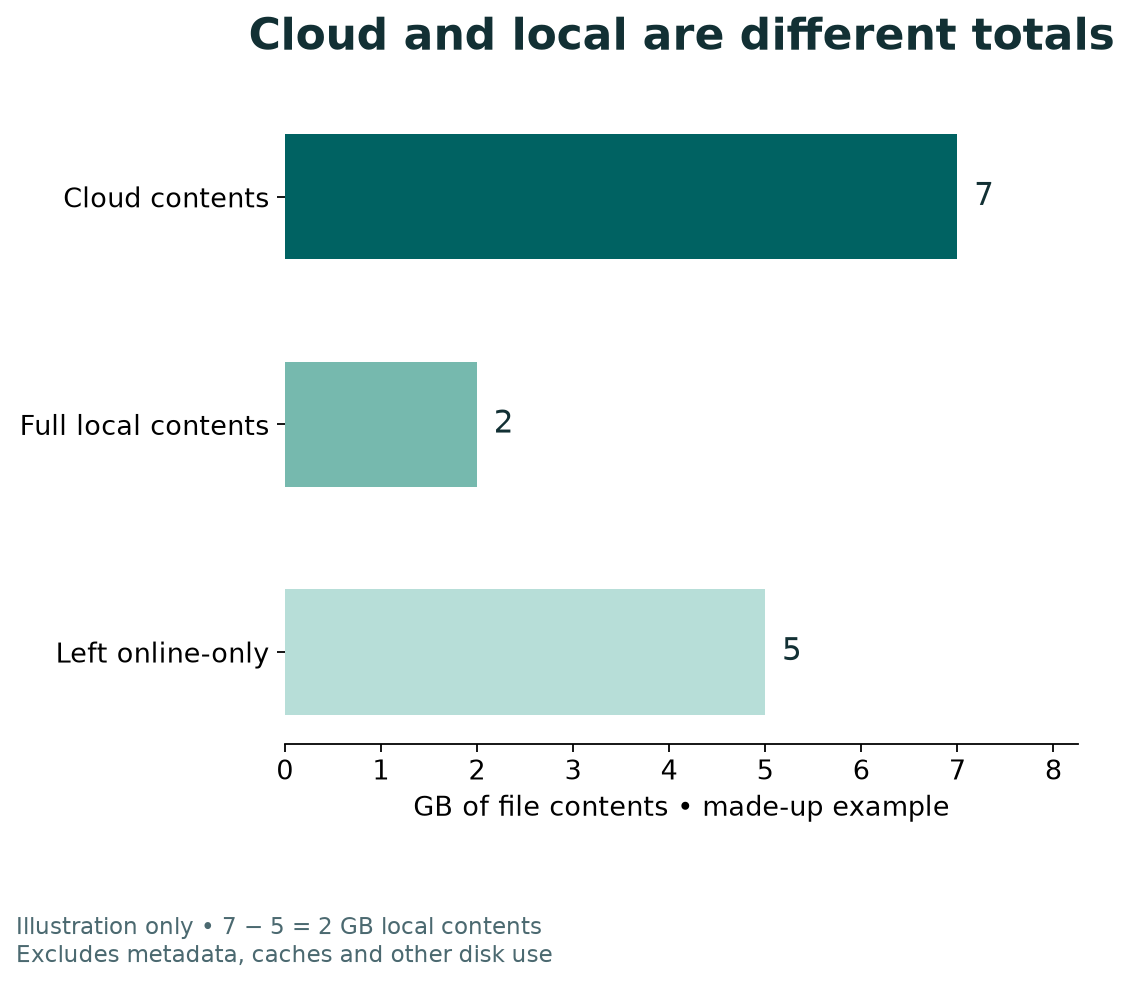
Use the chart as a made-up example. Suppose a folder contains 7 GB of file contents in OneDrive. You keep 2 GB on the laptop and leave 5 GB online-only. The cloud still holds 7 GB. The selected local full-file contents total 2 GB, not 7 GB.
That arithmetic is 7 minus 5 equals 2 GB. It is not a claim that a real PC will gain exactly 5 GB of usable space. Other disk use can affect the real reading. This includes placeholders, metadata, caches and other files. The storage display can differ too. The chart deliberately counts full-file content only.
Use consistent units when you compare your own numbers. Also compare the same location. A Windows drive-space display covers much more than a OneDrive folder. The cloud-storage page covers a different limit. A change to one should not be treated as proof that the other changed.
If the laptop is full, review local content and drive usage. If OneDrive reports a full cloud account, review that account’s storage. Those are separate problems. Free up space changes local availability. It does not solve a cloud quota warning.
Check Storage Sense Without Mixing Cleanup Rules
Windows offers Storage Sense under Settings, System, Storage. Microsoft’s guide says it works on the system drive. It can manage local cloud contents as well as other cleanup tasks. Read its choices before turning a broad rule into your storage plan.
For cloud content, Storage Sense can return inactive local files to online-only status. Microsoft says items marked Always keep on this device are exempt from that process. The guide lists a 30-day OneDrive inactivity default. It applies starting with Windows 11 version 22H2. Check the value and state on your PC.
Other Storage Sense options can affect saved files in different ways. Its Downloads and Recycle Bin choices involve deletion. Review those controls separately. Do not apply a Downloads cleanup rule because you only meant to release a OneDrive local copy.
For a practical plan, identify what must remain offline before reviewing cleanup intervals. Pin that small working set. Then check the current cloud-content rule. Review it after your needs change. An automatic setting cannot know which files you will need next week. Choose that set yourself.
Hiding a Folder Is a Different Choice
Microsoft also offers Choose folders in OneDrive settings under Account. That lets you choose which cloud folders sync to a computer. Its folder-selection guide explains the result. Uncheck a synced folder to remove it from that computer. Its contents remain online. Certain important PC folders cannot be unchecked this way.
Use this when you do not want a cloud folder in that computer’s folder list. Use online-only status to keep the names visible. You do not need all the full contents on this PC. Decide which result you want before opening either control.
For example, a personal photo archive might not belong in the File Explorer view you use on a workday. A current project might belong there even if most of its large source files stay online. These are made-up planning examples. Keep personal and employer accounts in their approved uses.
Microsoft says folder-selection settings are specific to each computer and account. Check the result on the device in question. Do not assume a choice made on a home PC also sets up a second laptop. Keep a short note if you use different sets on different devices.
Saving a File Is Not the Same as Pinning It
Microsoft’s save-location guide distinguishes OneDrive from This PC. A new file can have a save destination even before you decide how it should be available later. Read the destination in Save or Save As. Do not rely only on a familiar file name.
Suppose you prepare a new handout for a trip. This is a made-up workflow. First choose the intended folder and account when saving. Then return to that location in File Explorer. Confirm the right version exists and choose its offline state. These are two checks with two different purposes.
Opening an old copy from a recent-files list can make the process confusing. Read the location of the file you are about to edit. If two copies exist, decide which is the working version before you pin one. An offline copy is less useful if it is not the document you intended to take.
Avoid moving files out of OneDrive as a casual space-saving step. Microsoft explains what that move does. Online-only contents download to the new location. The files leave OneDrive. That is a change of location and cloud presence. It is not the same result as keeping a cloud file online-only.
Plan OneDrive Files On-Demand for Offline Work
Build the plan around the work you will do without a connection. List the needed documents and the apps that open them. Add any separate files those documents depend on. The following is a suggested workflow, not a product guarantee or a test result.
First, create a short checklist of the actual items. A folder called Trip may contain old and new files. Open each important one and read enough to confirm its version. Include any approved supporting files you will need. A folder name does not prove the set is complete.
Next, choose the keep-on-device option and wait for the downloads. Check the individual status icons. If a file has a warning, resolve that before relying on it. A red cross is a reason to investigate, not a cue to delete and recreate the whole folder.
Then test the task offline. Do more than look at the first page if your work needs a particular chart or attached asset. Record what you checked. Reconnect and allow any legitimate edits to sync. Do not leave the test copy scattered in several folders with unclear names.
After the trip, review the set again. Some files may still be part of your active work. Others can return to online-only status if you no longer need them offline. Keep the offline set useful. You do not need to keep every past project as a local download.
If Files Are Missing or Do Not Download
Separate a missing name from a failed download. If a folder is absent from this PC, check the account and folder-selection settings. If the name appears with a cloud icon but will not open, check the connection and the OneDrive message. For a sync error, follow the error-specific support route.
Microsoft provides a sync troubleshooting guide for personal and work or school accounts. Use the path that matches your account. For a managed computer, include the exact error in a help-desk request. Do not change security rules merely to force a download.
If you deleted something by mistake, stop the cleanup and check OneDrive’s web Recycle bin. Microsoft’s restore guide provides the recovery steps and limits. Recovery depends on the account and retention rules. Online-only files may not appear in the PC’s Recycle Bin, so that local bin is not the only place to check.
Keep a separate recovery plan for important work. OneDrive sync can carry changes, including deletions, between locations. A pinned local copy is an availability choice. It should not be treated as a frozen backup that cannot change when the synced file changes.
Did You Know?
An online-only folder does not force every file inside it to stay online-only. You can keep individual files available on the device. Microsoft explains this in its Files On-Demand guide. That makes a small offline working set possible without downloading the whole folder. Check each selected file before you leave the network.
Conclusion
Use OneDrive Files On-Demand by starting with the file’s account, location and status. Choose Free up space to keep cloud contents while releasing local contents. Choose Always keep on this device for a file you need offline. Wait for the result and test the work you plan to do.
Finally, keep three goals separate. Do you need local disk space, less cloud storage, or files ready for offline work? Check Storage Sense and folder-selection rules with those goals in mind. A small verified change is easier to trust than a bulk cleanup with an unclear result.
FAQs
Does OneDrive Free up space delete the cloud file?
No. It changes the local file to online-only while keeping it in OneDrive. Delete is a different action. Check the label and the account before acting, especially for a shared file.
What does Always keep on this device mean?
It marks a OneDrive file or folder to stay available on that device. The contents download and use local disk space. Wait for the filled green check, then test the file offline in the app you need.
Why can I see a file but not open it offline?
A name in File Explorer can represent an online-only file. Check for the cloud status icon. Download the needed contents while online. Verify them before relying on the file without a connection.
Does Files On-Demand reduce my OneDrive storage quota?
No. Making a file online-only keeps its cloud contents in OneDrive. It changes local availability. Review the cloud account’s storage separately if that is the limit you have reached.
Can Storage Sense remove files I pinned for offline use?
Microsoft exempts pinned files from its cloud-content cleanup. Use Always keep on this device for that state. Review the actual settings on your PC. Check Downloads and Recycle Bin deletion rules separately.
References
- Microsoft Support — Save disk space with OneDrive Files On-Demand for Windows
- Microsoft Support — What do the OneDrive icons mean?
- Microsoft Support — Delete files or folders in OneDrive
- Microsoft Support — Sync your computer’s files and folders with OneDrive
- Microsoft Support — Manage drive space with Storage Sense
- Microsoft Support — Choose which OneDrive folders sync
- Microsoft Support — Change the default save location
- Microsoft Support — Fix OneDrive sync problems
- Microsoft Support — Restore files deleted from OneDrive
- Techchahiye — Apps and productivity guide
- Techchahiye — Google Drive stream and mirror modes
