

Fix the right clock setting
Check the main clock and date first. Then review the automatic time and time-zone settings. If only Calendar looks wrong, check its override and the event. Use both cities and the exact date for a US–India call.
Key Takeaways
- If your iPhone time is wrong, check the clock, time zone and date as separate items. A wrong city can cause a whole-hour error.
- Use Apple’s automatic time settings with an internet connection. Check its time-zone location setting too.
- Calendar Time Zone Override affects Calendar. It does not set the clock for the whole phone.
- US daylight saving time ends on November 1, 2026, where observed. A fixed US–India call can shift by an hour.
Your iPhone time is wrong, and a call is due soon. Before you move the clock by hand, check what is wrong. The minutes may be off, the phone may use the wrong city, or one calendar event may show a different time. Those problems need different fixes.
Start with Settings, then General, then Date & Time. Apple’s current guide uses separate automatic controls for the clock and time zone. Older software may show Set Automatically instead. Keep the phone online while you check them. Then compare the date, local time and time zone with a trusted source.
This guide uses Apple’s current support pages, checked on October 26, 2026. It also explains the US time change on November 1. Menu labels can vary by iOS version, carrier and region. Use the controls on your phone. Do not change an unrelated setting to match a screenshot.
Find Out Which Time Is Wrong
First, look at the main phone clock. Note the date as well as the hour and minutes. Then open the app that caused concern. Is the error on the Lock Screen, in Calendar, or in one message? A single bad event does not prove that the whole phone clock is wrong.
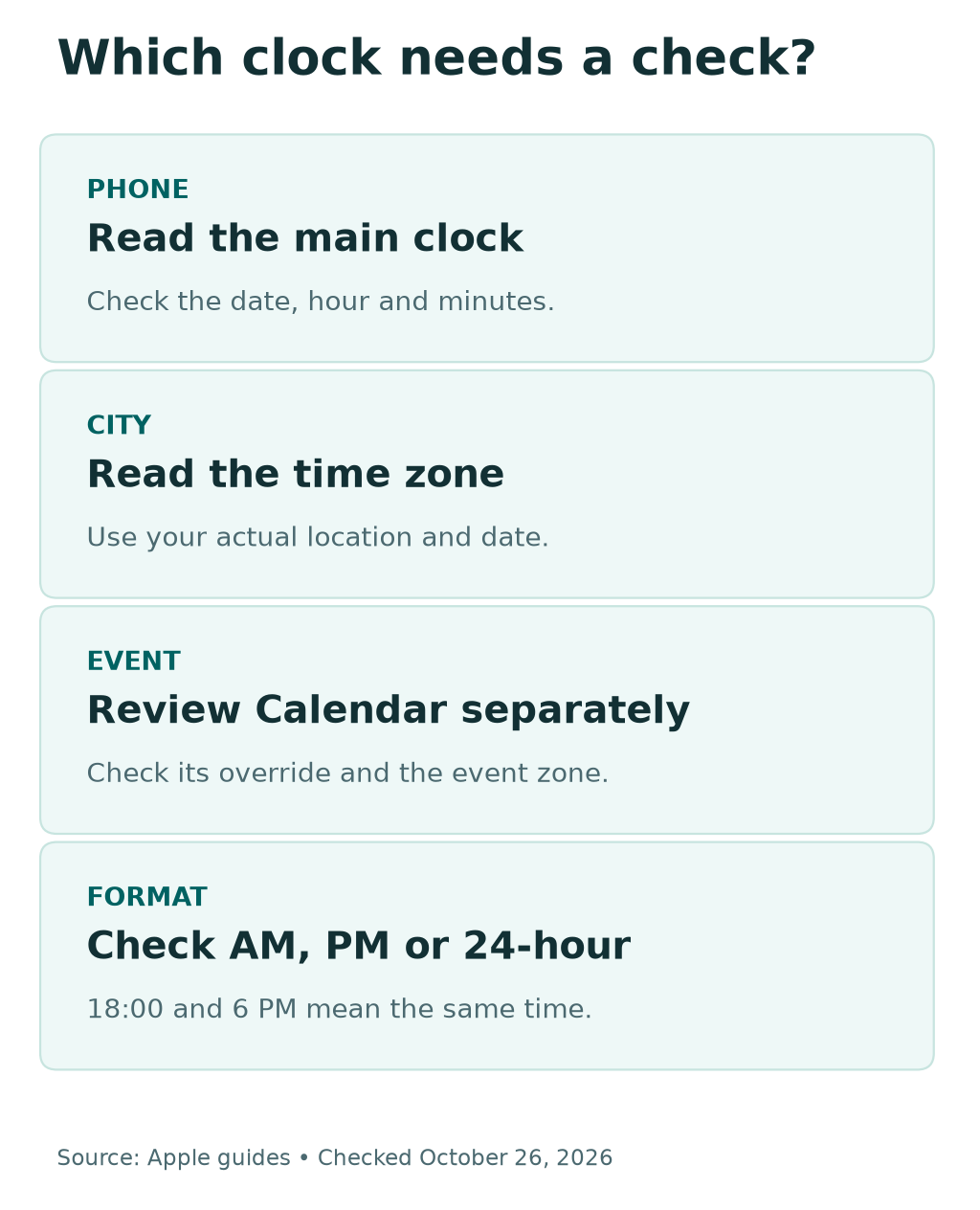
A whole-hour gap can point to a time-zone issue. It can also reflect a seasonal clock change. A twelve-hour gap may be a time-format mix-up. These are clues, not a firm diagnosis. Check the selected city and date before you decide what caused it.
Use a trusted time source for your current location. Do not use a screenshot of an old clock as the reference. A colleague in another country may have the correct time for their own city. Ask which city and date they mean, not what their clock says.
Before a change, note the wrong display. Add the expected local time and the place where you checked it. This gives you a way to judge the result. It also prevents a string of random changes that hide the original issue.
| What you see | First check | What to avoid |
|---|---|---|
| Main clock has the wrong hour | Date & Time and selected zone | Changing one event to hide a phone-wide error |
| Main clock is right, one event is wrong | Event’s time zone and Calendar settings | Moving the whole phone clock |
| 18:00 appears instead of 6:00 PM | 24-Hour Time | Treating a display format as a clock fault |
| US call shifts relative to India | Both cities and the meeting date | Assuming the gap stays fixed all year |
Set iPhone Time Automatically
Apple’s support page starts with an internet connection and current software. Connect the phone to a working network. Check that it can load a normal webpage. A Wi-Fi symbol alone does not prove that the connection can reach the internet.
Next, check for the latest software update for your device. Leave enough time for the update process. Do not begin it before a critical call or while you need the phone for travel. If the clock issue is urgent, use a trusted separate clock while you work through the checks.
Open Settings, choose General, then Date & Time. In the current iPhone User Guide, look for Set Time Automatically. This is the clock control. Turn it on if available. Apple’s support page says this lets the device set the date and time. The option may not exist on every device or in every region.
Apple also says to restart the phone if it reports updated time-zone information. Restart an Apple Watch paired with it as well. That instruction applies when the update message appears. It is not a reason to erase either device or reset all your settings.
After the change, check the main clock again. Read the date, hour and minutes. Also check the app that first showed the error. Is the phone clock now right, but the event still wrong? Keep the working clock setting. Use the Calendar checks below.
Fix an iPhone Time Zone That Is Wrong
The clock and time zone work together. But each has its own setting. The current iPhone guide lists Set Time Zone Automatically under Date & Time. That control chooses the zone. Set Time Automatically controls the clock itself. Read both labels on your installed software.
Apple’s troubleshooting page also lists a location setting. Go to Settings, then Privacy & Security, then Location Services. Scroll to System Services and check Setting Time Zone. Apple says this lets the device use its current location to find the correct zone.
Use that specific setting for this task. You do not need to give every app location access to fix the time zone. If a work or school manages the phone, follow its rules. Ask its administrator about a locked control. Do not try to remove the management profile.
Then return to Date & Time and review the result. When you travel, compare it with the time for the place you have reached. A phone still set to your home city can show a plausible time that is wrong for your present location.
If you choose a zone by hand, pick the right city for the date and place. A fixed UTC offset is a more limited choice. Some places change their offset during the year. A correct offset today may be wrong on a later travel date if you keep the same manual value.
Check the November 1 US Time Change
NIST lists November 1 as the end of US daylight saving time in 2026. At 2 AM local time, clocks return to 1 AM in places that observe the change. The repeated hour can cause confusion if someone gives a time without a date or zone.
This rule does not apply to every US location. Hawaii and most of Arizona do not observe daylight saving time. NIST lists several US territories too. The Navajo Nation is an exception within Arizona. Use the actual city involved in your plan.
Use the right automatic settings on a supported phone. Let its time-zone rules handle the local display. Check that the software is current before the change. Do not move the clock back a day early because a headline says that clocks change this weekend.
Review important plans near the change. Confirm a flight or train time with its operator. For a meeting, use a dated invite and the host’s named city. For an important reminder, check the time shown on your device. Third-party apps may handle the repeated hour in different ways. Check the guide for the app you use.
The useful question is not simply, “Did the clocks change?” Ask, “Which city, on which date?” That short check separates a real phone clock fault from a correct time shown for a different place.
Plan a US–India Call Across the Change
CSIR-NPL is India’s national time laboratory. It states that Indian Standard Time is UTC plus 5 hours 30 minutes. A US city’s offset can differ before and after a seasonal change. That can shift the India time for a call fixed to the US city’s morning.
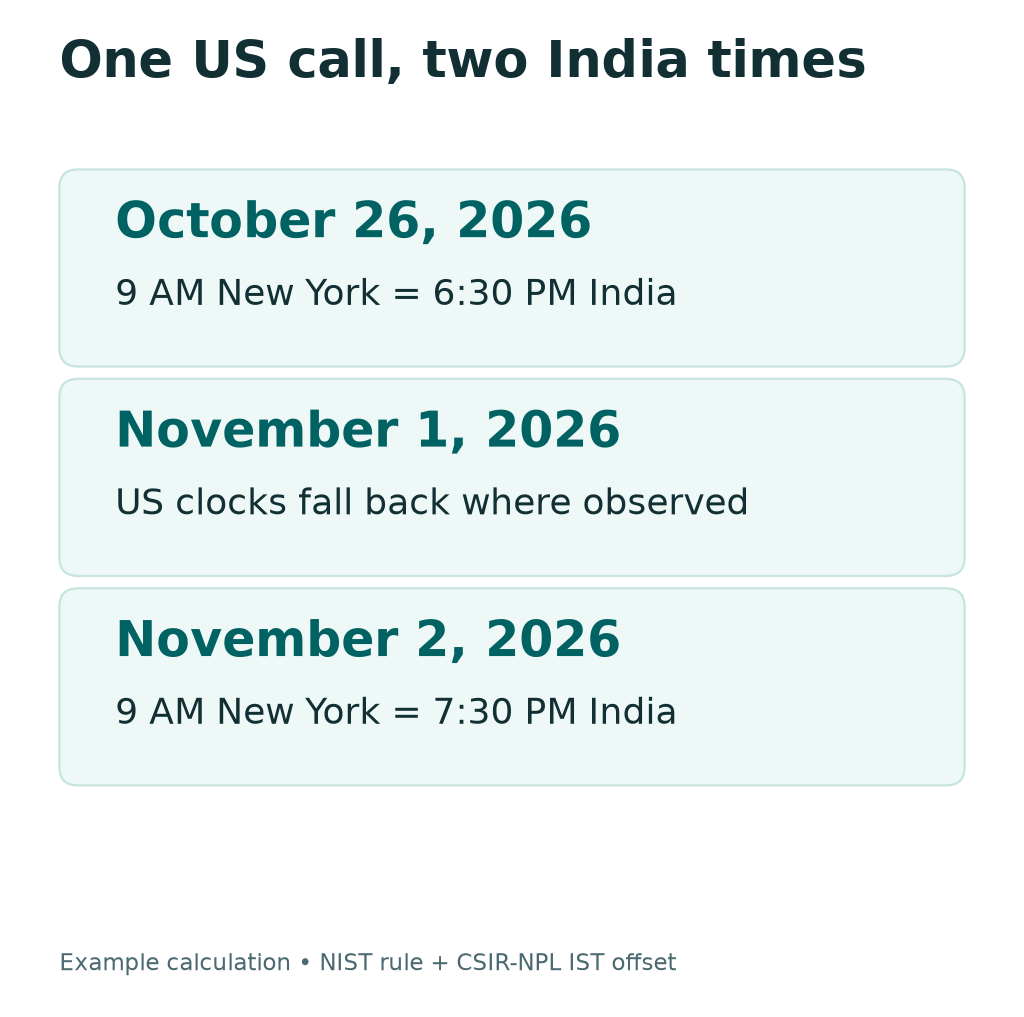
Here is a calculated example, not a real meeting invitation. At 9 AM in New York on October 26, 2026, it is 6:30 PM in India. At 9 AM in New York on November 2, it is 7:30 PM in India. The US meeting stays at 9 AM; the same call starts one hour later in India.
The chart uses Python’s time-zone database for America/New_York and Asia/Kolkata. The dates follow NIST’s 2026 rule and NPL’s stated IST offset. It is a time conversion, not a test of an iPhone or a promise about a calendar service.
Do not apply that example to all US cities. A 9 AM call in Los Angeles is a different moment from 9 AM in New York. Also check whether the meeting owner fixed the event to a named zone or simply typed a time in a chat message.
For a recurring call, ask the host to review the dates on both sides of the change. Read the next occurrence in your own calendar. If the result differs from what the host intends, resolve that event. Moving the phone clock would affect far more than the one call.
If You Cannot Change Automatic Time
Apple lists several reasons that an automatic time control may be unavailable. A Screen Time passcode can affect the option. A corporate profile can restrict changes. The carrier, country or region may affect the option too.
First, decide whether this is your personal phone or a managed device. A work phone can have settings chosen by its administrator. If you cannot change a control, note its label. Ask the right support team for help. Do not remove a work profile to make the switch available.
On a personal phone, review your own Screen Time settings if you use them. Keep the passcode private. Does someone else manage those controls? Ask them to help through the normal settings process. A grey switch is not proof that the phone has a hardware fault.
Next, review Apple’s current support advice for your software. If the option remains unavailable, contact Apple or your carrier. Give the exact model, iOS version and symptom. Tell them whether the control is missing, greyed out, or on but giving the wrong result. Those are different states.
Do not install an unknown clock-fix app or management profile to unlock the control. The normal Date & Time settings and official support routes are the right tools for this check. A website cannot make a restricted system switch safe to change by giving it a new name.
What to note before you ask for help
Record the iPhone model, iOS version, selected city and exact control label. Say whether the control is missing, greyed out, or on with the wrong result. Keep passcodes and work account details private.
Use Manual Time Only for a Clear Reason
Apple provides a manual option when automatic time does not solve the issue. Its current user guide says to turn off Set Time Automatically, then change the date and time. Older support steps may call the switch Set Automatically. Use the matching control on your own iOS version.
Set the date as carefully as the hour. Then choose the correct time zone. The current guide offers a Time Zone City choice and a Time Zone Offset option. A named city is useful when you need that city’s time rules. Check the result against a trusted current clock.
Keep a note that you made a manual change. Before the next trip or seasonal time change, review it. A clock that looks right after today’s fix may stay on an old setting later. Return to automatic time when the underlying issue allows it and check the result again.
Do not change the system clock to alter a game’s timer or make an app behave as if it were another date. Apple warns against manual time changes for that purpose. It can also make your own checks harder to follow. Fix the real date and time rather than using a false clock as a workaround.
If the phone’s time goes wrong after syncing with a Mac, Apple says to check the Mac’s date and time. Include that detail in your support notes. It is more useful than repeating the same phone-only change each time the problem returns.
Fix Calendar Time Without Moving the Phone Clock
A correct phone clock can sit beside a confusing calendar event. Apple’s Calendar guide says events normally appear in your current time zone. It also provides Time Zone Override, which makes Calendar show events in a chosen zone. That choice applies to Calendar, not to the whole phone clock.
On current iOS, open Settings, then Apps, then Calendar. Review Time Zone Override. If it is on, check the selected city. A fixed Calendar zone may suit your work. But it can surprise you if you expect the app to use your current location.
Next, check the event itself. Apple lets you choose a time zone for an event’s start and end. A meeting set for another city’s morning can show a different local hour for you. Read the event details and the host’s intent before editing a shared invitation.
Ask whether one event looks wrong or every event does. Does only one event look wrong? A broad Calendar change may hide that error. It may also cause new confusion elsewhere. Check that event first. Keep the phone clock correct while you resolve the invite.
For a cross-border team, include the named city and full date in any clarification. “Nine tomorrow” leaves both details unclear. A dated Calendar invitation is easier to review. Still, check the displayed result. Review recurring events that cross a seasonal change.
Check Time Format Before You Troubleshoot
The current iPhone guide puts 24-Hour Time in Settings, General, Date & Time. Turning it on changes the display format. For example, 6 PM becomes 18:00. It does not mean the clock has jumped forward by twelve hours.
Choose the format you can read with the least effort. Then review the same moment in your event or travel plan. Mixing twelve-hour and twenty-four-hour displays can cause mistakes. Each clock may still be correct.
If you share a time by message, include AM or PM when using a twelve-hour format. Add the city for people elsewhere. A screenshot without that context may be less clear than a short written note with the date, time and zone.
Did You Know?
The autumn US clock change repeats a local hour where observed. In 2026, 2 AM becomes 1 AM on November 1, according to NIST. That is why a local time alone can be unclear near the change. A full date and a named time zone give a meeting or travel plan much better context.
Conclusion
If your iPhone time is wrong, start with the main clock and selected time zone. Keep the phone online and review Apple’s automatic controls. Check the specific Setting Time Zone location option too. Verify the result before changing anything else.
If only Calendar looks wrong, check its override and the event’s own zone. For US–India plans around November 1, compare both cities on the exact meeting date. Finally, keep a brief record of any manual fix so you can review it before the next trip or clock change.
FAQs
Why is my iPhone time wrong by one hour?
A wrong time zone or a seasonal clock change may explain a one-hour gap. Check the date, selected city and automatic settings first. Compare with a trusted clock for your current location. The size of the gap alone does not prove the cause.
Will the iPhone clock change on November 1, 2026?
US daylight saving time ends that day where observed. Apple’s automatic date and time settings support seasonal changes. Keep the software current and check the time-zone settings. Some US places do not observe the change, so use the rule for your actual city.
Why can I not turn on Set Automatically?
Apple lists Screen Time passcodes and corporate profiles as possible causes. Carrier and regional limits can affect the option too. Check which applies to your device. Ask the administrator about a managed phone. Do not remove a profile to unlock the time control.
Does Calendar Time Zone Override change the iPhone clock?
No. Apple says it changes the zone used to show events in Calendar. It does not change the main phone clock. Check an event’s own zone too if only one invitation shows the wrong time.
Can I set the iPhone date and time by hand?
Turn off the automatic clock setting to use Apple’s manual date and time controls. Use the correct date, time and zone, then verify them. Keep track of the manual choice and review it before travel or a seasonal time change.
References
- Apple Support — If you can’t change the time or time zone on your Apple device
- Apple iPhone User Guide — Change the date and time
- Apple iPhone User Guide — Use different time zones in Calendar
- NIST — Daylight Saving Time, including the 2026 dates and exceptions
- CSIR-NPL — Indian Standard Time
- Techchahiye — Android and iPhone guide
- Techchahiye — Apps and productivity guide
