

Keep access and progress separate
A Game Pass download still needs a valid license after the game leaves. Check your profile, base game, DLC and save support before buying. Confirm cloud eligibility if you play on a TV, phone or tablet.
Key Takeaways
Xbox Game Pass games leaving the library raise two questions. Can you still play? What happens to your save?
- A downloaded game still needs a valid license after catalog access ends.
- Your progress and your right to launch the game are separate.
- Check the platform, edition and account before buying a copy.
- DLC you bought remains yours, but check access to its base game.
- Use Xbox’s current library and store for dates, availability and discounts.
Xbox Game Pass games leaving the library can interrupt a game you want to finish. Xbox says access ends when the game leaves or your subscription ends. Buying the game can provide a separate way to keep playing.
Before you buy, check what you already own. Then check your save, the edition and the device you use. Buying a copy can solve a license problem. It cannot make every edition share saves or make every owned game streamable.
This guide uses Xbox’s current FAQ, library and Play Anywhere pages. We checked them on October 26, 2026. It explains the choices around a departure. Check the live Leaving soon collection for the current lineup in your market.
Find Which Xbox Game Pass Games Are Leaving
Open Xbox’s official Game Pass library and choose Leaving soon. Check the platform and plan filters. A console result may not describe the same access you have on PC.
Read the current notice rather than an old social post. A screenshot can keep circulating after its dates pass. Check the date, title and platform on the original Xbox page.
Xbox Wire also publishes catalog announcements with departure sections. Open the full notice and read the heading above the list. A list for an earlier part of the month is not the next departure list.
Do not infer a departure from a search page that loads no results. A filter, region or loading problem can produce an empty view. Recheck the visible filters and the current official notice before drawing a conclusion.
Keep a short note for a game you care about:
- Exact game title and edition.
- Platform where you currently play.
- Date stated in the current departure notice.
- Whether you own a separate copy already.
- Any DLC or add-ons tied to your current playthrough.
Use that note to decide what you need next. You may want to finish a short game, buy a copy later or move on. A departure notice gives you time to weigh the choice. You do not have to rush to buy.
What Changes When a Game Leaves Game Pass
The catalog grants access while its conditions apply. Xbox’s FAQ says that access ends when a title leaves. Installed files do not grant a separate license. Check whether you own a copy.
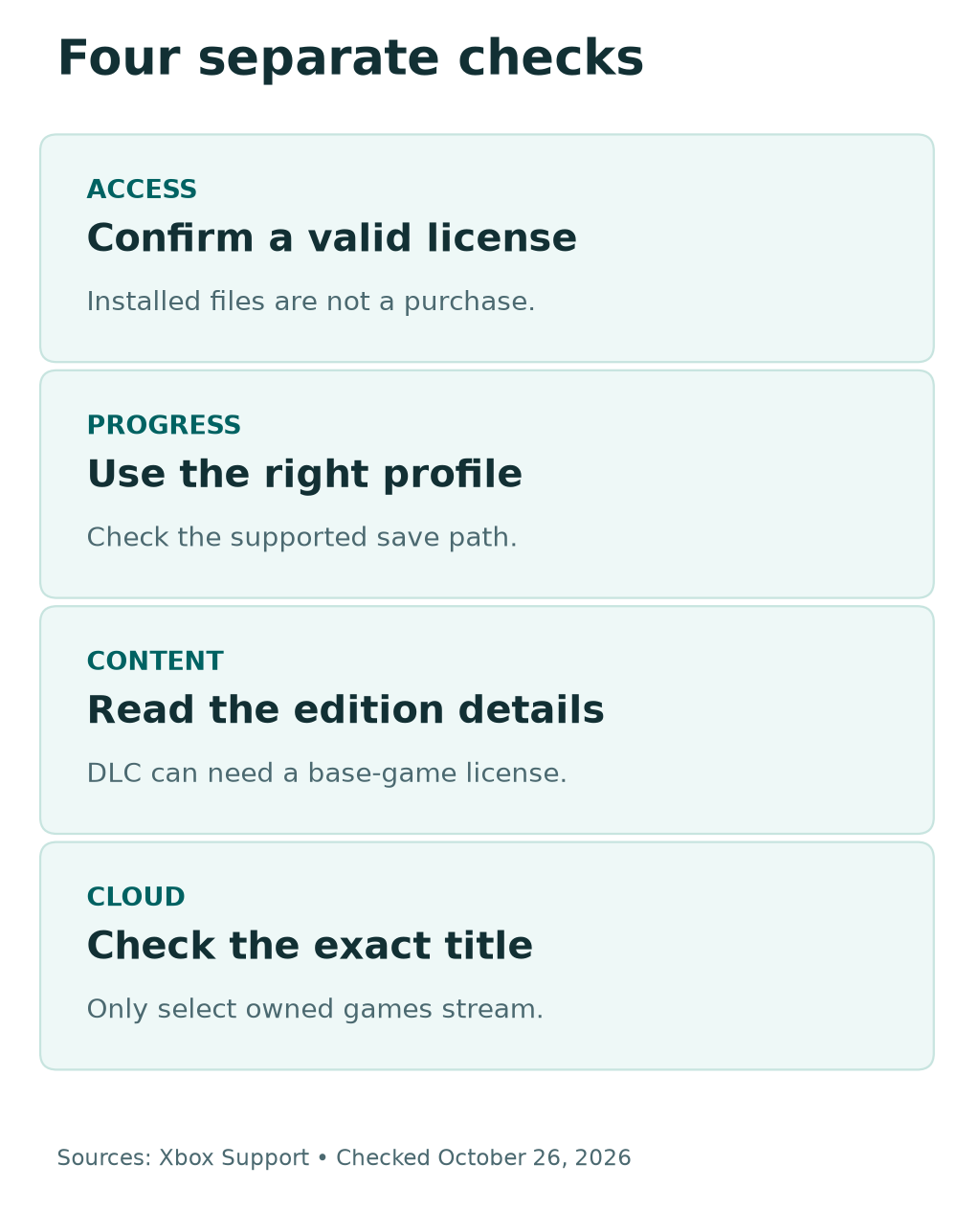
That is why a game can still occupy storage but ask you to buy it. The files and the license do different jobs. Deleting or downloading those same files again will not create a license you do not own.
Start by checking the account you use. One account may have the subscription while another owns a paid copy. Confirm the signed-in identity before deciding that a paid copy has disappeared.
Then check the exact product. A similar name, remaster or separate edition can be a different listing. Read the platform and included content on the store page you intend to use.
| What you have | What to check | What it does not prove |
|---|---|---|
| Installed Game Pass download | Current license for that title | A download is not a license |
| A paid base game | Account, platform and edition | Check which DLC packs it includes |
| A paid DLC pack | Compatible base-game access | DLC alone may not provide the base game |
| A saved game | Correct profile and supported version | A save does not grant launch access |
| An owned game on a cloud device | Current cloud eligibility | Not every owned game supports streaming |
Keep this distinction clear while troubleshooting. If the screen asks for a license, begin with ownership and account checks. Do not erase progress to solve an access message.
What Happens to Your Saved Progress
Xbox’s Game Pass FAQ says your progress stays in cloud saves. You can return to it through a suitable copy later. Use the same profile and allow the game’s normal sync process to finish.
There is a limit to that general advice. A different store, platform or edition may use a different save system. Check the game’s support information before assuming it reads your current progress.
Microsoft’s developer rules help explain the distinction. They tie saved state to the user. They also set roaming rules for supported games and platforms. Those rules do not promise that unrelated releases share one save file.
Before a game leaves, open it on your usual account. Save through the game’s normal process. Let any visible sync finish before you close it or move devices. This is a preparation step, not a claim that we tested your game.
If the game offers several save slots, note which one holds your playthrough. Keep a screenshot of the in-game slot name if useful. Avoid posting account details or private chats with that screenshot.
Do not use a reset or a delete-everywhere option as a first check. A missing license does not mean the save is corrupt. First establish which account, release and platform created the progress.
If a purchased copy starts without the expected save, stop and inspect. Check the account and edition before starting a new playthrough. Some games use a publisher account or cross-save system. Follow that publisher’s current guide.
Check the Edition Before Buying a Copy
The cheapest product result is useful only if it fits your goal. Read the full store listing. Confirm that it includes the base game, supports your device and matches the save path you need.
An upgrade pack can look like a complete edition in a sale. Read its required base-game notice. A season pass or soundtrack may only add content. A premium upgrade may still need the base game.
Here is a made-up example. You played a standard edition through Game Pass. You also bought an expansion. A store offers a discounted premium upgrade. Before buying, check whether it contains the base game or needs one separately.
The useful comparison is between complete ways to keep playing. List what you already own, what each option adds and what remains missing. Avoid counting an expansion twice because two bundles use similar names.
If the new copy uses a different platform, check its save rules. A copy from a PC store may be a separate release. Check it against the console copy. A publisher may offer cross-save, but you need that title’s actual support statement.
If you want a disc copy, check your hardware first. A digital-only console cannot read a disc. Do not choose a disc offer for a device without a drive simply because the title matches.
Check the listing again at checkout. Confirm the signed-in account, market, product and total. A good sale price does not fix the wrong edition. Take the time you need to choose the copy that serves your playthrough.
Read this before buying an upgrade pack
Confirm that the listing includes the base game. Check the platform, edition and required content. An add-on or upgrade can need a separate base-game license. Check the save path before switching stores or versions.
Understand DLC After a Game Pass Departure
Xbox says purchased DLC and add-ons remain yours after a departure. That ownership is separate from catalog access to the base game. Review both parts before you conclude that all content will launch.
The store page should explain what an add-on needs. Read its supported game and platform. Some content also needs a certain edition or release. Use those details rather than assuming a shared franchise name is enough.
For a practical check, make two lists. The first contains items you bought. The second contains items you accessed only through the subscription. This can reveal why an expansion remains owned while the base game needs another license.
Do not rebuy an add-on because the game stops launching. First check the ownership list on the account that purchased it. Then review the base game. The blocked launch may concern that missing base license.
Also check what came with the catalog edition you played. It may differ from the edition you now plan to buy. Read the current contents list. Find any feature or expansion that matters to your save.
If the game warns about missing content, keep the exact message. Compare it with your installed add-ons and order history. Avoid deleting saves while trying to work out which content is absent.
For publisher-linked content, consult that publisher’s support page. A general Game Pass guide cannot settle every game’s account rule. Give support the product name and message, with private payment details removed.
Use Member Discounts Without Rushing the Decision
Xbox’s library advertises savings of up to 20% on eligible games. “Up to” is a limit, not the discount on every title. Read the actual signed-in store price before using a saving in your comparison.
Xbox’s FAQ says discount rules depend on eligibility and release age. It also notes that discounts use the current Microsoft Store price. Some games and content do not qualify, and offers have their own terms.
Keep the base game, add-ons and subscription cost separate in your notes. You do not need a complex spreadsheet. A small table can show which option grants the content you want on your device.
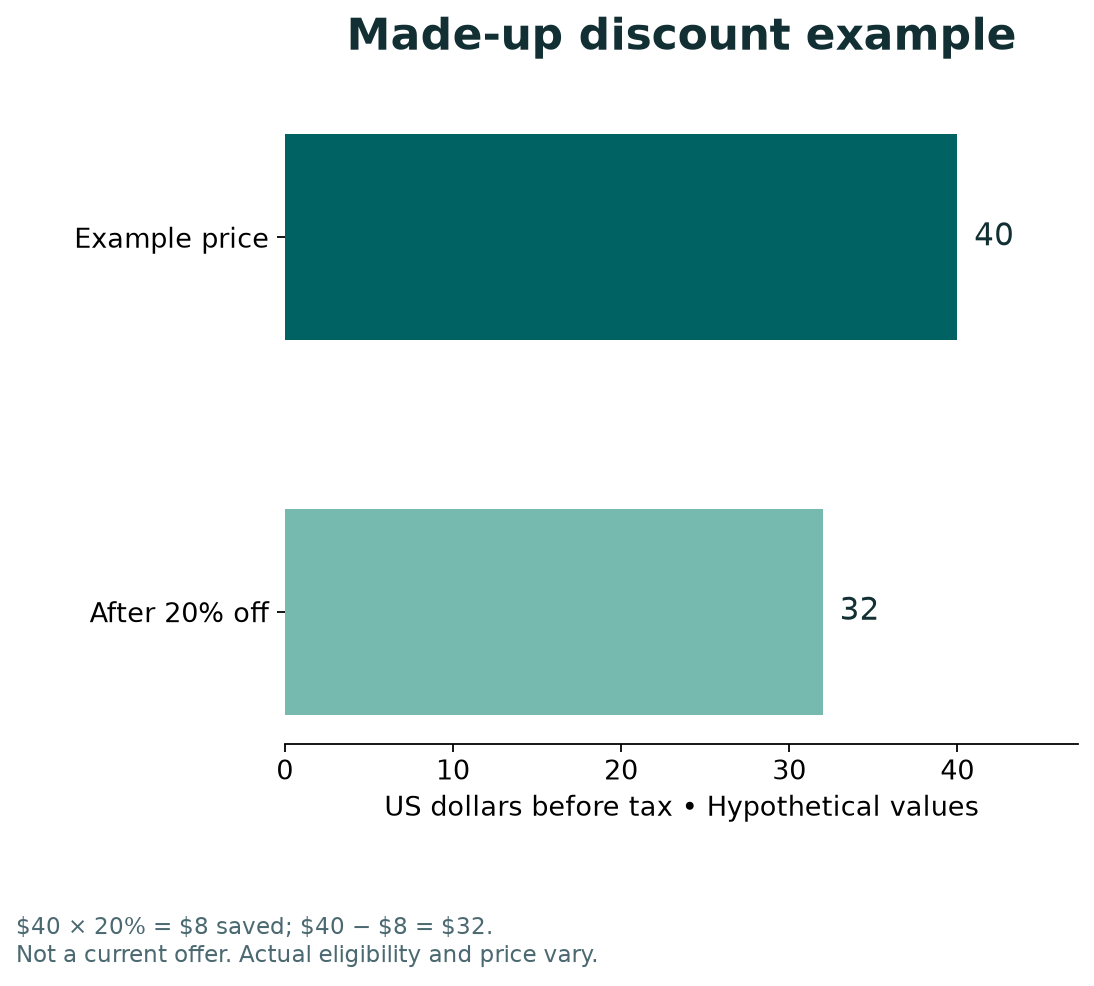
Here is a hypothetical calculation, not a current offer. Suppose a game costs $40 and a valid discount is 20%. The saving is $8, so the game costs $32 before any tax. The discount percentage and starting price both need to be real for the copy you buy.
Do not apply that example to a title without checking its listing. Nor should you treat a membership discount as a promise of the lowest price. Compare complete editions and the terms that apply to you.
You can also decide to wait. A game leaving the catalog changes your current access. It does not tell you how soon you will want to play again. Buy because the copy fits your plans, not because a countdown makes an unclear offer feel urgent.
Moving Between Xbox and PC
Xbox Play Anywhere supports eligible digital games across supported devices. Xbox says those games carry saves, add-ons and achievements with the account. Look for the Play Anywhere badge on the actual product listing.
That badge matters more than a broad claim that a game is “on Xbox.” The brand covers several platforms. A title appearing on both console and PC does not alone prove that one paid copy or save covers both.
Microsoft’s save-roaming rules make a similar distinction. Qualifying Play Anywhere games must support cross-platform save roaming. Other games can have their own supported paths. Check the exact title before you switch.
Plan the move while the original device still works. Finish the game’s save and sync process there. Then sign in to the intended account on the new device and read any sync prompt with care.
If the screen offers two conflicting saves, do not guess from file size alone. Read the dates and the game’s help. Keep the original device available until you know which progress you need.
For games from another PC storefront, check the publisher’s guidance. A shared title name is not a universal account link. Check the store and version before you spend. Confirm that a supported transfer path exists for your save.
Playing an Owned Game Through the Cloud
Buying a game and streaming a game are separate checks. Xbox’s FAQ supports streaming select owned cloud-playable games. It does not say every bought game can run through every supported cloud device.
This matters if you played on a TV, tablet or phone without a local install. Buying the console version may solve ownership. Your cloud route still needs support. Check the current Buy and stream collection for that exact game.
Also check the required plan, market and supported device. These can affect the route you intend to use. Keep those checks current rather than relying on a screenshot from the day the game joined Game Pass.
For example, imagine a player who only uses a cloud-capable TV. This is a planning example. Their choice needs two answers: does the copy grant the game, and can they stream it on that setup?
Our separate cloud-playtime guide covers that broader service topic. Here, the key step is to confirm the game’s current cloud status. Do it before buying solely to continue a cloud-only playthrough.
A Calm Checklist Before and After Departure
Before the stated departure, review the game you care about. Confirm the account and save, then check the exact version. Decide whether to finish, buy a suitable copy or return another time.
After departure, read the screen’s actual message. If it concerns access, check the license first. If it concerns missing content, review add-ons. For missing progress, check the account and edition. Then review sync.
Keep a short support note rather than repeating the same launch attempt. Include the platform, product, account role and message. Remove private account identifiers before sharing the note publicly.
You can uninstall files later if you no longer need them. Keep storage cleanup separate from save management. Read what a delete prompt affects before confirming it. Freeing disk space should not become an accidental save deletion.
For a shared household, ask which profile holds the progress. The person paying for a subscription may not be the person playing. Check both roles. Keep passwords private. Keep the player’s own account in place.
The aim is a clear next step. You should know whether you need a license, a compatible edition, an add-on or a sync check. Each choice should solve a known problem. Do not buy another version without that clear purpose.
Did You Know?
Xbox Play Anywhere applies to participating digital games. Its badge can help confirm a supported console-to-PC path. A disc copy does not provide those same benefits. Check a similar listing for its actual Play Anywhere badge.
Conclusion
When Xbox Game Pass games leave, check access and progress separately. Confirm the current departure notice, your account and the exact game. Then choose a suitable license if you want to keep playing.
Before buying, review the base game, DLC and platform. If you rely on cloud play, verify that route too. Open the official library now and check one game you want to finish.
FAQs
Can I keep playing a Game Pass game after it leaves?
You need another valid way to access it, such as buying the suitable game. Xbox says catalog access ends when a title leaves. Keeping its files installed does not create a separate license.
Do Xbox Game Pass games leaving delete my saves?
Xbox’s FAQ says progress remains in cloud saves. Use the same account with a supported copy to return. Save support can differ. Check the game’s rules before switching editions, stores or platforms.
Do I lose DLC I bought for a Game Pass game?
Xbox says purchased add-ons remain yours. You still need suitable access to the base game to use content that requires it. Check the add-on’s current product listing and platform requirements.
Is every leaving game discounted by 20%?
No. Xbox advertises savings of up to 20% on eligible games. Check the current signed-in price, eligibility and edition. The advertised limit is not a fixed discount on every product.
Can I stream a game after buying it?
Only select owned games support Xbox’s cloud route. Check the exact title, required plan, region and device before buying for cloud play. Ownership alone does not prove the game supports that setup.
References
- Xbox — Current Game Pass library and Leaving soon collection
- Xbox Support — Game Pass frequently asked questions
- Xbox — Game Pass access and availability overview
- Xbox — Play Anywhere features and requirements
- Microsoft Learn — User state and save roaming rules
- Xbox — Buy and stream eligible games
- Techchahiye — Xbox Cloud Gaming playtime and limits
- Techchahiye — Apps and productivity guide
