

Before your trip
Sort the title by access type. Read its expiry notice. Check if play has begun. Find the device that holds the file.
Key Takeaways
- Apple TV downloads can come from a subscription, a channel, a rental or a purchase.
- Some subscription downloads have two limits. One is 48 hours after you start to watch. The other is 30 days after download. The earlier limit applies.
- A saved file and an active right to watch it are separate things.
- Plan your offline viewing before you start a title, and read the expiry notice in the app.
How long do Apple TV downloads last? There is no single timer for every item in the app. The answer depends on how you got the title and its viewing terms. Check the title’s access type and expiry message before you rely on it for a trip.
Apple gives some subscription titles a 48-hour window after play starts. We checked its guide on October 25, 2026. They can also expire 30 days after download. Most Apple TV channel downloads have up to 30 days, but some expire sooner. Those are limits with exceptions, not a promise for your whole library.
The practical task is simple: work out which rule applies, choose when to start, and leave room for a backup plan. This guide helps you tell a paid movie from a title in a plan.
How Long Do Apple TV Downloads Last by Access Type?
Start with the title’s source. A movie page may offer more than one way to watch. Being able to find a film in the Apple TV app does not mean your subscription includes it.
Use this short table as a sorting aid. Confirm the exact terms on your item before you download or pay. Apple says store and channel access can differ by country or region.
| Access type | What to check first | Planning approach |
|---|---|---|
| Apple TV subscription | The download expiry notice for that title | Leave playback until you are ready to watch |
| Apple TV channel | That channel’s download rules | Check both the service and the title |
| Rental | The rental start deadline and viewing timer | Rent close enough to the trip to fit both |
| Purchase | The purchased item in your Library | Keep a local copy and a record of the purchase |
This distinction can prevent an avoidable second payment. For example, if a film asks you to rent it, first check whether you already bought it under another Apple Account. Do not assume a price button means your old purchase has gone.
Also write down the service that supplies an episode. A family member may say that something is “on Apple TV” while referring to a channel inside the app. That detail matters when you later ask why an item expired.
Apple TV Download Expiry: Understand the Two Clocks
There can be a deadline to begin watching and a shorter window after playback starts. A download date is therefore only part of the plan. The moment you start the movie can matter too.
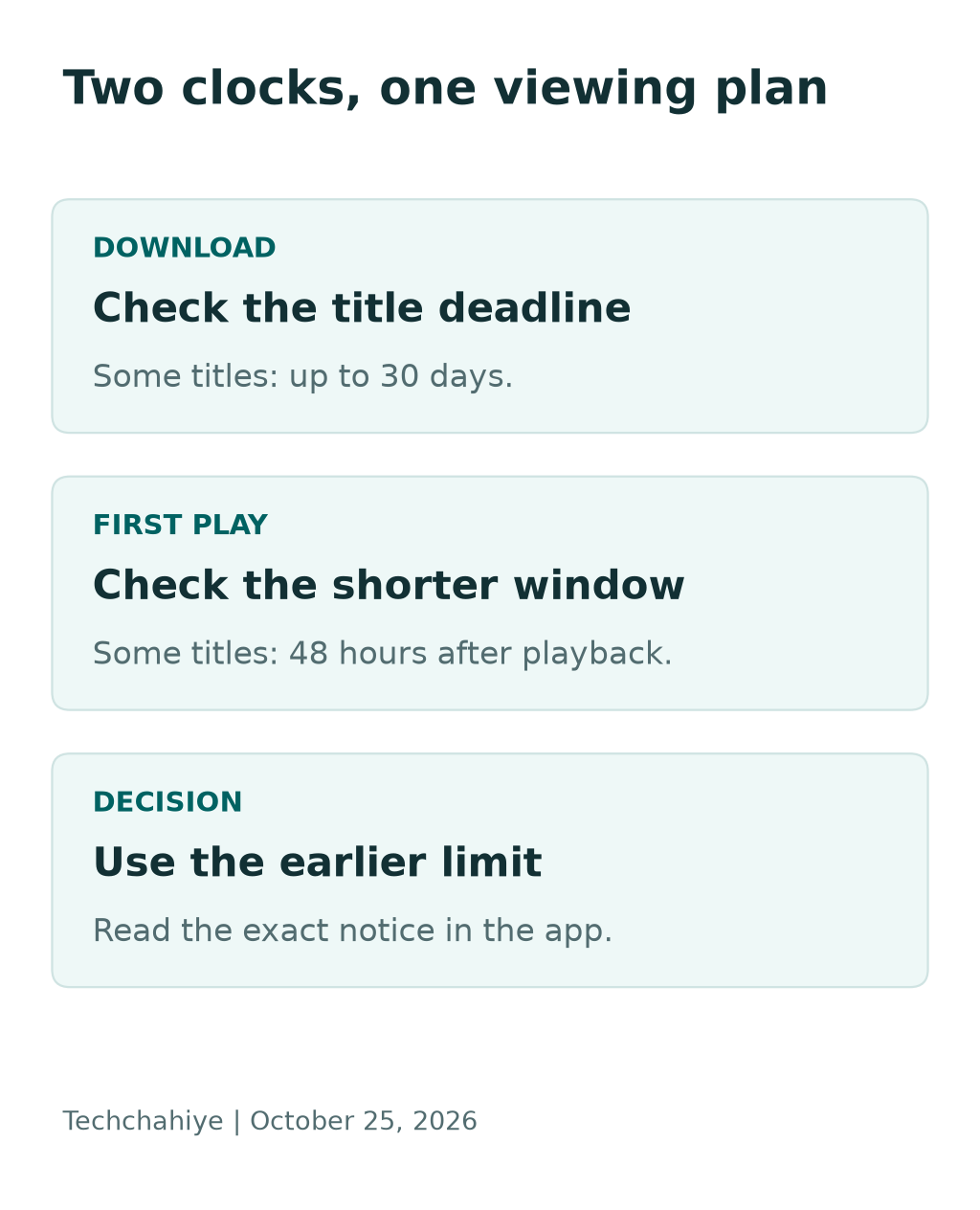
Apple describes the shorter subscription window as applying to some titles. Do not turn that into a claim that every download lasts exactly two days. Read the notice for the item you intend to watch.
Here is a made-up planning example. Suppose a title has the stated 30-day download limit and 48-hour playback limit. You download it at noon on day one. You first play it at noon on day ten. The shorter playback window would end at noon on day twelve, subject to the title’s actual terms.
Now suppose you first play that same item very close to its download deadline. Starting it does not mean the later clock grants extra days beyond the earlier limit. “Whichever comes first” means you must allow for both.
That is why casually testing a movie by playing its opening scene can be a poor choice. You may be using part of a short window before the journey starts. Check that the download is complete without starting playback when the app lets you do so.
Build an Offline Watch Plan for Your Trip
Plan around when you will watch, rather than when you happen to have Wi-Fi. A weekend away and a month-long trip need different choices. A long download window may not help if you leave tomorrow.
Write a small list with four columns: title, access type, planned watch time and expiry notice. Put the most important item first. Add a second choice in case the first is unavailable when you need it.
For a flight, make the planned watch time the actual flight time. Include the return journey if you want the same title later. A movie that works on the outward flight may fall outside its window before you return.
For a family trip, ask who wants each episode before filling the device. Downloading a whole season that nobody finishes makes storage management harder. A shorter list also makes expiry notices easier to review.
Before departure, confirm that the intended device has the file. A title shown in your library on a laptop is not proof that the tablet in your bag has a complete download. Use the Downloaded view on that specific device.
Find Your Downloads on a Supported Device
Apple’s instructions place downloaded items in Library, then Downloaded, on supported devices. Its guide also explains that a Windows sidebar can hide the Downloaded view. In that case, edit the Library sidebar to show it.
Use the same device for this check that you will use on the journey. If you manage more than one Apple Account, confirm which account supplied the item. Avoid switching accounts casually when you are short of time.
Follow this practical sequence:
- Open the Apple TV app on the device you will carry.
- Find the Library and Downloaded area.
- Match the title and episode number to your watch list.
- Check for an unfinished download or an expiry notice.
- Check your chosen audio and caption needs before leaving reliable internet access.
Use this list to get ready. App buttons can change. Labels can differ across devices and updates. Cannot find the view? Check Apple’s guide for your device. The file may still be there.
Keep the device charged during preparation. A download that has not finished is a different problem from an expired viewing right. Write down which of those you see before trying a fix.
Separate Rentals From Subscription Downloads
Apple’s rental guide gives rentals 30 days to begin and 48 hours after playback starts. The rental is a separate transaction. An Apple TV subscription does not turn a rented film into a permanent purchase.
Think of a rental as a planned appointment. Pick a viewing time with enough space to finish. Not sure when you will watch? Wait to rent. There is little point in storing a film you cannot watch in time.
For example, imagine you want a film for a Saturday evening. Renting weeks ahead because you are browsing now adds another date to track. Instead, note the title and check its availability and price when your plans settle.
If you cannot find a rental, look at the account and expiry information before paying again. Keep the original receipt ready. Paying again may cause a new problem. Find out what went wrong first.
For a household, make one person responsible for the watch plan. That person can note when playback starts. You do not need to record every pause, but you should know whether someone already began the film.
Can You Download Onto an Apple TV Box or Smart TV?
Apple says its TV boxes cannot store these downloads. The same applies to smart TVs, streaming devices and its web player. They stream instead. Storage advertised for a streaming box is not a promise that the Apple TV app stores films offline.
This matters in a holiday rental with weak internet. Bringing a TV box does not solve the same problem as bringing a supported device with a downloaded movie. Work out your playback setup before you travel.
Draw your setup on paper. Mark which device holds the file. Add the screen and the link between them. Will you use another screen? Check how that setup plays video. Do not assume any cable or casting method will work with protected video.
The most dependable plan is the one you can explain without guesses. Know where the file lives and which device will play it. If either answer is unclear, resolve that part while you still have time to change the plan.
Avoid buying a new device purely because a listing mentions large storage. Check whether the service supports the action you need. Device capacity and app capabilities are separate buying questions.
Plan Apple TV Storage With Your Own Download Sizes
Use the sizes shown for your files instead of a universal “hours per gigabyte” claim. Video size can vary. A reliable plan starts with the items you actually intend to keep.
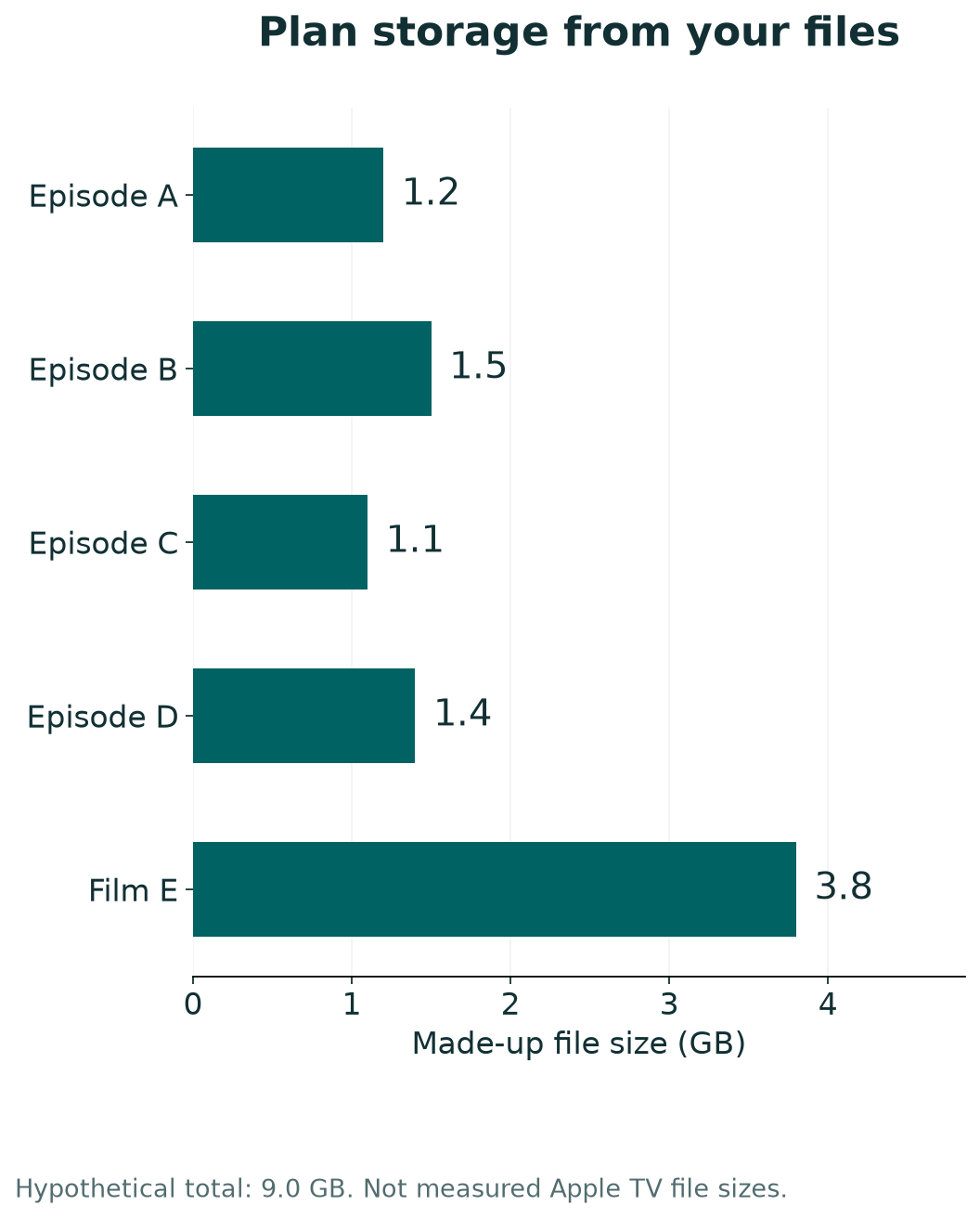
Here is a made-up example, not measured Apple TV file sizes. Suppose four episodes use 1.2 GB, 1.5 GB, 1.1 GB and 1.4 GB. Their total is 5.2 GB. Add a hypothetical 3.8 GB film and the planned set becomes 9 GB.
If you set aside 12 GB for that example, the arithmetic leaves 3 GB. That leaves spare room in this example. Real system files and future downloads can use more space. Your device still needs room for its other uses.
| Example item | Made-up size |
|---|---|
| Episode A | 1.2 GB |
| Episode B | 1.5 GB |
| Episode C | 1.1 GB |
| Episode D | 1.4 GB |
| Film E | 3.8 GB |
| Total | 9.0 GB |
Replace the example values with sizes from your device. If storage is tight, choose which item you value least. Removing one watched film may be easier than juggling many small app files.
Do not delete photos or documents in a rush just to finish a download. Review items you know you can remove. A viewing plan should not put personal files at risk.
What to Check When a Download Will Not Play
First record the exact error message. “Not downloaded,” “expired” and an account warning point to different questions. Treating all three as a weak Wi-Fi problem can waste time.
Check the title’s access type and displayed status next. Then compare the device, account and planned viewing window with your notes. Change one thing at a time so you can see what helped.
Use this decision list:
- If the item is unfinished, address the download before investigating expiry.
- If it shows an expiry message, check that item’s access terms.
- If the wrong account is active, resolve the account mismatch first.
- If only one title fails, record that title rather than resetting the whole device.
- If you need support, keep the receipt and exact wording of the message.
These are diagnostic questions, not promises that a refresh will restore every title. A valid file does not overrule a service’s viewing terms. Likewise, an active subscription does not prove that every item in the store is included.
Avoid repeated purchases as a troubleshooting method. If the title should be available, clarify that first. Paying again may hide an access problem without explaining it.
Remove Watched Items Without Losing Track of Purchases
Apple’s library guide explains how to remove downloaded items to free space. Use the removal control for the local file, and read any confirmation carefully. A library-management action and a local-download action may have different meanings.
Before you remove a large item, note whether it is a purchase, rental or subscription download. Keep any purchase receipt in your normal records. That gives you a useful starting point if you later cannot find it.
For a weekly habit, clear finished episodes after you return home. Keep only what you expect to watch soon. The Downloaded view will have less clutter. That makes your next trip easier to plan.
If more than one family member uses the device, agree on the list first. One person’s “finished” film might be another person’s planned flight entertainment. A short conversation can prevent needless re-downloading.
Also leave time to replace an item before departure. Deleting a file at the airport can turn a manageable storage choice into a rushed internet task. Do the cleanup when you have a stable connection and a clear plan.
Check US and India Availability Separately
Use the catalog and access terms for the account’s country or region. Apple notes that its app, channels, subscription and store availability can vary. A guide aimed at US readers should not imply that every offer also exists in India.
If a friend abroad recommends a title, ask which service provides it in their app. Then check your own title page. Two screens may show the same name. Their plans, rental prices and download rights can still differ.
For travel, keep your account records and support details available. Do not build a plan around changing account regions at the last minute. Resolve purchases and access questions before you leave.
Parents can check the episode with the person who will watch it. A screenshot of the title and access notice can serve as a planning note. Keep account details out of screenshots shared publicly.
This guide covers offline access. Read the current plan page for prices. A plan’s price does not tell you when each download will expire.
A Short Checklist for the Night Before Departure
Review the plan once, on the actual device. Start with the title you care about most. Work through the rest only after that item is ready.
Check the file status, expiry notice and power level. Confirm that your chosen headphones work with the device. Keep the charging equipment where you can reach it during the journey.
Then ask whether anyone has started a time-limited rental or download. If they have, compare the remaining window with your planned watch time. Choose a different title if the timing no longer fits.
Finally, keep one alternative that does not depend on resolving a new account issue. A book, music or another downloaded item can be enough. The goal is a pleasant journey, not a perfect catalog.
When you come home, update the list rather than reuse it unchanged next month. Your watch plans and viewing rights may have changed. A brief fresh check is more useful than trusting an old download date.
Did You Know?
Apple’s rental guide says a rental can be downloaded on one device and streamed on another at the same time. That is different from assuming every screen holds its own offline copy. Check the device that will actually travel with you.
Conclusion
How long do Apple TV downloads last? Check the source of the title, its expiry notice and whether playback has begun. Those details matter more than a single number applied to the whole app.
Make a short watch plan before the trip. Check each file on your chosen device. Leave time to pick a backup. Keep receipts for films you rent or buy. You can then spend less time fixing access and more time watching what you chose.
FAQs
Does opening the app start a movie’s viewing timer?
Apple describes the shorter window in terms of starting playback. Opening the app is not the same action as playing a title. Avoid starting a time-limited item just to inspect your list. Read the item’s notice and confirm its download status before you press Play.
Does a downloaded film mean I bought it?
No. A local file can come from a subscription, channel, rental or purchase. Check the item in your Library and your receipt. Use the access type to check the terms. A Download button alone does not show those rights.
Why does one download expire sooner than another?
Titles and services can have different rules. Apple says some channel files expire sooner. Some plan titles also have a shorter window after you start to watch. Compare the notices for the exact items. Do not assume an earlier download with generous terms sets the rule for a new one.
Can I keep a rental by leaving the device offline?
Do not plan on that. Downloading a rental does not turn it into a purchase or remove its viewing terms. Plan your watch time within the rental window. If you need to keep a title for later, review the available purchase option and its terms before paying.
What should I send Apple Support about a failed download?
Prepare the title, episode, device, app version, access type and exact error. Include the relevant receipt if you paid for a rental or purchase. Explain whether the file finished downloading and when you first played it. Share those details through the official support channel, not a public post.
