


Finish one cleanup job with a free tool
Compare free tools for finding large files, removing an app or running a specific maintenance task.
Key Takeaways
- Start with the free Storage tools already on your Mac if you need to find large files.
- AppCleaner is an option for reviewing files linked to an app you plan to remove.
- GrandPerspective has a free download for mapping what takes up space in a folder.
- Use the OnyX build that matches your macOS version. Choose one maintenance task you understand.
You search for a free Mac cleaner. One app offers a scan and asks for payment when you try to act. Another offers a small tool that does one job well. The free download label tells you little about the step you need to finish.
The best free Mac cleaner app depends on what you need. Start with macOS Storage for large files and downloads. Consider AppCleaner to see files tied to an app you plan to remove. Use GrandPerspective if you need a map first. OnyX suits specific maintenance tasks when the right build fits your Mac and you know the action you want.
This guide compares free options by what action you can take. It uses Apple and developer guides for the features covered here. It does not estimate how much room these tools will save on your Mac.
Check What You Can Do for Free
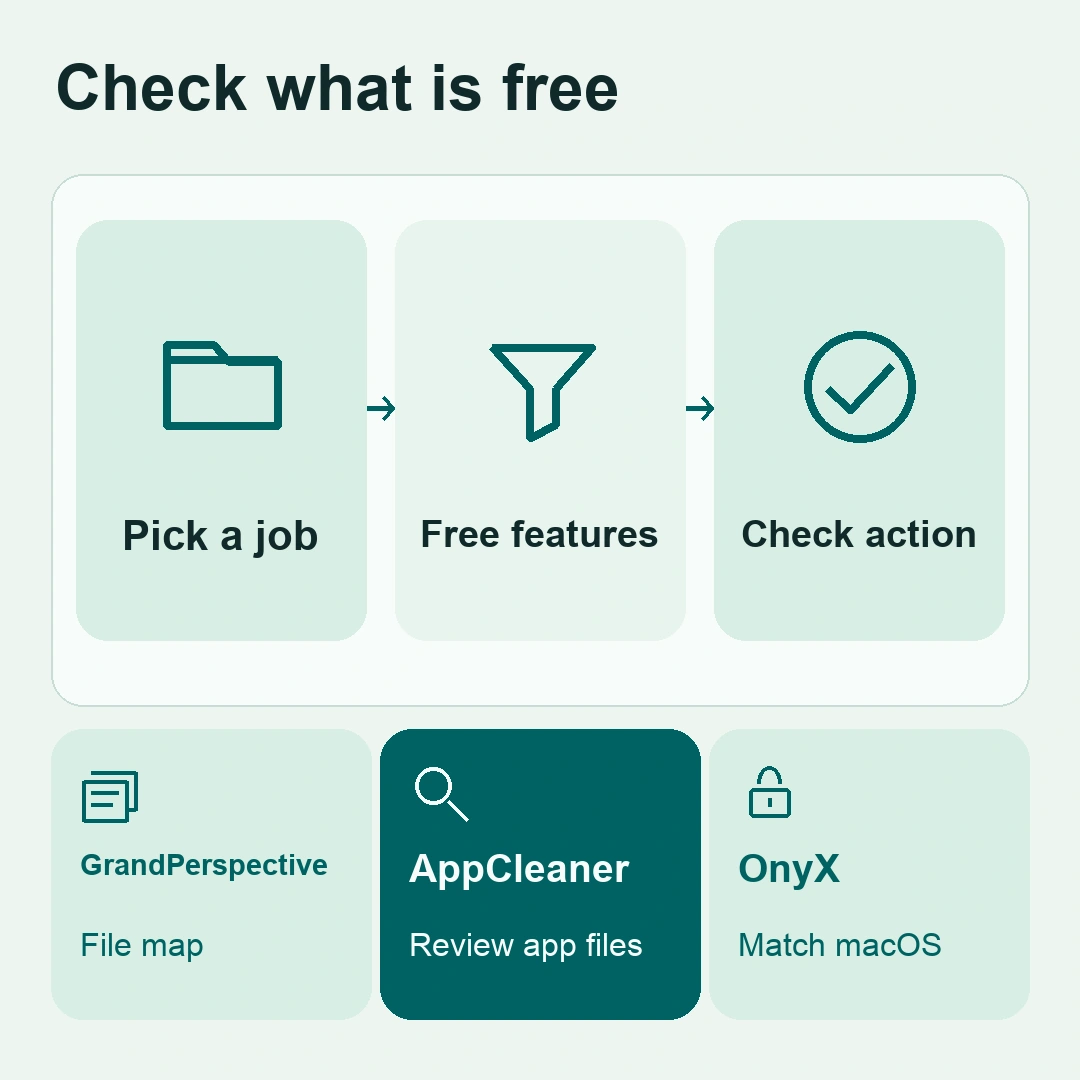
A free scan can be useful if it shows file paths and sizes. A free cleanup action is a different thing. If you want a tool to remove files after a scan, check that the free edition lets you complete that step. Look at the vendor’s current download and plan pages before you install it.
A time-limited trial can let you try a paid product. You can use that time to learn if it helps the job. When your goal is a free tool you can use again, choose a tool with a free version for the task. Check if the app requires an account, a payment method or a trial you need to cancel.
| Free option | Use it for | Check first |
|---|---|---|
| macOS Storage and Finder | Find and review large Mac files | The folder or drive you mean to clean |
| AppCleaner | See files linked to one app | Whether the app offers its own uninstaller |
| GrandPerspective free download | Map large files and folders | A supported build for your macOS version |
| OnyX | A named maintenance task | Exact macOS version and what the action changes |
Keep to the job you came to do. A one-time app removal has a clear end. A tool that asks you to clear many parts of the Mac at once takes more work to review. Start with a result you can read and check.
Verify what the app calls free
Check if the download completes the action you need. For example, a storage map can be all you need if you plan to act in Finder. The free map meets that goal even if it has no one-click cleanup. For an uninstall, you need to see which files the app will act on and whether it can finish that job.
You can also check the terms for your use. Free for personal use can differ from permission for a business or school. If your Mac belongs to work, check with the people who manage it before you add a tool. Read what access the app asks for and why it needs it.
Start With macOS Storage and Finder
Open System Settings > General > Storage. Apple shows the room in use by category and the free space on the drive. Click the information button next to a category if it has one. In Documents, you can look for Large Files or Downloads.
Apple lists options to show a file in Finder from the Storage view. Use that choice to check where the file lives before you change it. The path tells you if you are looking at a spare installer in Downloads or a file from a work project.
Finder can sort items in a folder by size. Open a folder you know and switch to List view. Then select Size to see the larger files. Start with one or two that you can open or get again. If this gives you enough room, you have finished the job with the tools already on your Mac.
The main advantage here is scope. You can check a small folder without adding an app or giving it new access. You can also return to the same screen to measure your free space after you act. More choices are useful when you have a clear gap you want to fill.
Use AppCleaner When You Need to Review an Uninstall
FreeMacSoft describes AppCleaner as a tool for finding files linked to a Mac app you choose. Drag an app into its window to see the items it finds. Its download page lists builds for different macOS versions. Check About This Mac and pick the right one from the developer.
Read Apple’s uninstall guide before you decide which tool to use. Apple advises using an app’s own uninstaller when it has one. That tool can account for parts the app set up that you might miss in a folder list. This matters for apps with helper files, login items or other parts that run in the background.
If you use AppCleaner, read its list one item at a time. Look at its location and whether it holds settings or saved work you want to keep. Keep files you cannot identify. You can often remove the app itself first and leave nearby files alone until you know what they do.
Check the work you used with that app. If you need it later, open one saved file before you remove anything. Make a copy you can use elsewhere if the file needs an app to export it. For example, a plain text export can help you read notes, while the app’s own file can help you edit them in the future.
Know what you can get back
If the app or an item goes to Trash, you can review it there before you empty Trash. It is worth giving yourself time to check that your other apps and work are still fine. If the app needs to come back later, know where you can get the same version or which newer build can open your old files.
If you have more than one tool for uninstalling apps, use one for the job. This makes it easier to tell which items it found and what you chose to do. Compare its list with Apple or the app maker’s own help. Then choose the smaller change that serves your goal.
Use GrandPerspective to Find a Large Folder
GrandPerspective is a storage map. Its project page says the rectangles use area to show file sizes. Files in the same folder appear together. If you see a group of large blocks, you can check where the files live and whether they are all tied to one job.
The project offers a free download from SourceForge and a paid copy in the Mac App Store. Use the official project page to find the path you want. Its release notes say which macOS version a build needs. Check that before you download. The choice of a free copy is only useful when that copy can run on your Mac.
Scan one folder first. Check a block for a file you know. Compare the size it shows with Get Info in Finder. Then use other blocks to find which paths to review. This small check makes the map less of a guess when you use it on a bigger folder.
Treat the map as a way to see your space. If you want to remove a file, check it with Finder or the app that made it. The biggest block may be the app library you use each day. A few old downloads you can get again may be a better choice.
Use OnyX for a Maintenance Task You Can Name
Titanium Software offers OnyX as a free Mac utility. Its developer lists maintenance and cleaning tools and a set of builds for different macOS versions. This can help when you know a task you need to run and can check the option in its guide.
First check the macOS version in About This Mac. Match it with the specific version on the developer’s download page. Some versions list different Mac requirements. Confirm both the version and the kind of Mac before you get it.
Choose an action you can explain. If you are following an app or support guide for a cache issue, check that the option acts on the same thing. Review the controls one at a time. Skip items you cannot tie to the problem. Save work before you start and check any app the task will affect.
A normal Mac cleanup can often use fewer steps. For example, a stale web page may only need one browser setting. A few old downloads may only need Finder. OnyX fits best when you need a known maintenance action, understand the result and can check it afterward.
Check a Free Tool Before You Depend on It
Find out who makes the app and where you would get support. In a project with public code, check its current status. For example, the Pearcleaner developer describes it as free and source-available and posts that active work is on hold. Check support for your Mac before you rely on any older tool.
Make a small test for the job you expect to do. Open one folder you know or check one spare app. Confirm the tool does the part you need. A map should point to a file you can find. An app removal tool should show what it wants to remove. A maintenance tool should describe the action before it runs.
Check whether a tool needs access to files outside the job. If you only need a Downloads list, use a tool that can see that folder. A request to read a wider part of the Mac may be useful for a drive scan. It can be too much for a one-folder check. Choose the smallest scope that can answer your question.
Check the next step too. Can you get back to a file you found, or does the app show only a total? Can you keep a file from the removal list? If a tool wants payment before it shows the part you need, you can switch to a free tool that lets you do the job in another way.
Measure the Space With the Same Baseline
Write down the free space on the drive. Then make one change you can review. Check the drive again in the same place. If the app reports a large finding but the drive does not have more room, check whether those files still sit in Trash or live on another drive.
Here is an example. You start with 8 GB free and find two files that add up to 3 GB. After you remove them and check the same drive, it shows 10 GB free. That is a gain of about 2 GB in the view you checked. The difference can be a clue to look at what else used space or how much the files took up on that drive.
Remember which files made the change. Keep a note of the folder and the date if it helps you plan another cleanup. If the Mac has room for the task, try it. If the drive keeps filling, look for a folder or app that grows each time you use it.
Test the Free Option With One Job
Say you need to free room for a large import. A free scanner finds three folders but only shows the total for each. You still need to find which files it counted. Open the largest folder in Finder and check a few files. If you can get enough room that way, you have reached the goal without adding another tool.
If the goal is to remove an app you no longer use, save a file that you can use to check the result after removal. Mark the app name and version. Read its own support page for the removal steps. Ask what you would do if you had to run the app again next week. Keep its data where you can reach it if there is no easy answer.
If you have a Mac with limited space, count the cost of the tool itself. A scan can need time, and a new app uses some drive space. Open Storage or Finder first. They may show a large item you can safely move sooner than a new download can finish. Use a second viewer when you still need a clearer view.
Check what the tool reports in plain terms. Does it show a folder name? Can you tell which app made each item? Is the number the size of a file or the room you got back? Write down the answer before you act. When a tool shows several kinds of data in one figure, see if you can open the group and read the counts on their own.
Read the developer’s access notes while you do the test. You may be able to scan a folder with access you have already given. Some advanced scans ask for more. Decide whether that helps your specific task. If all you need is a list of downloads, more disk access can make it harder to see what the app is checking.
Review the effect of one action before you use it again. For instance, open the app that used the cache after you clear it. Check that the project works and note how long the next open takes. If you want a free tool to help in the future, keep the one that gives you the clearest view for that job.
A small record can also help you avoid installing the same kind of tool twice. Write down what you used and why it worked. A note such as “Finder sorted exports by size” may be more useful next time than a long list of cleaners.
Did You Know?
GrandPerspective’s project page offers two ways to get the same app. You can use its free project download or choose its paid App Store listing. Check the way the developer offers a tool before you assume a paid store listing is the only option.
Conclusion
Match a free tool to your Mac cleanup job. Start with Storage and Finder to find large files. Use a map when you need more detail, or an app removal tool when you know which app you want to remove. Keep system changes tied to a task you understand and measure free space when you finish.
FAQs
Can I clean up my Mac for free with no new app?
Yes. Storage in System Settings and Finder can help you review downloads, large files and apps. Start with a folder you know and check the largest files you can verify.
Is AppCleaner a general Mac cleanup app?
Its developer describes it as a tool for removing apps and associated files. Use Finder or Storage for downloads and other files. Check for an uninstaller from the app maker first.
Is GrandPerspective free?
The developer offers a free SourceForge download and a paid App Store listing. Get the links from the project page and choose a build that fits your Mac.
Should I use OnyX on any version of macOS?
Choose the release that Titanium Software lists for your macOS version and Mac type. Use the official download and check what each maintenance action changes before you run it.
Why does a free Mac cleaner ask me to subscribe?
Some apps offer a free download or scan and sell access to later steps. Check what the free option covers. Choose a built-in or free specialist tool if it lets you finish the job you need.
References
- Apple — Change Storage settings on Mac
- Apple — Delete or uninstall apps on Mac
- Apple — Free up storage space on Mac
- FreeMacSoft — AppCleaner
- GrandPerspective — Downloads and release notes
- Titanium Software — OnyX features and versions
- Pearcleaner — Project features, license and maintenance status
- Techchahiye — Mac cleanup tools for downloads, apps and old files
- Techchahiye — Best Mac storage analyzers
