

Go straight to the files taking up room
Search a folder by file size, sort the results and check the path of each match before you act.
Key Takeaways
- Open System Settings > General > Storage for a quick list of large files or downloads.
- Use Finder search to look for files above a size you choose. Set the search scope first.
- Sort a known folder by size when you already know where to look.
- Check the file path, type and role before you move an item. Save a Smart Folder if you want to run the same search again.
You need room to save a new file. You know there are large files on your Mac, but you have no idea which folder holds them. Search by size and you can turn that open-ended hunt into a list you can sort.
To find large files on a Mac, start with System Settings > General > Storage and open the details for Documents if that row is available. Select Large Files to see big items that macOS lists there. For more control, use Finder search and add a File Size rule. Search one folder at a time if you want to keep the results easy to check.
Read the list before you act on it. A big item can be a copy of an old video. It can also be the only full copy of a work project. The best result is a short list of files you can name, find and check.
Decide Where to Look Before You Search
Think about where you last saved something large. If you often download ZIP files, start in Downloads. If you edit video, start in the folder that holds exports. This keeps one large search from mixing work files, app files and downloads in the same view.
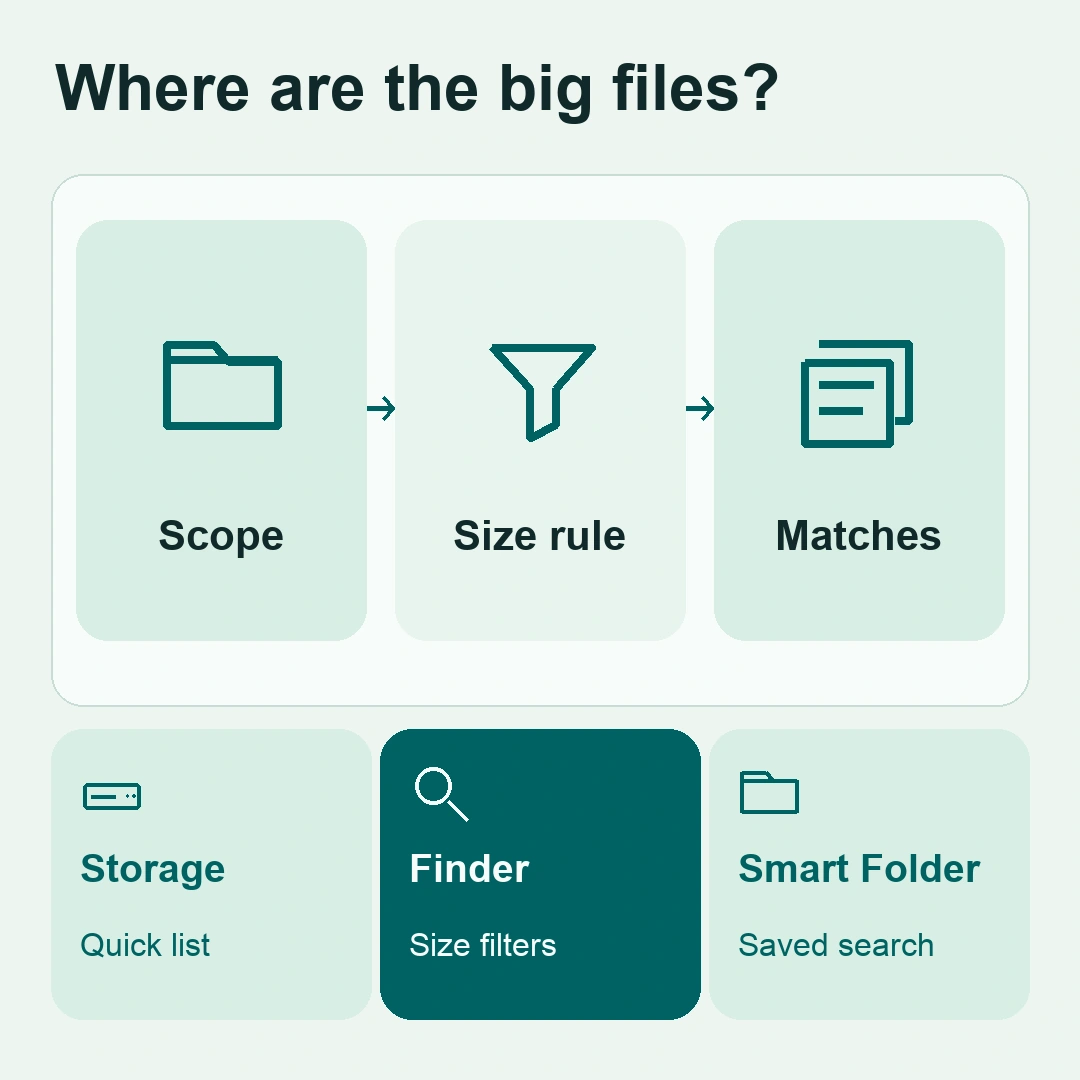
Apple’s Storage screen is a good first choice when you have no idea where to start. Finder is more useful when you know a folder or want a custom size limit. A list view is the quickest choice when you know the folder and want to see its top few items.
| What you need | Where to look | What you can compare |
|---|---|---|
| A quick look at large items | Storage > Documents > Large Files | Size, kind and the location of a file |
| Files over a chosen size | Finder search with a File Size rule | Matches in one folder or across the Mac |
| Items in one known folder | Finder List view | Size, kind and date in one table |
| A search you can run again | Finder Smart Folder | Current files that match saved rules |
Pick a test size that fits your work. You can start with 500 MB when you are looking for video clips or large archives. Lower the limit if there are too few results. Raise it if you see a long list of files that you do not need to review. This is a starting point. It has no effect on storage until you change a file.
Use the Large Files List in Mac Storage
Open the Apple menu and choose System Settings > General > Storage. Apple shows the storage used by several types of files. Wait for the menu to load its figures. Take note of the free space if the search is part of a cleanup.
Open the Documents details by clicking its information button if you see it. Apple’s guide says you can switch among its views, including Large Files, Downloads and File Browser. Choose Large Files and sort by size. If you know the items came from a download, use the Downloads view to narrow it down.
Look at a few names at the top. Use Show in Finder when it is available so you can see where each file lives. From there you can go to the folder around the file. Knowing that path often tells you more than knowing the size. A large item under a current project can have a different role from the same type in Downloads.
Apple puts many named types in separate categories. The Documents list is one view of storage. It may leave out an app library, a photo library or data from another user account. If the size list gives you too little to work with, choose a folder you know in Finder or look at another named group in Storage.
Check the file name before you act
A file can have a name you know but sit in a new folder. Check both. If you do not know what an item does, click Show in Finder and look at the folder around it. A file you find in the middle of an app folder may be part of a larger set.
Treat the results as a list to review. Use Finder or the app that created the file to make changes. Start with a file you can open or get again. You can keep working even if you leave the largest item alone.
Search by File Size in Finder
Apple shows how to add rules to a Finder search. Start in the folder you want to check. For example, open Downloads. Press Command-F in Finder. A row near the top shows the places you can search. Choose the name of the folder if you want matches there. Choose This Mac if you want a wider search.
Click the plus button to add a search rule. If the rule list has no File Size option, choose Other. Look for File Size in the list of search attributes and add it. Choose the comparison for files larger than your test size. Enter the number and choose the unit shown in the rule.
Read the rule once before you look at the results. A limit of 500 MB catches far fewer files than 500 KB. The scope matters too. If you meant to check Downloads, make sure Finder shows that folder in the search row. A search across the Mac can bring a file with the same name from a different place.
Add one more rule if you need more focus. Apple’s Finder guide says a result must match all of the rules in a simple search. You can add a Kind rule for movies if you are looking for video. Remove that rule if you also want ZIP files and installers. Start with enough matches to see a pattern. Then narrow the list.
Sort matches so you can read them
Use View > as List in Finder when you want file details in columns. Click the Size heading to order the list. If the smallest file shows first, click again. Look at the first few matches and note the path and type.
If the Size column is missing, use View > Show View Options for the Finder window and look at the columns you can show. Some views show different choices. You can also select a file and press Command-I to open Get Info and check its size.
Apple documents View > Show Path Bar if you want the folder path below the list. Select a result and read that path. If the result points to a shared or cloud folder, pause before changing it. A person working from another device may also use the file.
Refine a search for one week’s new exports
Say your Downloads list holds years of clips. This week you want the large exports you saved while working on a new project. Start with the folder where you put the exports. Add a File Size rule for files above 200 MB. Then choose a kind or date rule that fits what you want to see. If you add both at once and the list goes empty, check each one on its own.
Use a date rule with care. A date when you last changed a file can differ from the date it was added to Downloads. If you edited and saved over a file, its modified date may be the clue you want. If you copied a file from a drive, the date might reflect its history. Open a few of the matches to learn how that date is shown before using it to decide what to keep.
Compare the list with an export you know belongs there. If it is missing, first look in the folder directly. Check its size and kind in Get Info. This quick test can show that the scope, date or unit is too narrow. Keep the rule that helps you find the result you need.
Sort One Known Folder by Size
A search is useful when you need to look in more than one place. When the files are all in one folder, you can save time with a list. Open that folder in Finder and press Command-2 to use List view. Then sort by the Size column.
This view can show size, kind and dates side by side. A recent date on a large export can help you find the version you need. An old date on a large ZIP can be a cue to open the folder that contains it. Check what each file holds and where you saved it.
Some folder rows may show a dash in the Size column. Folder sizes can take time to work out because a folder can hold many files within it. Open the folder and sort the files inside, or select it and use Get Info if you need its total. Do one check at a time on a slow drive or a folder with many items.
Keep useful work in place. When you want space, look for a second copy that you can check or a file you can make again. The best place to start is often a download or an export that you recognize. It is easier to verify one of those than to guess at the role of a large app package.
Turn the Results Into a Short Review List
Give yourself a goal in the unit you can measure. For example, say you need 4 GB more before a copy can finish. You found two saved video exports of 2.8 GB and 1.6 GB. Their file sizes add to 4.4 GB. That gives you a useful review list. Check the files and the drive before you count that as free space.
Look at each candidate in context. If you saved a ZIP after you shared a folder, open the folder and check the version. A ZIP may hold a final copy that differs from the work folder you see today. If two files share a name and size, make sure they are the same before you let one go.
For a large media file, check where it came from. If it is an export from an edit you can still open, see if the project can find all the clips it needs. If the file is the source for another project, preserve it. The fact that it plays in Quick Look does not tell you where else it is used.
Be aware of the difference between file size and free space. Finder can show a large logical size even when the drive stores the item in less space. Cloud folders can also show files you later download. Check the local status and use the service’s remove-local-copy option when you mean to keep the cloud file.
If you move a file to a second drive, check the copy from that drive. Open it and make sure it works. Keep the original until you have checked the new one and know where its backup lives. A move to a new folder on the same drive mainly changes where you see the file.
Save a Search When You Want to Reuse It
Apple calls saved Finder searches Smart Folders. The same set of rules can show the files that match at the time you open it. This can help if you make large exports every week and want a fast place to review them.
Use Save in a Finder search when it shows the results you expect. Choose a name that describes the folder and the size rule, such as Downloads over 500 MB. You can also start from File > New Smart Folder in Finder, add your rules with the plus button, and save it. Add it to the sidebar if you want to return to it often.
A Smart Folder presents matches. The actual file stays in its own folder. Use the path bar or Get Info to check the true location when you open the saved search again. A match that made sense to keep last month may look like an old copy today. Check it before you change it.
A saved search is also a good way to tell whether a folder’s use is changing. Start with a size rule that finds the kinds of files you save. Look at dates as well as sizes. If the list grows often, think about how you name and store the files so you can see what is still in use.
Fix Common Gaps in the Results
When a file you expect is missing, check the search scope and rules first. Remove extra rules one by one. Look at the units and the limit. Then open the folder directly and use List view. This can help you find an item if the search view leaves it out.
Look at the accounts and drives you can access. A search made from your account can lack access to another person’s files. An external drive can be away or set up in a way that changes what Finder can search. Open the drive in Finder and check the folder directly when you can.
Finish by checking the room on the drive. Use System Settings > General > Storage and the same figure you took at the start. If you moved files to Trash and left them there, you may still see them take up space. Empty Trash only once you know you can let those items go.
Did You Know?
Finder’s Smart Folders can update when a file starts to meet a saved rule or no longer meets it. Apple explains that the search shows a view of those matches. You can keep your original folder layout and still open a list of large files with a click.
Conclusion
Find large files on your Mac with a search that matches your goal. Open Storage for a quick list, use a size rule in Finder for more control or sort one folder you already know. Then check the exact file and where it lives. Start with a folder where you often save big items and review the first few matches.
FAQs
How do I find files larger than 1 GB on a Mac?
Open Finder and press Command-F. Pick the folder or This Mac, add a File Size rule and set it to show files larger than 1 GB. If File Size is not in the list, choose Other and add the rule.
How do I see the full path of a large file?
Select the file in Finder. Use View > Show Path Bar to see its folder path below the window. You can also press Command-I and look for its location in Get Info.
Why are big files missing from the Large Files list in Storage?
That view is part of the Documents group and does not show every kind of data on the Mac. Try Finder search with the folder you expect the file to be in. If you know the folder, open it and sort its list by size.
Does a Smart Folder copy big files into a new folder?
A Smart Folder shows files that match your search. Their location stays the same. Check the path for an item when you use a saved search to make a decision about it.
Can I sort my Downloads folder by file size?
Yes. Open Downloads in Finder, choose List view and click the Size column. Use Get Info to confirm a candidate’s size and path before you move or remove it.
References
- Apple — Change Storage settings on Mac
- Apple — Narrow your search results in Finder on Mac
- Apple — Change how folders are displayed in Finder on Mac
- Apple — Get file, folder, and disk information on Mac
- Apple — Create or change a Smart Folder on Mac
- Apple — Free up storage space on Mac
- Techchahiye — How to free up space on your Mac using Codex
- Techchahiye — Why Mac System Data is so large
