


Find what made the storage number grow
Check free space first. Then use Finder and app controls to identify data you can clear, and check the same drive again.
Key Takeaways
- System Data is a storage category that can include logs, caches, app files and temporary files.
- Check the free space on your drive before you act. A large category alone gives you little to go on.
- Use the app that made a large file to see what you can clear. Keep system files and backups you may need.
- Check the same drive after each change. Use its free space to see how much room you gained.
You open Storage on your Mac and see a long bar called System Data. It is much larger than you expect. When you click it, there is no list of files to review. Now you have a big number and no clear place to start.
Mac System Data can grow when macOS or your apps make files that do not fit a more specific storage category. Apple lists logs, caches, app support files and other data in this group. The size can change as you use your Mac. To make room, look for a file or app you can identify, then use its own menu to see what you can clear.
Start with the amount of free space on the drive. A Mac with room to work and a large System Data bar calls for a different response from a Mac that cannot save a file. Work on the task you need to finish and use the bar as a clue.
What System Data Includes on a Mac
Apple uses several groups in the Storage view. Photos and Applications have their own groups. System Data holds data that does not fit the more specific groups. Apple says it can include log files, caches, virtual memory files and files used while the system is running. It can also include fonts, app support files, plug-ins and temporary files.
These names cover different kinds of work. A log helps a program keep track of events. A cache stores copies an app can reuse. App support data can hold things the app needs each time it opens. A virtual memory file helps the Mac make room in memory as apps run. The Storage view adds these and other files into one figure.
Apple separates the macOS category from System Data in Storage. The macOS figure is for the system software. System Data can include both Apple and third-party files. When the two numbers change, use the Mac’s storage controls and app tools to see what you know and what you can act on.
The Storage screen lets you open some categories and review named files. Apple says that System Data itself only shows the amount it takes up. There is no System Data list with a button to clear the whole group. Start with an app or backup you can check by name.
Check Whether You Need to Free Up Space
On a recent Mac, choose Apple menu > System Settings > General > Storage. Wait for the categories to fill in. Write down the drive name, free space and the size of System Data. Include the date and the time if you expect to check again later.
If your Mac says there is too little space for a task, write down the amount it asks for. Use the app or update screen to see which drive needs the room. A video app can use an external drive for media and the main drive for work files. An export can fail if it has room at the end point but lacks room on the drive it uses along the way.
A worked example can help. Say an installer needs 12 GB and your drive shows 7 GB free. You need about 5 GB more to meet that number. Some apps may need extra room during the job. That depends on the app and the task. This is an example, not an estimate for any Mac.
Make the task your goal. If you can remove or move a file you know well, that may give you enough room without having to trace the System Data bar. Apple’s Storage view can show Downloads and large files under Documents. Click an information button when one is available. Use Show in Finder to see where a file lives before you change it.
If your Mac is working and you have enough room, make a note and check again later. A number that changes during video work or a large file copy may settle on its own after the job. A trend across the same drive is easier to use than one view taken at a busy time.
Match a Change in Storage to Work You Did
Think about what changed on the Mac. You may have started a new editing project, moved media from a phone, or made a device backup. The timing gives you a list of places to check. It takes less time to look at one source than to hunt for a folder with an odd name.
| Recent activity | Where to look | What to decide |
|---|---|---|
| Edited or rendered video | Media or cache settings in the editor | Which files can the app make again? |
| Made a local phone or tablet backup | Finder’s Manage Backups screen | Which backup would you need if you lost the device? |
| Saved a large download or export | Downloads or the project folder in Finder | Can you make it again or move it to a checked drive? |
| Used Time Machine on your Mac | Time Machine settings and Apple’s snapshot guide | Do you need to act at all, or does macOS manage the space? |
The location of the file matters. If a cache is on another drive, clearing it may not change the space on the Mac’s main drive. Look at the path in the app settings. Check the right drive before you make a change so the result makes sense.
Work one step at a time. For example, check a recent backup first if the number changed after you synced a phone. Start with your editing software if the drive filled during a project. If you see no link to recent work, open Storage and look for a large file in a category you can inspect.
What You Can Clear With the Right Tool
As a rule, start with a file you can name, a copy you can check and a tool that tells you what its action will remove. Your goal is to keep your work and get room for the next task. Use these examples to pick the next place to look.
Review old iPhone or iPad backups in Finder
Apple documents a list of local device backups in Finder. Connect the device, select it in Finder, go to the General tab and choose Manage Backups. Read the device name and date. Confirm which backup you would use to restore the device before you remove a copy.
Apple lists a Delete option in Manage Backups. Use it only for a backup you can let go. An older copy can hold things that are gone from a newer device. Check whether you have another copy that covers what you need. If you are unsure, keep it and look for space elsewhere.
Apple also has a category for iOS files in its Storage guide. A local phone backup may show there, so do not assume that removing one will reduce System Data. The useful check is the amount of space on the drive after the change.
Use your editor’s controls for files it can make again
If a video app grew during a project, use its storage settings to check where it keeps generated files. Adobe documents Premiere > Settings > Media Cache on Mac and a Delete control for the cache. Adobe says Premiere can make its media cache again as needed.
A cache and the original clips serve different roles. Check that your project can find the clips before you clear media cache. If you used a drive that is away, wait until you can check it. After a clear, give Premiere time to make any files it needs when you open the project again.
Apple documents Delete Generated options for items in Final Cut Pro. The choices can include render files, optimized media and proxy media. Pick the kind you mean to clear. Check that you still have the source files and any proxies you use away from your main drive. A large generated file may still do work you need today.
Check downloaded copies in apps you use offline
A chat, music or video app can store downloads that let you use it when the network is off. Look for a Downloads or Storage area inside the app. Read what a remove action means. If it removes a local downloaded copy, confirm you can get the file again when you need it.
If the folder is iCloud Drive, Apple documents Remove Download in Finder for files that are stored in iCloud. Use it when you mean to clear the Mac copy and keep the file in iCloud Drive. Check the sync state first. If your next task needs the file while offline, keep it on the Mac until that task is done.
Leave System Files and Restore Points in Place
Mac storage tools may show a path that starts in a system folder or an app’s support folder. A long path or an odd file name gives you little to go on. If you cannot tie it to an action in an app or Apple help, leave it in place. You can review other files while you look up what that path holds.
Mac storage also depends on backup choices. Apple says Time Machine can store local snapshots that let you restore files while your usual backup drive is away. It says the Mac counts the space they use as available. The system can clear local snapshots as it needs the room. Check Apple’s own guide before you make any change to backup settings.
If you have a work or school Mac, the admin may control its backup, storage and app settings. Bring them the drive name, the Storage numbers and what you were doing when it filled. Show the error from the work that stopped. This gives them clues they can use without a guess about which folder is at fault.
Measure the Result on the Same Drive
After you make a change, open System Settings > General > Storage again. Check the same drive you used for your baseline. Let Storage fill in the categories. Record the new free-space number. If you moved a Finder file to Trash and still need to recover it, remember that its space is still in use.
Here is a separate example. Say your drive showed 7 GB free at first and 15 GB free after an app clears files it can make again. The display shows a gain of about 8 GB. If System Data only drops by 2 GB, use the free-space figure for the task. Some change can appear in other categories, and other apps may be using the drive during your check.
Try the update, export or copy again when you have enough room. If it still fails, check the error and the drive the task uses. If free space drops again right after you open one project, check that app’s settings and where it stores work files. The timing can help you find a repeat cause.
Keep a Short Record When Space Drops Again
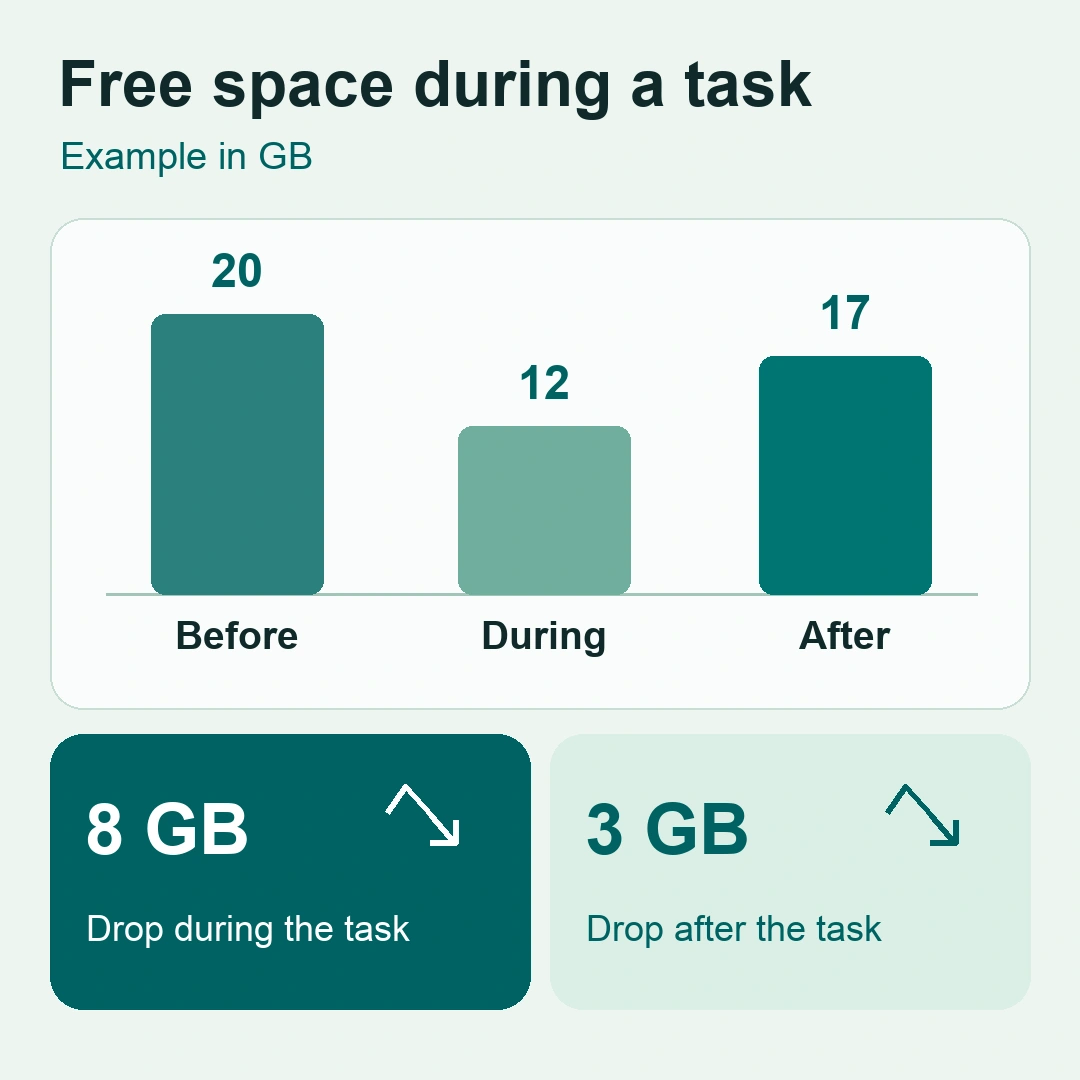
A one-off check helps you get through a task. If the same drive fills later, keep a short record. Write down the time, free space, and the app or task you were using. Note whether you had an extra drive connected. Take a new reading after the task ends and the file saves. Use the same place in Storage each time.
For example, say a Mac shows 20 GB free before an export, 12 GB during it, and 17 GB when it ends. Compare the start and end figures to get a drop of about 3 GB. The change during the export was about 8 GB. The example gives you two different clues. You can look up the app’s work files for the short drop. You can also check the finished export or newly saved files for the part that lasted.
If the drive fills while a copy is in progress, check the source and the place you chose for the copy. Confirm which one has space. A backup drive, a local folder and a cloud folder can have different limits. A note that says only “Storage was full” makes it hard to tell which limit you hit.
Repeat the test with a small file you can use for practice if it fits the job. Keep the big file safe. If the small job works, you can look at the room the large job needs. If both fail with the same error, save the error text. Check the app’s help for that specific fault before clearing more files.
Keep a record of the first check that helped. Include the name of the app, what you cleared, and the size you saw after. Then you can use the same route the next time you do that kind of work. If you ask a support team to help, share the steps and error text. Crop away personal file names or account details when you take a screenshot.
Some apps have a way to set where their work files go. Think about how you use the Mac before you move a cache. If you need to edit away from your desk, you may not have the drive that holds the files. Follow the app’s guide and plan a way to check your work before you make a lasting change.
Did You Know?
Apple says volumes that share an APFS container can use its free space together. You may see more than one volume in Finder while both draw from the same pool of room. Check what drive or container a volume uses before you count a move between two volumes as a way to free space.
Conclusion
A large System Data bar gives you a place to start. Check the drive’s free space and think about what work made it grow. Use Finder or the app that made the files for changes you can explain. Then measure the free space on that same drive and try your task again.
FAQs
Can I delete System Data with one button?
Apple shows how much space System Data uses in Storage. You can open other categories that offer a file list. For data linked to a known app, check the app’s own storage or cache controls and choose the files you mean to clear.
Is a large System Data number a sign my Mac is broken?
That number can change as apps and macOS use the drive. Check the amount of free space and whether you can save, copy and use your apps. A new error or a fall in available room is a better clue for your next check.
Why did System Data grow after a video edit?
An app may create cache, render or proxy files as it works. Find where your video app stores each kind. Then use the app’s own controls and make sure you still have the source clips before clearing files it can make again.
Will deleting a phone backup always reduce System Data?
The backup may have its own category in Storage. Check the free space on the drive after you remove a backup you can let go. Record the figure from the same drive as before so the two numbers are tied to the same place.
Can a Mac cleanup app tell me which System Data files to remove?
It may show large paths or file types. Use the result to pick a file or app to check. Keep your files and backups until you know what the item is, where it came from and how you could get it back.
References
- Apple — Change Storage settings on Mac
- Apple — Free up storage space on Mac
- Apple — Locate and manage backups of your iPhone or iPad
- Apple — About Time Machine local snapshots
- Apple — APFS volumes and shared space in Disk Utility
- Apple — Work with folders and files in iCloud Drive
- Apple — Manage render files in Final Cut Pro for Mac
- Adobe — Clear media cache in Premiere
- Techchahiye — How to clear cache on Mac safely
