

Check the thread before you close it
Start a temporary thread in Google AI Mode. Learn what stays out of Search history and check a source before you leave.
Key Takeaways
- In a browser, open Google AI Mode and select Temporary thread at the top right.
- A temporary thread stays out of your Search and AI Mode history. Past account activity does not shape its replies.
- Check sources and save any notes you need before you leave. The thread can’t be reopened from history.
- Google and sites you visit can still collect data. Use a simple question without personal details.
To use a temporary thread, open Google AI Mode in a browser. Select Temporary thread in the top right and ask a question. Check the answer before you leave. Google says the thread stays out of your Search and AI Mode history. You lose access as soon as you leave it.
This suits a quick question you do not plan to pick up later. You might want to check a term in a manual or find the name of a part. Use a regular thread if you need to return to it as part of a longer project. The choice matters before you ask, because the temporary thread has no history you can go back to.
Open Google AI Mode and Start a Temporary Thread
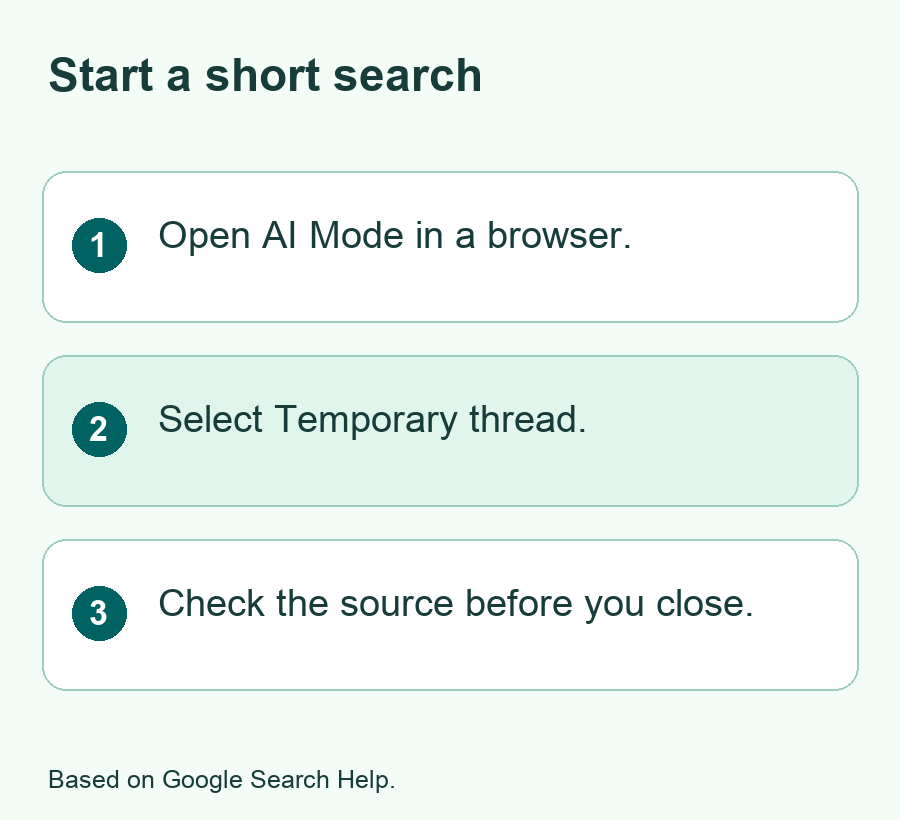
Google announced temporary threads on 17 November 2026. It said the feature would roll out in desktop and mobile browsers. It covers markets and languages where AI Mode works. The steps below follow Google Search Help. Start in the browser rather than the phone app.
- Open Google Search in your browser and go to AI Mode.
- Look for Temporary thread at the top right and select it.
- Check that you’re in the temporary view before you type.
- Enter a question in the Ask anything bar.
- Read the answer and check its sources. Keep any notes you need before you close the thread.
If you have two browser tabs open, check which one you are using. It is easy to move to a regular AI Mode tab by mistake. Try a simple question first so you can see what the view looks like. You might ask what USB PD means on a charger. That question works without your name, location or order details.
Google’s help also lists controls to add a file or image or use voice search. Try text first if you only need to check a term. If you want to show a part from a product box, check the photo for other details before you add it. You can write the model number or port label by hand if an image would show an address or order number.
Leave the thread when you have what you need
Google says you can leave a temporary thread from the control at the top right. The thread is no longer available to you once you leave. If you need a source, open or note it before you go. Don’t count on a tab that might close or a history list that cannot hold the thread.
Keep the note small. A model name, page title and the fact you checked can be enough. Point to the original source for anything you may need to verify later. If you need a copy of an answer, decide what you want to keep and where. The temporary thread’s handling of history does not apply to a note you save elsewhere.
If you use an answer to plan a later task, add the date of your source to that note. This is useful for a setting that can change with an app update. Look for a current guide the next time you try the steps rather than treating an old reply as a new check.
Decide Which Searches Fit a Temporary Thread
Think about your next step. If it is to read one answer and check a fact, a temporary thread may suit it. Will you need to go back to the search or share it later? Check the limits below before you choose. The best place to ask depends on the job you need to finish.
| Search job | Place to start | Reason |
|---|---|---|
| Explain a term on a device label | A temporary thread | You may only need a quick check |
| Find an exact manual or driver page | Regular Google search | You can go straight to the maker’s site |
| Compare a set of devices over several days | A regular thread or your own notes | You need a record to return to |
| Ask a question based on an app you connected | A supported regular AI Mode setup | Temporary threads do not use connected apps |
For a quick search, give the tool only the facts that matter. Asking what a port label means may need the label and model. It does not need the serial number or the account you used to buy it. For a product question, specify the country only when it changes which item or support page you need.
For a task with several steps, check whether each one needs the last answer. Say you need a term now and will use it for a project next week. Write the term and its source in your own notes. If the whole thread will matter next week, use a record you can return to. This choice can save you from doing the same research twice.
Use a source check before you act
An AI reply can point you in the right direction and still mix up a detail. Open an official source for facts that affect a choice. Check its date, the exact model and the country. If the source uses a version number, compare it with the one on your device. If the answer and source do not agree, use what you can confirm from the maker’s own guide.
Here is a sample search. Ask what USB PD means and which part of a charger’s label tells you its maximum output. Then open the maker’s manual and find the line for the model you own. If there are two models with close names, don’t apply one model’s spec to the other. Now you have a fact you can check even after the thread closes.
Know What Temporary Threads Change About History
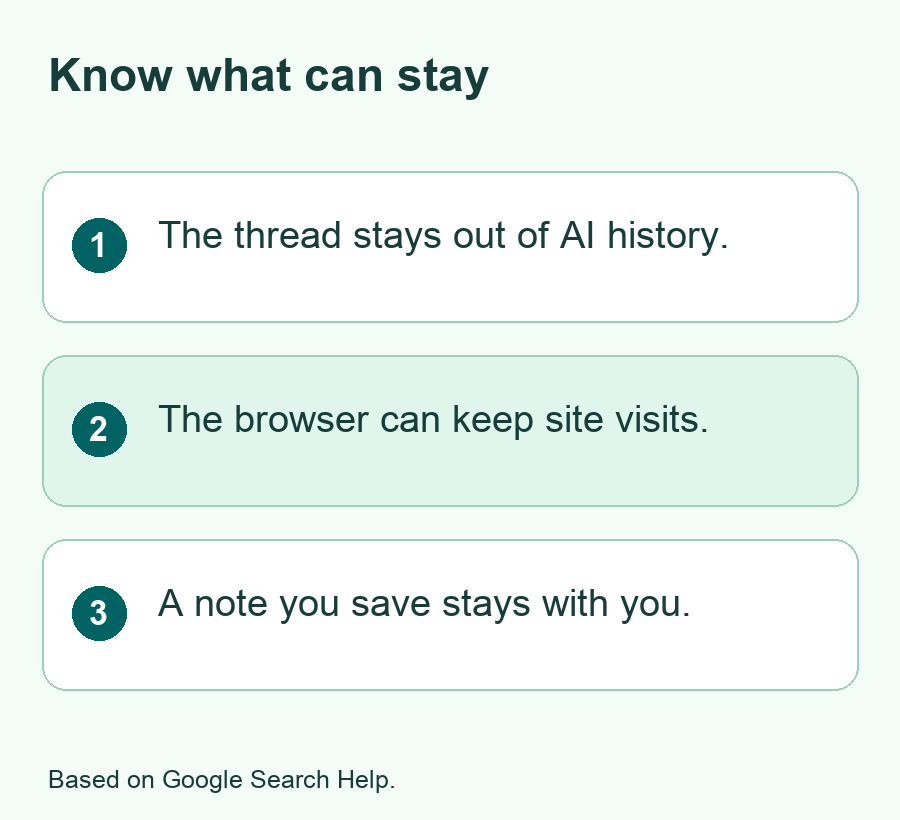
Google says a temporary thread does not appear in Search history or AI Mode history. It also says replies in the thread do not use past activity for personalization. The things you ask there are not used to tailor future replies. That gives you a way to hold one conversation without changing your general history settings.
These rules apply to that thread. They don’t change the history for questions you asked in a regular view. For past searches, open your account settings. Google is rolling out Search Services History. Some accounts may still use Web & App Activity. Start with the label you see.
There are two separate timing facts to remember. First, Google says you lose access to the thread once you leave. Second, its help says the thread disappears after 24 hours. Use the first fact to decide when to save a useful note. The 24-hour period does not give you a day to find a closed thread in your history.
Check the difference between history and data collection
Google says it still collects and uses data that is not tied to your account. It gives examples such as keeping the service safe and meeting business needs. Its help says it generally does not train its AI models on temporary threads. It lists exceptions for feedback you send or use needed for safety. Read the current rules if they affect what you can share.
Opening a link in an answer is a separate action. A site you visit and the services it uses can collect data. Your browser can also keep its own record of pages you visit. If you have a shared device, follow its usual sign-out and history rules. A temporary thread is a choice inside AI Mode. It is separate from the browser’s own controls.
Before you ask, see if you can leave out details someone could use to identify you. A guide can explain what a form field means without a photo of your form. Some tasks involve details you can’t share. For those, try to read the answer in a manual or help page. That may give you the facts without a file upload.
Work Around Features a Temporary Thread Does Not Offer
Google lists features you can’t use in this mode. You can’t use connected apps, share the thread or make an image. The mode also leaves past activity out of your replies. It won’t save details for use in future answers. If a task needs one of those tools, check what a regular thread can do.
If someone asks you to pass along an answer, give them the sources you checked. A short note on what you found can be more useful than a long exchange. Add where you confirmed each key fact. To help someone try the same search, write the general question. Leave out details from your own account.
When a search is part of a team task, name the detail someone needs to check. For example, you can send the download page and the model number you used to find it. A teammate can then compare the page with the device in front of them. They can do that even if you close your search and start work on something else.
Use a plain search when the link is the answer
If you want one website or one exact file, start with the maker’s name and the thing you need. For example, search the model name and the word manual. Use the support page and check the model near the top. That avoids a step where the tool has to sum up the page. It also makes it easy to copy the link when you need to keep it.
Once you have the manual, you might want help with one term. Try a temporary thread for that. Ask about the term and add the type of device. Then compare the reply with the same part of the manual. Look at which words the tool used to answer. If it brings in a claim you can’t trace, leave that claim out of the note you save.
If your work needs an old reply, check AI Mode history for regular threads that you may have used. The temporary one won’t be there after you leave. If you can’t find the source again, try the topic and the publisher’s name in regular search. Keep its page title in a note once you find it. This makes it easier to check if the page changes.
Fix a Missing Temporary Thread Option
Start by checking the browser view. The launch announcement talks about desktop and mobile browsers. Make sure you opened AI Mode, then look at the top right. On a small screen, zoom back to normal and see if the controls fit. Also check which browser tab and Google account you opened. A different account can have different access.
Try the AI Mode help for your country and language. If you use an account managed by a school or work, check whether the account gets the tool. A rollout can take time. If Google says a feature is rolling out but you can’t find it, use a regular search to reach the source you need that day. Check again when you have a reason to use the feature.
If the button appears but a file tool doesn’t, test a text question. That can separate the thread from the file you wanted to send. Check the current rules for file type and feature access before you try again. You can often read the line you need from the file and ask for help with just a word or term.
Check the right history area if something was saved
Write down what you saw and where you saw it. A web page in the browser’s history differs from an AI Mode thread in Google history. If you saw the question itself in the Google account, think back to the tab where you entered it. Check the account icon too. Opening a regular thread in one tab and a temporary thread in another can make the results hard to tell apart.
Test again with a phrase you can easily spot, such as a made-up label followed by a question about what it means. Look for the temporary view before you enter the question. Leave the thread once you have a reply and check the AI Mode history for the same account. This gives you a small test without putting a private question into the app.
Finish by testing one real search
Try a search that has a fact you already know how to check. For instance, find what a charger label stands for and check it in the maker’s guide. Confirm you have the temporary view before you ask. Look at the answer and open the source you need. Note what will stay available to you after you leave the thread.
Then choose where to keep the useful part. If you have the source open, you can keep it and close the thread. If you only needed a quick term and can now read the manual, you have finished. You may want to go back to a full set of questions later. In that case, use a record you can return to for the next search.
Did You Know?
Google treats a temporary thread and the sites you open from it as separate places. The thread stays out of Google Search history. Its help says your browser can still keep a record of a site you visit. Check both places if you need to know what a shared device might show.
Conclusion
Use a Google AI Mode temporary thread for a one-off search you can check and finish. Open the temporary view and ask a clear question. Verify the source before you leave. Keep a short note if the answer matters later. Choose a different tool for tasks that need saved replies or connected apps.
FAQs
Can I recover a temporary thread if I close it by mistake?
Google says that you lose access when you leave the thread and that you cannot open it again from AI Mode history. If you know the main question, run it again and check sources. Save the useful page title or facts before you close the new thread.
Does a temporary thread remove my past Google Search activity?
A temporary thread affects the conversation you start in that mode. To review older searches, check your account settings. Look for Search history or Web & App Activity. Follow Google’s help for that screen and check the dates before you change or remove any entries.
Can I add a photo to a temporary thread?
Google lists image and file upload in its temporary thread help. Open the add menu in the thread and check which options appear on your device. Look for any address or account number in the image. If it is not part of the question, leave it out. You can also type the label you want to ask about.
Can I ask a temporary thread to use details from Gmail?
Google says you can’t use connected apps in this mode. That includes apps tied to your account. If a task needs one of those apps, check what a regular AI Mode session can use. Review the connection first. You can also open Gmail and run a search there using its own controls.
Is a temporary thread the same as private browsing?
The thread changes how Google handles that conversation. Your browser has its own history rules, and sites you visit have their own data rules. Use the feature that fits the task and keep personal details out of a query when they are not needed. You can check Google’s thread help and your browser’s privacy guide separately.
