


Save chats before you need them
Set up WhatsApp backups on Android or iPhone. Choose media and encryption options. Learn how backup, transfer, and export differ.
Key Takeaways
- To back up WhatsApp, open Settings, then Chats, then Chat backup on your phone.
- Check the last successful backup time and its storage account before you change phones.
- Keep the backup access method safe. An encrypted copy is useful only if you can unlock it.
- If chats are already missing, check the existing backup before making a new one. A new backup can replace the copy you need.
- A chat export and a linked computer are not substitutes for a restorable phone backup.
Your old phone still opens WhatsApp. That is the best time to check your backup. Open WhatsApp Settings, tap Chats, then Chat backup. Review the account, options, and last successful backup before you wipe a phone or move to a new one.
This guide shows how to back up WhatsApp on Android and iPhone. It explains the checks before a restore. It covers stalled backups and how a chat export differs.
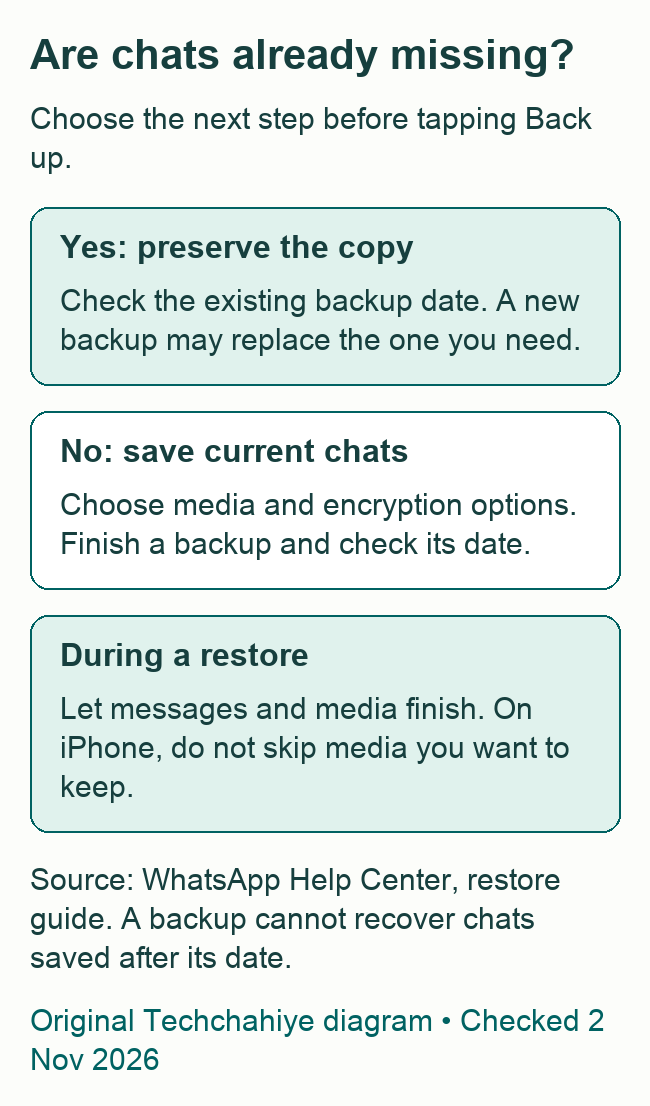
Are you trying to recover chats that vanished? Pause before pressing Back up. WhatsApp warns about this in its restore guide. A new backup can replace the copy that holds your missing chats. The first step in recovery is to inspect what exists, not to save an empty or incomplete chat list over it.
Choose backup, transfer, or export
These three tasks may look alike, but each solves a different problem. Choose the outcome you need before you start changing settings.
| What you need | Start with |
|---|---|
| A saved copy for a later restore | Chat backup on your phone |
| To move chats from a working old phone | WhatsApp’s supported chat transfer process |
| A readable record of one conversation | Export chat |
| Chats on a computer | Link the computer, then keep a phone backup too |
A backup gives you a saved point you can return to through the restore process. Its date matters. A chat sent after that saved point will not be in that copy. A direct transfer is a move between phones, with its own setup rules. It is worth checking that route while both devices still work.
An export creates a readable record. WhatsApp’s export guide explains the limit. You cannot import the text file back as chat history. It can keep a readable chat outside the app. It cannot rebuild your account’s chats after you reinstall.
A linked computer is for access to conversations. WhatsApp lists this limit in its restore help. Linked Web, Mac, or Windows sessions cannot back up or restore chats. Use your phone for this task, even if you normally type most of your messages on a laptop.
Check the existing backup first
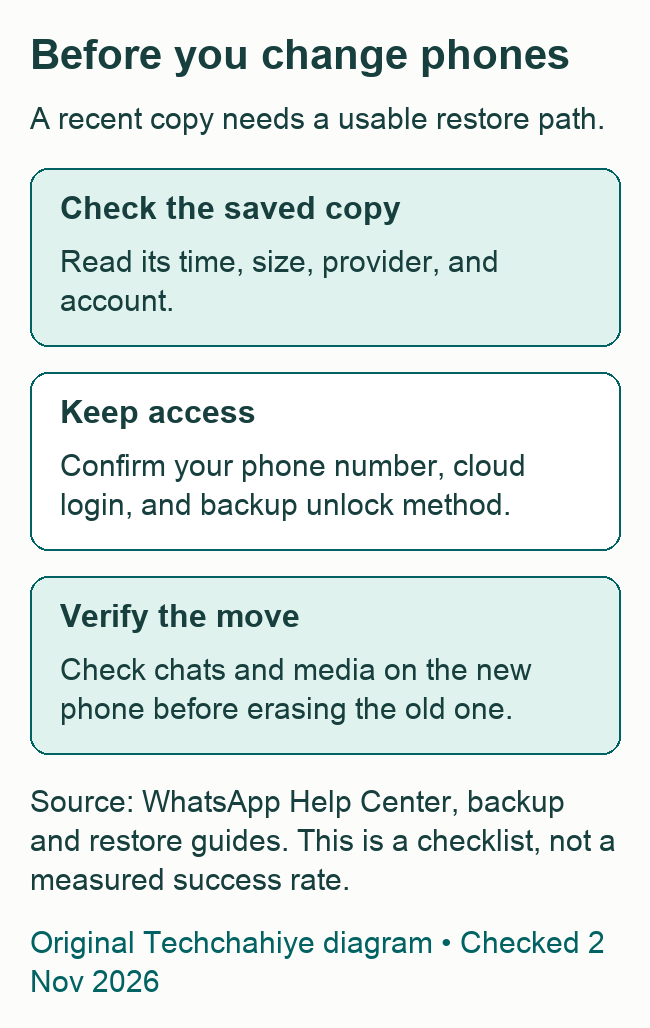
Open the Chat backup screen and read what it shows. WhatsApp says an existing backup displays its time and size. Do not treat a selected daily schedule as evidence that the latest backup finished.
Record which account holds the copy. On Android, this may be a Google Account. On iPhone, you may use iCloud. Have more than one cloud account? Check the exact one. Do not rely on the name you use for email.
Then compare the backup date with the chats you want to keep. Here is a made-up example. A backup finished at 8 a.m. You had an important chat at noon. That morning copy cannot contain the later exchange. Is that chat still on your old phone? A new backup can save it. Check that the copy succeeds.
The decision changes if the conversation is already gone. In that case, creating a new copy could save the current state without the missing messages. Keep the old phone and existing backup intact while you assess the restore route.
Write down only the details you need for your own plan: provider, account, date, and access method. Keep passwords and recovery details in a safe place. A screenshot may help you remember the backup date. Keep private account details out of any image you share.
Understand the current provider choices
WhatsApp’s Help Center lists Google Account backups for Android. On iPhone, it lists in-app iCloud backups. It also describes a new option: WhatsApp cloud storage. WhatsApp is still building and testing it. That option may not be available on your account yet.
If you see Cloud backup in the app, review the providers listed there. The current Android help names WhatsApp or Google. The iPhone help names WhatsApp or iCloud. Follow the options your own account shows; do not assume a missing test feature is a fault with your phone.
The new WhatsApp storage encrypts each backup end to end. The Help Center explains this rule. On iPhone, it also says choosing that provider means you cannot create an iCloud backup at the same time. Read the provider prompt before switching. Take care if you have a copy you might need.
This guide uses official help pages checked on November 2, 2026. Menu labels and test features can change. The steady starting point is Settings, Chats, then Chat backup. Then check the provider and schedule. Review the media and encryption choices you can see.
Back up WhatsApp on Android
Before you start, connect to a stable network and check free space on the phone. Using a Google Account? WhatsApp needs Google Play services on the device. The Google Account must be active there. It also needs enough cloud space.
- Open WhatsApp Settings. On layouts with a three-dot menu, open that menu first.
- Tap Chats, then Chat backup.
- Check or choose the Google Account used for the backup.
- Review the video, mobile data, and other backup options shown.
- Tap Back up to create a manual copy.
- Return to the backup details and confirm that the successful backup time has updated.
If you see the new Cloud backup picker, choose a provider. Tap Turn on backups. Then set the schedule. If your app shows the Google backup controls directly, use those. You do not need to change provider because a guide mentions a newer option.
For recurring Google backups, select a schedule other than Never or Only when I tap Back up. WhatsApp’s Android help explains the Daily choice. It saves to the Google Account each night, after the local backup. A schedule means less to remember. Still, check the last success date before a phone change.
If you change the Google Account used for backups, make a new backup to that account. Selecting an account sets the destination. It does not prove that your chats have arrived there. Keep track of the new destination so you can use it during setup later.
Back up WhatsApp on iPhone
Use WhatsApp’s own Chat backup screen to review the in-app copy. WhatsApp’s help distinguishes that copy from a whole-iPhone iCloud backup. If you use both, it says the two copies need extra iCloud space.
- Open WhatsApp Settings or tap your profile picture, depending on the layout.
- Tap Chats, then Chat backup.
- Review the backup provider and media choices.
- Tap Back up now to make a manual copy.
- Wait for the process to finish, then check the backup details.
For automatic iCloud copies, open Auto backup and choose the frequency you want. WhatsApp lists daily, weekly, and monthly choices. How much recent chat history would you mind losing? Use that to pick a schedule. Then check that the phone can finish its backups.
The iPhone needs room for temporary files as well as space in iCloud. Free cloud space and free phone space are separate checks. Does WhatsApp show an amount it needs? Use that figure to review storage. One small file may not fill the gap.
If you see the new Cloud backup picker, read the provider choice before you enable it. The tested WhatsApp cloud option may be absent from another person’s phone. That difference alone is not a reason to sign out of iCloud, remove the app, or reset the device.
Choose what to include
Videos can make a backup much larger. Google says videos often take up the most room. Its storage guide gives a way to reduce the copy on Android. Turn off Include videos in WhatsApp’s Chat backup settings.
Think about the media you would want after a lost phone. A short text and a large family video need different amounts of space. Their value to you may differ too. There is no single correct choice for every account. Decide before you rely on the backup as your only saved copy of something important.
If you exclude videos, do not later expect that copy to restore them. WhatsApp’s restore help explains this rule. To restore videos, include them before you create the latest backup. Check this choice while the original files are still on the working phone.
The current backup help also lists an option for a status archive. Read the label and decide whether you need that content. Check the size before you turn every option on. Your cloud account may hold email and photos too.
On Android, review whether backups may use mobile data. A large upload can matter on a limited plan or while roaming. Use Wi-Fi if that suits your connection and cost limits. There is no fixed time for every backup. Size, network, and free space can all affect progress.
Protect access to an encrypted backup
Review End-to-end encrypted backup within Chat backup. WhatsApp’s setup guide lists a passkey option. Other choices include a password or a 64-digit encryption key. Use the method your app offers and that you can keep access to.
Your WhatsApp phone number and your backup unlock method serve different jobs. Keep track of both. Before a phone move, make sure you know which prompts you may face. A backup that exists in cloud storage can still be unusable to you if you cannot pass its access check.
If you choose a password, keep it in a secure place you can reach when the old phone is gone. If you choose the long key, protect the exact key. Do not rely on memory for a long string, or store the only copy inside the WhatsApp chats you are trying to protect.
For a passkey, follow the device’s setup prompts and check where your device stores it. Avoid assuming that a fingerprint on one phone is, by itself, a copy of all the credentials you will need on another. Check your device’s account and passkey access before wiping the old device.
Once you enable the option, allow the backup process to complete. A setup screen is not a successful upload. Review the backup details. Keep your access method private. No helper needs you to post it in a chat or send it in a screenshot.
Keep cloud storage from becoming the weak point
Google says Android WhatsApp backups count toward Google Account storage. Other Google services use that space too. A phone with plenty of free local space can still fail to save a cloud copy when the account is full.
Start by reviewing backup choices and the account’s storage use. If videos are not part of your recovery plan, excluding them may reduce future copies. If they are important, decide where you will keep them before removing anything.
You can reduce future backup size. Deleting the cloud copy is a separate action. Google says backup deletion is permanent. Do not use it as the first step in a recovery attempt or assume that the service can undo it later.
Google also gives a retention warning. It may delete backups that you have not updated in five months. WhatsApp’s Android restore guide gives a separate warning. You may not be able to restore a backup more than 120 days old. These are different statements from different providers. Keep a recent copy that has finished. Do not plan around the longest deadline.
You do not have to buy a storage plan before you understand the problem. Check what takes up space, which media you need, and whether your existing plan has room. Buying storage is a separate choice. These steps do not need it.
Restore only after checking the basics
Before a restore, check that a backup exists. Does its date cover what you need? Can you use the same phone number and cloud account? Keep the working old phone unchanged until you have checked the new setup.
WhatsApp’s restore process offers Restore during app setup. If you want the old chats, do not skip that choice and then create a new backup of an almost empty account. WhatsApp warns that the new copy can replace the earlier one.
On Android, its help describes two stages. Messages come back first. Media then loads in the background. Missing photos at the first moment do not always mean the restore failed. Keep the phone on a stable connection and power while you check progress or any displayed error.
For iCloud, use the same Apple Account and phone number used for the backup. Do not assume a relative’s shared device or a second cloud login contains your WhatsApp copy. Account names that look similar can lead you to the wrong destination.
On iPhone, let the media restore finish if you want to keep those files. Read the Skip media restore warning. WhatsApp says you cannot restore that media later. A later backup replaces the old copy. It leaves out the media you skipped. Free the phone space shown by the app rather than skipping media to reach the next screen.
When chats arrive, check items that matter to you. Look at a recent chat and an older one. Check media you chose to include too. This is a practical review, not a guarantee that every item is present. Resolve a visible gap before erasing the only working source.
If the backup stalls or cannot be found
Read the exact message before you change anything. A storage warning calls for a different check from a missing-account warning. Note the backup date and provider. Then you can tell whether a later attempt changed the result.
Start with small checks. Is the network stable? Do the phone and cloud account have enough space? Is the app up to date? Use enough battery or a power connection. Give a large transfer time to finish. Repeatedly closing the app or changing networks can make a slow process harder to assess.
On iPhone, check iCloud Drive. Does WhatsApp have access to it? WhatsApp lists this check in its help guide. Review the settings first. Signing out of a cloud account is a wider step. Those broader changes can affect other apps.
Does a restore find no backup? Check the phone number and cloud account before you make another copy. If you are recovering missing chats, preserve the existing cloud copy and old phone. Reinstalling does not create a past backup that you never saved.
Be cautious with services that promise to recover any chat. WhatsApp says it cannot restore chat history for you. A promise from another service is not proof that it has access to a lost, overwritten, or unreadable copy. Do not send backup keys, registration codes, or private chat files to an unverified helper.
Before switching between Android and iPhone
A phone change across platforms needs the supported transfer process. You cannot directly restore an Android backup on iPhone, or an iPhone backup on Android. Use the supported transfer route.
Read WhatsApp’s current move guide for your direction before setting up the new phone. Some steps must happen before you register WhatsApp there. Keep both devices and the old number. Leave the original chats in place while you check the requirements.
If you are also changing your phone number, handle that as a separate part of the plan. Want to keep chat history with a new number? WhatsApp says to use Change number on the old phone first. Its changing-phone help explains the order. A new phone and a new number at the same time can make a rushed move harder to unwind.
Do not wipe the old phone as soon as a welcome screen appears on the new one. Finish the move, inspect your chats and media, and make a new backup from the new setup. Then follow your device maker’s steps when you are ready to give away the old phone.
Did You Know?
A chat export cannot be imported back into WhatsApp as your chat history. WhatsApp’s export help describes it as a text file, rather than a backup file. An export can keep a readable chat. Use the Chat backup screen to plan for a later in-app restore.
Conclusion
To back up WhatsApp, start in Settings, Chats, then Chat backup on your phone. Check the account, media choices, encryption access, and last successful date. Keep the old phone intact during a move. If messages are already missing, inspect the existing copy before saving a new one over it.
FAQs
Can I back up WhatsApp from my computer?
No. WhatsApp’s restore help lists this limit. Linked Web, Mac, and Windows sessions cannot back up or restore chats. Use your phone’s Chat backup screen. A computer is useful for messaging. It does not replace a phone backup you can restore later.
Will a backup include messages sent after it finished?
No. A backup is a saved copy from one time. WhatsApp gives this limit in its restore help. That copy cannot restore messages from after its date. If your chats are still intact, make and verify a newer copy before a planned phone change. If chats are missing, inspect the old copy first.
Does turning off videos delete videos from my chats?
The backup option controls whether chat videos go into the backup. Decide separately what to keep on your phone. WhatsApp says videos can be restored only if you included them before the latest backup. If you need a video later, keep a suitable saved copy before removing originals.
Why do I see a WhatsApp cloud option on only one phone?
WhatsApp says its own cloud storage is new. It is still building and testing it. Some people may not have it yet. Follow the provider options on your account. A menu can differ on another phone. That alone does not mean your Google or iCloud backup has failed.
Should I make a new backup to recover deleted chats?
Check the existing backup first. WhatsApp warns that a new backup can replace the copy holding missing chats. Review its date and account, and preserve the old phone while you assess a restore. A fresh copy of the current chat list cannot bring back messages that are no longer in it.
References
- Techchahiye: WhatsApp Tips and Privacy Guide. A related guide hub. It covers privacy and scam checks. Public page and canonical checked November 2, 2026.
- WhatsApp Help Center: How to back up your chat history. Android and iPhone setup. It covers providers and backup options. Checked November 2, 2026.
- WhatsApp Help Center: How to restore your chat history. Restore steps and backup limits. It explains the risk of replacing a copy. Checked November 2, 2026.
- Google One Help: Manage your storage in Drive, Gmail and Photos. Storage use and video choices. It explains backup deletion and retention. Checked November 2, 2026.
- WhatsApp Help Center: Can’t back up or restore your chat history. Network, storage, and account checks. Checked November 2, 2026.
- WhatsApp Help Center: How to export your chat history. Export files cannot restore chat history. Checked November 2, 2026.
- WhatsApp Help Center: About changing phones. Phone number changes and phone moves. Checked November 2, 2026.
- WhatsApp Help Center: How to transfer your chat history. Direct transfer steps. Keep the old phone until the move succeeds. Checked November 2, 2026.
