

Make a clear clip, then check what it shows
Use Screen recorder on a supported Galaxy. Choose the sound and record one task. Play the saved file. Check private details before you share it.
Key Takeaways
- On a supported Galaxy, open the Quick panel, tap Screen recorder, choose sound and start. Stop when the useful action is complete.
- Pick None, Media or Media and mic for the sound you need. Play a short saved sample before a long take.
- Menus and features vary by model and software. A missing tile and an unsupported device are different problems.
- Review the actual saved video before sharing. Check private details, the sound and whether viewers can follow the steps.
Want to screen record on Samsung? First check that your Galaxy supports it. Open the Quick panel and tap Screen recorder. Choose the sound option, tap Start recording and wait for the countdown. Perform the task you want to show, then tap Stop. Samsung US says to look in Gallery for the saved clip. Some files are in My Files.
That is the short route. A useful clip needs a few more choices. You may want only the app’s sound, your spoken guide, or no sound at all. You also need to keep account details and other private content out of the recording. A video that captures every tap can capture a screen you did not plan to show too.
This guide shows how to screen record on Samsung. Make a clear clip that gets to the point. It uses Samsung’s official support guidance checked November 3, 2026. We have not tested each Galaxy model. Some apps block capture.
Find Screen recorder in the right Quick panel
Samsung’s US Quick panel guide separates two software layouts. On One UI 7.0 and newer, swipe down from the top right for Quick settings. On One UI 6.1.1 and older, a two-finger swipe from the top fully expands the panel. Your chosen layout and software can affect what appears.
Do you see alerts instead of the controls? Check the panel first. The recorder may be in the other view. A change in where you swipe is easier to resolve than a supposed hardware fault. Check the One UI version on your phone. An old guide may show a layout you no longer have.
If the recorder is not in the visible controls, check the Quick panel’s edit view. Samsung US gives the edit steps. Open the pencil-shaped Edit control. Choose Edit for the buttons. Move the button you need into place. Tap Done when finished. Use the labels on your phone if its layout differs.
Do not assume every Galaxy has this feature because another Galaxy does. Samsung says feature availability varies with model and software. If the tile is absent from the edit view too, check support for your exact model. Repeatedly rearranging unrelated buttons will not establish whether the device supports recording.
If you consider another recording app, check its publisher and supported download route. Techchahiye’s Samsung Auto Blocker guide explains source-related app blocks. An install warning concerns the app you tried to add. Check native recorder support on its own. Do not treat an unfamiliar download as proof that a missing feature can be added.
Keep the model and One UI version with a support question. Add where you looked and whether Screen recorder appeared in the available buttons. This gives support a focused starting point. “The tile is missing from the edit view” is more useful than “the recorder fails on all Galaxy phones.”
Make a short recording first
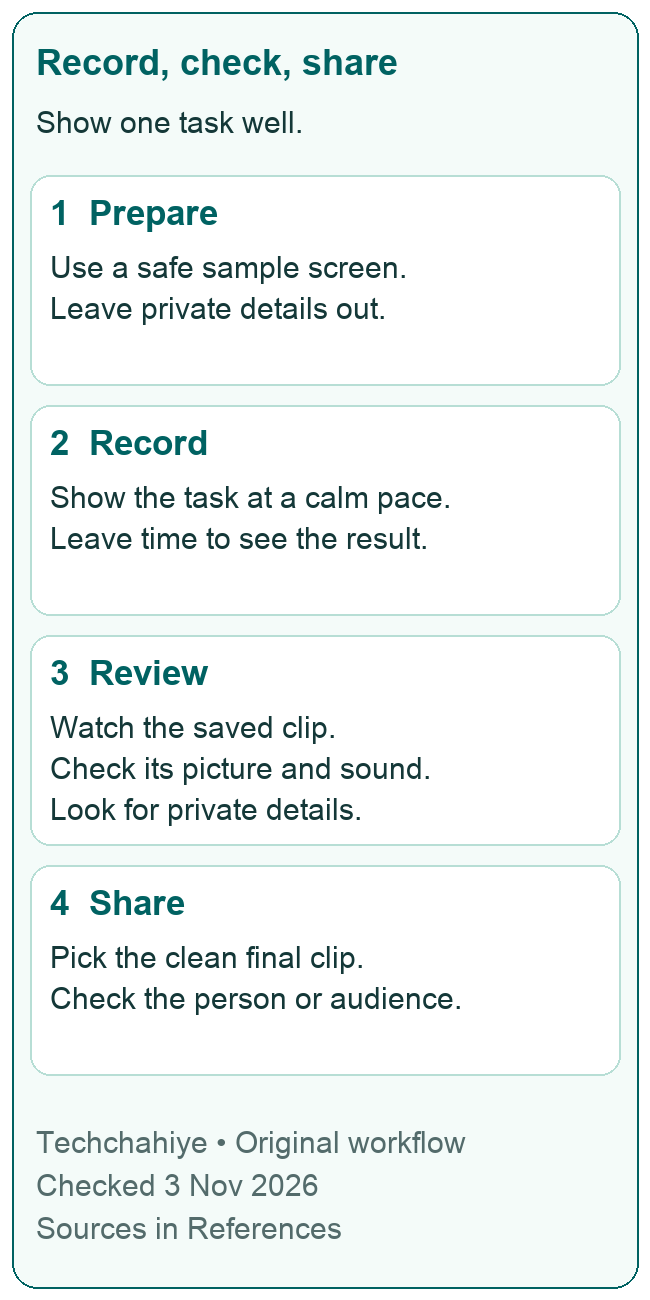
Start with a screen that is safe to share and easy to repeat. For example, show a harmless settings choice or a sample document. Keep the first attempt short enough that you can watch it fully. The aim is to check your own setup before spending time on a long guide.
- Open the Quick panel and choose Screen recorder.
- Pick the sound setting for this clip.
- Tap Start recording and let the countdown finish.
- Show the task at a pace another person can follow.
- Tap Stop, open the saved file and play it back.
Samsung’s US recording guide supplies the start and stop route. The playback step is a practical quality check. Watch the actual file, rather than judging only the screen you saw while making it. You need to know what a viewer will receive.
Check the start and end. Did the recording begin before the important tap? Did you stop before the result appeared? A file can save correctly but omit the one moment that answers the viewer’s question. Fix the take while the steps are still fresh in your mind.
Do not call one successful sample a test of every app. It confirms only that the sample worked with that setup. When you change the app, sound choice or recording method, review a fresh sample. Keep your confidence tied to what you have actually checked.
Choose the sound that serves the clip
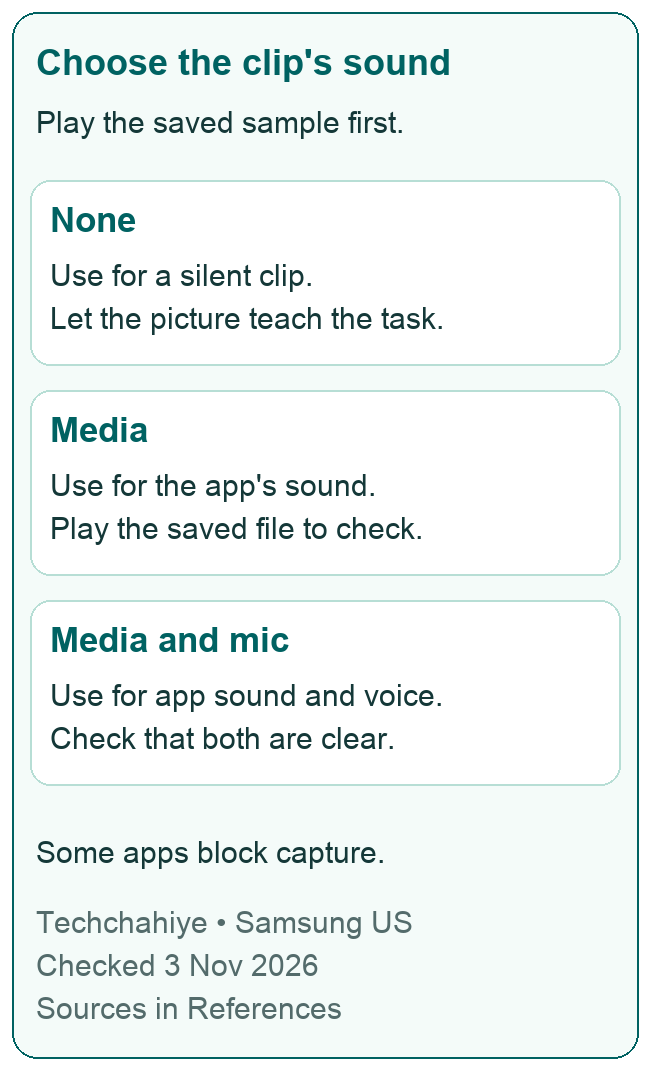
Samsung lists three sound choices in its US guide: None, Media, and Media and mic. Choose before starting. The right choice depends on whether the viewer needs to hear the app, your voice, both or neither. A video with moving controls can still be unhelpful if the sound is wrong.
| Sound choice | Useful when | What to check in the saved file |
|---|---|---|
| None | The action is clear without audio | The clip has no sound you meant to include |
| Media | The app’s own sound matters | The needed app sound is present |
| Media and mic | You need to explain while showing the app | Your voice and the app are both understandable |
For a silent support clip, None can keep room conversation out of the intended recording. Still review the picture for private details. Choosing no sound does not remove an email address or a notification from the video frames.
For a lesson about an app’s sound, Media is the relevant choice to check. Hearing the app on the phone is not a check of the saved sound. Play the saved clip and listen. What the phone played during recording and what the file contains need their own check.
For spoken instructions, try Media and mic with a short guide. Say what you will do, make the tap, then let the result settle. Avoid talking over the detail the viewer needs to hear. Can you hear both streams clearly? If not, change the way you present the task. Check any sound-balance tools your setup offers.
Choose a quiet place for a voice-led clip. People nearby may not expect their conversation to become part of a tutorial. A clean sample can reveal that problem before you record the full task. This prep step helps you hear what the mic picked up.
Decide what the viewer needs to see
A screen recording is most useful when it answers one clear question. “How do I find this setting?” makes a tighter clip than “Here is everything I know about my phone.” Write the intended result in a short sentence before recording. Use that sentence to choose the start and finish.
For a how-to clip, start close to the first relevant screen. Show enough context that a viewer knows where they are. Then move through the steps in order. Pause after a change so the viewer can see the result. Then open the next menu.
For a support report, show the shortest repeatable route to the issue. Include the action before the error and the full error text. Leave unrelated private screens out. Put the model and software version in the written report. The viewer should not need to search the clip for them.
For a game clip, decide which moment matters before starting a long session. This guide has no measured performance or file-size results for gameplay recording. If smooth playback matters to your purpose, inspect a sample from the actual game and setup you plan to use.
A clear ending helps too. Let the final state remain on screen long enough to understand. If a process is still loading, do not present that frame as a finished result. State what the clip shows and what remains unresolved when you send it for help.
Use tap markers, drawing and the camera with a purpose
Samsung’s UK recording guide describes showing or hiding touch marks. Samsung US also lists Show taps and touches. A marker can help a viewer spot a small control. Still explain which one you chose.
If your model offers touch marks, use a sample to judge whether they help. A marker near a small icon may clarify the action. A rapid series of taps can still be hard to follow. Slow down the demonstration instead of expecting more visible dots to fix its pace.
Samsung’s US guide also describes a Pencil tool for drawing during recording. With the drawing tool on, you cannot use the game or video controls. You cannot move through menus either. Turn it off to resume normal interaction. Treat a drawing pause as its own step in the guide.
For example, you might pause on a settings screen and circle the choice you mean. Finish the mark, leave drawing mode and then make the selection. That sequence is an illustrative teaching plan. It is not a claim that every model has the same annotation tools.
A front-camera overlay is available only on devices that support it. Samsung specifically notes a front-camera recording limit on the Galaxy Tab A8. If your model offers an overlay, position it so it does not cover the control or result you are trying to show. Check the saved clip to confirm.
Do not add your face merely to fill the screen. It may help when the guide needs a presenter. For a small setting or error message, it may consume space the viewer needs. Choose the form that makes this particular task easiest to understand.
Review private content before and after recording
Look through the screens your planned route will pass. Replace a real document with a sample if the example does not need private data. Plan a route that stays clear of private screens. Keep inboxes, account details, payment screens and saved codes out.
Notifications deserve their own check. Samsung US explains how Do not disturb works. You can choose which alerts to allow and which to hide. It says critical phone-activity or status notices stay in view. Do not assume turning on Do not disturb makes every visible detail safe to record.
If you choose Do not disturb for a take, read its current exceptions and hiding choices. Keep any essential alert needs in mind. You can also wait for a better recording moment or use a less personal sample screen. A short planned take leaves less extra content to review.
Watch the finished video from the start before sharing. Check the opening panel and app switch. Look at the final frame too. Review any point where a new screen appeared. Listen to the audio too. A clean final screen does not tell you what an earlier frame or a background voice revealed.
If private content appears, make a clean new take or use an appropriate edit that removes it. Verify the result by replaying the version you intend to send. A new file name does not change what the clip shows. Private sharing does not remove that content either.
Check video quality and the saved location
Samsung US lists three quality choices: High at 1080p, Medium at 720p and Low at 480p. Availability can vary. These are setting labels. Another app may process the file before a viewer sees it. Check that small text is still clear.
Use the saved sample to judge the actual need. Can you read the error text? Can you tell which control changed? Will the recipient watch on a small phone screen? A wide view of tiny labels may be hard to read even at a higher setting. Simplify the shot or guide where possible.
Do not promise a file size from the resolution alone. This guide has not measured Samsung recording sizes or upload times. Check the file you made and the destination’s current sending limits. You cannot find that real file size from its length alone.
Samsung UK names the Screen recordings folder in Gallery. It also gives the default file path: Internal storage, DCIM, Screen recordings. The US guide also points to My Files for some saved recordings. Check the selected save location where your model offers that setting.
Open the file before moving or sending it. A name in a folder is not a playback check. Do several takes look alike? Compare their times and contents. Choose the right one. Keep the clean final clip distinct from a sample or an incomplete take.
Know which screens and calls have limits
Samsung says Screen recorder does not record phone, internet voice or video calls. Its Gulf guide gives the same call limits. It notes that some apps block capture for copyright reasons. A call or protected screen that fails to capture is not a general test of whether the whole recorder works.
Compare two cases. Does a harmless supported screen record? Does the app you want to show fail? That can help you frame the support question. Keep the stated capture limits in mind. This result does not prove that a setting change will remove a block.
If the file has no sound, compare the selected sound option with your goal first. Then play a fresh short sample in the app you mean to show. Describe the exact difference: no voice, no app sound, or no audio at all. Those are clearer observations than “the sound fails.”
Cannot tap controls while you draw? Check whether the Pencil tool is still on. If an overlay is missing, check model support for that feature. A missing optional tool does not necessarily mean the basic recording failed. Keep each symptom tied to the specific feature.
Share the reviewed clip through a suitable route
Choose the right person before opening a share sheet. A family member, a support worker and a public audience have different needs. Send only the detail needed for the task. Add a short written note that says what to watch for and whether the issue remains unresolved.
Samsung US explains Private Share. On supported setups, it lets you choose recipients and expiry. You can revoke access too. Features can vary. Private Share does not work on iOS. Check the recipient’s supported route before relying on those controls.
Those options do not replace your review of the source video. If the clip contains a private code, removing that code from a clean recording is the first useful step. Access controls help you choose who can open a file. They do not make its contents safe to expose.
For a public how-to, use sample content and a clear description. For private troubleshooting, include the exact model, software and result in your note. Keep any passwords or account recovery codes out of both the video and the message. A useful report explains the failure without exposing the account.
Did You Know?
A screenshot and a screen recording answer different questions. A screenshot preserves one visible state. A recording can show the steps that led there and what happened next. Does someone need only one error message? A readable still image may serve them better than a long video they must search through.
Conclusion
Start with the Screen recorder control on a supported Galaxy. A useful result also needs the right sound, a clear task and a review of the saved file. Check the controls your model offers. Keep private content out. Respect screens that block capture. Share the clean final clip. Add a short note to explain what it shows.
Frequently Asked Questions
Why can I not find Screen recorder on my Samsung phone?
First check the correct Quick panel and its edit view for your software. If the tile is absent there too, check support for the exact model. Samsung says features vary by device and software. A missing tile in the visible row does not prove the phone lacks support. Another Galaxy having it does not prove yours does.
Which sound option should I choose for my voice and the app?
Check Media and mic when you need both. Record a short sample and play the saved file to confirm the result. Keep room conversation and competing sounds in mind. If you need only the app, inspect a Media sample instead. Choose None for a clip that needs no audio. Check that the picture explains the task on its own.
Can Samsung Screen recorder capture phone or video calls?
Samsung says it does not record calls. That includes phone calls, internet voice calls and video calls. Treat that as a feature limit. Do not use a failed call capture as proof that all screen recording has stopped working. A harmless supported-screen sample can help you describe a different recorder issue accurately.
Where should I look for the saved screen recording?
Start in Gallery and its Screen recordings folder. If the file is missing, check My Files. Or check the save location in your recorder settings, if your model shows one. Open and play the actual file. Made several takes? Use their times and content to choose the clean final one. Check it before sharing.
Does Do not disturb guarantee that my recording has no private notifications?
No. Read its exceptions and hiding settings, then review the saved recording. Samsung notes that critical activity or status notices remain visible. Private data may also appear inside the app itself or in the recorded sound. An alert setting is one prep step. You still need to watch and listen to the finished clip.
References
- Samsung US — Record and capture a Galaxy screen
- Samsung US — Change Quick panel icons and check One UI layout differences
- Samsung UK — Screen recording settings, saving and model limits
- Samsung Gulf — Screen Recorder audio, saved files and call restrictions
- Samsung US — Do not disturb settings and notification exceptions
- Samsung US — Private Share controls and limitations
- Techchahiye — Samsung Auto Blocker and app-source warnings
