

Claim the offer, then check the result
Use the correct account and regional offer. Confirm the monthly category and claim dates, then review the library entry. Monthly games, catalog titles and trials follow different access rules.
Key Takeaways
- PlayStation Plus monthly games have a claim window. Check the month, account region and offer before adding a game.
- Sony announced three games for October 2026. The window runs from October 6 through November 2.
- Monthly games, Game Catalog titles and trials are different benefits. A shared page can show all three.
- Confirm the game in your library. Then check the edition, download state and active plan before play.
PlayStation Plus monthly games are a monthly selection for members. Start with Sony’s current monthly selection. First, check the claim dates. Add the correct offer using your own account. Then confirm the library entry before assuming the claim is complete.
As checked on October 27, 2026, Sony’s US page still highlights October. Its official announcement gives an October 6–November 2 window. This guide uses that dated snapshot. It also explains how to check claims, downloads and access each month.
Search interest in next month’s games is not the same as a confirmed lineup. Check the month on Sony’s announcement and the offer in your account. A preview, a catalog list and a monthly claim can look similar in a search result.
The Current US Monthly-Game Snapshot
Sony announced this October selection on September 30. The platform list below follows its announcement.
| October 2026 monthly game | Platforms listed by Sony |
|---|---|
| F1 25 | PS5 |
| Hunt: Showdown 1896 | PS5 |
| Earth Defense Force: World Brothers 2 | PS5 and PS4 |
Sony gives a window of October 6 through November 2. Read the live offer for the account’s region and any local timing. Use the live Store for the local closing time. The announcement gives dates only.
This is a snapshot, not a promise about later months. When you return, check Sony’s current Monthly Games section. Read the relevant announcement too. Both sources appear in References. One is the changing service page. The other is the dated announcement behind the table.
Sony also warns that the lineup can differ by region. US readers should check the US account offer. Readers in India should review their own regional Store. US listings may differ.
Monthly Games, Catalog Games and Trials Are Different
Sony’s service pages show several benefits beside each other. That can make it easy to choose the right game name from the wrong section. Read the category before you read the large download button.
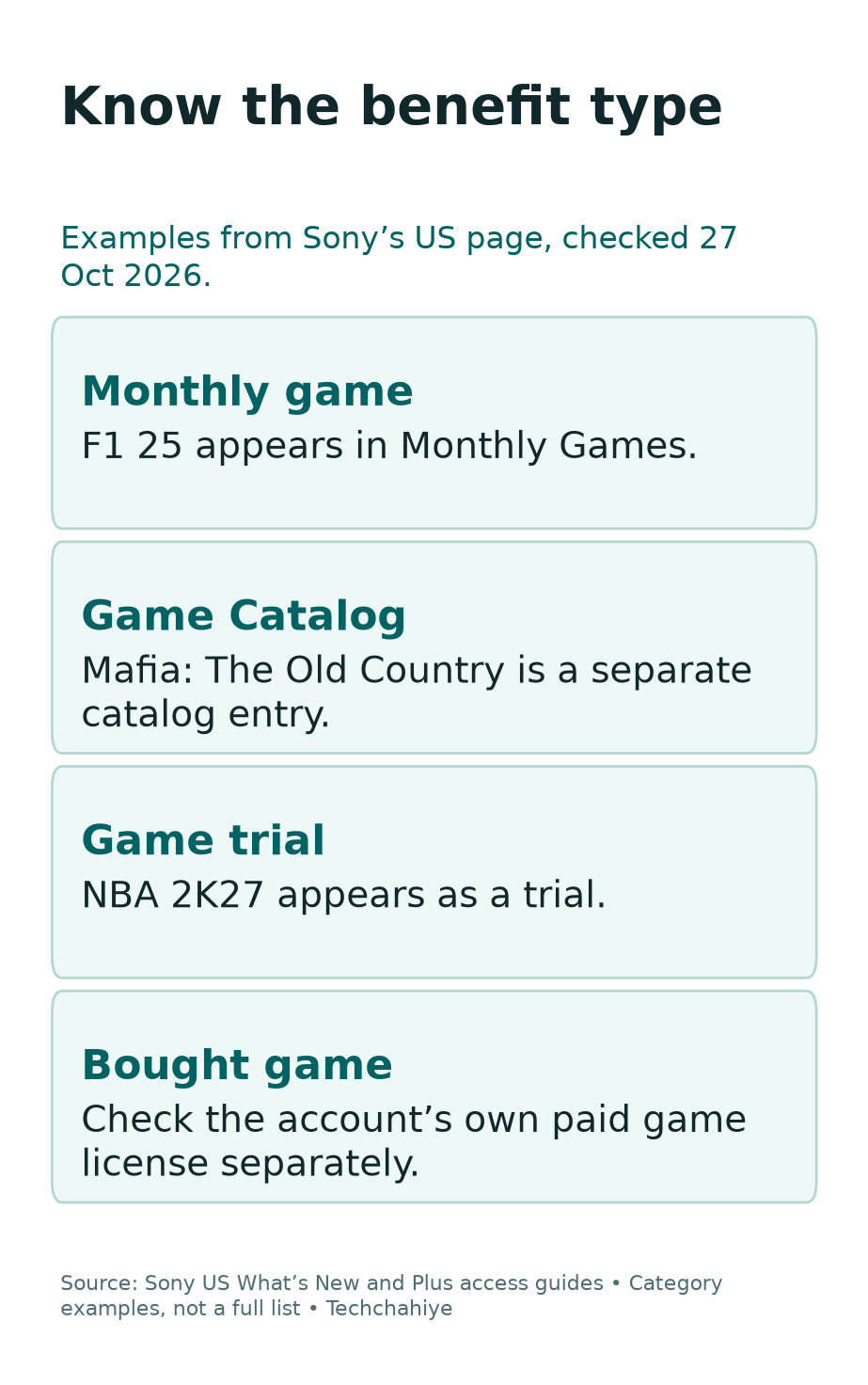
For example, a monthly game belongs to the month’s claim selection. Game Catalog access needs the appropriate plan. The title must still be available there too. A trial gives a limited way to try a game, rather than the same offer as a monthly claim.
The US page checked for this guide provides a useful real example. It places F1 25 in Monthly Games. The catalog area lists Mafia: The Old Country there. Finally, the page presents NBA 2K27 as a trial. Those labels describe different routes to access.
Do not treat every game on a What’s New page as something you can claim under the same rules. Start in the section you intend to use. Then review the product and the offer shown for your account.
Take this fictional example. A player wants the current monthly selection. But they open a trial instead. Downloading it does not answer the original task. The first useful fix is to choose the correct category, not reinstall the app.
Check the Account and Plan Before Claiming
First, use the account where you want the claim recorded. On a shared console, that may not be the account that opened the game yesterday. A shared benefit and a personal library claim are different things.
Then check that the plan is active and the offer appears for this account. Sony’s US service page says the monthly selection is available with any Plus plan. Catalogs and trials have their own plan requirements, so keep those labels separate.
Sony’s sharing guide has an important limit. Sharing does not let another account redeem Plus games. A shared game may launch. That does not prove the second account can make a monthly claim.
Also, read any price or plan prompt before confirming an offer. Does the page show an unexpected price? Stop and check the edition, benefit category and account. Do not pay merely to test whether the membership works.
A short claim note can help in a busy household. Record the account, game, month and result. Leave passwords, payment details and sign-in codes out of the note.
Find Monthly Games on PS5
Sony’s PS5 support route starts at Games home. Move to PlayStation Plus, then the Benefits tab. Choose Monthly Games. Highlight the intended game and use the download option shown there.
Next, before choosing the offer, check the title and version. Some games have more than one edition. A familiar cover image does not prove that you selected the monthly offer for the platform you use.
Then read the confirmation flow for your account. If it shows an Add to Library step, complete that step before treating the item as claimed. If it starts a download, review the resulting library and download state afterward.
Do not use the end of the download as your only record. Claims and installations are different states. For an interrupted install, check the download. For an absent library entry, check the account and offer.
Cannot see Monthly Games? Use Sony’s current support page or the official Store route. Avoid following an old console screenshot as if every menu must still look the same.
Find Monthly Games on PS4
For PS4, Sony’s instructions start from the function screen. Select PlayStation Plus, then Monthly Games. Highlight the game and choose Add to Library, followed by Download.
As a result, that sequence makes the two jobs clear. Adding to a library records the offer on the account. Downloading brings the game files to the console. Check both when the goal is to play now.
If you only want to keep track of a claim for later, still verify the library result. Do not rely on a reminder that you once viewed the offer. A product page you opened and a claim you completed are different records.
Check the listed platform too. The October snapshot in this guide includes PS5-only entries as well as one listed for both PS5 and PS4. A monthly selection is not proof that every game in it runs on every console.
When a title has several versions, note the one you added. That detail can help later if you move to PS5 or review DLC. Keep the version with the account in your private claim note.
Claiming Remotely and Downloading Later
Sony supports remote game downloads through a browser or PlayStation App. Its download guide separates the account’s collection from the console receiving the files. Start by checking the correct account’s library.
Next, for a remote download, also check the intended console. A phone and a game page do not prove that the right device is ready to receive the game. Review Sony’s current app and automatic-download guidance for that setup.
A useful fictional example is a player away from home near a claim deadline. The player can review the official offer and the account’s library remotely. They should still verify the result. Seeing a game on a phone does not complete the task.
If a remote download does not start, separate that from the claim question. Is the game in the correct account’s library? Is the correct console linked and able to receive downloads? Those are two different checks.
Do not keep repeating a claim flow to fix a console connection problem. First establish which state is missing. That can save both time and confusion about whether the account holds the offer.
Verify the Library Entry After the Claim
Afterward, return to the account’s Game Library after the offer flow. Find the exact game and edition. Check that the result matches the monthly selection you intended to add.
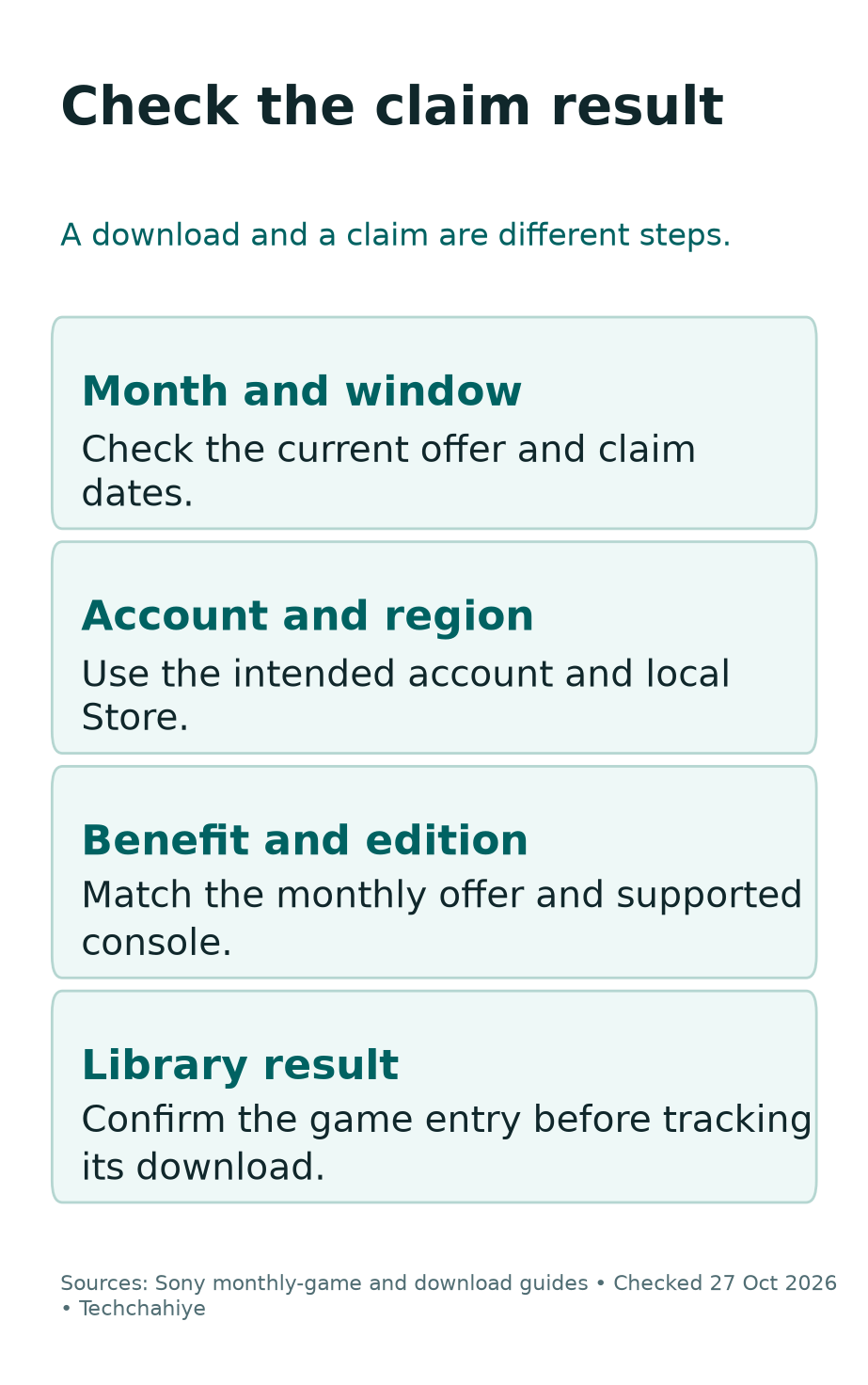
If the game is absent, review the account first. On a shared device, someone may have changed profiles. Then check the offer type. Did you open a trial, catalog listing or paid edition?
Also, use any account confirmation or history available to clarify the result. Keep a private record if you need to ask support about a missing item. A screenshot of an offer before you acted is not proof of a completed claim.
Finally, for an important claim, check once more before the published window ends. This is a review of the account’s actual state, not a reason to repeat the same action blindly. If the library already shows the correct result, keep that record.
A clear support note names the game, account region, month and exact message. Include what the library shows. That tells support more than a broad statement that Plus does not work.
Download and Storage Are Separate Checks
Next, after confirming access, check the download itself. A visible library tile is not always a completed installation. Review the console’s download state before planning a long session.
Sony’s general PS5 download route uses Game Library and Your Collection. Select the intended game and Download. For add-ons, review the matching game and its Add-Ons section.
If space is low, review the console’s storage before moving or deleting files. Do not assume that cloud save space holds full game installs. Saved progress and game files use different storage paths.
Our PS5 cloud-storage guide explains that distinction. Use it if you are moving progress between consoles. It does not replace the room needed to install the game you want to play.
If a download fails, record the actual error and follow Sony’s download support. Avoid buying another copy as a first test. Check access, version, available storage and the specific download result in that order.
Check Editions, DLC and Extras
The main game’s monthly offer does not establish ownership of every related product. Read the exact edition and any included content. A title, a deluxe bundle and an add-on can share similar artwork.
If you already own another edition, compare the offers before acting. Read what the monthly version includes. It may not include every paid-edition item or upgrade. Read the product information for the specific offer.
Use the right platform version for your console and progress. A PS4 save and a PS5 edition can need a separate game-specific import path. Claiming the game does not itself convert a save file.
Also, for DLC, start with the matching base game and account. Check whether the extra content is part of the offer or needs separate access. Keep the product names together when you ask for support.
Read the current Store details for the included content and price. Confirm the exact offer before you act.
If a Claimed Game Becomes Locked
First, check the account and active plan. Sony says monthly games obtained through Plus are a plan benefit. A completed claim does not mean the account bought the game outright.
Next, confirm the exact game and access route. A catalog title can raise a different availability question from a monthly claim. A trial can have its own limit. Do not treat all three as the same kind of lock.
Sony’s license-restoration guide can help with suitable license issues. It is not a way to extend an expired plan or create a missing entitlement. Review those points before choosing a repair step.
Does another household account use the game through sharing? Review the owner’s plan. Then review the designated console. Our PS5 game-sharing guide explains that setup. It is a different job from making a claim on the player’s own account.
Finally, record the exact error if access still fails. Note whether other known games work. That comparison helps you narrow the issue. Does it affect one title, one account or the wider connection?
Keep Track Without Building an Unused Backlog
A simple list can make monthly claims more useful. Record the game, edition, account, claim month and whether you want to play it soon. You do not need a complex tracker to remember those details.
Next, separate “claimed” from “installed” and “started.” Those labels answer different questions. They also help when you want to free storage without losing track of the games in your account’s library.
A fictional household list might have three entries. The player claimed one game for later. They installed another for the weekend. A third may not suit the player’s interests. The point is to organize real use, not suggest that a large tile count proves value.
Before renewing a plan, review the benefits you actually use. Check current account prices and needs if you later choose to change membership.
Keep private account information out of any shared public list. A game title and a month are enough for a general reading note. Support questions can use Sony’s secure route for any needed account records.
Did You Know?
For PS4, Sony’s instructions list Add to Library before Download. Recording a monthly offer is one job. Finishing a game installation is another. Check the library result even when you plan to download later.
A Quick Review Before the Claim Window Ends
Use four checks. Confirm the month, account, category and library result. If one is unclear, resolve that point while the live offer is still available for your region.
Read the date on the announcement rather than infer it from a headline in search. For this October 2026 example, Sony gives an end date of November 2. Check the live Store for local details.
Also, review the platform and edition you need. Check the account and product. A claim elsewhere may not finish your original task. Keep the actual result with your note.
Once the expected item appears in the library, move on to download or save checks as needed. Do not keep changing settings after you have the result you wanted. A clear stopping point makes this routine easier each month.
A short monthly-claim note
Record the game, edition, account region, claim month and library result. Keep the download state separate. Omit passwords, payment data and sign-in codes.
Conclusion
Start PlayStation Plus monthly games with the correct offer and claim window. Confirm the account, category and platform, then verify the library entry. Download and progress checks come next.
Use Sony’s current page for changing lineups. Read its dated announcement for the month you are reviewing. Keep monthly games, catalogs, trials and paid games separate in your notes. That makes access questions much easier to answer later.
FAQs
Which games are in Sony’s October 2026 monthly selection?
The list includes F1 25 and Hunt: Showdown 1896. The third title is Earth Defense Force: World Brothers 2. Its stated window is October 6–November 2. Check the live regional Store for the account’s exact offer.
Are monthly games the same as the Game Catalog?
No. Sony lists them as different benefits. Monthly games use a monthly selection and claim window. Check the relevant plan for catalog access. Then check whether the title remains in that catalog.
Do I need to finish a download to verify a claim?
Check the account’s library result as a separate step. Sony’s PS4 flow lists Add to Library before Download. An unfinished installation and an absent claim are different issues to investigate.
Can another account claim games through my shared Plus benefits?
Sony says redeeming Plus games on another account is not a shared benefit. First, use the account where you want the claim recorded and review that account’s own plan and offer.
Why does a game stay installed but show a lock?
Installed files do not prove current access. Check the account, active plan, game category and exact edition. Use license help where it fits the issue. Reinstalling is not a fix for every lock.
References
- PlayStation Blog: October 2026 Monthly Games announcement
- PlayStation US: What’s new on Plus
- PlayStation: Access monthly games and catalogs
- PlayStation: Find and download games
- PlayStation: Share Plus benefits
- PlayStation: Restore licenses
- Techchahiye: PS5 game sharing
- Techchahiye: PS5 cloud storage and saves
