

Verify the account, then the outcome
Cancel from the account that holds Plus. Check the final membership state and paid-through date. Review games and saves, and use a separate official process for any refund request.
Key Takeaways
- Cancel PlayStation Plus from the account that holds the plan. A browser works even without the console nearby.
- Cancelling stops the next renewal. Sony says benefits continue until the paid period ends.
- Monthly games and online storage are Plus benefits. You own a game that you buy with a Plus discount.
- A plan change and a refund request are separate tasks. Check the final account state after each action.
To cancel PlayStation Plus, sign into PlayStation Account Management in a browser. Open Subscription, choose PlayStation Plus and select Cancel Subscription. On PS5, the same task starts in Settings under Users and Accounts.
Before you confirm, note the account and the next payment date. After you finish, check the plan page again. You want proof that renewal has stopped, not merely proof that you opened the settings.
This guide uses Sony’s current US support pages, checked on October 27, 2026. It covers the web and PS5 routes. It also explains expiry and the checks for games and saves. It does not promise a refund or claim that every regional offer has the same terms.
Check These Three Details Before Cancelling
Start with the account that pays for Plus. On a shared console, that may be different from the account you use for a particular game. A game tile or a shared multiplayer benefit does not tell you which account holds the paid plan.
Next, read the plan name and payment frequency. Record what the page shows. You may think of Plus as one monthly bill. But your account may have a different payment period or level.
Finally, note the next payment date. Sony’s plan-management page lets you review that date for each service. Treat the live account page as the source for your own plan, rather than rely on a date from memory.
These three details solve different questions. The account tells you where to act. The plan tells you what you are changing. The payment date tells you when the next renewal would happen.
Make a short private note. Record the correct account, Plus plan and next payment date. Omit any password, a card number or a sign-in code. You need a reminder of the decision, not a copy of your security details.
How to Cancel PlayStation Plus in a Browser
Open PlayStation’s official Account Management page and sign into the right account. Sony’s US instructions use the Subscription entry in the menu. Choose PlayStation Plus and select Cancel Subscription.
Read each screen that follows before you finish. Check that you are changing the Plus plan you intended to stop. Other services can appear in plan management. Each item may have its own plan.
After the cancellation flow, return to the Plus plan details. Review the status and any dates shown. Keep a record of the confirmation or the updated page for your own files.
A browser route helps when you have packed away the console. You can also use it during repairs or from another home. You do not need to borrow someone else’s console to reach the account-management page.
Use Sony’s own sign-in route. Avoid a search ad or message that asks you to pay a cancellation fee to an unrelated service. Start in account management. You do not need a third-party account-access tool.
If you cannot sign in, handle account access first through PlayStation Support. Do not keep trying different people’s accounts until you find a page that looks familiar. The correct plan must belong to the account you are managing.
How to Cancel PlayStation Plus on PS5
On PS5, open Settings, then Users and Accounts. Select Account, Payment and Subscriptions, then Subscriptions. Open PlayStation Plus and select Cancel Subscription. This is Sony’s published US console route.
Check the signed-in user before following those steps. It is easy to sit at the right console while using the wrong profile. On a family console, take a moment to confirm whose account page is open.
Read the plan details before the final choice. You should recognize the plan and the payment date you noted earlier. If the details do not match, stop and check the account rather than cancel an unfamiliar service.
Once the flow is complete, open the plan details again. Review the changed state. If you still see a renewal you did not expect, record the exact wording and use Sony’s support route to clarify it.
Do not test the result by deleting the game or removing a local user. Those actions answer different questions. Your goal is to stop renewal. Verify that change on the plan page.
Use PS4 or the PlayStation App? Sony’s general plan guide lists those routes too. The browser route above remains a clear option when you cannot find the relevant menu on a device. Use the current official device instructions rather than guess from an old screenshot.
Cancellation Date and Expiry Date Are Different
Sony says you keep Plus benefits until the end of the paid period you already paid for. Cancelling stops renewal. Plus features need not stop working the moment you press the button.
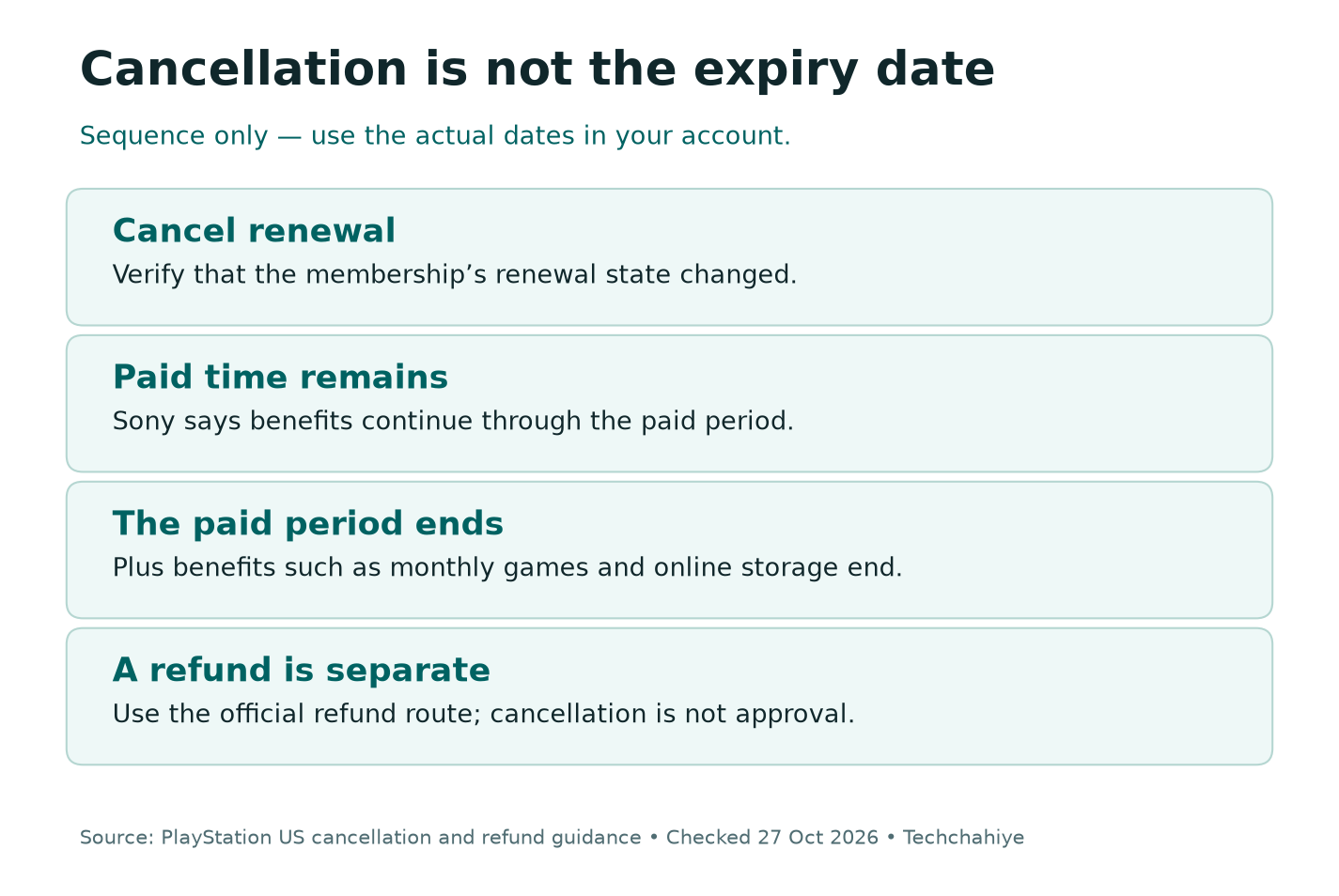
That distinction matters when you check the result. A monthly game still launching today is not proof that cancellation failed. The account’s renewal state is the useful check while paid time remains.
Here is a fictional timing example. A player has already paid through the end of a period and cancels partway through it. The player should review both the cancellation confirmation and the displayed paid-through date. The two events serve different purposes.
Do not use that example as your own billing calendar. Read your actual account dates. Your payment period, paid time or regional offer may differ. Use the example to understand the sequence.
Want to keep Plus? Sony lists Reactivate Subscription. Use it before the current plan’s next payment date. Read the resulting renewal details if you choose to use it. Reversing a cancellation is another account change that deserves its own check.
What Happens to Monthly Games After Plus Ends?
Sony lists monthly games as a Plus benefit that ends with the plan. Content obtained at no extra cost through the plan is not the same as buying that game outright.
A downloaded game may remain visible or installed on your console. That does not settle whether your account still has the license to play it. Storage and access are separate parts of the question.
Before the paid period ends, make a short list of the games you expect to keep playing. For each one, ask how the account obtained access. Was it a monthly claim, catalog access, a game you bought or another route?
Check the exact edition too. A product name can cover several editions and bundles. Do not assume one entry proves access to every version or every piece of DLC with a similar name.
If you later want to return to a particular game, review its current store page and your account’s library. Base the choice on the access shown at that time. This guide does not promise that a catalog title or a past offer will remain available forever.
Separate Discounted Purchases From Membership Access
Sony’s cancellation guide says Plus-discounted purchases are yours to keep. It also says redeemed packs and avatars remain yours. Those items differ from the monthly games obtained as a plan benefit.
This is why an ownership check helps before cancelling. Two games in the same library may have different access histories. The fact that Plus appeared somewhere during checkout does not tell the whole story.
Use transaction history and the account’s library to review anything important. Keep the product name, edition and account together in your note. You do not need to write down every game you have ever tried.
For a fictional example, one player bought a game during a Plus sale and claimed another as a monthly game. The first is a game bought at a discount. The second depends on the plan benefit. Treating them as identical would lead to the wrong expectation.
If the history is unclear, ask Sony Support about the exact item. Include its name and relevant transaction details through Sony’s secure support flow. Do not publish those account records in a public comment thread.
Protect Saves Before Online Storage Access Ends
Online save storage is another Plus benefit. Before the paid period ends, check the saves that matter to you. Confirm that the right console has the progress you expect to keep using.
Our PS5 cloud-storage guide explains the difference between PS4 and PS5 save paths. Use the correct data category and account. A game installation on your console is not proof that its latest progress is present there.
If you rely on a cloud copy, review the appropriate download or sync route while you still have access. Then open the right game version and check a progress marker you recognize. Do this before a long break or a console change.
Avoid guessing how long an online copy may remain after the plan ends. This guide does not promise a retention period. If a save is important, make a current plan for it instead of relying on a future recovery window.
Do not confuse a full USB console backup with a single-save download. Sony warns that restoring a PS5 backup erases current console data. Read that workflow’s warnings before using it as part of a larger console move.
What About Multiplayer and Other Household Users?
Sony lists online multiplayer among the benefits lost when Plus ends. Does another person use your shared Plus features? Discuss the end date before it arrives. A short heads-up can prevent confusion during a planned game session.
Keep each person’s account separate in that discussion. Sony lets you share some Plus benefits through console settings. Others stay with the member’s account. Sony specifically lists online storage among the benefits that cannot be shared.
For example, a household may rely on one plan for certain shared play benefits. When that plan ends, people should check what their own accounts can access. Check each person’s cloud save access on their own account. Do not infer it from shared game access.
Do not promise that every online game will follow the same access model. Check the specific game’s current requirements and the account’s entitlement. This guide explains the plan change. Read the game’s own online rules too.
If you share a console, agree who will review future charges and plan choices. One person might cancel while another later starts the plan again. Discuss how that would affect renewal.
Cancel, Downgrade or Change Payment Frequency?
Choose the action that matches your goal. If you want to stop the next renewal, use cancellation. Still want a paid plan with different benefits? Review Sony’s Change Plan route.
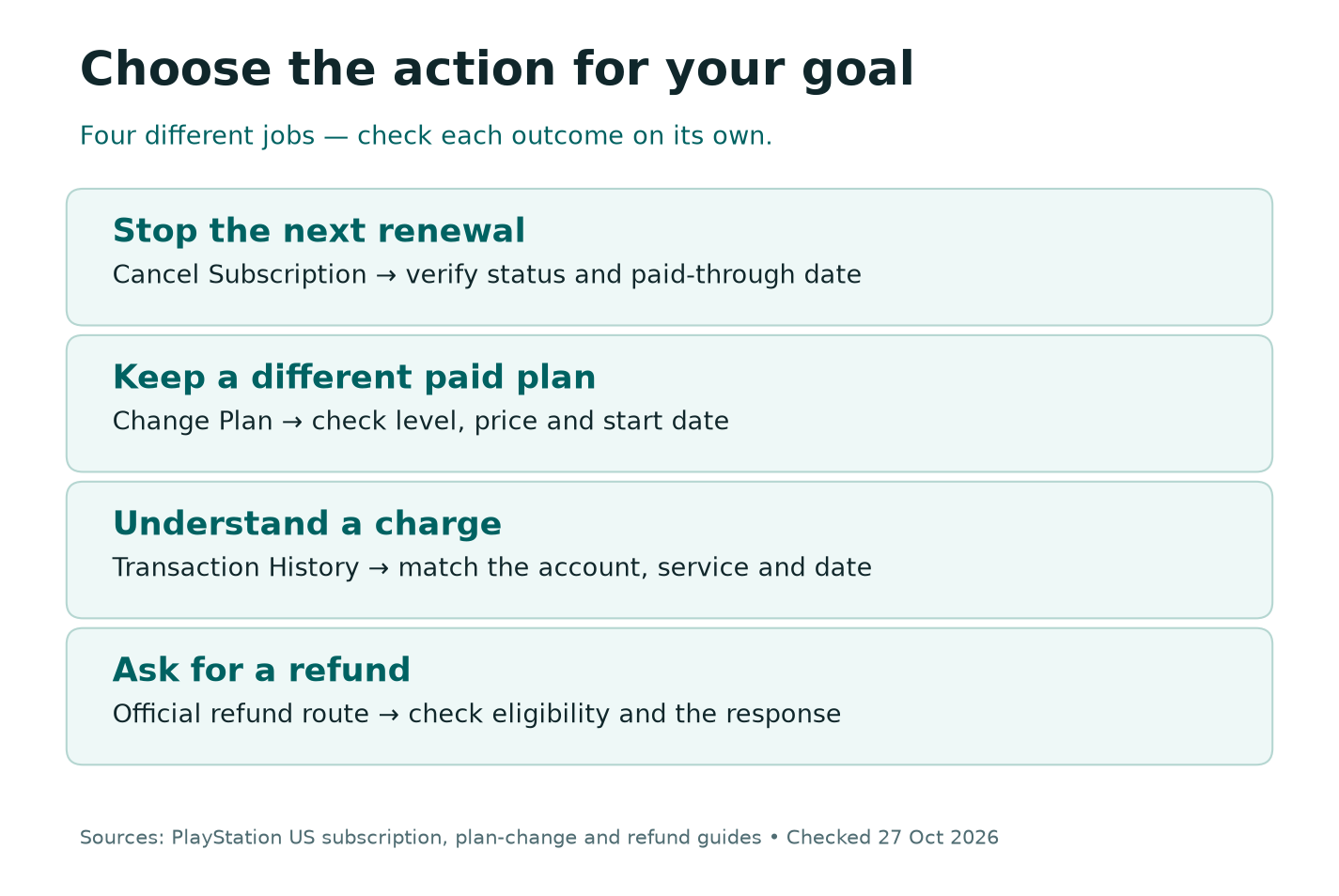
Sony’s web route for a plan change starts in Account Management, then Subscription. Select PlayStation Plus, then Change Plan. Review the new level and payment frequency. Read the displayed price and timing before confirming a change.
Sony says a downgrade takes effect on the next payment date. An upgrade can involve a prorated fee for the time left in the current period. Those are different outcomes from simply stopping the next renewal.
Selecting a lower level is a plan change. Do not assume it creates an immediate refund. Read the plan-change terms shown for the account. Use Sony’s refund process if you have a separate question about a charge.
| Your goal | Starting point | What to verify |
|---|---|---|
| Stop the next renewal | Cancel Subscription | Updated status and paid-through date |
| Keep Plus with fewer benefits | Change Plan | New level and when it starts |
| Review a charge | Transaction history | Account, item and transaction date |
| Ask for money back | Official refund route | Eligibility and actual response |
A Refund Request Is a Separate Task
Cancelling renewal is not a receipt for a refund. Sony links a separate refund-request route from its cancellation guide. Use that official process if you want a charge reviewed.
Sony’s current US refund page starts with Transaction History. Select an eligible transaction, then Request Refund. Follow the on-screen instructions. If you still have issues, use PlayStation Support.
Start by checking which transaction you mean. Record the date, service and amount from the account’s transaction history. Match it to the plan you reviewed. Other PlayStation-related entries may have a different source.
Read the current refund eligibility guidance for the account’s region. If the process asks questions, answer them accurately. Sony reviews eligibility through its refund process. Read its response for the charge you want reviewed.
Keep the cancellation result and refund result separate in your records. One may complete while the other is still under review. A support request number shows that you asked. It does not prove that money has returned.
Do not submit repeated requests simply because no immediate result appears. Follow the instructions and timing shown by the official support process. Need an update? Use the existing request details. Explain what remains unresolved.
If You Still See a Charge or Renewal
First confirm that you checked the right account. A household may have several Plus memberships. It may also pay for a separate service. Compare the transaction history with the plan you cancelled.
Next, compare the dates. Record when you completed cancellation and the payment date shown at that time. Avoid guessing from a console notification that appeared later. Use the account’s details and the confirmation you saved.
Check whether anyone reactivated the plan or signed up again. Sony’s plan-change guidance says signing up activates the plan. A later signup or plan change can change the state you saw after cancellation.
Deleting a game does not verify cancellation. Nor does removing a payment card. Use the cancellation route, then check the plan itself. Review the plan itself. If the page remains unclear, contact Sony Support about that specific plan.
Keep the support note brief. Name the plan and relevant dates. Include the exact status wording. State which outcome you need clarified. Send private transaction details only through the official support flow when required.
Did You Know?
A game can stay installed while its plan-based access has ended. Removing game files and ending a plan are separate actions. Check the license route before buying another copy or clearing space for a game you expect to resume.
Keep a Short Cancellation Record
Save the plan name, the date you acted and the updated plan state. Add the paid-through date shown in the account. Keep a private screenshot or confirmation. It can help explain a later billing question.
If you asked for a refund, add its request status in a separate line. If you changed plans instead, record the new level and start date. Keep these outcomes distinct so a month-old note still makes sense when you return to it.
Before your last planned session, check important local saves. Review the games you expect to use afterward too. This is a small practical review, not a reason to delete an entire library.
You can also set your own reminder to review plan needs later. Base any new signup on the current plan terms and price. An old offer or a remembered monthly cost is not a reliable guide to buying again.
What to keep in your private note
Record the plan name and date of cancellation. Add the paid-through date and final status. Keep any refund status on a separate line. Omit passwords, card numbers and sign-in codes.
Conclusion
Cancel PlayStation Plus from the right account, then verify the updated renewal state. Note when the paid period ends. That date explains why benefits may still work after cancellation.
Review monthly games, discounted purchases and important saves as separate items. Use Change Plan for a different paid level and the refund route for a charge review. A short record of each result makes the whole process easier to check later.
FAQs
Can I cancel PlayStation Plus without my console?
Yes. Sony provides a browser route through Account Management. Open Subscription, select PlayStation Plus and choose Cancel Subscription. Confirm the correct account and review the final state afterward.
Do I lose Plus benefits the moment I cancel?
Sony says benefits continue through the paid period you already paid for. Cancelling renewal and reaching the end of paid access are different events. Check the dates shown on your account.
Can I keep games I bought with a Plus discount?
Sony says Plus-discounted purchases are yours to keep. Monthly games obtained as a plan benefit follow different access rules. Check the account’s payment and claim history for the exact item.
Does cancelling PlayStation Plus automatically refund a charge?
Treat a refund as a separate request. Use Sony’s official refund process and read the current regional eligibility rules. Cancellation confirmation alone is not proof of a refund.
Will deleting the PlayStation App cancel my plan?
Use Sony’s plan-management route to cancel and verify the result. Removing an app from your phone does not verify cancellation. Check the account’s renewal state. Check the plan page itself.
