

Check the people, then the copies
Use separate accounts. Review household eligibility, game copies and DLC before inviting people. Set child controls and check any cooldown before changing families.
Key Takeaways
- Steam family sharing now lives in Steam Families. Use separate accounts for the people in your household.
- Count copies of the game you want to play together. A shared library is not an extra copy of each title.
- Check membership and slot cooldowns before anyone leaves a family.
- Set child controls, review each cart and keep track of which account owns it.
Steam family sharing can help a household use the games it already owns. The first task is simple: agree who belongs in the family and which accounts they will use. Do that before sending invites or buying another copy of a game.
This guide explains how to set up Steam Families and plan shared play. It uses Valve’s current support guidance, checked on October 27, 2026. It also includes worked examples to help you make choices. The examples are fictional, not results from a hands-on test.
The most useful question is not, “Can I see more games?” It is, “Can each person play the game they want, on their own account, at the time they want?” That question helps you spot the limits before a weekend session goes wrong.
Steam Family Sharing: Accounts, Owners and Players
Think of three separate things: the person, the account and the copy of a game. A family can share access while those things stay distinct. Sharing a library does not mean that every person now owns every title in it.
Valve says the buyer keeps ownership. Its Steamworks guide treats a shared license as temporary access. It does not grant ownership. That matters if your plans depend on a game staying available after someone leaves.
Make a small household note before you begin. List the account each person uses and who owns the games you want to share. Keep passwords out of that note. It should help with planning, not become a way for everyone to sign in as the owner.
For example, suppose two adults use the same desktop at different times. Each should know which account is open before starting a game. The desktop may look familiar. Still, check whose library and progress you are using.
Has a child used a parent’s account for years? Pause before making a new account. Do not assume you can move that progress across. Valve says Steam Families cannot move that progress to a new child account. Plan around that limit before promising a clean move.
Check Steam Families Household Eligibility First
Valve describes Steam Families as a feature for up to six close family members in a household. It is not a public pool for strangers to exchange large libraries. Only invite people you trust. Valve warns that cheating or fraud with a shared game can affect its owner too. Sharing access makes trust a practical concern, not a box to tick. Use that stated purpose as your starting point.
Ask each person whether their account is already part of a family. Also check for any displayed cooldown. A free-looking place in the group is not proof that a new person can join it today.
A useful pre-invite check is short:
- Confirm the correct account for each person.
- Check existing family membership and any timer shown in Steam.
- Agree which people should have adult management powers.
- Discuss the games you expect to share.
- Send invites only after those points are clear.
Do not try to fix a household eligibility message by changing store regions or using a VPN. Those changes do not answer the question Steam is asking. Read the exact message and use Steam Support if the account needs help.
The same planning applies to readers in the US and India. This guide does not promise cross-border access or a way around region limits. You may be family in everyday life. Steam still applies its own checks to each account.
How to Set Up Steam Family Sharing
Valve’s setup route starts on the Store page. Open Account Details, then Family Management. Choose Create a Family, give it a name, and invite the intended members. Select the adult or child role for each invite.
Take the role choice slowly. An adult role is a management role. It is more than a label about age. If you expect to set limits for a child’s play, choose the child role and then review those limits.
Ask the invited person to check the account receiving the invite before accepting it. A household with old accounts, new accounts and shared computers can easily use the wrong one. Fixing that error later may involve more than renaming the family.
After joining, open the library and find the family games. Valve offers a Group By Library option in the game-list menu. Use it if you want a clearer view of what comes from each library.
Keep the first test small. Choose one eligible game. Launch it from the intended account. Confirm that the right person is playing. You do not need to install a large set of games to prove that the family exists.
If a title is missing, move to the eligibility check below. Repeating the invite process is not a useful first response to one missing game. Separate a membership problem from a title-specific limit.
Plan Steam Simultaneous Play by Counting Copies
For shared play, count available copies of the same game. Do not count the number of accounts that can see its tile. Valve’s examples show how this works. People can play different games at the same time. Two people who want the same title need two copies in the family.
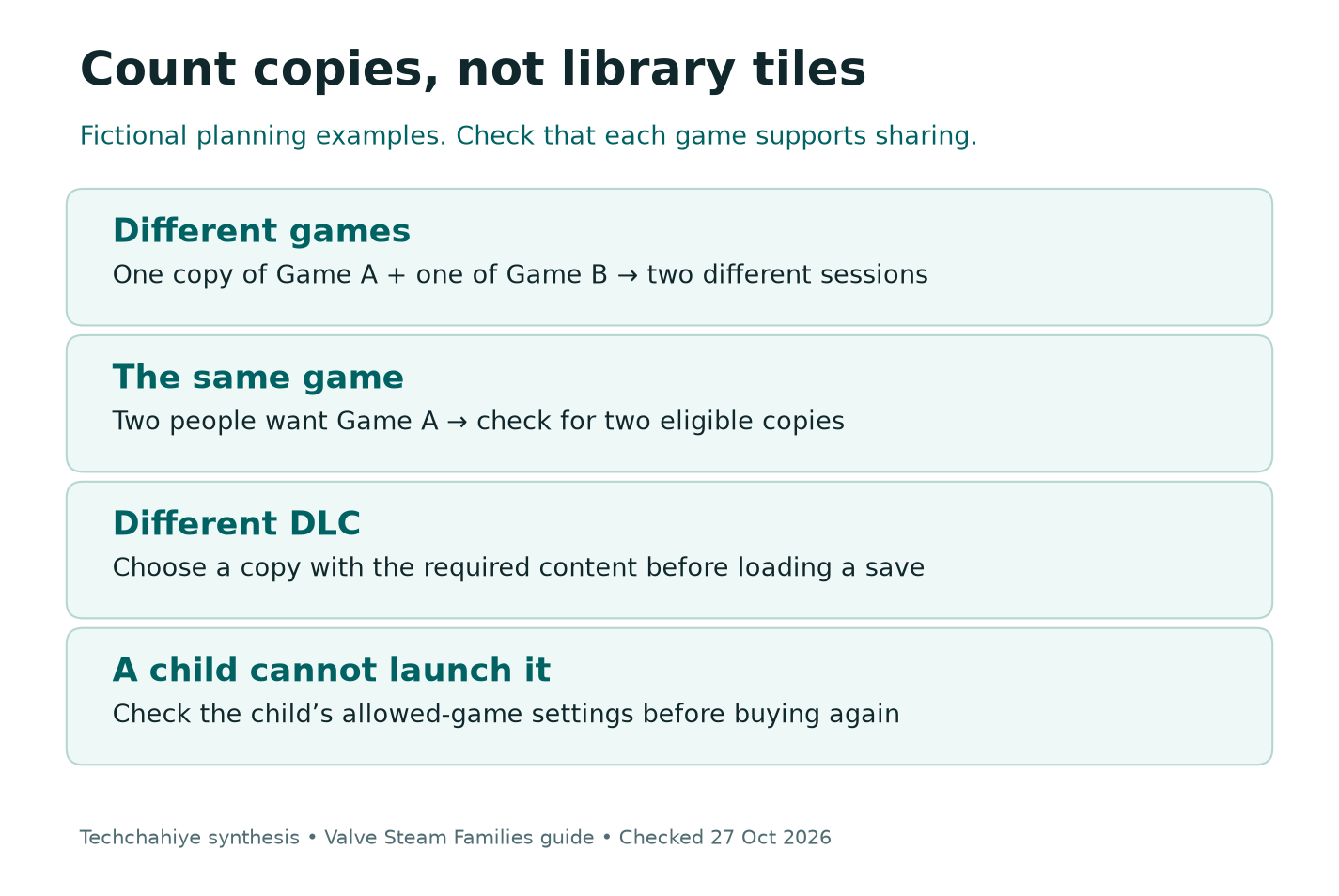
Here is a fictional planning example. A household owns one copy of Game A and one copy of Game B. One person wants Game A while another wants Game B. Their plans do not compete for the same title.
Now suppose both want Game A at 8 pm. Seeing Game A in both libraries does not create a second copy. They can take turns or choose different games. They can also assess whether to buy another copy.
| Evening plan | What to check | Practical choice |
|---|---|---|
| Two people want different games | Both titles allow sharing | Test access on each account |
| Two people want the same game | How many eligible copies exist | Take turns or assess a second copy |
| One person needs a DLC expansion | Which copy includes it | Choose the right copy before play |
| A child cannot open a title | Child access settings | Review the allowed-game list |
This table is a planning tool, not a promise that each game will work. Publisher choices, platform support and other limits still apply. Check the specific title before spending money on a plan built around it.
For a household that only overlaps once a month, a second copy may add little value. For one that plays the same multiplayer game each night, it may matter more. Base that decision on your actual plans, not the size of the combined library.
Why a Game May Be Missing or Locked
A missing game and a locked game need different checks. If the game appears but is in use, look at who is playing it. Does the game never appear as shareable? Check its eligibility and the account settings.
Valve lists several sharing exclusions. Some games need another account, key or subscription. Publishers may exclude titles too. Other limits concern private games, regions and operating systems. Free-to-play games and their paid DLC are also outside this sharing route.
Use that list to narrow the question. “The family does not work” is too broad. “This game needs another account” gives you a clearer question. Ask the publisher or support team about that point.
Do not assume a friend’s result proves yours. They may own a different edition or DLC set. They may also be using a different operating system. Compare the title, edition and account. Check those details before you treat the cases as the same.
If the copy is in use, avoid forceful fixes such as deleting the installation. A file repair cannot make an occupied license available. Agree on a play time or choose another eligible title while you wait.
A useful support note names the game and the exact message. It also says whether other shared games work. That comparison helps you narrow the issue. Does it affect the family or one product?
Choose the Right Copy and DLC Before Playing
When several family members own the same game, the choice of copy can matter. Valve says Steam can remember the copy you select. Owners may have different DLC. Check which copy Steam remembers.
Take this fictional example. One account owns a base game. Another owns it with an expansion. A player starts a save using the expansion copy. Later, that copy is busy and the base-game copy is free.
Do not assume the save will work the same way with both. Valve warns that changing DLC sets can affect save compatibility. Read the game’s own save guidance first. Then decide whether to switch to a different content set.
A short note beside a shared campaign can prevent confusion. Record the edition or DLC needed, the owner of that copy, and the last point reached. This is especially useful when several people play at different times on the same PC.
If you plan to buy DLC, check which account will own it and which game copy it needs. A familiar game name is not enough. Confirm the product, edition and intended owner before checking out.
Avoid buying an expansion merely because a launch prompt is unclear. First check whether someone is using the required copy. Does the chosen copy have the content? Does the game support sharing it? Those are different questions with different answers.
Steam Families: Keep Saves and Achievements Separate
Valve says achievements stay tied to each Steam account. Save behavior depends on the game. Do not treat Steam Families as one progress folder for the whole household.
Before a long session, look for the expected progress on the correct account. If it is missing, stop and check the account and game first. Starting a fresh session in the wrong place can make the situation harder to understand.
Steam Cloud is a separate part of this process. Shared access does not prove that a game has cloud saves. It does not prove the latest save has synced either. Read any sync warning before changing computers or choosing a save copy.
Our suggested habit is to finish a session, close the game and let any supported sync complete. Then start on the other device. This is a cautious workflow, not a guarantee that every title stores progress the same way.
For local backups, use the game’s documented save location. Keep the backup outside the folder you plan to change. A copied shortcut or an empty folder is not proof that your progress is safe.
If you see a conflict, compare the progress you recognize as well as the timestamps. A newer timestamp alone may not identify the save you want. Do not rush that choice to get past a warning screen.
Set Steam Parental Controls Around a Real Routine
Open Family Management for a child member. Expand the child’s entry. Then enable parental controls. Valve lets adults set game access, Steam feature access and playtime limits. Start with what the child needs, then review it together.
A good plan is easier to explain than a long list of unexplained blocks. For example, a household might allow a known game after homework. It could review each new title together before allowing it. That is a fictional routine, not a recommended rule for every family.
Review Store, Community and chat access as separate choices. A game you consider suitable does not settle how you want the child to use every social feature around it. Keep those decisions visible to the people involved.
Use playtime reports to start a conversation. A number does not explain everything. A game left running may not tell the full story of the evening. Ask what happened before changing a rule in response to one session.
Agree on what happens when a child requests more time. A clear rule is easier to follow than different answers from different adults. If several adults can manage the family, they should know the plan too.
Test the result from the child’s account. Check that the intended game opens and the limits reflect the plan. A setting that looks right on the adult’s page may still need a practical review with the person who uses it.
Steam Families: Review Child Game Requests
Steam Families includes a route for a child to ask an adult to pay for a cart. Valve says approved games go to the child’s account. That makes ownership part of the buying decision, not an afterthought.
Before approving a request, review the cart itself. Check the title, edition, DLC and displayed total. Do not approve based only on a game name in a message from the child.
Ask whether the household already has access to a suitable copy. Shared access may be enough for occasional play. At other times, a separate copy may solve a real need for sessions at the same time. The point is to know which problem buying it solves.
Also discuss who should own the new game in the long term. Buying for a child and buying on a parent’s account are not the same arrangement. Sharing does not erase that distinction.
Keep a simple game-buying record in your own files if several adults buy games. Include the owner and edition. Do not put card numbers, passwords or authentication codes in a shared family note.
This guide does not estimate savings or promise a fixed discount. Prices, editions and sales change. Use the live cart for the actual cost, and judge a second copy against the sessions your household will use.
Check the Steam Family Cooldown Before Leaving
Leaving a family is not a useful general-purpose repair step. Valve applies membership and slot cooldown rules. An adult may leave. But the prior join date can affect when they may join or create a new family.
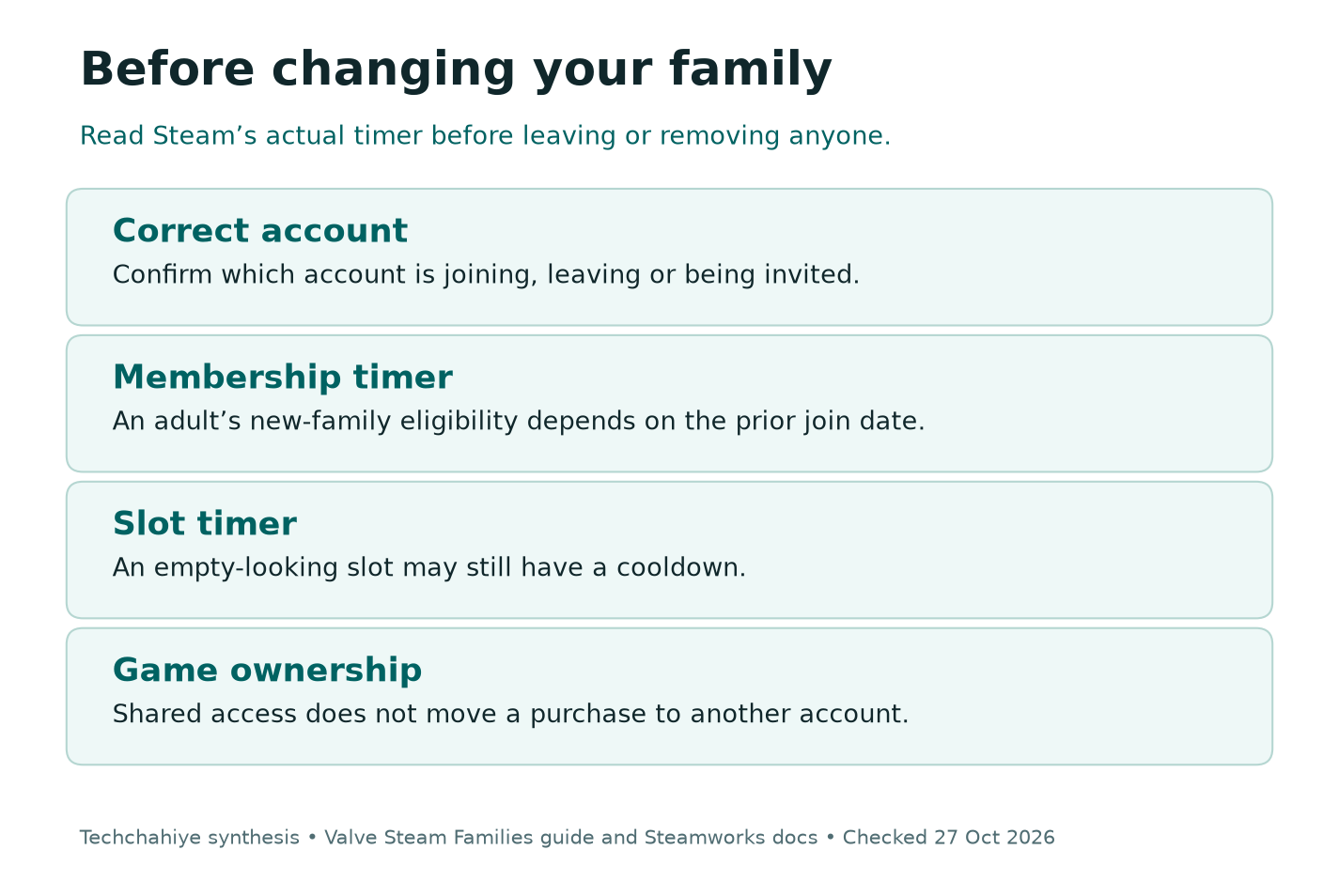
Valve states a one-year period from joining the previous family for an adult moving to a new one. It also describes a one-year cooldown for a member slot. Read the timer Steam shows for the actual account or slot before making a change.
There is an exception for rejoining the last family, provided it has room. Even so, do not use leaving and rejoining as a casual test. Check the exact state first, especially if another person plans to fill the place.
Consider a fictional move-out plan. One adult expects to create a new household group next month. Before leaving today, that person should check the join date and displayed eligibility. The calendar plan alone does not prove the new family can be created on that date.
Children cannot leave on their own through the same route. An adult or Steam Support must remove them. Did you choose the wrong role? Follow Valve’s support guidance. Avoid making more accounts to work around it.
If Steam blocks a change, write down the message. It may point to household checks, the account timer or a slot timer. Treating all three as one generic invite error can lead to changes that do not help.
Did You Know?
Steam Families does not turn borrowed access into ownership. Valve’s developer guidance explicitly treats family sharing as a temporary license. That is why it helps to record who bought a game even when several people can launch it.
A Small Test Before the First Shared Game Night
Use a short rehearsal before relying on the setup for an event. Have each player sign into the intended account and open the exact game you plan to play. Confirm the edition and needed DLC while there is time to ask questions.
Then check the overlap. If two people want the same title, confirm that the family owns enough copies. If they want different titles, test both. One successful launch does not prove the other will work.
For a child account, test the planned access window and game permissions. Keep an adult available for any request. The aim is to make the routine clear, not to discover every setting during a timed session.
End the test by closing the games and checking progress where relevant. Note anything unresolved. A short list of real results is more useful than a broad claim that sharing “seems fine.”
If Steam itself never reaches the library, solve that client problem first. A stuck loading screen is a different issue from a locked shared copy. Keep those two troubleshooting paths separate.
Keep a short game-night checklist
Record each player’s account, the exact game edition, available copies and needed DLC. Check child permissions and any save warning. Keep passwords out of the note.
Conclusion
Start Steam family sharing with the right accounts and a clear ownership note. Check who can join and count the copies you need. Review child settings before the first shared session.
If something fails, name the smallest problem: membership, a busy copy, missing DLC or a save issue. That gives you a useful next check without changing the whole family or buying a game you may not need.
FAQs
Can two people play the same Steam game at once?
They need enough eligible copies of that game in the family. One visible title in several libraries is not several owned copies. Check DLC needs too before planning simultaneous play.
Does Steam family sharing work with friends in another home?
Valve intends Steam Families for close family members in one household. Do not assume an invite to someone in another home will meet its checks. Use the actual message and Valve’s support guidance for eligibility questions.
Why is one game missing from my family library?
Check whether that title supports sharing. Does it need another account or subscription? Do region, platform or privacy limits apply? If other games work, focus on the missing title first.
Will I keep a shared game if I leave the family?
Sharing does not give you ownership of another person’s game. Games stay with their owners. Review the games you own and the access you rely on before changing membership.
Can I move my child’s progress from my account to a new one?
Valve says Steam Families cannot move that progress to a new child account. Plan the child’s account before building new progress. Check each game’s own save guidance where needed.
