

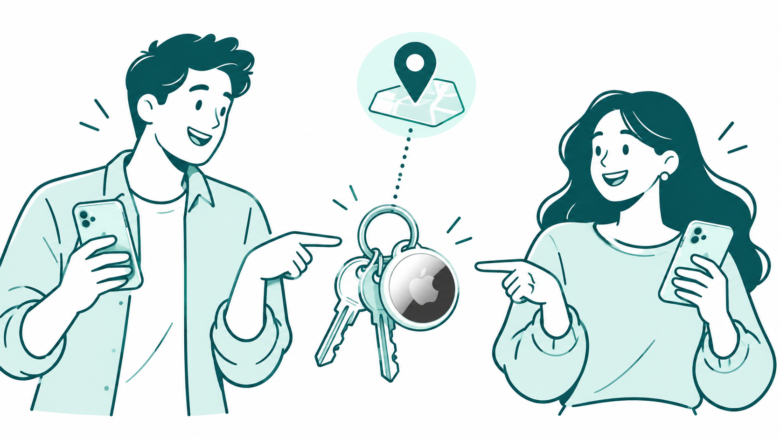
Share the item with a clear purpose
Check both accounts and the intended AirTag. Let the borrower accept. Review access after the loan. Keep temporary lost-item links separate.
Key Takeaways
- Share an AirTag through Find My when someone borrows the item. Handing over the keys does not send an invite.
- Check both accounts and devices first. Then look for a missing invite.
- An accepted borrower can find the shared item. Review that access when the loan ends.
- Share Item Location creates a link for a lost item. It has its own access and expiry rules.
To share an AirTag, open its item page in Find My and invite the person who will use it. They must accept the invitation. Before you start, agree on which item you are sharing and how long the other person needs access.
This guide covers a willing owner lending an item to a willing borrower. Think of car keys, a shared camera bag or luggage that one household member uses for a trip. An AirTag is for finding belongings. It should not be used to track a person without their knowledge.
Apple’s current guide allows up to five borrowers for one item. That makes six users when you include the owner. The useful question is not how many people you can add, though. It is who needs to find this particular item now.
The steps below cover three jobs. Check the accounts, confirm acceptance and review access later. They also cover lost-luggage links. These differ from normal AirTag sharing. Apple’s source pages are listed in References. Menu names can vary with software version.
Check AirTag Sharing Requirements First
Start with both people’s devices and accounts. A missing requirement can look like a broken invite. Repeatedly sending the same invitation will not fix an unsupported account.
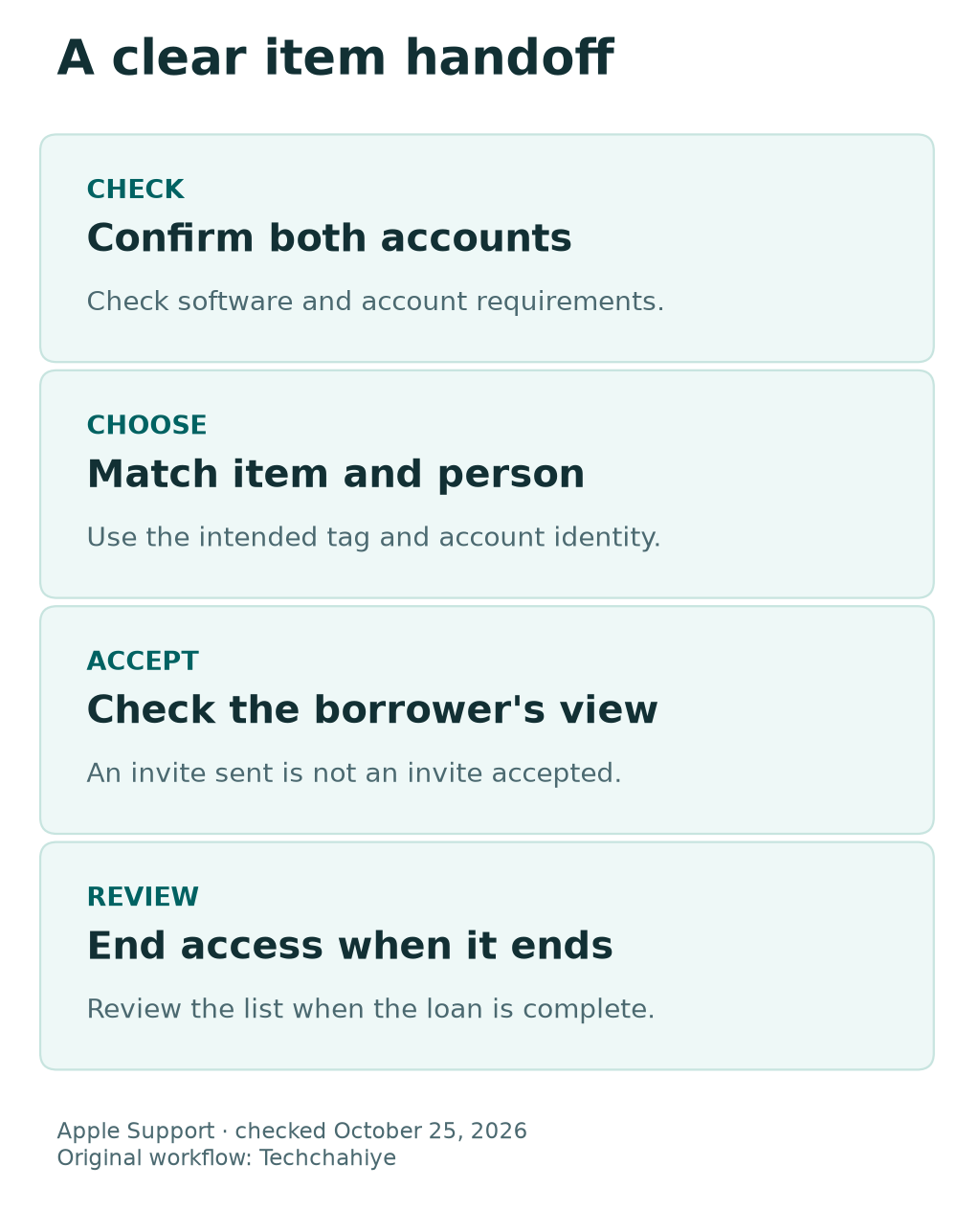
Apple lists iOS 17, iPadOS 17 or macOS 14 as the minimum software for this sharing feature. The owner’s Apple Account needs two-factor authentication. Both sides need iCloud Keychain enabled. The borrower needs an Apple Account signed in to iCloud, and it cannot be a child account.
| Check | What to confirm | Why it matters |
|---|---|---|
| Owner | The intended AirTag appears under the owner’s Items | Start from the item you actually mean to lend |
| Software | Both sides meet Apple’s stated version requirements | One updated phone does not update the other device |
| Account security | Owner has two-factor authentication | A password alone does not meet this requirement |
| iCloud | Borrower is signed in and both use iCloud Keychain | Check the account setup before resending |
| Borrower account | It is not a child Apple Account | Age-related account rules are not fixed by a new nickname |
Check these settings on each person’s own device. You do not need their password or verification code to invite them. Ask them to confirm the setting. Keep private account details private.
If one phone is managed by work or school, keep that context in mind. A personal item loan is not a reason to remove a management profile. If an account setting is unavailable, identify why before changing anything.
Make a short note of the failed check. For example, note which device needs a software update. That is clearer than “AirTag sharing is broken.” It points to one next step and gives you a clear point to retest.
Choose the Item and the Intended Borrower
Before you tap Add Person, match the digital item to the physical one. This is easy to miss when you own several similar tags. Read the item name, look at the keys or bag and agree which object is changing hands.
Here is a made-up example. Maya owns two tagged bags. One is her daily work bag, and one is a camera bag she is lending to Alex for the weekend. The camera bag is the item Alex needs. An invitation for the work bag would grant the wrong access even if every account check passed.
Names should help you make that choice. “Camera bag” is clearer at handoff than an old label that no longer matches the contents. If you rename an item, confirm that you are still looking at the right tag rather than treating a new label as proof.
Next, ask which Apple Account identity the borrower expects to use. A person may have more than one email address or phone number. A matching display name is not enough. Check the account behind the contact suggestion.
Say what access is for. “This is so you can find the camera bag while you borrow it” sets a clear purpose. It also gives both people a natural point to review access after the bag comes back.
You can keep this simple. A long household policy is unnecessary for one set of keys. Agree on the item, the person and the end of the loan. This makes the app steps easier to check.
Send an AirTag Invitation in Find My
On the owner’s device, open Find My and choose Items. Select the intended AirTag. Apple’s current iPhone guide uses More, then Add Person. Look under Share AirTag or Share This Item. Choose the intended person and account, then finish with Done.
Use the labels shown on your version. Do not tap a different sharing feature just because its name sounds close. In particular, Share Item Location is for a separate temporary link, discussed below.
A deliberate handoff can follow this order:
- The owner opens the correct item and confirms its name aloud.
- Next, the borrower confirms the account they intend to use.
- Select that identity on the owner’s device and send the invite.
- Check the invitation status on the item’s sharing list.
- Now the borrower opens Find My on their own device to respond.
Treat step four as a state check. A sent invite shows that the owner has taken an action. It does not prove the borrower has accepted, can see the item or has the correct account signed in.
If a contact has several account identities, slow down at selection. A second message saying “Did you get it?” is less helpful than checking which identity the first invite used. Fix the scope of the invite before you create a trail of repeated attempts.
Do not share your Apple Account to make this work. The feature is designed around separate accounts. Sharing your sign-in details would grant much broader access. A missing invite does not call for that.
Accept the Invite and Check the Result
The borrower can respond in Find My. Apple’s guide places the invitation in Items, with Add to accept or Don’t Add to decline. Acceptance makes the shared item available in the borrower’s item list.
Keep the owner and borrower roles clear. The owner sends the request. The borrower chooses whether to accept. A successful owner-side tap does not replace that choice.
| What you see | What it tells you | Sensible next step |
|---|---|---|
| Invite sent or pending | A request exists, but the handoff is incomplete | Check the intended account and wait for the borrower to respond |
| Item appears for the borrower | The borrower has accepted access to that item | Confirm it is the intended bag or keys |
| Invitation declined | The borrower chose not to add it | Ask whether sharing is still wanted before sending another |
| Wrong item or person | The access scope is incorrect | Stop and correct the sharing list |
Once accepted, make one simple check together. Open the shared item on the borrower’s device. Confirm its name and that it is the object being lent. If you use Play Sound nearby, tell anyone in the room first so the sound has context.
Apple says borrowers can view the item on a map and play a sound. Precision Finding depends on a supported iPhone. A missing nearby-finding option does not prove that the invite failed.
Do not turn the check into a hidden tracking test. There is no need for one person to walk away without knowing why. The goal is a useful item handoff that both people understand.
A map result also deserves context. Read what the app actually shows. Check the information shown on screen. Do not promise a live position that the screen does not confirm.
Review Who Can Find the Shared AirTag
An accepted invitation is useful while the loan is active. It can become stale after a trip, a house move or a change in who uses the item. Make the sharing list part of the return check.
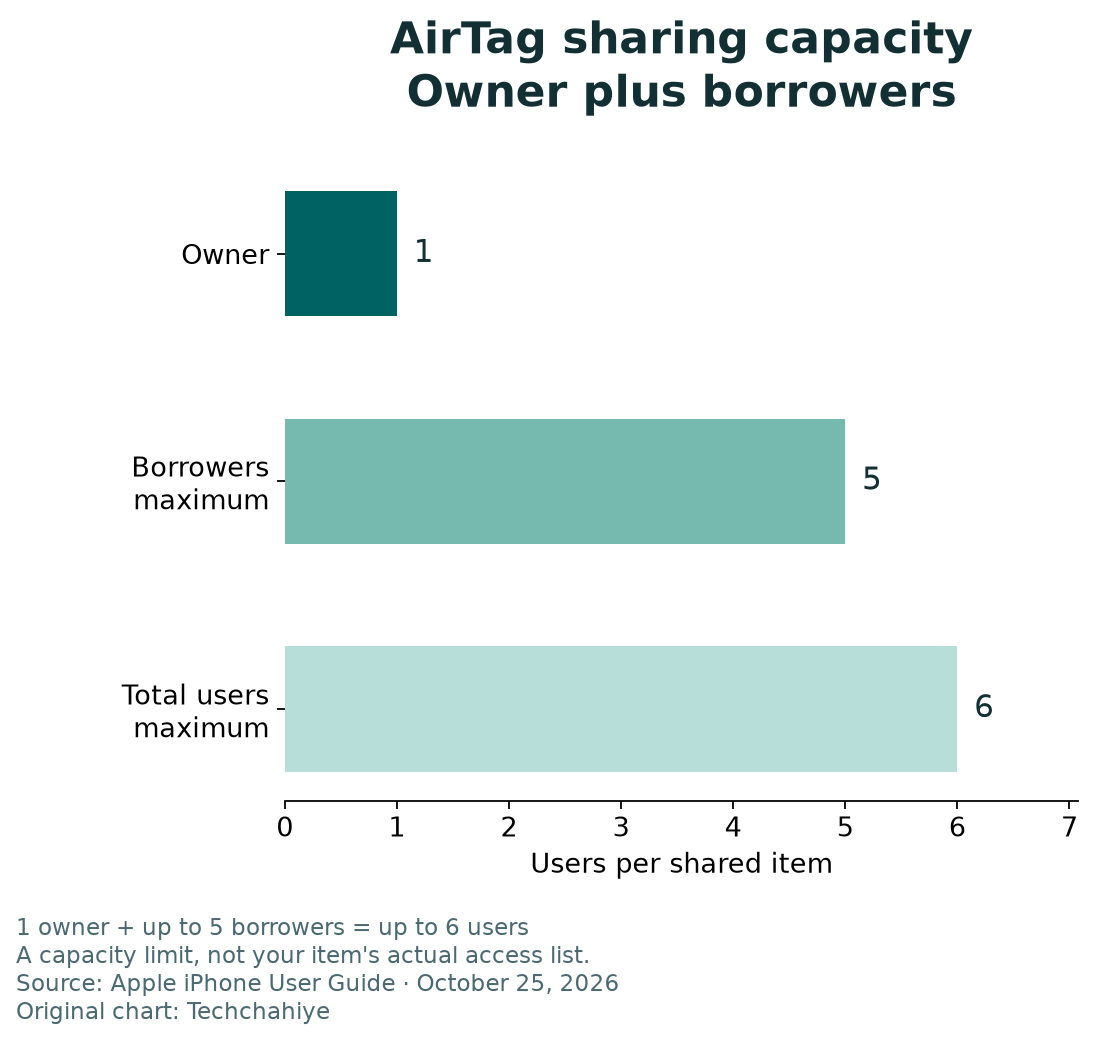
Apple’s limit is one owner plus up to five borrowers. The chart below shows that maximum capacity. It is not a count of people on your item, and it is not a reason to fill every place.
Start by asking who still needs access. A person who borrowed the bag once may no longer need it. Someone who shares the keys every day may still have a clear reason. Use the current purpose, not the age of the contact, to make that choice.
For a short loan, add the review to something you already do. When the camera bag comes back, check the lens cap, charger and sharing list in the same handoff. That is easier to remember than a separate privacy task next month.
For a long-term shared item, review the list when its users change. A new flatmate or a returned set of keys is a useful trigger. You do not need to inspect the list every time someone uses the door.
Keep the review respectful. Removing access after an agreed loan ends is routine housekeeping. Does the person still need to find the item? Discuss that before changing access.
If you see a name you do not recognize, do not guess who it is from a vague avatar. Check the account identity and the reason for the invitation. An access review works best when you can explain each entry in plain words.
Stop Sharing When the Loan Ends
The owner can stop a person’s access from the item page. Apple’s current path is Items, the item, More, the person’s name and Stop Sharing. Confirm Stop Sharing when asked.
That person can no longer find the item through borrower access. It does not turn an invitation into a transfer of ownership. Lending an item, sharing its location and changing its owner are separate jobs.
After the change, review the list once. Confirm that you removed the intended person from the intended item. A broad cleanup is easier to get wrong than one clear change at a time.
Tell the former borrower if they may still have the tagged item nearby. Apple says tracking alerts can return after sharing ends. This can happen if the item moves with the former borrower. Do not teach them to ignore an alert merely because the two of you once shared a bag.
Here is a made-up return example. It is not an Apple rule. The borrower hands back the keys. The owner checks the right key ring. They remove access if the borrower no longer needs it. Both confirm that the loan is complete.
If the plan changes and the person will keep using the item, agree on the new arrangement. Keeping access can be a valid choice. The point is to make that choice explicit rather than leaving an old invitation in place by accident.
Know When Share Item Location Is Different
A lost-item link solves another problem. Apple calls this Share Item Location. It can help an airline or another intended helper find missing luggage. It is not the normal borrower invitation described above.
Apple’s support page lists iOS 18.2, iPadOS 18.2 or macOS Sequoia 15.2 or later for creating this link. Viewers authenticate with an Apple Account or a registered Apple partner account. The feature is not available in every country or region.
The link can reveal more than a dot on a map. Apple lists an approximate item location and its serial number. The link also includes owner contact details. Read the sharing screen and choose the recipient with that wider scope in mind.
The link lasts no more than seven days. It ends sooner if the owner finds the item or stops sharing. That expiry rule belongs to the temporary lost-item link. It is not a seven-day limit on every accepted borrower.
Keep the two sharing features separate
Borrower invitations belong to the item’s sharing list. A temporary lost-item link has its own viewers, information scope and expiry. Check which feature you are using before sending anything.
Send a Lost-Item Link Only to the Intended Helper
For a luggage example, use the airline’s official support process to decide where a link should go. Do not place it in a public comment thread simply because someone claims they can help. A web link is still a route to item and owner information.
Keep a note of why you created it and who should receive it. When the bag is back, review the link state. Apple’s safety guide shows how to stop it manually. Open the item, then More and Share Item Location. Choose Stop Sharing Item Location.
Do not use a lost-item link to work around a declined borrower invitation. A different tool does not replace their choice about access.
Fix a Missing Invitation Without Starting Over
Work from the first failed stage. Did the owner select the right item? Check which identity received the invite. Does the borrower meet the account requirements? Confirm whether they accepted. Each question belongs to a different part of the process.
Keep three short notes. List the device and software version. Record the invite state and your next check. Avoid storing passwords, codes or exact item locations in a shared note.
If the request is pending, ask the borrower to look at Items on the intended account. If they cannot see it, compare the invite identity with the account they confirmed. Do not keep resending to the same uncertain address.
If the borrower cannot meet a requirement, identify that limit directly. A child account restriction is not a contact-name problem. An older software version is not fixed by renaming the AirTag. An unsupported nearby-finding feature is not the same as an unaccepted invitation.
People in one Family Sharing group have another route. Apple offers Ask Owner To Share from a tracking alert. That is a specific route. Family Sharing does not automatically share every item. Nor does every borrower have to use this request path.
A reset is a poor first response to a pending invitation. First learn whether the failure is an account, identity or acceptance issue. Find the failed stage first. A hardware reset may add work without solving that problem.
Still unsure about the state on screen? Use your notes with Apple’s support guidance. Describe the exact screen, not a guessed diagnosis. That gives the next person something concrete to work from.
Take an Unknown Tracking Alert Seriously
An expected loan and an unknown tracking alert deserve different responses. Do not accept an unfamiliar invitation just to make a warning disappear. First establish whether the item is yours or an item you knowingly borrowed.
Apple’s unwanted-tracking guide explains how to investigate alerts and identify an unknown item. Turning off your phone’s Bluetooth does not stop the item reporting its location. Nor does turning off your phone’s Location Services. Apple explains this in its safety guide. Follow the guide’s item-specific instructions rather than guessing at a phone setting.
If you recognize the bag but not the sharing state, speak with its owner. Check for an old loan or an invite sent to the wrong account. Access may also have ended before the physical return. Confirm the facts without treating every alert as harmless.
If you do not know the item, put your safety first. Follow the current official guide. This guide covers sharing by choice. It does not teach you to hide an item or silence another person’s warnings.
Did You Know?
A tracking-alert map does not show when an AirTag’s owner is looking at it. Apple says the dots mark where the item was detected near your device. Keep that distinction in mind as you read the warning.
Conclusion
To share an AirTag well, complete the human handoff as well as the app steps. Choose the right item and confirm the account. Send one clear invite. Check that the borrower accepted it.
Then review access when the purpose ends. Keep lost-item links separate from the borrower list. Investigate unknown tracking alerts. Open the intended item’s sharing list. Check whether each person still needs to find it.
FAQs
Can I share an AirTag with more than one person?
Yes. Apple supports up to five borrowers for one item, in addition to its owner. Add only the people who need to find that item, and review the list when its users change.
Does the borrower need to accept an invitation?
Yes. Sending a request does not finish the handoff. The borrower responds in Find My and can choose Add or Don’t Add. Check the accepted item on their device before relying on the arrangement.
Can I share an AirTag with a child Apple Account?
Apple’s current sharing requirements exclude a child account. Check that requirement before troubleshooting contact names or repeated invites. Do not share an adult’s account password as a workaround.
Does AirTag sharing expire after seven days?
The seven-day rule applies to a temporary Share Item Location link for a lost item. It is a separate feature from accepted borrower access. Review or stop borrower access from the item’s sharing list when it is no longer needed.
Why did a tracking warning return after sharing stopped?
After sharing ends, tracking alerts can return. Apple says this can happen if the item moves with the former borrower. Confirm whether they still have the item. Do not assume a new warning should be ignored because a past loan was legitimate.
References
- Apple iPhone User Guide: Share an AirTag or other item in Find My
- Apple Support: How to use Find Lost Item
- Apple Personal Safety: Stop sharing the location of a lost AirTag
- Apple Support: What to do if you get an unwanted tracking alert
- Techchahiye: Android and iPhone guide
- Techchahiye: Stolen Device Protection on iPhone
