

Start with the storage breakdown
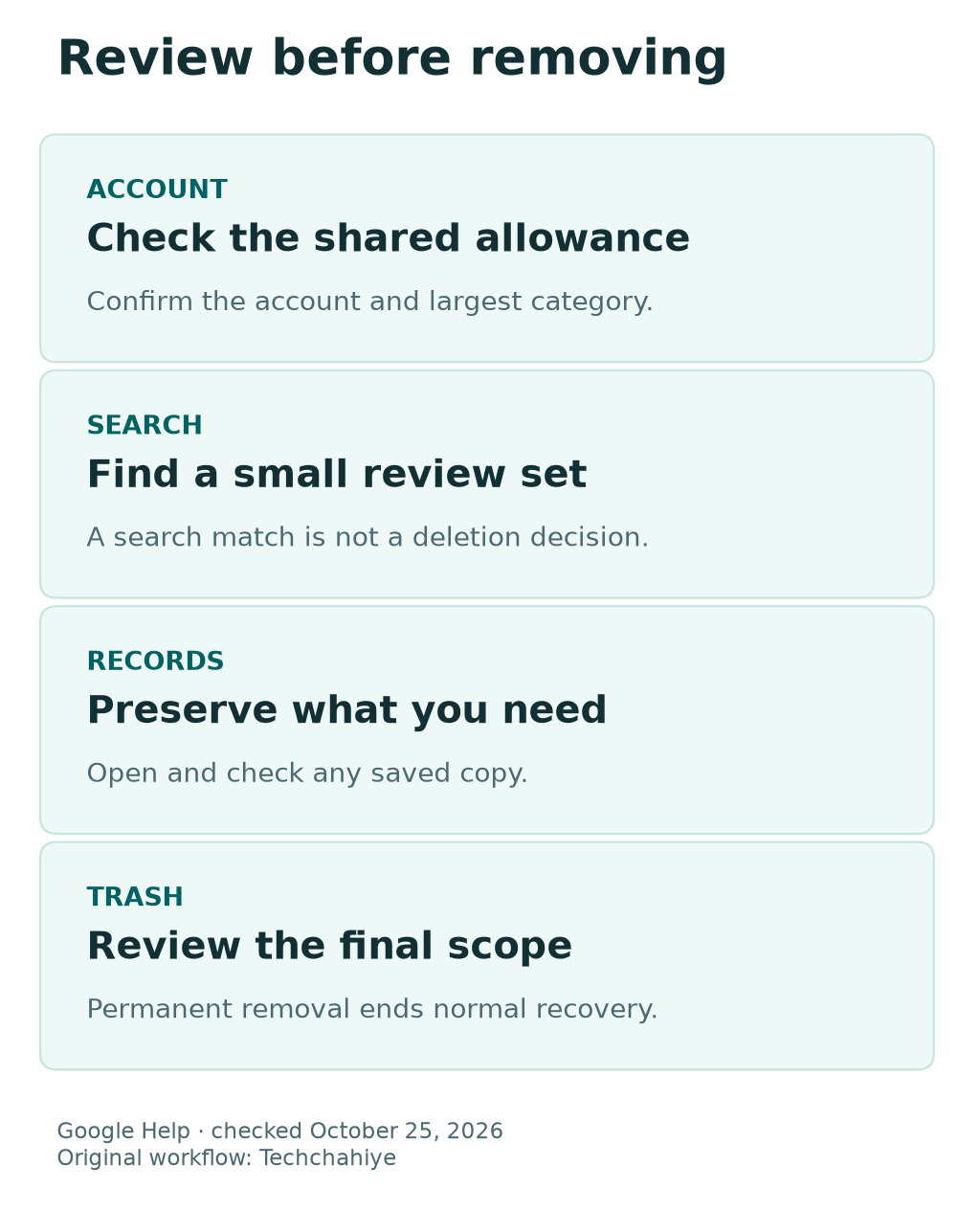
The warning can involve more than mail. Check the account and large candidates. Review Archive, Trash and permanent removal as separate actions.
Key Takeaways
- A Gmail storage full warning can involve the shared Google Account. Check Gmail, Drive, Photos and other counted data before deleting mail.
- Search for large messages, then review the results. A search match is not permission to delete every item.
- Archive clears the inbox view, not the stored message. Trash and Spam still count toward storage until removed.
- Preserve needed records before deleting for good. Allow time for the account’s space reading to update.
A Gmail storage full warning does not always mean the inbox is the largest problem. Your account’s space is shared with other Google services. Check the space breakdown before choosing what to remove.
Start with the correct account and its actual limit. Then identify the largest category and review a small set of candidates. A careful cleanup can be more useful than deleting thousands of tiny messages at random.
This guide uses Google Help checked October 25, 2026. It explains a review process, not a cleanup performed on your account. The numerical example is made up. Your account’s readings and retention needs control the real decision.
Confirm Which Account Is Full
Check the address shown in Gmail and the storage manager. Keep the account visible while reviewing results. A browser with several signed-in accounts can make similar inboxes easy to confuse.
Read the actual storage limit. Google describes personal accounts with up to 15 GB shared across services. A paid plan, promotion or managed account can have a different limit.
Do not begin from an unexpected upgrade email. Open the Google service through a trusted route. Use a storage warning to review the account. Do not enter payment details through an unknown link.
Record the current used amount and limit with their units. Note the date. Compare the recorded reading after cleanup. Do not rely on your memory of the storage bar.
Check Shared Storage Before Deleting Gmail Messages
Google’s storage guide counts Gmail messages and attachments, including Trash and Spam. Drive files, Photos and other counted data can also use the same account limit. Review the breakdown for the actual account.
A large photo library can make Gmail unusable even when mail is a small share. Deleting many short emails may then have little effect. Start with the category that explains the problem.
Keep local and cloud storage separate. Freeing a laptop’s disk does not automatically reduce Google Account use. The same applies to removing local photo copies while keeping their cloud backups.
Our Drive and Google Photos guides in References explain those file-location differences. Use them if a local-space warning is being mixed with a cloud-space problem. The right cleanup depends on which copy uses the space.
Understand What a Full Account Can Affect
Google says reaching the storage limit can stop Gmail from sending or receiving mail. Incoming messages can return to the sender. Drive uploads and Photos backups can also be affected.
Treat the warning as a service issue, not just an untidy inbox. Check which services you need most urgently. Keep a record of failed mail or uploads so you can review them after space is available.
Do not assume that a bounced message will appear later on its own. Once service is working, verify the important message through a trusted route. Check what actually arrived rather than relying on the warning disappearing.
If the problem involves a work or school account, follow its support process. The administrator may control storage and retention. A personal-account tutorial does not override those rules.
Use Gmail Search to Find Large Messages
Google documents search operators for size and attachments. Use them to create a review set. They are a way to find candidates, not an automatic deletion policy.
| Search example | What it helps you review | Important limit |
|---|---|---|
| has:attachment larger:10M | Large messages with attachments | Size is a message search, not an exact savings forecast |
| filename:.pdf larger:5M | Larger messages with PDF attachments | A PDF may be an essential record |
| older_than:2y has:attachment | Older messages with attachments | Age does not establish that a record is unneeded |
| in:anywhere larger:10M | Large messages including Spam and Trash | The results can cover more places than the inbox |
Enter a query in Gmail’s search bar and inspect the results. Start with a few obvious candidates. Check the sender, subject and date. Read the contents before deciding what you no longer need.
Do not multiply the result count by a guessed attachment size. Messages differ. Search results do not provide a reliable GB-saving calculation for a bulk action.
Review the Whole Message, Not Just the Attachment
A large attachment may be replaceable while the email is not. The message can contain context, approvals or details that matter later. Review the whole record before removing it.
If you need the attachment, save it to the intended secure location. Open that saved copy and confirm its contents. A downloaded filename alone does not prove that the transfer succeeded.
Also decide whether you need the email itself. A separate file may not preserve the conversation’s meaning. Follow any personal or workplace record requirements before treating the message as disposable.
Avoid opening suspicious attachments just to judge storage value. Use the normal security guidance for an untrusted message. A large file does not become safe because you are trying to clean an inbox.
Keep Archive, Labels and Delete Separate
Google says an archived message leaves the inbox but remains under All mail. Archive is useful for organization. It does not remove the stored message from the account.
Labels also organize mail. A cleaner list of labels or a smaller inbox count should not be read as a storage measurement. Check the account’s actual usage instead.
| Action | Main effect | Storage question to ask |
|---|---|---|
| Archive | Remove the message from the inbox view | Does the message still remain in the account? |
| Apply or remove a label | Change organization | Did any stored content actually leave? |
| Delete | Move an ordinary message to Trash | Is it still counted while in Trash? |
| Delete forever | Permanently remove the selected message | Have needed records been preserved first? |
Use the action that fits the goal. If you want a calmer inbox, Archive may help. If you need account space, review counted content and the deletion process. Those are different tasks.
Delete a Small Reviewed Set First
Begin with messages you have checked and no longer need. A small first set gives you a chance to verify the workflow. It is easier to review than a broad selection across years of mail.
Before clicking Delete, confirm the active search and selected items. A changed query can change the scope. Do not assume a selection covers only the messages visible in the current screen.
After deletion, review Trash separately. Ordinary messages stay there for up to 30 days. You can recover them unless they are deleted for good sooner. Google says Trash still counts toward the account limit.
Keep two states clear in your notes. Moved to Trash differs from deleted for good. Check which stage you completed. Then review whether the space total should change.
Review Trash and Spam Before Permanent Removal
Google’s deletion guide says Delete forever cannot be undone through normal recovery. Review the selected items before using it. Do not empty the whole folder merely because one old message is safe to remove.
Trash can contain unrelated recent mistakes. Spam can contain a legitimate message that was misclassified. Check what you intend to keep before removing a recovery path.
If you are uncertain about a record, preserve it in the right place first. Do not use a bulk purge as a test of how much storage might be gained. A cleanup should follow a decision about the contents.
Keep the selected scope visible while confirming. If the interface offers all items, read that wording carefully. Confirm that only the intended items were removed. A large disappearing number is not enough.
Allow Time for the Storage Reading to Update
Google says large deletion batches can take up to 48–72 hours to appear accurately in storage use. Do not repeat a permanent deletion just because the total did not change immediately.
Record the action, scope and time. Recheck the same account’s storage page later. Compare the same reading each time. Keep local disk meters separate from the cloud account bar.
The account may remain full. Check whether the deleted content counted toward its quota. Also check whether it is still in Trash. Those questions can explain a result without deleting another unreviewed set.
For support, provide the account type, space readings and relevant timing. Keep message bodies and private attachment contents out of public reports. A precise description helps establish what needs investigation.
Work Through a Shared-Storage Example
Imagine a personal account with an assumed 15 GB limit. Suppose Photos uses 9 GB, Drive uses 4 GB and Gmail uses 2 GB. This is a made-up breakdown, not a reading from a real account.
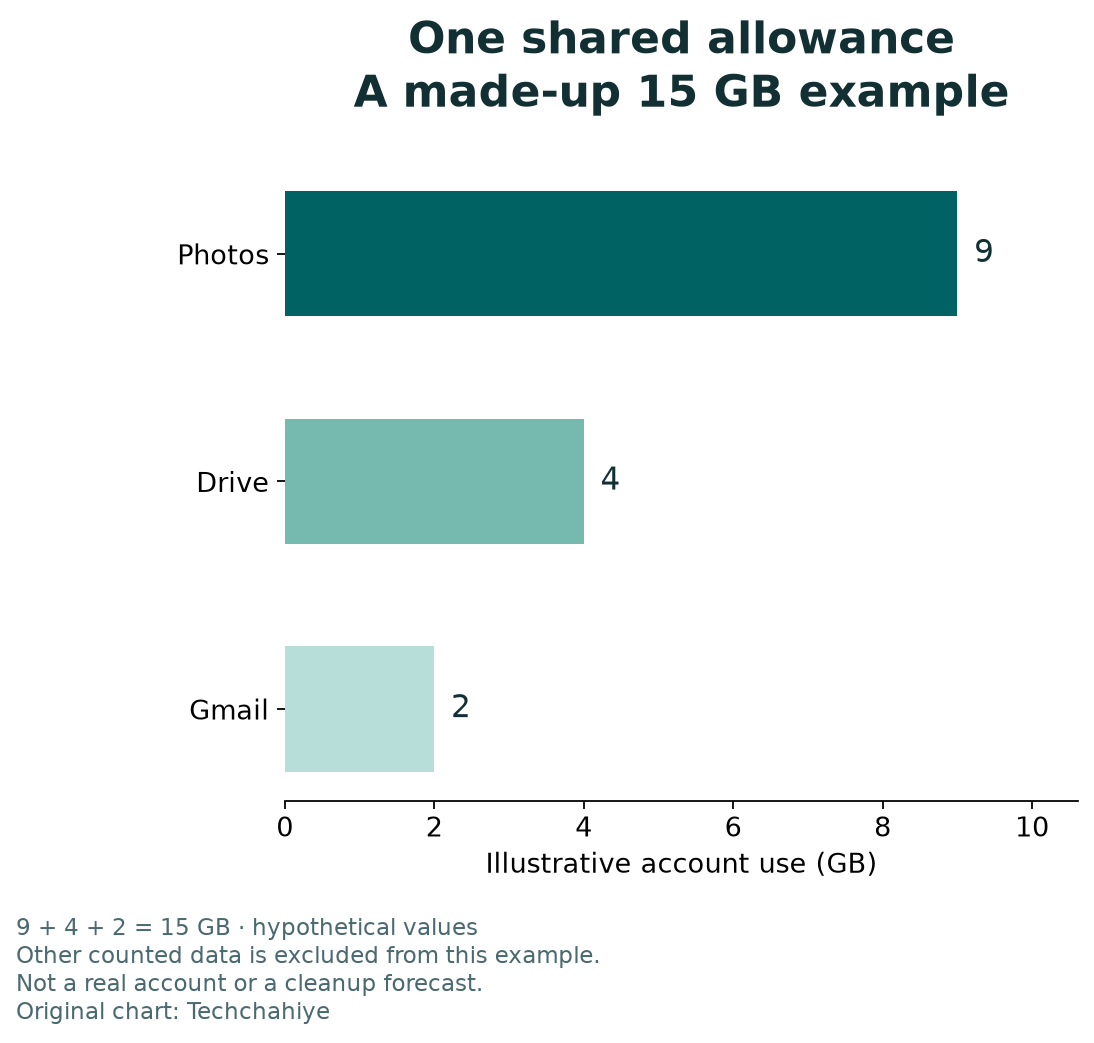
The total is 15 GB. Gmail is full as a service because the shared account is full, even though its own share is only 2 GB. That explains why an inbox-only cleanup may miss the largest category.
Now suppose the owner deletes for good 1 GB of counted Gmail data. Ignoring other changes, the example total becomes 14 GB. That leaves 1 GB below the assumed limit once the reading updates.
The arithmetic is not a cleanup forecast. Real accounts can include other counted data, new uploads and reporting delays. Use your own breakdown to choose the review scope. Do not expect a fixed saving from a message count.
Read the example as arithmetic
Nine plus four plus two is 15 GB. Remove an assumed 1 GB of counted Gmail data. The example then totals 14 GB before other changes and reporting delays. Use your own account readings.
Review Drive and Photos Only Where It Helps
If another service is the largest category, investigate that service’s actual files. Do not delete photo backups merely because Gmail displayed the warning. Decide which records and originals must remain available.
For Drive, check the owner and the file’s role. A shared file may have different storage implications from a copy you own. Review the account’s current storage guide. Not every shared link uses your quota.
For Photos, distinguish cloud removal from phone cleanup. The Free up space device tool keeps backed-up items in Google Photos. It is not a way to reduce the same cloud total that is blocking Gmail.
Keep an independent checked copy when the file requires it. Then follow the relevant service’s current deletion guidance. A storage problem should not cause the accidental loss of the only needed original.
Treat Device Backups as Their Own Decision
Google’s current storage guide includes certain backups in account use. A large backup can explain space that the inbox does not. Review its type and purpose before changing it.
Do not delete a backup just because its size is large. Ask which device or app depends on it. Consider what you would lose if the phone failed or the app needed to be restored.
For a managed device or shared family arrangement, clarify ownership. One person’s cleanup can affect another person’s recovery plan. Use the account’s approved process and keep the intended owner involved.
This guide does not instruct you to remove any particular backup. The useful step is identification. Choose a retention plan before making a permanent change that affects future recovery.
Check the Result Through the Service You Need
After space is available and the reading has settled, check the task that was blocked. Verify whether Gmail can perform the intended action. Keep the account and error message consistent during the check.
If mail is still failing, record the new message. A remaining network, recipient or attachment problem may be separate from storage. Do not assume every send error has the same cause.
Review important missing messages carefully. A returned message and a delayed message are different states. Use a trusted route to establish what needs to be sent again.
Keep this check small. You do not need a mass mailing to prove the account works. Confirm the service behavior you need. Avoid creating unnecessary messages or files.
Build a Low-Effort Cleanup Routine
Review large candidates at a sensible interval for your account. Focus on actual space categories rather than chasing a zero-inbox count. A few reviewed large files can matter more than many small messages.
Save needed records in a place with a clear owner and purpose. Avoid collecting duplicate attachments across several cloud folders without a plan. Moving clutter between services may leave the same shared limit full.
When a mailing is no longer useful, review its normal subscription controls. Do not interact with an unknown sender merely to tidy the inbox. Use the right spam and security guidance where a message is suspicious.
Keep a short note of the last reviewed categories and date. This helps you see whether growth comes from mail, photos, files or backups. It turns the next warning into a clearer investigation.
Consider More Storage Only After Understanding the Need
A larger plan is one possible option, not a required first step. Establish which data needs to remain and how fast the account grows. Then compare the current offer shown to that account if needed.
Read the plan terms, price and renewal details for your market. US and India offers can differ. Do not rely on a price copied from an old article or another account.
A larger limit also does not fix every local-space or sync problem. Keep the diagnosis attached to the actual warning. Buying cloud space will not necessarily create free space on a laptop’s disk.
If you use a work or school account, ask the administrator about its storage policy. The right route may be a workplace review rather than a personal subscription.
Did You Know?
Google says archived messages remain under All mail. Archive can make the inbox look cleaner without removing the stored message. Use the account’s space reading to judge space, not the inbox count.
Conclusion
When Gmail storage is full, check the shared account before deleting mail. Identify the largest category, search for useful candidates and preserve needed records. Treat Archive, Trash and deleting for good as different actions.
Then allow time for the reading to update and verify the service you need. A small, checked cleanup is easier to trust than a bulk purge based only on message age or inbox size.
FAQs
Does archiving Gmail messages free account storage?
Archive removes a message from the inbox view but keeps it in All mail. The stored message remains. Use Archive for organization and review counted data when the goal is storage space.
Why is Gmail full when Photos uses most of the space?
Google Account storage is shared across services. A large Photos category can fill the limit used by Gmail too. Review the actual breakdown. The service showing a warning may not use the most space.
Does moving mail to Trash immediately remove its storage use?
Google says messages in Trash still count toward storage. Review the contents before deleting for good. Ordinary deleted messages can stay available to restore for up to 30 days. Permanent removal ends that recovery sooner.
Why did the number not change after I deleted many items?
Google says large batches can take up to 48–72 hours to update accurately. Check the same account. Confirm whether the content counted. Then confirm whether it was deleted for good. Avoid repeating a Delete forever action just to force a faster display change.
Is larger:10M a command to delete large attachments?
No. It is a search operator for message size. Combined with has:attachment, it helps find candidates. Review each message and preserve needed records before choosing any deletion action.
