

Change the header without damaging the page
Tell headers apart from headings and margins. Review the first page, later pages and section starts, then check the actual file you will send.
Key Takeaways
- Remove a header from its own area. Do not delete the first heading in the body by mistake.
- On a computer, double-click the header, open Options and choose Remove header.
- Check first-page and section settings when only some pages should change.
- Header content, header spacing and page margins are separate choices. Review the final output after a change.
A logo keeps appearing at the top of every page. You delete the words on the first page, but the gap remains. Or a change meant for one section affects another. Before you keep deleting, check which part of the layout you are editing.
To remove headers in Google Docs on a computer, double-click the header area. Open Options on the right and choose Remove header. Google documents that route in its header help. Check the first page, the next page and any section boundaries after the change.
A header is different from a heading inside the document. It is also different from the page’s top margin. This guide separates those jobs. Remove the right item and keep the rest of the file intact. Then check any space that remains.
Decide what you want to remove
Start with the intended result. Do you want a logo gone from every page? A cover page without running text? A blank header in one section? Or less space above the body?
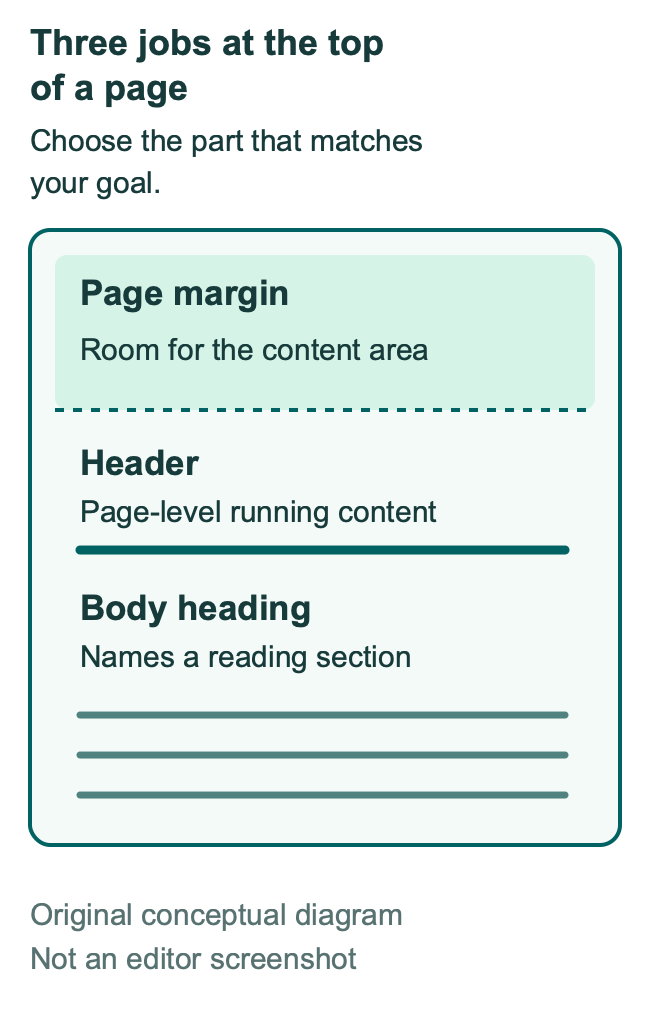
Those are different tasks. A heading is part of the reading structure. A header is page content that can repeat. A margin helps define where the main content sits. Changing one may not produce the result you wanted from another.
For example, a report can have a title in its body and a short project name above it. You can remove the project name and keep the title. If you select the wrong text, you may lose the page’s main label while the repeated text remains.
Click into the area you intend to change and inspect its context. Do not assume that the first large text at the top is a header. A title or first paragraph can sit high on the page too.
| Your goal | Inspect first | What to preserve |
|---|---|---|
| Remove repeated text or a logo | Header area | Body title and section headings |
| Keep the cover page different | First-page setting | Later pages’ running content |
| Change one part of a report | Section boundaries and header links | Neighboring sections’ layout |
| Reduce unused space | Header spacing and page margins | Comfortable reading and print fit |
| Hide page features for online reading | Pages or Pageless choice | The intended final print output |
Write the goal in one sentence before changing a complex file. “Remove the old logo from all report sections” is clear. “Fix the top of the page” leaves too much room for the wrong edit.
Inspect a copy when the layout is complex
Google’s file help describes making a copy through the File menu. Use a copy for a report with several sections. It also helps with mixed page layouts or an unfamiliar template. Give the copy a name that explains the task.
A copy lets you compare the before and after state. You can check whether a page number, heading or section layout has changed. That is useful when several people have worked on the file.
Before editing, look at the first few pages and the start of each main part. Note where the header changes. A short page map is enough: cover page, main report and appendix, for example.
Keep the original until you check the repaired output. You do not need to keep many nearly identical copies forever. Keep a clear starting point while you learn the file structure.
If you lose useful content, stop adding changes. Google’s version history help explains how to inspect an earlier version or make a copy of it. You need edit access to browse that history. Find the relevant version and compare it. Avoid recreating a missing logo or title from memory.
For a shared file, explain the scope to the other editor. Tell them whether you are removing an old brand mark, changing the cover or reducing space. They can then review the same result you are trying to achieve.
Remove the header on a computer
Use the header’s own remove option rather than deleting body text. Google’s steps are to double-click the header, choose Options and select Remove header. If you intended to remove a footer, check that you are in that lower area instead.
After you make the change, inspect that page. Read the main title and the first body paragraph. Then move to the next page. Check where the body starts. Keep the running content where you need it.
For a long file, do not stop after one page looks right. The first page may have its own header. A section may have a separate header too. Review those areas before you finish the task.
If the unwanted content stays on some pages, look for a pattern. Does it remain at the start of each chapter? Only on odd pages? Only after an appendix begins? The pattern gives you a better clue than repeating the same action at random.
Keep a note of the result. “Header removed from the main report; appendix still has its own logo” identifies the next task. It is more useful than saying the button did not work when it may have changed one part correctly.
Check a different first page
Google provides a Different first page option for the first page of a document or section. That gives a cover page its own header and footer layout. Inspect that setting when the first page behaves differently from the rest.
Decide what the cover should show. A report may need a large body title but no small running project name. A letter may need its organization details on the first page only. Those are layout decisions tied to the document’s purpose.
Keep the cover title in the correct area. Do not move it into a repeating header to place it near the top. A one-time title and repeated page content do different jobs.
After you change the first-page setup, inspect the second page. Then inspect the first page of any later section. A setting that fits the cover may not describe the full report’s structure.
Consider this original planning example. A workshop guide starts with a cover, then three pages of instructions. You want the cover clean and the workshop name on the instruction pages. State that goal first. Then use the relevant header layout and check both the cover and the first instruction page.
This example is a plan, not a claim that every existing template will need the same clicks. The file may already have a special first-page setup. Inspect it before adding another layer of changes.
Understand sections before changing one page
Google’s help describes Link to previous for section headers. Unchecking it lets a section use a different header or footer. If that option is missing, check for a section break. Google says to add one.
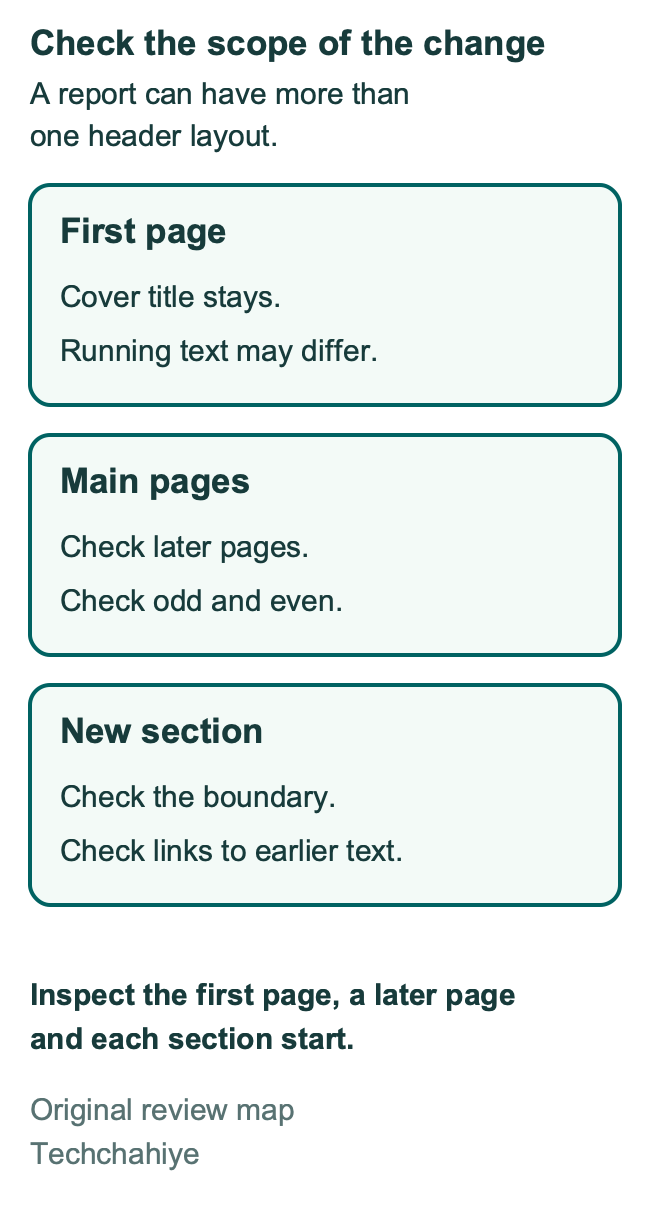
Use the document’s structure to decide where a change belongs. A new chapter, a landscape appendix or an attached form may already have a reason to be separate. Understand what the break will do before you add it. An extra break can make later edits harder.
Google’s break guide explains how to show section breaks in View. Turn that view on when you need to see the boundaries. Its page settings guide also explains section-specific orientation. These controls help you understand why one part of the report differs from another.
Create a small section map in your working notes. List the section, the header it should have and whether it should follow the previous part. Do not put those editing notes in the reader’s final document.
| Example section | Intended header | Review after a change |
|---|---|---|
| Cover | No running project name | Body title still present |
| Main report | Current project name | Later pages remain consistent |
| Appendix | Separate appendix label if required | Main report header stays correct |
The table is a hypothetical plan. It does not assume your file has those sections. Use the idea to record the boundaries that actually exist in your document.
When a change affects an unexpected page, compare the map with the current structure. You may be editing linked content. Check how the sections link before you add replacement text. You may not need a separate copy on each page.
Treat odd and even pages as another layout choice
Google also documents different headers and footers on odd and even pages. That is a separate choice from a different first page. Check more than one part of the report.
Look for alternating content. A book-style document may show a title on one side. The other side may have a chapter label. If you remove one, review its paired page as well.
Do not assume that content has returned because it appears two pages later. It may be part of another configured layout. Identify which pages share the unwanted item before editing more of them.
For a simple handout, an alternating design may be unnecessary. For a long document, it may help readers. Keep or remove it based on the actual use, rather than because one sample page looks cleaner without it.
Check the first few pages and a later spread after the repair. A repeated pattern is easier to inspect when you view both page types. Include the cover in that review if it has its own rules too.
Separate header removal from spacing
Removing content and reclaiming space are different goals. A page can still have a top margin after the header is gone. Empty space above the first paragraph is not proof that the text removal failed.
Google’s header help lists header and footer margin controls. It describes choosing a section or the whole document under Apply to. Google’s Page setup guide separately lists the main page margins. Read the labels so you know which scope you are changing.
Before reducing space, inspect what remains. Is there an empty paragraph in the body? Is the first paragraph spaced far from the top? Are the page margins larger than intended? Use the visible marks and paragraph settings to distinguish those causes.
Here is a hypothetical page-space example. A page is 11 inches tall. A 1-inch top margin and 1-inch bottom margin leave 9 inches between them. If the top margin becomes 1.5 inches, that area falls to 8.5 inches. The half-inch difference is a page setting; it is not a count of header words.
Those values are examples, not Google defaults or a recommendation for every document. Choose margins that fit the output and the reader. Leave room for printing and for any required notes or binding.
Do not use zero margins as a routine fix. Google documents zero for removing header or footer space. Check that the final page still reads well. Inspect the actual result before keeping a change.
Use Pages format for a page-based review
Google says headers and footers are page features. In Pageless format, existing headers and footers are not visible in the document view. Switching format can change the view. It does not remove that content.
If your goal is a printed report or a PDF with pages, use Pages for the layout review. Google’s Page setup guide explains the format choice. Check the page size and orientation that match the intended output.
Pageless can suit a guide read online. It provides a continuous view that adapts to the screen. Choose it for that reading purpose. Avoid using it only to hide a header in the editor.
Google’s printing help gives a caution. Some earlier page elements can still print in Pageless format. That is why a clean editor view is not enough to confirm the final result.
Keep the question practical. Will readers use a live document, a downloaded PDF or paper? The format should serve that use. If the file has two audiences, inspect both outputs. One view may not show what both groups will see.
Review headers on Android, iPhone and iPad
Google gives mobile steps for these page features. Use Print layout mode to see and edit them. In the Docs app, enter editing, open More and turn on Print Layout. Then inspect the header area.
That gives you a way to review the document on a phone. It does not mean that every computer menu has the same mobile control. This guide’s Remove header route and section setup are the documented computer steps.
If the mobile app does not show the precise control you need, finish that layout task on a computer. Avoid treating a body-text change as a substitute. You may remove the wrong content while the actual header remains.
For a shared document, use the phone review to check the reader’s experience. Is the title clear? Does repeated content take too much attention? Does the first body paragraph remain easy to find?
If the header seems missing on mobile, first check the view and page format. Do not add a second copy to the body because the display hides it. That can leave duplicate content in the final output.
Repair a reused template without carrying old content forward
Templates can save work, but they can also carry old names, logos and dates. Inspect those items before you reuse a report for another project. A polished header does not guarantee that its content is current.
Begin with a copy of the template. Google’s template help describes this approach. Give the new file a clear project name. Keep it distinct from the older document.
Make a list of what should change. Include the header text, any image in that area and any separate first-page content. Check the footer too if it contains an old date or contact detail.
Change one content item at a time and inspect its scope. A repeated organization name may be useful. A past client’s name is a reason to stop and review the template. Do not rely on a single page as proof that every old item is gone.
A small sign-off note helps a team reuse the clean version. For example: “Old project name removed; main report and appendix checked.” Make that statement only after checking those parts. Keep the note outside the reader copy or remove it before delivery.
Check page numbers and other useful content
A header area can hold more than the words you want to remove. Before a broad deletion, inspect any page number, image or label nearby. Decide which pieces the final document still needs.
Keep automatic page numbers where you need them. Avoid typing a separate number on each page as a quick fix. Google has page-number controls for that task. Review them if your task needs page numbers.
The same care applies to a footer. An old logo at the top does not justify removing references or contact details at the bottom. Keep the scope focused on the goal you wrote at the start.
After the change, check the navigation aids a reader uses. A report may need page numbers to match a table of contents or a printed discussion. Make sure the final file still supports that use.
If you lose a needed item, repair the source file. Then inspect a fresh output. Do not patch only the exported PDF while leaving a broken source that will be reused later.
Verify the final file
Google documents print and download routes under File. Use the output your audience will receive. Open it and check the top of the first page, a later page and each section start.
If the document has tabs, confirm whether you are exporting the current tab or all tabs. Google’s tab help explains that choice. A missing tab is a separate problem from an unwanted header.
Look for three results. The unwanted item is gone. The body content remains complete. The page layout still suits the task. Check the main title and page numbers too. Keep them intact after the header change.
Check the longest header you kept and any nearby image. If you changed spacing, review the rest of the file for moved headings or tables. A broad page setting can affect more than the page where you started.
Keep the clean source once the output passes review. Note the actual change for the next editor. State what you removed and where. That gives the next editor a clear record.
A focused output check
Confirm the unwanted header is gone. Preserve the body title and useful page numbers. Check the first page, later pages and section starts. Review spacing and export the correct tabs before delivery.
Did You Know?
A header can be hidden by Pageless view and still matter in the printed output. Google advises checking the page-based format when you need control over printing. Hiding a page feature and removing it are different results.
Conclusion
Remove the header from its own area, then check the pages that share its layout. Review first-page, section and alternating-page choices when the change should be limited. Treat spacing as a separate task.
Finish with the actual output. Finish when the unwanted content is gone. Keep the rest of the document useful for the reader.
FAQs
Why is there still a gap after I remove a header?
The page can still have margins, paragraph spacing or empty body paragraphs. Inspect those separately. Removing header content does not tell the whole page to begin at its top edge. Change the setting that actually controls the remaining space.
Can I remove a header from only the first page?
Review the Different first page layout. It lets the first page of a document or section use its own header and footer. Check the next page too. Confirm that its running content still has the intended setup.
Why does changing one header affect another section?
Inspect the header’s link to the previous section. Also check the section boundaries themselves. A shared setup can explain why content changes together. Map the sections before you edit more text. Then review the pages on both sides of the boundary.
Is the title at the top of my document a header?
It may be a body title or heading. Check which editing area contains it. A title names the document or section, while a header is page-level content. Removing one may leave the other. Identify the item before you delete text.
Can I check headers in the Google Docs mobile app?
Google’s mobile help describes viewing and editing them in Print layout mode. Use that view to inspect the file. Use a computer for the removal route and section controls in this guide. Then check the output on the devices your readers use.
References
- Google Docs Help: Headers, footers and page numbers on a computer
- Google Docs Help: Page features on Android
- Google Docs Help: Page features on iPhone and iPad
- Google Docs Help: Pages or Pageless
- Google Docs Help: Change page settings
- Google Docs Help: Add breaks and move margins
- Google Docs Help: View non-printing characters
- Google Docs Help: Change paragraphs and fonts
- Google Docs Help: Find changes and earlier versions
- Google Docs Help: Create, copy or download a file
- Google Docs Help: Print a file
- Google Docs Help: Use document tabs
- Google Docs Help: Use templates
- Techchahiye: Make a table of contents in Google Docs
- Techchahiye: Productivity Apps Guide
