

Confirm that the beta is on
Turn on Siri AI in iOS 27, check iPhone and language support and work out why the beta option is missing.
Key Takeaways
- Check the exact iPhone model, iOS version, device language and Siri language before you look for the beta.
- Open Settings, select Siri and look for Try Siri AI (Beta) on an eligible iPhone.
- Follow the setup screens, then wait for the download or any waitlist to finish.
- Check the setting again and test one simple request. If the option is missing, check support before you change settings.
To turn on Siri AI in iOS 27, open Settings and select Siri. Tap Try Siri AI (Beta) if it appears. Follow the setup screens for voice and privacy choices. Wait for the download before you test it. Check your device and language if the option is missing.
It is easy to open the older Siri settings and think the new version is ready. The beta has a separate setup step on supported phones. Start with the model and software checks below. Then use what your phone shows to tell whether it is ready, still getting set up or missing a requirement.
Check Whether Your iPhone Can Use Siri AI in iOS 27
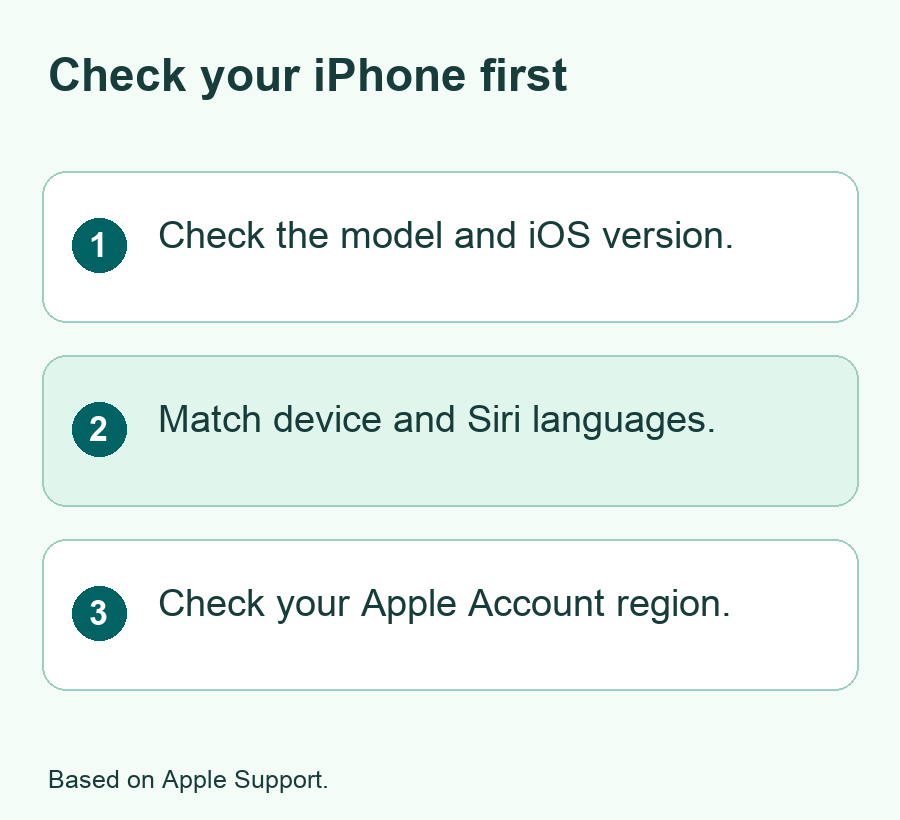
Look up the model name on the phone. Open Settings and go to General, then About. Write down the full model and the iOS version. The word Pro matters for iPhone 15. A family name such as iPhone 15 alone can hide a difference that changes whether the beta will appear.
Apple lists the iPhone 15 Pro and 15 Pro Max, iPhone 16 models and later, iPhone Duo and iPhone Air among compatible models. It requires iOS 27 or later on the iPhone for Siri AI. Check Apple’s Siri AI setup page if your phone name is new to you. A phone that can install the software update is not always eligible for every feature it adds.
| Check | Where to look | What you need |
|---|---|---|
| iPhone model | Settings, General, About | A model Apple lists for Siri AI |
| iOS version | Settings, General, About | iOS 27 or later on the iPhone |
| Device language | Language settings in Settings | A language Apple lists for Siri AI |
| Siri language | Settings, Siri | The same supported language as the device |
| Apple Account region | Your account country or region | A region that can use Siri AI on iPhone |
Try the short check for a used iPhone before you buy it if Siri AI is a reason for the purchase. Ask for the full model and compare it with Apple’s list. If the phone is an iPhone 15, find out whether it is a Pro model. If you plan to use a particular language, check that language too. Think about both the phone and the way you want to use it.
Check language and region together
Apple says the device and Siri must use the same supported language. It lists English, French, Japanese, Korean, Portuguese and Spanish for Siri AI on its setup page, with differences by region and platform. Check the current page for your country, then match the language names in your settings. A language that works for an older Siri feature may have a different status in the beta.
For example, a person with an iPhone set to one language may use Siri in another. Open both settings and compare them before you change anything. If you plan to switch languages, pick one you can use for the rest of the phone. A device language change can affect other menus. Keep your old settings in a note if you want to change them back.
Check the Apple Account region if the phone and both languages fit. Apple says you need an eligible region. It also lists some differences by platform, so look at the iPhone rules. Use the account you already use on the phone. Do not change the country just to see whether a button appears. Check the support page and what your device shows first.
Use the same checks if you move to a new iPhone
When you set up a new phone, check it on its own. Look at the model and version in About. Compare its device and Siri languages, even if the older phone had both set the way you like. Open Siri settings and read the status on the new device. This gives you a better answer than assuming a feature is ready because you signed in with the same Apple Account.
If you compare two phones in the same house, write down the model, version and status for each. A phone that shows a waitlist is already on a different step from one that lacks the option. Ask each person to check under their own account. They may use a different language or have a different region even if they bought the phones together.
Turn On Siri AI From Settings
Once the model and language fit, check for an available software update. Give yourself time to do the update if you need one. Use your usual backup and update process. After the phone restarts, read the iOS version again. Keep enough time for Siri AI setup as well as the update. The two can finish at different times.
Apple’s setup guide describes these steps once the phone is on the right software version.
- Open Settings on the iPhone.
- Tap Siri. If Siri is off, tap Turn On Siri first.
- Tap Try Siri AI (Beta) when it appears.
- Follow the prompts to choose a voice and set up voice use.
- Review the privacy settings and wait for the download to finish.
Read the labels rather than rushing through setup. If you prefer a button to open Siri, check the options Apple lists for your model after setup. If you want to speak to it, follow the voice prompts. Pick the way you can test in a quiet room. You can change the settings later if the first choice is a poor fit.
Allow for the download or waitlist
Apple says Siri AI starts to download after setup. It also says there may be a waitlist when demand is high. If the phone shows it is still waiting, note what the status says. Check it again later. There is no fixed wait time in Apple’s guide. A waitlist and a missing option can mean different things.
You can use the time to check storage and the network you are on. If the device prompts for space or a connection, follow the message on the phone. Avoid deleting a file or resetting the phone based on a guess. Start with what the screen can tell you, then use Apple Support if the same status stays in place and there is no step to take.
If you are about to travel or need the phone for work, leave time for these checks before you start. You can make a note of the current setting and finish setup when you have time to look at the result.
Test Siri AI With a Simple Request
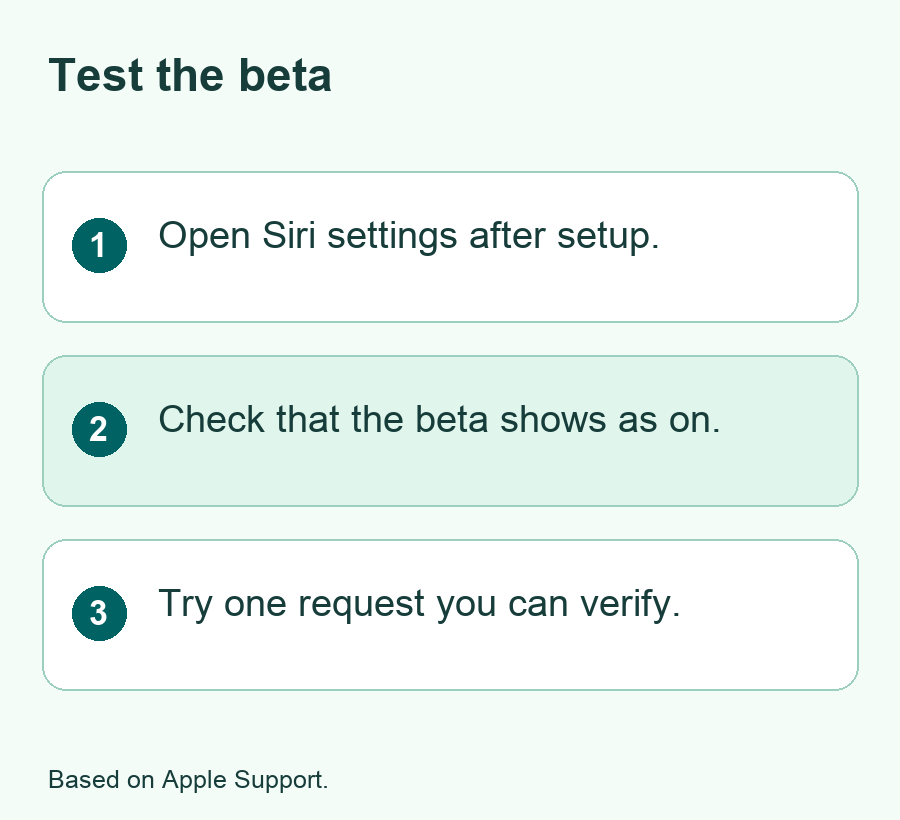
Go back to Settings and open Siri once setup ends. Check whether the screen says you are using Siri AI (Beta). That is a better way to confirm the version than guessing from the answer to a simple question. A normal Siri request can still work before the beta is ready. Use the label first, then test how it responds.
Start with a question that needs no personal data. You could ask for a plain explanation of a term on a product box. Pick something you can check quickly. This lets you hear the voice and see the reply without asking Siri to send a note, change a file or buy anything. If you want to try typing instead, check Apple’s guide for the input controls your version offers.
Next, try a question about a page you have open if you want to use Siri’s screen tools. Choose a public help page and ask what a term means on it. Compare the reply with the page. If an answer draws on a different page or leaves out a detail, go back to the source. Useful results still deserve a quick check when you plan to act on them.
Set a clear test when you try more than one feature
Pick a goal before you ask. For example, you may want to see if Siri can find a detail on the screen or answer a follow-up about it. Ask one short question. Note whether the answer uses the same topic. Ask a second question only if the first one makes sense. If it changes the subject, name the item or app again and see what it does.
For a test with an app action, use an item you can check and undo. A sample reminder can show what was added and when. Look at the result in the app where you expect it to appear. Read the title and time. Delete the sample if you do not need it. Use the same check each time you try a different device or software version.
Keep track of what worked on your phone. You might find that a voice request is fine while a certain app action isn’t there. Apple says features can vary by region, language, hardware and software. A missing feature and a missing beta setting are different problems. Save the name of the feature you could not use when you look it up.
Pick What You Want Siri to Do on a Normal Day
Once the setup works, choose one task you do often. A quick way to ask about a public page can help when you read a guide with words you do not know. An app action can help when you want to make a reminder while your hands are busy. Check what the phone did each time until you know how that request works for you.
Think about when you use the phone around others. A voice reply may suit a quiet room at home. In a shared space, you may want to read the reply or type instead if that option is available to you. Check your voice, typing and lock screen options in Apple’s settings help. Try the way you plan to use it, rather than only testing it on a desk.
For a request that can act across apps, name your target. For example, ask for a test reminder with a short label. Check the list and time where it appears. If the app gives you a choice, read it before you tap. This gives you a small test that can catch a mismatch before you ask for a change you need to keep.
Fix a Missing Try Siri AI Button
Check the exact model and software first. In Settings, confirm that the model is on Apple’s list and the iOS version is at least 27. If it is not on the current version for your phone, follow Apple’s normal steps to update. Check the model again rather than assuming an update will add the option to every phone.
Then compare the device language with the Siri language. Read the full labels. Make sure both use a supported language and that your Apple Account region can use Siri AI. If those line up, open Settings and tap Siri again. If Siri is off, use Turn On Siri as Apple’s guide says. Then check for the beta choice.
If the screen shows a waitlist or a download, give that step time. If the screen shows a message about access, note its exact wording. On a phone managed by school or work, ask the person who manages it about its settings. Use the support steps that fit that message. Several guesses in a row can leave you unsure which setting helped.
Check voice controls if the beta is on but Siri does not answer
Use the button or voice method you chose in setup. Check the Siri screen to make sure the way you are trying is on. If the button works and your voice does not, open the voice settings and use Apple’s instructions to review or set up your voice again. Try on the phone by itself if another device nearby also listens for Siri.
If Siri answers but an app action does not work, check what the phone was asked to do. Say the name of the app and the item. Use a test note or event that you can find. Open the app to confirm the result before you repeat the request. That can prevent extra reminders or edits while you work out which step failed.
Review your privacy and lock screen options if you want to limit when Siri can answer. Apple’s Siri settings guide describes controls for voice and access. Choose what suits the way you use the phone. You can keep the controls that were useful in your test and turn off access you do not need. Check the result with one request before you put the phone away.
Check a limit before you try again
If a request used to work, check whether the device shows a limit or a message about access. Apple notes that some features have usage limits. Read the exact message you see. If another Siri task still works, use that clue to look up the feature that failed. You can finish a task in the original app when you need it now.
Keep a short note with the iOS version and what you saw. This can help you tell whether the issue changed after an update. If you contact Apple Support, describe the button you used and what you expected. You can use a sample request that has no private details. Check for a fix that fits the symptom before you reset or change unrelated settings.
Did You Know?
Apple says the Siri app can use iCloud to sync your conversation history across supported devices. So a conversation you start on an iPhone may be available on another device using the relevant account and settings. Check which device and account you are on before you decide where to start or continue a chat.
Conclusion
To turn on Siri AI in iOS 27, check your iPhone model, use matching supported languages and open the Siri settings. Pick Try Siri AI (Beta), finish the setup and check the status once the download ends. Use a simple test you can check for yourself. If the beta option does not appear, start with the model and language checks before you make other changes.
FAQs
Can I use Siri AI on a regular iPhone 15?
Apple’s Siri AI list includes iPhone 15 Pro and 15 Pro Max, and iPhone 16 models or later. Check your exact model in Settings, General and About. Even when a phone runs an iOS update, it may have different Siri features from the supported Pro models.
Why does my iPhone show Siri but no Try Siri AI button?
First check the model and iOS version. Check that the device and Siri use the same supported language and that the account region is eligible. If Siri is off, follow Apple’s guide to turn it on first. Look for the beta option after those checks.
How long does Siri AI take to turn on?
Apple says it starts to download after setup and may use a waitlist during a busy period. Apple does not give one wait time for all users. Look at the setting to see which status your phone shows. Test it when the screen says the beta is available.
Can I use the same Siri AI tools on each Apple device I own?
Apple lists rules for each device. A feature may vary by place, language, model or software version. Check the guide for each device you want to use. Test the action on that device before you expect it to work the same way as on your iPhone.
How can I check that Siri did an app action right?
Open the app and inspect the item Siri was asked to add or change. Check the name, date or text. For a first test, use a sample item you can remove later. If the result is unclear, check the app before you repeat the request.
