

Ask for options and set a stop point
Use Gemini Tasks to plan an errand, compare options and check the source before you approve a booking or message.
Key Takeaways
- Start with one errand in Task mode. Ask Gemini to find options and stop before it books, buys or sends anything.
- State the time, area, budget and any rule that would make you pick one option over another.
- Read the plan while the task is open. Check the business, price and date at the original source.
- Review what Gemini wants to share or change before you approve it. Stop or take over if the task goes off track.
To use Gemini Tasks for an errand, open Gemini and switch from Chat to Task if you see that choice. Give it one clear job. Ask for a short list of options, then tell it to stop for your review. Read the plan and check the details yourself before you let it sign in, buy, book or send anything.
Try the first task on something easy to check. You could ask it to find three nearby places that repair phones and list their public hours. You can then open the links and pick one yourself. This gives you a useful result and shows where the app needs a clearer request.
Check Which Gemini Tasks Tools Your Account Has
Google announced its updated task features on 17 November 2026. It named the U.S. and India among the places getting the free rollout. It also said some advanced features would start in the U.S. See what your own app shows. An example in an announcement may use a tool that your account, phone or country does not offer yet.
Open the Gemini app and look for the Chat and Task choice on the home screen. Google’s announcement describes a toggle. Its current help also explains ways to start and manage a task by device. Look for your device in that help. If you cannot find Task mode, sign in with the account you expect to use. Check for an update and read the rules for the account.
The first check is whether the tool fits your task. Chat can explain what a store’s repair policy means. A task can take a series of steps that may involve websites, connected apps or files. Use the tool that does the job you need. If a simple answer is enough, you can start with a question and keep the next step with you.
Pick a small task you can verify
Start with public details that do not need a sign-in. A useful example is to find three repair shops within an area you choose. Ask for links to the shops’ own sites. Request the hours or how they take bookings. Ask Gemini to say when a price or slot could not be confirmed. You can take the next step once you see an option you like.
You can make a similar task for a meeting room, a store pickup or an errand on the way home. Choose a result that would help you act even if Gemini stops early. A list of links and times is still useful if it cannot show a live booking slot. Explain which parts it can check and which parts you want to do later yourself.
Give the Task a Goal and a Clear Stop Point
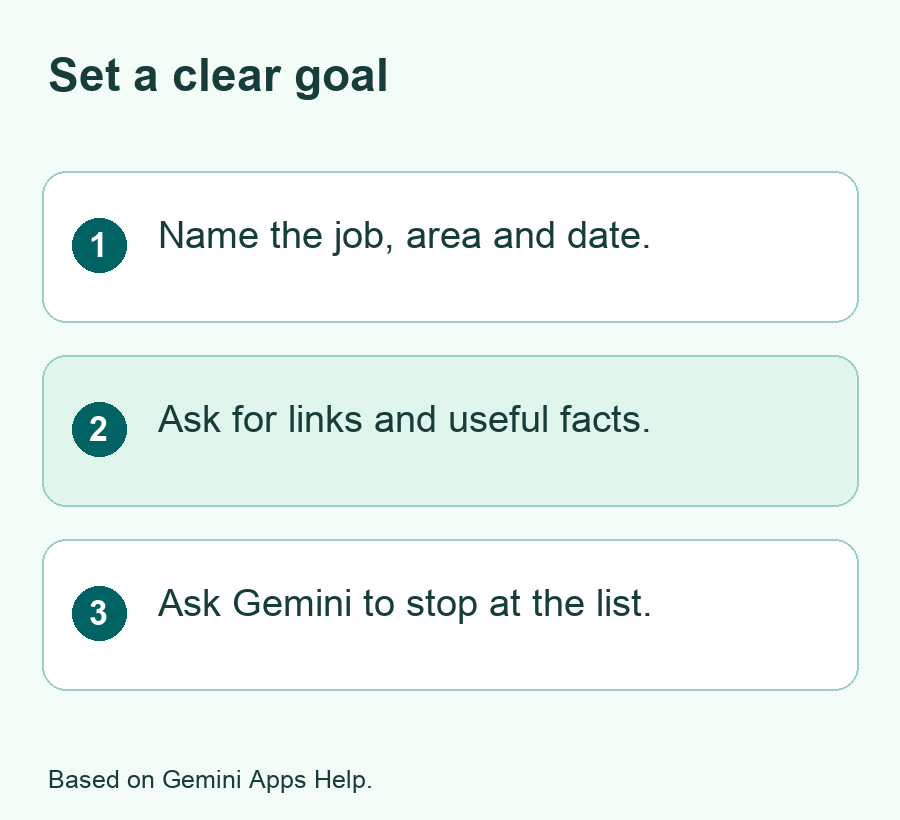
Say what you want to end up with. Include the place, day and a time range if they change which options work. State a price limit in the right currency when it helps. Name any rule that matters, such as whether the shop must take walk-ins. Give enough detail to choose well. You can leave out personal information that is not needed for that choice.
For example, ask Gemini to find three phone repair shops near a place you name. Ask it to check hours for Saturday morning and link to each shop’s own page. Tell it to mark any price or hours it cannot confirm. Add a stop point in your own words. Ask it to stop after the list and leave calls, bookings and messages for you to review.
| Part of the request | Example to adapt | What it helps you check |
|---|---|---|
| Goal | Find three shops that repair this phone model | Each shop can do the job you need |
| Time | Saturday, from 9 a.m. to noon local time | The listed hours or slots match the day |
| Limit | Show any quote in the local currency | The price refers to the right service |
| Proof | Link to each shop’s own page | You can open and check the facts |
| Stop point | Give me a shortlist and wait | The task ends before a booking or payment |
If you are unsure about a detail, say what to do with the gap. You could ask Gemini to show a range if a shop lists one. You could also ask it to mark the price as unknown if the shop gives a quote only after it checks the device. It is better to see a blank or a note than to make a trip based on a price no one has confirmed.
Try a short request before you add more steps
Ask for the list before you ask it to act on it. Then read what it plans to do. If it adds a step you did not want, change the request while it is still running or stop and start over. Google’s task help says Gemini shows its plan, progress and the sources or connections it may use. Read that first screen, even if you know the request by heart.
One task should have one main goal. Asking the app to check several stores, write to one and add an event all at once makes it harder to see where the answer changed. In a first run, get the list. Pick an option and check it. Then decide whether another tool or a short call would be the fastest way to finish.
Review the Plan Before the Task Goes Further
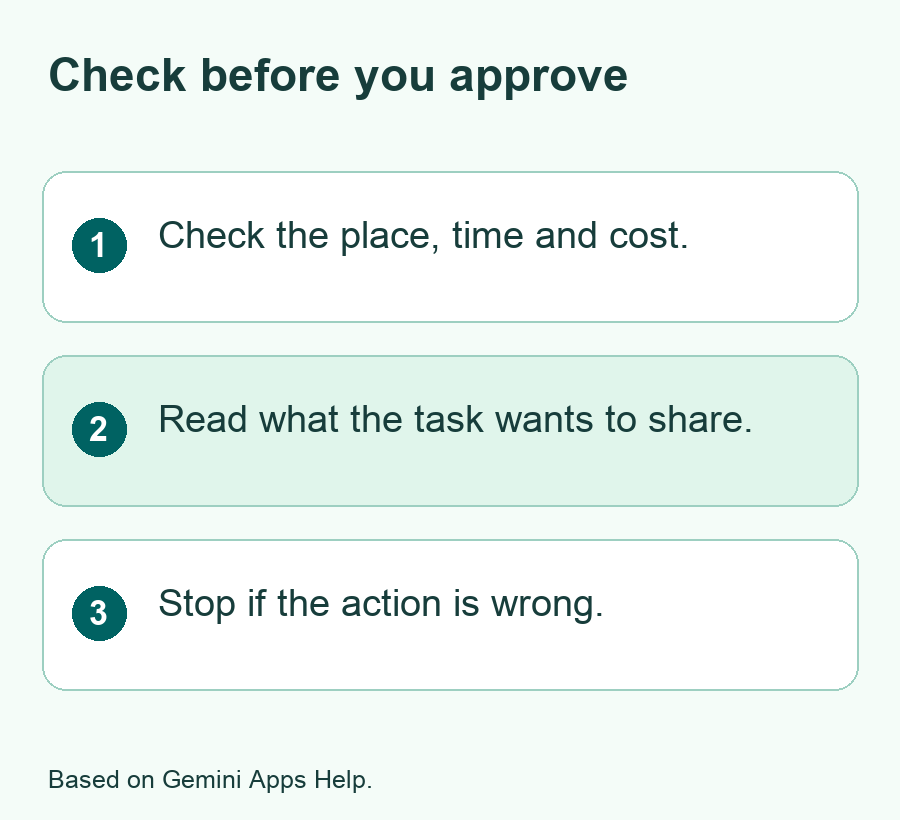
Check what Gemini wants to open. For an errand, the shop’s public page and a map listing may be enough. If it asks for a connection to your email or calendar, ask whether the task needs it. You can provide a small time range directly if you just want to check hours. A task does not need to read your full day to show which store opens early.
Read the date and the local time in the plan. Check that it picked the right town, store branch and service. A business with more than one branch can have different hours. When you visit the store’s own page, check the address and date there. A map result is useful for finding a place, but the shop may list holiday hours or a booking rule on its own site.
If the plan includes a cost, ask what it covers. For a repair, a site may show a fee to check the phone before a quote for parts and work. If the app says it found a slot, check whether the page shows a slot or only a way to request one. Write down what you can confirm. Leave a gap open if the site does not give the answer.
Compare the options on the terms you gave
Rank the shops by what matters to your errand. Suppose one shop is five minutes away but needs you to drop the phone off all day. A second is 20 minutes away but lists an hour for a simple check. Those are made-up times. The example shows why you may want a column for travel and one for the service. A short list can help you see the choice without deciding it for you.
Add one question if the choice still depends on a fact. You could ask whether a shop lists the part you need. If it does not say, ask Gemini to give you the right public contact page. At that point you may get a better answer by calling the shop yourself. Save the contact page rather than asking the tool to keep checking other branches on its own.
Know what a request for approval means
Google says Tasks should ask for approval before some actions. For example, it can ask before it buys an item, sends a message or shares private details. Read the whole request. Check the site or person, the action and details such as price or time. If those are not clear or do not match your request, stop the task or decline that action.
Leave yourself a clear way to decide. A request to send a message should show who gets it and what it says. A request to book should show the place, date and terms you would agree to. A request to buy should show the item, count, price and seller. There is no need to approve a step just because the app has reached it. Take time to check it first.
If you prefer to finish an action yourself, use the original service. Open the site and look for the detail you verified. Google’s help also describes a Take control option in the task’s browser when it is available. A task can pause and ask you to take over. Use the usual app or website flow for anything you need to do on your own.
Check What Data or Apps the Task Would Use
Google says a task can use information from sources like connected apps, your chat or sites where you are signed in. It also says a task may share details from those sources with a website it uses. Think about that before giving it a task with private files, health details or account data. Look at which tools it says it wants to use.
For a routine errand, give it a broad area and the minimum facts needed to check the options. A shop lookup can use a part of town instead of your home address. A price check can start with the product and country. If it needs more, decide if you can add just that detail after you review the plan. It can be easier to finish in the store’s own app if the next step needs information you want to keep there.
Review your app connections if you no longer need one after the task. Google offers controls to adjust task settings or disconnect apps. Check the setting for the account that ran the task. Removing a connection is a separate action from stopping one task. Do both only if that meets what you want to change.
Check the Result at the Source Before You Rely on It
When the task ends, read what it says happened. Then check the place where the action would show up. If you asked for research only, verify the pages in the shortlist. If you chose to book a slot after review, check the confirmation from the business. A choice in the task and a booking the business records are two different points in the process.
For example, suppose the app shows three shops. One has Monday hours in its result even though you asked for Saturday. One says that repairs need an appointment, and the third lets you ask for a quote. Open each source and mark what it answers. Keep the shop that fits your time. If none gives the price or slot you need, check with the shop before you make the trip.
If the task is supposed to do nothing beyond the list, check whether it stopped there. The result should be useful even if no further step was taken. Keep the facts you can confirm and leave a note about anything that still needs a call or another check. That note can save time the next time you need to run a similar errand.
When you reuse the prompt, update the day, place and stop point first. Store hours and prices can change. Mark the old list with the date you last looked at it. Then ask for a new check only where you still need one. A saved prompt can help if you make the same kind of plan each month. A saved result may need a fresh visit to the source.
Stop a Task or Start Again if It Goes Off Track
Google’s help describes a Stop response control and, for some browser tasks, Take control. Use the available controls if the plan changes in a way you do not want. If the app asks you to approve an action and the details do not fit, decline it. Take a look at what may already have happened before you try again.
If a step did not finish, inspect the original site before you repeat it. For example, if you were booking a slot and the task stops after a click, look for a confirmation in the same account or from the shop. A new attempt before you check can create a second booking. Keep one record of what you saw and what you decided to do.
If you cannot use a feature that appears in an example, check the launch and product help for your market. Google says its rollout reaches India and the U.S., but it lists some advanced options as starting in the U.S. Use the tools that already work in your account. If a call feature is missing, you can ask for a list of places and call the one you choose.
Did You Know?
Google’s Gemini Tasks help says a task that uses a local browser can access the same sites you can, including some sites you are signed in to. That is a reason to check the plan and its tools before you start. For a first test, give it a public lookup that does not need a signed-in site at all.
Conclusion
Use Gemini Tasks to do the search work for one errand. Give it a clear goal, a few limits and a place to stop. Read its plan and open the sources. Decide for yourself before you approve any action that sends, spends or changes something. The first useful result can be as simple as one short list you can verify.
FAQs
Can I use Gemini Tasks in India and the United States?
Google included India and the U.S. in its November 2026 rollout announcement. It said some advanced features would start in the U.S. Check the controls in your account and the help for your device. Begin with a research task that uses public sources if you do not see the same tools as an example.
How do I ask Gemini to stop before it books anything?
Put the stop point in your task request. Ask for a shortlist and tell it to wait before it calls, sends, books or pays. Review the plan once the task starts. Stop or decline an action that goes past the result you asked for. Check the final result for what actually happened.
Do I need to connect my calendar for an errand?
You can give Gemini a time window for a simple lookup. It does not need your whole calendar to show a shop’s posted hours. If you want the tool to check a time against your events, read what the connection lets it use and decide if you want that step.
What if Gemini says it booked a slot but I see no confirmation?
Check the account or service that would hold the booking. Search for a confirmation or open the list of bookings. If the result is unclear, check with the business before you repeat it. A second attempt can make a new slot if the first one did go through.
How can I do less with Gemini on the first try?
Use a task that only gathers public links and facts. Give it one topic, a time or place and a short list to return. Try the result yourself before you ask the app to use a connected account or take a step on a website.
