

Check the bag before you travel
Set up a Google Pixel Tag in Find Hub. Test the sound and check the report time when your bag is away.
Key Takeaways
- Pair Google Pixel Tag with a compatible Android phone while the tag is next to it.
- Name the tag for the bag it will go in. Use Find Hub to play a sound before you pack.
- Try it in the pocket you plan to use. A metal or carbon-fiber shell can block the signal.
- If the bag is away from you, check the time of the location report as well as the map pin.
To set up a Google Pixel Tag, turn on Bluetooth on a compatible Android phone. Keep the phone unlocked and online. Pull the battery tab from the tag while it is close to the phone, then follow the prompt to connect. Open Find Hub and make it ring before you put the tag in your luggage.
Test with your own bag while you still have time to move things around. A tracker that rings on a desk can behave differently inside a packed suitcase. The setup checks below help you see which tools your phone has, what the tag can do nearby and how to read a location when the bag is far away.
Check Your Phone Before You Set Up a Google Pixel Tag
Google’s U.S. product page lists Android 9 and later for its Pixel Tag. A compatible phone can come from a brand other than Google. Check the current Google Store page for your market before you order. Look at the phone requirements and the small notes about the features you want to use. The U.S. and India store pages are in References.
The tag works with Find Hub. Google shows a sound option to help you find it when it is close. It also lists precise directions with a compatible phone that supports ultra-wideband. That is a short-range radio that can give the app more detail about where to point you. Check the phone and tag pages if you want those directions. Start with the sound test even if your phone offers more tools.
Before you pair, check which Google Account you want to use. You might have one address for work and another for personal use. Pick the account you expect to open while you travel. Make sure you can sign in to it. If you share the bag with someone, plan to use Find Hub’s share controls where they fit. Keep your account sign-in to yourself.
Choose where to put the tag before your first test
Find a pocket that holds the tag still and that you can reach when you want to change the battery. Google warns that carbon-fiber and aluminum luggage can block its signal. It recommends an outer fabric pocket for checked bags. If your bag has no such pocket or you cannot use it safely, test another position in your own bag. Check the sound with the pocket closed.
Keep the tag for a bag or item you own or manage with permission. Let someone know if you attach it to a shared item that they will carry. You can put a normal luggage label on the bag too. Use the tag as one way to find the bag, and keep the label and any airline receipt for their own jobs.
Pair the Pixel Tag With Your Phone
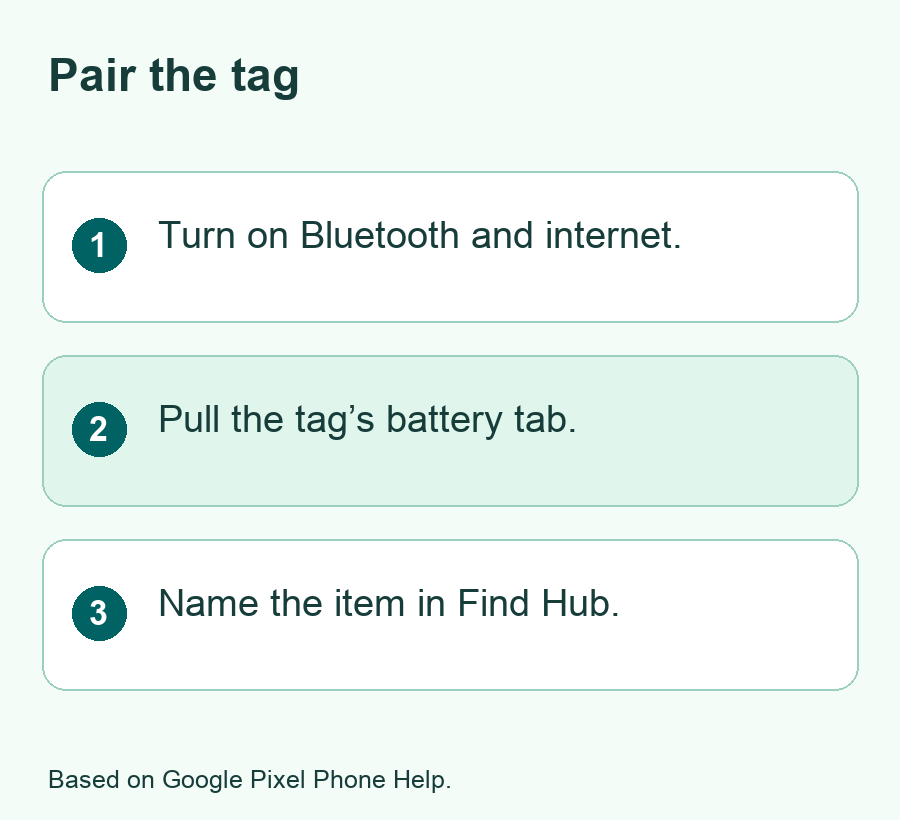
Google’s setup guide calls the pairing system Fast Pair. Put the tag and the phone next to each other. Keep the phone on its home screen and check that it has internet access. Turn on Bluetooth. Once the phone is ready, pull the plastic tab from the tag so the battery can make contact.
- Wait for the Pixel Tag prompt on the phone.
- Tap Connect in the prompt that names your tag.
- Follow the steps for the account and review the terms in the app.
- Review the app’s request for location access and follow Google’s instructions if you want to use the feature.
- Open Find Hub and confirm that the tag appears in your list.
Give the tag a name you can pick out in a hurry. A name like Grey Carry-On works if you have two bags with the same shape. If you change which bag uses the tag, update the name too. Read the item name before you play a sound or share it. That quick check can save a second trip around the room looking for the wrong bag.
If you see a connection prompt for a tag you are not setting up, leave it alone. The setup should come from the tag you own and have close by. If more than one person in your home is setting up a tag, do one at a time. Give each person a chance to check the name in Find Hub before you move on.
Fix a missing first prompt
Check the battery tab first. Google says it needs to come out all the way. Keep the phone unlocked with Bluetooth and internet access on. Google’s setup help says a prompt you dismiss may take five minutes to reappear. It lists a wait of 24 hours if you dismiss it a second time. It also gives steps to turn Bluetooth off and on or restart the phone to clear the wait.
Try the phone’s Settings app if the prompt stays missing. Open the Connected devices screen and look for the tag. If you still can’t see it, Google says you can open Find Hub and select Add Device. Follow the on-screen steps. Look up Google’s reset process only after checking whether the tag is already in your account or belongs to someone else.
Test the Tag in Find Hub While the Bag Is at Home
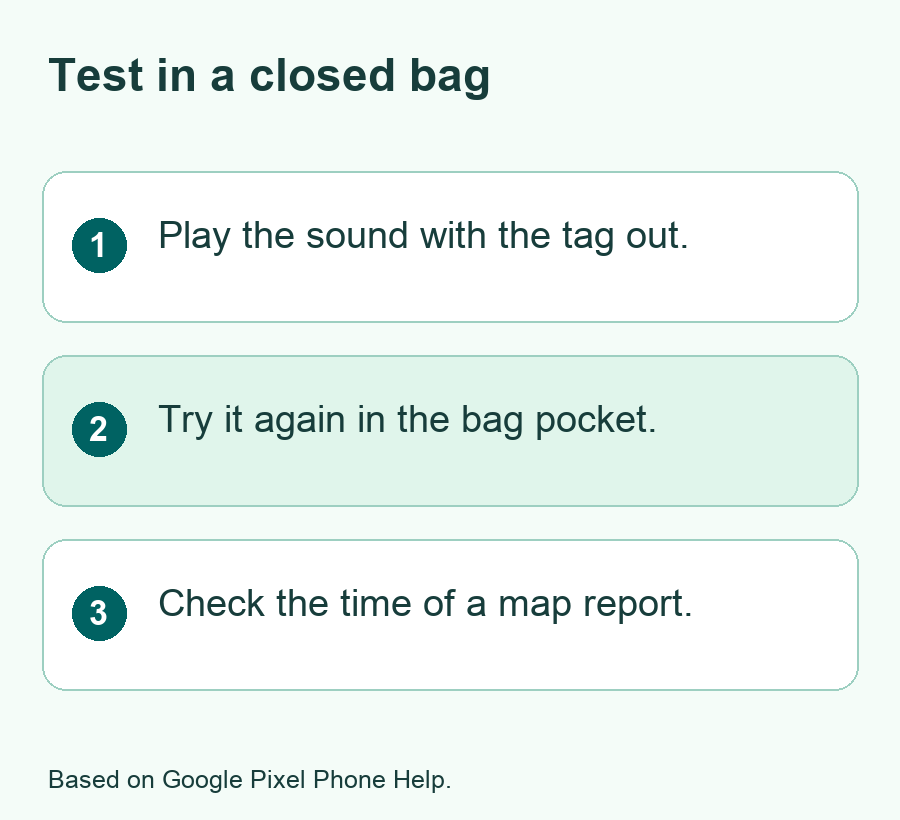
Do one test on a table before you pack. Open Find Hub, choose the tag by name and look for the sound control. Play it and listen. If a nearby search view appears for your phone, watch what it shows as you move. Both tests help you learn which tools you can use without a rush.
Next, put the tag in the bag and close the pocket as you would when you travel. Move a short way away in the same room and check again. This is a home test to find a good spot. It does not measure the tag’s real distance limit. Walls, the bag and nearby items can all change how well you can use it.
| Test | What to look for | What to try next |
|---|---|---|
| Tag on a table | Item name and sound in Find Hub | Check account and Bluetooth if it is missing |
| Tag in the bag | Sound and any nearby search option | Move the tag if the bag blocks the signal |
| Tag close to another bag | The correct item name plays a sound | Rename tags that are easy to mix up |
| Item away from you | Location report and its time | Treat an older pin as a past report |
If the sound is hard to hear from the chosen pocket, try a spot with less material around it. Keep it away from anything that can force the pocket open. Google also warns that wallets made to block some radio signals can block the tag. Keep your test simple. Move the tag once, close the bag and see if the result changes.
Check your setup once the bag is packed
Repeat the sound test after you pack the bag for a trip. A packed bag can change how much material sits around the tag. Stand where you could hear it on the first test and check again. If the sound is weaker, use Find Hub to see which other nearby tools you have. Pick a spot for your own items where you can still reach the tag when you unpack.
Make sure the tag can’t slide out when someone lifts the bag by a different handle. Turn your packed bag on its side and check the pocket. Put the tag in a closed pouch if that helps it stay in place and the signal still works. This is a fit check for your bag. It does not tell you how the network will work after you hand the bag over.
When you bring two bags, test both before you leave home. Check the names by ringing one tag and then the other. Use names that match the bag’s color or job, such as Blue Checked Bag or Work Backpack. If you lend a bag, tell the other person whether the tag is in it before they leave. Think about which parts of the trip need a shared view and which do not.
Read the Map When Your Luggage Is Away From You
Google says Find Hub can use a network of Android devices to help locate items that are away from you. A map report can be useful when you want to know where the tag was seen. Check its date and time. Also look at how precise the map view is before you compare it with where you know the bag should be.
If you are going to use the map in a place with poor mobile data, check that you can open Find Hub before you leave the area where you have a good connection. Keep your flight and bag details where you can read them even if you cannot load a new map report. You can use that information to describe the bag while you wait for the app to work. A tracker report is useful when it arrives, but the bag label and receipt give you details you can keep with you.
For example, imagine a bag’s last report was at the airport an hour ago. That pin tells you where Find Hub reported it at that time. It cannot tell you from that one report whether the bag is still there. If you’re at the baggage belt, use the bag’s label and the flight’s baggage process as well. A tracker can add a clue while you ask the airline for help.
If a tag report looks old, check whether your phone can load Find Hub and whether you opened the right tag. Give the map time to show a fresh report if one comes in. The time depends on when the tag is seen. A slow update alone is not proof that the tag went missing or that your bag stopped moving. Keep using the normal lost bag process when you need it.
Keep a short record when you file a bag report
Write down the time and place shown in Find Hub if the bag does not turn up. Also keep the details the airline needs, such as the baggage receipt and a description of the bag. If the report time changes while you wait, you can compare it with the first note. Ask the airline what information it can use. Its process for bags tracks things that a tag cannot see, such as a bag scan tied to your claim.
If the map pin seems to point past an area where you can go, stay in the normal areas for passengers. Ask the airline or site staff what to do. Indoor map pins can be hard to match to a door or floor. A recent pin can help you explain what you saw, but it is only one part of the search. Take a note rather than trying to reach a spot that staff need to check.
Share the tag only when another person needs it
Google’s help shows a way to share Pixel Tag access in Find Hub. The product page says you can share a tag with up to 10 people. That is a limit for this product as listed. Start with the person who needs to find a bag you share. Check the app’s current share controls and see whether that person can open the item and find it.
If you no longer share the bag, review who can see that tag. Remove access through the normal Find Hub controls when it is no longer needed. If you lend the bag for a trip, tell the person about the tag and agree on what to do with it first. A short conversation also helps them know what an alert on their device might refer to.
Keep the Tag Ready Between Trips
Google’s specs list a replaceable CR2032 coin cell. Check its battery status before you set off. If you need to replace it, use the device’s battery guide and the type it names. Keep loose coin cells away from children. Test the tag again after you close it. Make sure it shows up under the name you expect and can play a sound.
Review the tag when you switch Android phones. Open Find Hub with the account that owns it. Check the item list and run the same nearby test you used at home. A new phone may have a different set of radio features, so check the nearby view before you rely on directions. If the tag shows up in your account but doesn’t ring, check battery and range first.
If you sell or give away the tag, use Google’s normal removal and reset steps. Before you reset it, check the name and the item so you do not reset a tag you still need. Make sure you have all the tags you plan to take on the next trip and can identify each one by name.
Did You Know?
Google’s own setup guide notes that an aluminum bag can get in the way of the tag’s signal. A change as small as moving it to an outer fabric pocket can be worth testing before you travel. Keep the pocket closed and run the same sound check on each spot so you can compare them.
Conclusion
Set up your Google Pixel Tag next to your Android phone, then find it by name in Find Hub. Test the sound with the tag outside the bag and again in its travel pocket. Check the report time when you look at the map. Do the first test at home so you know what to try when you are looking for the bag later.
FAQs
Do I need a Pixel phone to use a Pixel Tag?
Google lists compatible Android phones starting at Android 9. Check the exact phone you own and the current product page before you buy. Nearby directions can require more than basic pairing. If you already have a tag, see which options appear in Find Hub with the phone you plan to take.
Can I find the bag if it is outside Bluetooth range?
Google says Find Hub can use its network to help locate a tag that is far from you. Open the item and read the time of the latest report on its map. Treat it as a clue about where the bag was seen. It may not give you a fresh location at that moment.
Where should I place a Pixel Tag in a hard-shell suitcase?
Google recommends an outer fabric pocket for checked luggage. Aluminum and carbon fiber can block the signal. Use a spot that safely holds the tag and test the bag closed before you travel. Pick another location if the sound or nearby view does not work there.
Why can’t I get directions to the Pixel Tag even though it can ring?
The sound control and precise directions have different requirements. Look at the phone and tag specs for support for ultra-wideband. If your phone offers only a sound nearby, try to listen for it in a quiet room. The map can also help you choose where to look for the bag.
Can my partner help me find a bag we both use?
Google’s Find Hub help lists a share option for Pixel Tags. Open it on the tag you want to share and follow the app’s steps for that person. Ask them to check that the right item shows up. Review the people who have access when the bag stops being shared.
