

Choose the recovery step that matches the problem
Use Samsung's official password reset route for a forgotten password. Find ID and two-step verification need their own checks. Respect account recovery waits, then check device access and prepare a separate fallback.
Key Takeaways
- Start a Samsung account password reset from the official account website. Use the email linked to the account you already have.
- A lost account ID is not a forgotten password. A two-step code problem needs its own check too.
- Read the screen before you request more codes or restart a phone-number change. Some security waits can restart with a new request.
- After access returns, check your devices and ways to get back in. Keep a way to sign in that does not depend on one phone.
You know your Galaxy’s screen PIN, but Samsung will not accept the account password. Or the password works, then a code goes to a phone number you no longer use. Those are different problems. Repeating the same reset can leave you stuck at the same step.
For a Samsung account password reset, start at Samsung’s official account website. Enter the email linked to your account and choose Forgot password. Follow the checks the site offers, then create and confirm the new password. Samsung’s US order-help guide says to continue until you see the success message.
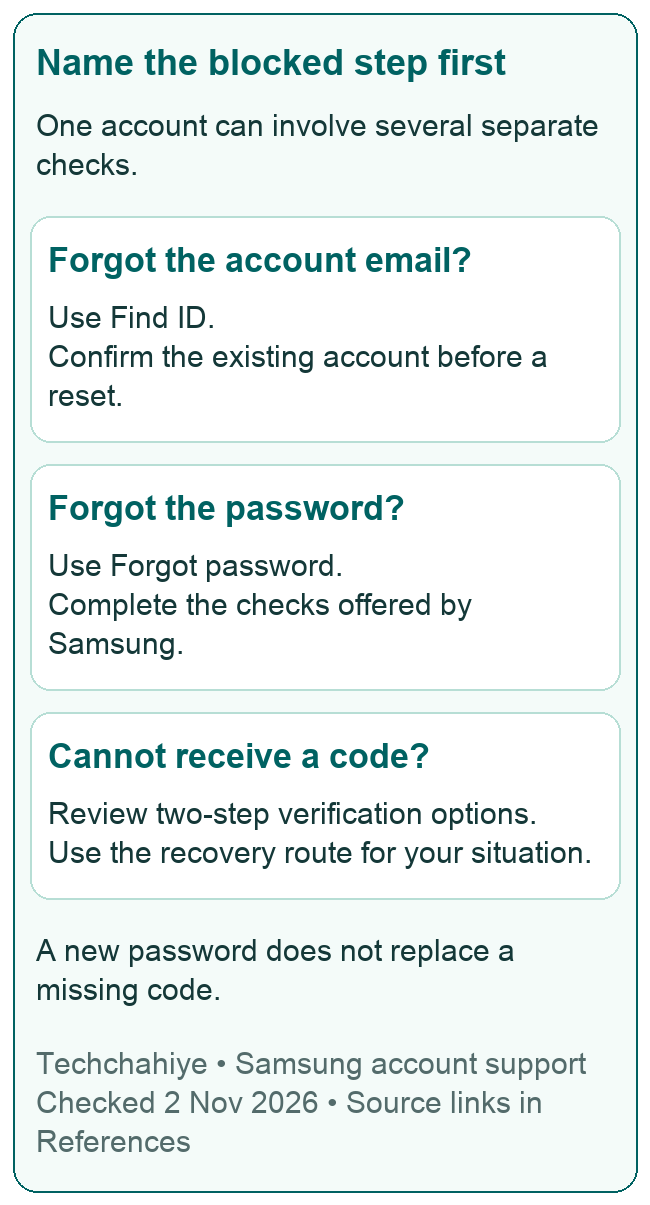
Before starting, name the screen that blocks you. Do you need the account email, a new password or a way to complete the two-step check? This guide helps you choose the right route and keep a clear record. It covers the Samsung account you use for yourself. Use it to recover your access through Samsung’s checks.
Match the problem to the right route
An account ID tells Samsung which account you mean. A password is one sign-in check for that account. Two-step verification adds a code check. Solving one does not prove you have solved all three. Read the label on the current screen rather than calling every failure a password error.
| What stops you | Start with | What that alone does not solve |
|---|---|---|
| You do not know the account email | Find ID | No way to get the extra code |
| You know the email but forgot the password | Forgot password | A code going to an old number |
| The password works but you cannot get a code | The two-step help choices on the screen | An unknown account ID |
| You can sign in and want a new password | Account security settings | A separate phone screen-lock PIN |
| The account page shows an error | The exact error and Samsung’s matching help | Every possible account or device issue |
Write the problem in one sentence before a change. “The reset email has not arrived” is useful. So is “I have a new password, but the code goes to my old number.” Each points to a different next step. “Samsung will not work” hides the detail that would help you move forward.
Keep a trusted way to sign in open while you work. Do not sign out of every device to make your notes look simpler. First find out which device, inbox or saved backup route you can still use. Note a working route before you change anything else.
Reset a forgotten Samsung account password
Samsung’s US order-help page gives these steps for a browser. It works from a phone, tablet or computer. Button labels can differ. Follow the current page when it asks for an extra check.
- Open the official Samsung account website and select Sign in.
- Enter the email on the account. If you do not know it, use Find ID first.
- Choose Forgot password and finish the email or phone check shown.
- Enter and confirm a new password that follows the page’s rules.
- Follow the remaining prompts and look for the message that says the reset worked.
Stop and read the choice on the screen before typing details. The site may show part of a linked phone number. A number that looks familiar is a clue to check, not a reason to keep guessing. Use the full number the official page asks for. Include its country code where shown.
Use a trusted screen and keep the reset private. If someone lends you a laptop, you can type your own details while they help read the steps. They do not need to know your password or code. Avoid saving the new password into a browser profile that belongs to the helper.
Once you see success, make one careful sign-in check. Use the new password for the same account. Did the form accept the new password? That is one step. You may still need to enter a code. Note how far you got so you do not start over at the wrong step.
Find the correct account email before resetting again
Samsung’s US sign-in guide offers Find ID if you forgot the account email. Enter your name and date of birth, it says. If it finds a match, review the masked account details. Use Samsung’s own flow and the details on your account.
Think which address you used when you first set up the Galaxy or Samsung service. A personal email, an older address and a work address may look similar in a list. Keep them distinct. The inbox open on your computer may not be the account ID on the phone.
Do not make a new Samsung account instead of finding the old one. The new account is a new account. It does not give you access to data, devices or services tied to the old one. First work out which account the device or sign-in screen expects.
Still signed in on a device? Read its account details before you sign out. Note the email privately. Compare it with the address you entered on the reset page. Check the spelling too. An error or a wrong old address can point the reset at a new account.
If Find ID does not help, use Samsung’s support route. Explain that the missing piece is the account ID. Do not send a public post with your date of birth, every email address you own and a full screenshot of the account page. Let Samsung check who you are through its own steps.
If the reset email does not arrive or its link fails
Samsung’s order-help page advises checking spam, junk and other inbox folders. It also suggests searching the inbox for Samsung. If you no longer control the linked address, it directs you to Samsung Support. Waiting for a message in a different inbox will not fix that access problem.
Check the account address before sending another request. Then check whether the inbox itself works. Can you open it and see recent mail? Is there a filter or tab that could hide the message? Keep this check focused on mail delivery. Leave other phone settings alone.
Use the reset message that matches your current request. An inbox full of similar emails can make it easy to open an old one. Note the request time, then compare it with the message time. If you asked more than once, do not assume the first visible email is the one you need.
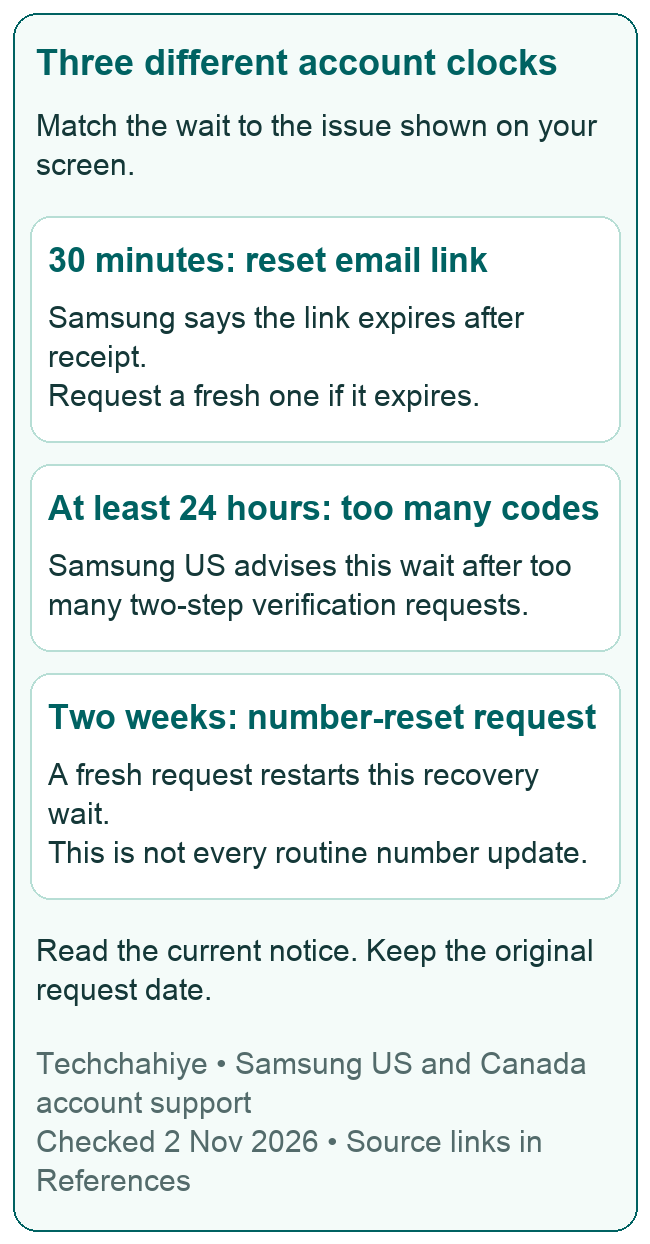
Samsung’s US sign-in guide says a reset link is valid for 30 minutes after receipt. If it expires, request a new one through the official reset page. The link has run out of time. That does not prove the password you want breaks a rule.
Keep the reset email and any code private. Do not paste the full link into a forum to ask why it fails. A screenshot of a message can also expose more than you intend. Give the error text and time since receipt. Keep the link and any private codes in it to yourself.
If two-step verification points to an old phone number
A new password does not give you back a lost way to get a code. Samsung’s US troubleshooting guide includes Didn’t get the verification code? and other routes where you can use them. Read the choices offered to your account. Do not assume that each account has every way to get back in.
Check what you still control. You may have another signed-in Galaxy, a saved backup code or an offered text-message route. These give you different ways to get in. A note that says “I have the password” does not answer whether you can get the extra code.
If you need the account’s phone-number change process, read its timing carefully. Samsung’s US guide says the two-step number reset takes two weeks from the request date. A new request cancels the prior one and starts that wait again. Do not restart it because an old number still shows while you wait.
Samsung Canada’s August 2026 number-change guide separates two cases. Still signed in on a linked Galaxy? Your route may differ from that of a person with no linked device to use. Check your own account’s choices first. This two-week recovery wait does not mean every phone-number update takes that long.
Keep a private note of the request date and the notice you received. That gives you a clear basis for a support question. Missing the promised notice? Check the right inbox and messages. Then follow Samsung’s matching help. Do not file the same request again each day because nothing has changed.
If you cannot use either the linked email or number, contact Samsung Support. Do not expect a password-only instruction to remove those checks. Ask Samsung to review how you can get back into the account. Give the screen and message that block you.
Respect a rate-limit message
If the page limits code requests, stop requesting codes and read the stated wait. Too many requests for two-step codes? Samsung’s US guide advises waiting at least 24 hours. That is its own kind of wait. It is not a reset-link expiry or a pending number change.
Keep the exact message with its time. A short error such as “number is not correct” is not the same as a short-term request block. If you put them in one vague note, it is harder to know which step comes next.
Use the pause to check details that do not need a new request. Confirm the account email. Check the number on the screen and any backup route. Do not keep testing guesses in a new tab while waiting for the first tab’s limit to end.
This guide cannot promise an early unlock or a shortcut around the wait. To give back access, the service needs to check who owns the account. Use the official help for the exact message you saw.
After the password reset, check access on your devices
Samsung’s US guidance says you may need to sign in again on devices that use the same account. Use the new password when they ask. Work through the devices you rely on. A browser success screen is not a check of each device’s sign-in state.
Start with the device you need next. Are you about to travel? Check that you can sign in for the tasks you need. Did you reset after losing a phone? Check account access and the missing-device search as separate tasks. A successful password reset does not mean the phone has returned or its location has updated.
Make a short list of what now works and what still fails. For example: browser sign-in works; a tablet asks for a code; the TV still shows an old prompt. That gives support a clearer note than a fresh password reset for each device in turn.
Keep the new password in your own safe place for passwords. If you use a password manager, make sure the entry belongs to the correct Samsung account email. Do not overwrite another person’s saved account on a shared device. Check what you are updating before saving.
If a prompt looks odd, open the official service yourself. Review the account there. A message claiming a problem is not itself proof of one. Check the account and the action it asks for. Take time before entering a code on a page you did not mean to open.
Prepare recovery options before the next loss
Samsung Knox’s account help describes a recovery phone number and email. Its email setup uses an address different from the Samsung account email. Follow the guide’s check to show that you control the address. This is an older official account guide. Use the choices your account now offers. Do not assume the dashboard has stayed the same.
Plan a way in that does not need the same phone. An email inbox you can reach only through the phone in your hand may be hard to use after that phone breaks. A recovery note stored only on that same phone has the same weakness. Think through access from a second trusted device before you need it.
Samsung also explains the two-step choices. These can include texts, an authenticator app and pre-saved backup codes. Check which ones your account offers and read how they work. A method you have not set up is not a fallback you can count on during a loss.
Keep backup codes and notes private, where you can reach them when needed. Do not put the only copy in a public document or send it to someone to save a step. A trusted helper can guide you without holding your codes. Make the access plan fit your own account and the devices you can use.
If your Galaxy later goes missing, finding it is a separate task. Techchahiye’s Samsung Find guide explains the account checks. It also covers location checks for a missing Galaxy. Does a recovered phone need repair? Our Samsung Maintenance mode guide covers privacy and backup checks. Account access connects these tasks. Each still needs its own checks.
Did You Know?
A Samsung account password reset and a phone screen-lock change answer different questions. The account password signs in to Samsung services. The phone PIN, pattern or password protects local access to that device. Write down which screen asks for which code or password before choosing a recovery guide. A familiar word such as “password” can hide two different tasks.
Conclusion
Start a Samsung account password reset with the right account. Name the step that blocks you. Use the official reset flow, finish its checks and confirm that it worked. Still stuck at a code or old number? Follow that recovery route and respect its wait. Once access returns, check the devices you need. Prepare a separate fallback for when you cannot use your main phone.
Frequently Asked Questions
Do I need my old Samsung password to reset it?
The reset flow is for a forgotten password. Start with the account email and the checks Samsung offers. A password change from an active account is a different route. If you cannot complete the checks, that is one more issue to solve. Use the account’s ways to get back in or contact Samsung Support.
Why does Samsung still ask for a code after I reset the password?
The password and the two-step code are separate checks. A successful reset does not prove you can receive the extra code. Read the offered choices. Use a method your account already has. Does the code go to an old number? Follow the steps for that old number. Another password reset will not change that destination.
What should I do if the reset link has expired?
Request a fresh link from the official account reset page and use the message tied to that request. Check its receipt time before opening an older email by mistake. Keep the full link private when asking for help. If a fresh link fails too, note the exact message. Contact Samsung through its official support route.
Will a new Samsung account restore my old account’s access?
A new account is a new account. It does not give you access to the old account or its linked devices and data. Find the old account first, then use its steps to get back in. Keep the two account emails distinct. Signing in to a new account does not prove you recovered the old one.
Can I keep trying a phone-number reset until it works?
Read Samsung’s waiting-period notice first. Samsung’s US guide says a fresh number-reset request cancels the prior one. The two-week wait starts again. Keep the original request date and follow the matching support instructions. Repeated requests can work against your goal when each one restarts the same process.
References
- Samsung US Order Help — Reset a Samsung account password
- Samsung US — Trouble signing in to a Samsung account
- Samsung account — Official sign-in and recovery entry point
- Samsung Knox — Set up an account recovery method
- Samsung Canada — Two-step verification explanation
- Samsung Canada — Phone-number changes and account-access scenarios, updated August 22, 2026
- Techchahiye — Samsung Maintenance mode before a repair
- Techchahiye — Samsung Find My Device: account, location and lost-phone checks
