

Find the phone, read the status and protect access
Use Samsung Find with your Samsung account or Google Find Hub with your Google account. Confirm the device and location time. Read the lock options. Keep erasing separate from the search.
Key Takeaways
- A Galaxy has two possible finding routes. Samsung Find uses a Samsung account. Google Find Hub uses a Google account.
- Check the selected phone and the location time. A last known place is not proof that the phone is there now.
- Ring, lock and erase serve different needs. Read the result of an action before assuming it reached the phone.
- Set up finding and a separate sign-in route while you still have the device. Erasing is a final data-protection choice, not a better search tool.
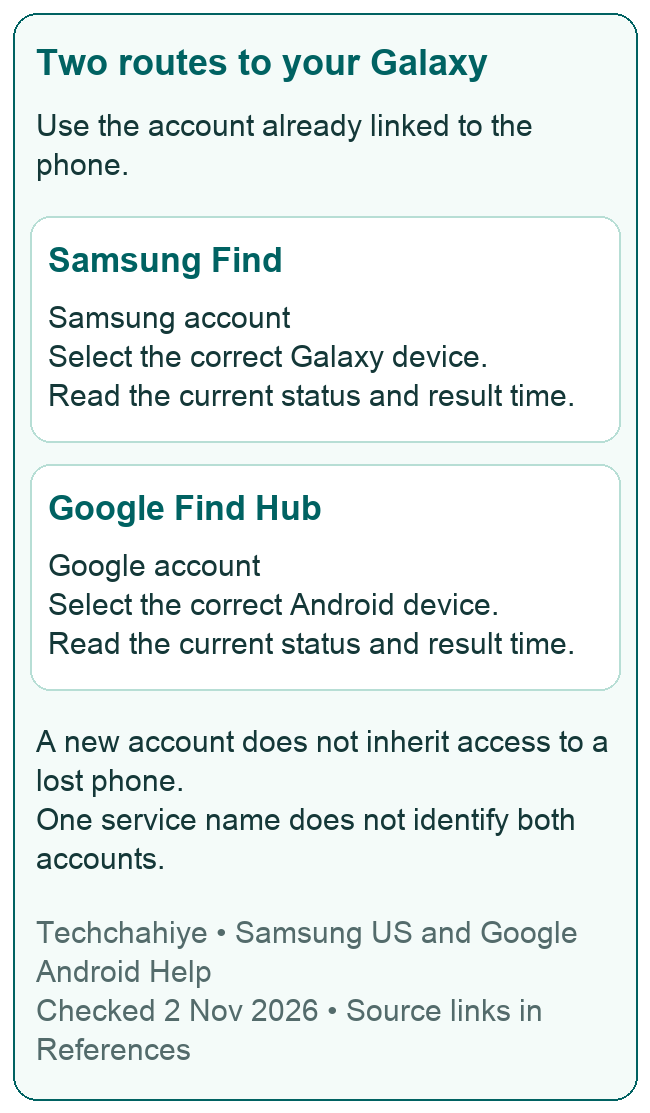
Your Galaxy is missing. Start with the account linked to it. Samsung Find uses your Samsung account. Google calls its current Android service Find Hub. It uses your Google account. They are separate services, even when both list the same Galaxy phone.
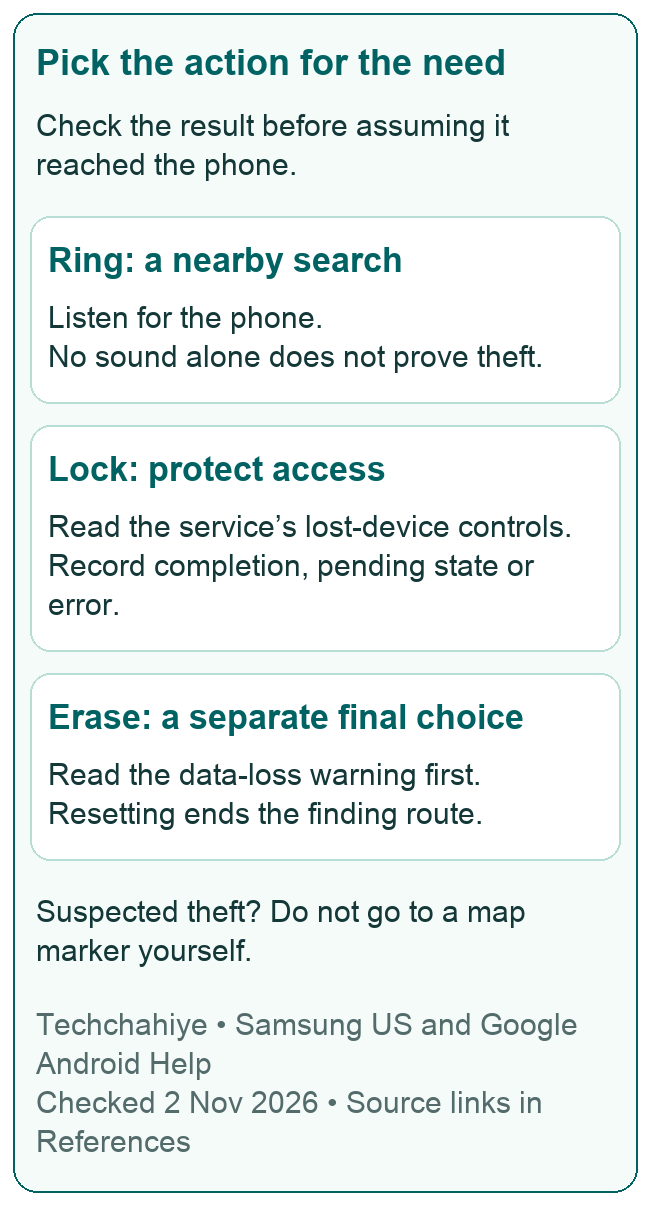
Open the official service, select the right device and read what it can show. If the phone is nearby, a sound may help. If you lost it elsewhere, a lock can protect access while you work out the next step. If it may have been stolen, Samsung advises against going to the map location yourself. Give the information to the authorities.
This guide explains those choices and the setup to review before a loss. It uses official Samsung US and Google guidance checked November 2, 2026. Features and screen labels can differ with the device, software and service. A finding feature can help; it cannot promise recovery.
Choose the account route first
Samsung’s US guide points to both Samsung Find and SmartThings Find. Sign in with the Samsung account added to the Galaxy device, then choose the phone from the device list. Google’s Find Hub uses the Google account on the phone. Use the route whose sign-in you can complete from another trusted device.
Do not confuse a successful account sign-in with a successful device search. You can reach the service and still see no recent location. You may also have more than one phone under similar names. Check the device entry before you send an action. An older Galaxy may still be in the list.
| Route | Account to use | First thing to confirm |
|---|---|---|
| Samsung Find or SmartThings Find | Samsung account linked to the Galaxy | You have selected the correct phone |
| Google Find Hub | Google account linked to the Android device | The phone belongs to that account and profile |
| Another person’s phone | Your own account through an approved sign-in route | You are acting on your own device |
If one account is hard to access, check whether you already have a usable second route. Do not create a new account and expect it to inherit access to the missing phone. An account you set up after the loss is not evidence that it was connected to that device before it went missing.
Keep the job narrow when someone helps you. They can lend a device or read directions while you sign in yourself. You do not need to send them your password, recovery codes or a screenshot of every account detail. Let the helper lend a screen while you keep control of the sign-in.
Find the phone and read the map carefully
In Samsung Find, choose the phone in the device list to view its location. Google’s guide says Find Hub may show a last known location when a current one is unavailable. Its map also uses an accuracy radius. The marker is information to interpret, not an exact room number.
Read the time beside the result before planning what to do. An old location and a fresh location tell you different things. If you think you left the phone on a train, a stale stop near a station does not prove the phone stayed there. Give the time along with the place when speaking to lost property staff.
Keep three facts separate in your notes: what the map shows, its update time, and what you remember doing. “The map shows the station at 3 p.m.” is a useful observation. “Someone at that address stole my phone” is a conclusion that a map marker does not establish.
For a nearby device, choose the service’s sound option and listen. Google’s Play sound rings at full volume for five minutes, even in silent or vibrate mode. If you find the phone, stop the sound. A failed attempt to hear it does not prove theft; the phone may be out of earshot or unable to receive the action.
If you are checking a shared space, ask staff before searching restricted areas. A workplace, bus depot or venue may have a process for lost items. Give them the phone description and the relevant time. Avoid posting the whole location map in a public group when a private report will do.
Lock a lost Galaxy before thinking about erasing it
Samsung’s US anti-theft guidance describes Lost Mode in Samsung Find. Select the phone, choose Lost Mode, create and confirm its PIN, and verify the account as prompted. Google Find Hub calls its option Mark as lost. Follow the current screen for the service you chose rather than mixing the two sets of labels.
A lock and an erase do different jobs. A lock aims to protect access while leaving room for recovery. An erase removes data and changes what you can do next. Do not select the more destructive action because the location is slow to update.
If the screen offers a contact message, think about what a finder needs. A short way to reach you may be enough. Samsung’s guidance recommends skipping personal contact details. Keep private details out of that message. Never share a password, unlock PIN, home address or recovery code there.
Record what happened after you sent the lock. Did the service show completion, a pending state or an error? Sending a request is an action you took; confirmation is evidence about what happened to it. Keep those facts apart if you later need to explain the timeline to support or a carrier.
Do not keep sending different actions without reading the screen. You may lose track of which state is current. A short note with the selected device, action and time gives you a clear place to resume. It also helps if a second trusted person joins the search.
Understand offline finding and a dead battery
Offline finding is not the same as a guarantee that a powered-off phone can report its live position. Samsung’s US guide says only the last known location is available when the phone is off. Its setup also includes Offline finding. A phone without a network and a dead phone are different cases. Keep that distinction in mind.
Google’s setup guide describes several offline choices. Some use stored locations. Others let nearby devices help. It says powered-off finding works on supported models, giving Pixel 8 as an example. That example is not proof that every Galaxy model can be found after its battery runs out.
The practical question is what the selected phone can report now. Look for the status and time. If the result is old, preserve it as an old result. Do not call it live tracking in a report or make a trip based on an assumed update that the screen has not shown.
Google says nearby Android devices can help find items through the Find Hub network. Offline results depend on the chosen setup and available reports. A quiet area and a busy public place may not present the same finding conditions. A phone that fails to update on demand is not, by that fact alone, absent from the wider area.
Still have the phone? Read the offline choices and privacy details before you choose. If the phone is already missing, you may not be able to change the setup on it. Focus on the actions the service currently offers and the evidence it returns.
If the phone is missing from the list or has no location
Start with the account and selected profile. Google’s readiness guide says to use an account on the main profile when a device has more than one user. It also says a device hidden on Google Play will not appear in Find Hub. Those are setup checks, not proof of a broken location sensor.
An empty list and an offline status need different responses. With an empty list, confirm the sign-in and device entry. Is the phone listed but missing a fresh result? Note its status. Check which lost-device actions the service offers. Do not assume that changing the display name will reconnect a missing phone.
Google’s troubleshooting page lists several reasons location may be unavailable. These include lack of power or a network connection, damage and Airplane mode. It also documents Sync recent location when location encryption is out of sync. Follow that exact prompt only when it matches what you see.
Avoid applying a repair step that needs the missing device in your hand. An instruction to open its Settings app is useful before a loss or after recovery. It cannot be completed remotely because you can sign in to a web page. Separate what you can do from the trusted device in front of you from what would need the missing phone.
When asking support for help, use a compact report. Give the phone model, service and account type. Add the last result and current message. Keep passwords and codes private. A screenshot may help explain the message. Remove private details first.
Set up finding while the Galaxy is still with you
Samsung’s US setup path is Settings, Security and privacy, then Lost device protection. It lists Allow this phone to be found, Send last location and Offline finding. Check the descriptions and switches on your model. The same guide says a Samsung account must be added to use its finding service.
For Google’s route, first check the Google account. Then review Location, Find Hub and the offline choice. Google also advises checking the finding service while you have the phone. Exact Settings paths can vary, so use the guide for your device when a label differs.
Make the check from a separate trusted device. Can you sign in and pick the right Galaxy? Does the listed model match? Can you understand the status the service gives? This small rehearsal is more useful than knowing only that an app icon exists on the phone you might lose.
Do not trial an erase to see whether finding works. A safe setup review does not need to delete your data. Nor does it need to lock a phone you rely on without first reading how that lock works. Keep the check limited to the feature you mean to verify.
Write down the service names somewhere you can reach without this phone. List the Samsung and Google routes. Include each official entry point. A note should not contain passwords. Its job is to save you from hunting for the right service during a stressful search.
Keep a separate way to sign in
A finding service is much less useful if every sign-in prompt goes to the phone that is missing. Google’s readiness guidance calls out this problem for two-step verification. Prepare a backup option, it says. Backup codes or a physical security key can help. Do not rely only on the primary Android device.
Review that access before a trip or a phone trade-in. Can you reach the account from another trusted device? Do you know which account belongs to this Galaxy? Is a backup sign-in route available without opening a note stored only on the phone? These are access questions, separate from whether you turned on the map feature.
Keep recovery material private and in a place you can access when needed. Do not store the only copy in a screenshot on the same phone. Do not read a code to someone who contacts you and claims to have found it. Use the service’s own sign-in flow and account-help pages for recovery.
If you borrow a device, Google’s Find Hub app supports guest sign-in to help a friend find a lost device. Use your account for your search, and sign out when finished. Check that you have left the helper’s device in its prior state. Borrowing a phone does not need to turn into sharing your whole account.
Treat erasing as a separate data-protection decision
Samsung says Erase Data deletes phone data for good. After the reset, you lose location and control through Samsung Find. Google says a factory reset deletes device data too. The phone is then no longer available in Find Hub. It notes that SD-card data may not be erased.
Before choosing it, read the exact warning for the selected device. Consider which data you backed up and what remains only on that phone. Also consider the loss of the finding route after the reset. This is a decision about data exposure and recovery options; it is not a way to improve a weak map result.
A lost phone can also affect the mobile line and accounts. Samsung’s anti-theft guidance recommends contacting the authorities and mobile provider. Google says the provider may need the phone’s IMEI to deactivate it. Ask the carrier what its action changes and what information it needs.
Keep the identifier private when you make that report. A public social post does not need your IMEI, account email or every device detail. Share the relevant information through the carrier’s or authority’s official route. Preserve a simple record of whom you contacted and when.
If the phone comes back, check its condition. Make sure you can still use your accounts. A map result does not mean you have the phone back. Safe recovery and being able to use it need their own checks. Keep any support or carrier case details until you finish those steps.
If a recovered phone needs a repair, prepare for that handoff as a separate task. Techchahiye’s Samsung Maintenance mode guide covers privacy and backup checks before a repair. It needs a phone you can access; it is not a remote substitute for locking a missing device.
Did You Know?
Google’s privacy guide explains what an offline network report shows. The owner gets the place of detection and roughly when it happened. It does not identify the nearby person whose device helped with that report. A map result is about a detected item; it is not a public list of the people around it.
Conclusion
Start a Samsung find my device search with the account linked to the Galaxy. Use Samsung Find or Google Find Hub. Check the phone, result time and status before acting. Use a sound for a nearby search, read lock options carefully, and treat erasing as a distinct final choice. Set up finding and a separate sign-in route while you still have the phone. Then a loss need not leave you solving both problems at once.
Frequently Asked Questions
Is Samsung Find the same as Google Find Hub?
No. Samsung Find uses your Samsung account. Google Find Hub uses your Google account. A Galaxy may appear in both, but each service has its own setup and actions. Choose the account linked to the missing phone and read that service’s current screen. Do not expect a new account to gain access to a phone you never linked to it.
Can I find a Galaxy phone when it is off?
Do not assume a live result is available. Samsung’s US guide says only the last known location is available for a powered-off device. Google’s powered-off finding is model-specific. Read the result time and your device’s support details. An offline-finding option alone proves little about a dead battery. Check your exact model.
Why does the map show an old location?
The service may lack a fresh report. Read the timestamp and current status, then keep the old result labeled as old. Use an earlier marker to retrace your route or speak to lost property staff. It does not prove where the phone is now. Do not treat it as proof about a specific person or address.
Should I erase the phone if I cannot find it quickly?
Read the service’s erase warning. Consider the data at risk and your backups. Check which finding options you would lose. An erase can protect data, but it is destructive and does not improve the map. If you suspect theft, use official support, carrier and authority routes. Avoid making the choice merely because one location check is slow.
Can a friend help without knowing my password?
Yes. A friend can lend a device while you use the official sign-in flow yourself. Google’s Find Hub app includes guest sign-in for this purpose. Keep passwords, PINs and recovery codes private. After the search, sign out. Check that you closed your account on the borrowed device.
References
- Samsung US — Locate a lost Galaxy phone or tablet
- Samsung US Newsroom — Anti-theft features and lost-device steps, June 28, 2025
- Samsung Find — Official web service
- Google Android Help — Find, secure or erase a lost Android device
- Google Android Help — Prepare to find a lost Android device
- Google Android Help — Fix issues with Find Hub
- Google — How Find Hub protects your data
- Google Find Hub — Official web service
- Techchahiye — Samsung Maintenance mode before a repair
