

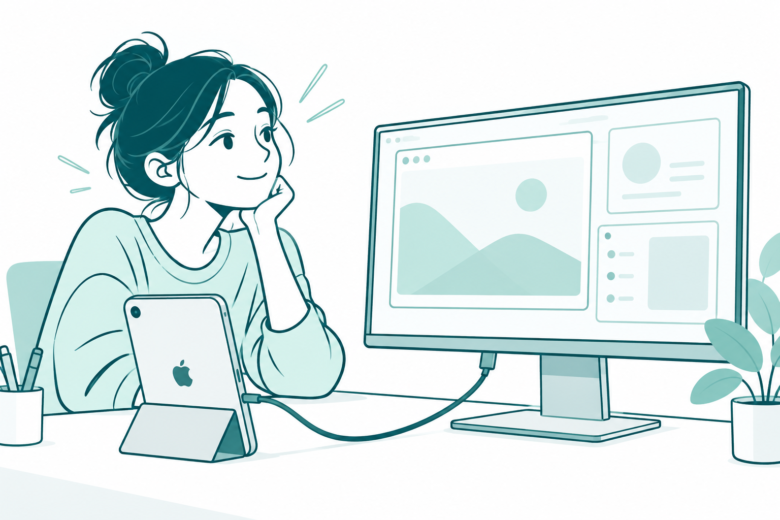
The exact mini changes the answer
Check the model before choosing a display. Apple lists A20 Pro mini for an extended workspace. Older USB-C minis have different limits. Verify the cable, app behavior, audio and input.
Key Takeaways
- An iPad mini external monitor setup depends on the exact model, cable and screen. A USB-C socket alone does not answer every question.
- Apple lists the A20 Pro mini for an extended workspace in its current iPadOS 27 guide. That is a change from the older minis covered here.
- Apple’s specs list one external display up to 4K at 60Hz for A20 Pro and A17 Pro. The sixth-generation mini lists up to 4K at 30Hz.
- Mirroring, an app’s second-screen view and an extended desktop are different results. Test the one you need before buying accessories.
An iPad mini external monitor can give a small tablet a more useful desk setup. But first, identify the mini. The current A20 Pro model and older USB-C minis do not offer the same workspace options.
Apple’s current iPadOS 27 guide lists models for extended displays. They include the mini with A20 Pro. Its separate model specs also set output limits. Read both before choosing a cable or assuming that a large screen will act like a second desktop.
This guide checks Apple’s current pages on October 27, 2026. It covers A20 Pro, A17 Pro and sixth-generation USB-C minis. For an older Lightning mini, use its matching model and adapter guide. The steps below cover USB-C minis.
Identify Your iPad Mini and iPadOS Version
First, open Settings, General, About. Record the model name and iPadOS version. Use Apple’s model guide to check the name or physical model number.
Do not use case size as the only clue. Several minis can look similar in a photo. A seller may say only “USB-C iPad mini.” That leaves out the model detail that controls the workspace choice.
Keep the exact model with your accessory search. If you ask a shop about a cable, say which mini and which display you have. That is more useful than asking whether a USB-C cable works with iPad.
Also, separate a software feature from a physical output limit. A system update can change the controls available to a supported model. It does not mean that every mini gains the same hardware or display support.
Before changing the setup, note what you want to do. Showing slides and watching a video are different goals. Moving separate app windows is another task. A clear goal makes the compatibility check much faster.
Compare the Three USB-C Mini Models
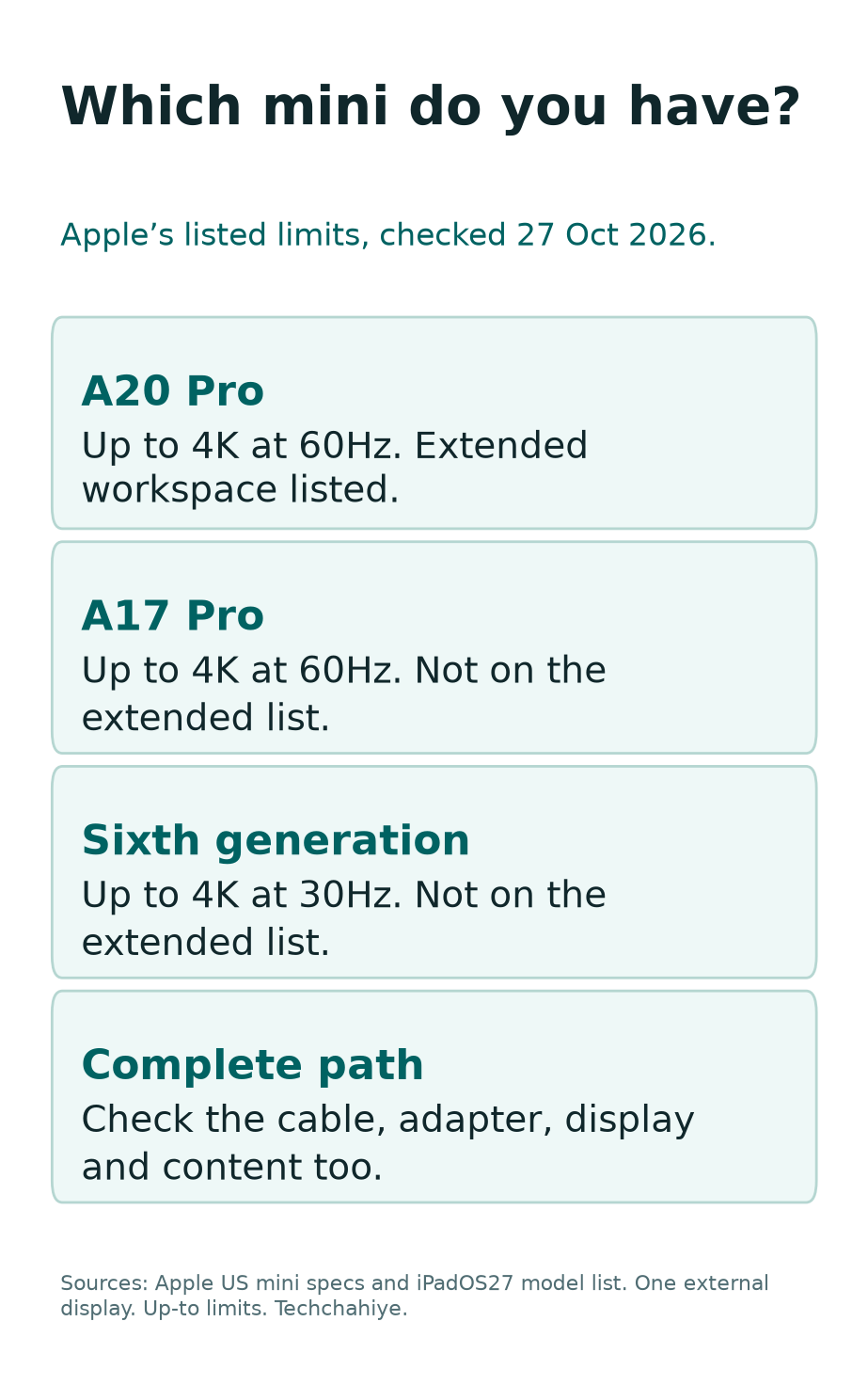
The table follows Apple’s model specifications and current external-workspace guidance. These limits come from Apple. They are not Techchahiye hardware-test results.
| iPad mini model | External output in Apple’s specs | Extended workspace in the current iPadOS 27 model list |
|---|---|---|
| iPad mini with A20 Pro | One display, up to 4K at 60Hz | Listed |
| iPad mini with A17 Pro | One display, up to 4K at 60Hz | Not listed |
| iPad mini, sixth generation | One display, up to 4K at 30Hz | Not listed |
The A20 Pro row uses Apple’s current US iPad mini specifications. The older rows use the named support specification pages. That keeps a changing store page from overwriting the details of an older device.
Read “up to” as a limit with conditions. The actual connection also depends on the display, cable, adapter and content. A 4K label on one part does not prove that the complete path will run at its top listed rate.
Do not assume that a dock adds more displays than the tablet supports. First, confirm the mini’s one-display limit and the dock’s own iPad support. A dock made for a laptop may offer functions the tablet cannot use in the same way.
Mirroring, Second-Screen Apps and an Extended Workspace
Apple describes three possible display experiences. Mirroring shows the same content as the built-in screen. A compatible app can provide a separate second-screen view. Supported iPads can extend the workspace across app windows.
Those modes can look similar when a cable first connects. Open the task you actually need. A mirrored home screen does not by itself prove that you can drag a separate window onto the display.
On the A20 Pro mini, check Apple’s current extended-display guide and model eligibility. For the older minis here, plan around mirroring or app-specific output. Check for any later model-specific support from Apple.
Do not infer extended-display support merely because Stage Manager appears on the tablet. Apple’s Stage Manager page has separate support lists. On-device use and moving windows to a display are different checks. They are different compatibility questions.
For a fictional example, a reader wants notes on the mini and a separate document on the monitor. That goal needs an extended workspace or an app with the right second-screen behavior. Mirroring alone repeats the notes instead of adding the expected space.
Choose the Simplest Connection Path
Start with the display’s actual input ports. A video-capable USB-C input can offer a direct route. An HDMI input needs a suitable USB-C-to-HDMI path. VGA uses a different adapter and has its own limits.
Read the display manual for the specific port. A screen may have several USB sockets with different jobs. A service or hub port is not automatically a video input because the connector fits.
Then check the cable or adapter’s own specifications. Look for support for video from the iPad and the mode you need. Charging support alone does not establish display support.
For a first test, reduce the chain to the essentials. Avoid adding a hub, converter, extension and capture device at once. Each part adds another compatibility question if the screen stays blank.
A useful connection note names the mini, cable, adapter if any, display and selected input. Keep it until the setup works. That list makes a support question concrete. It also helps you avoid buying the same unsuitable part twice.
Connect an iPad Mini to a USB-C Display
Apple’s USB-C guide says iPad uses DisplayPort for USB-C display output. Use a cable that supports the needed video connection. For a high-resolution screen, check the cable’s bandwidth. Read Apple’s guide and the display maker’s advice.
Connect the tablet to the display’s video-capable USB-C input. Supply power to the display as its manual directs. Then select that input if the screen does not switch automatically.
A charging symbol is only one result. It can show that power reaches the mini while leaving the video question unresolved. Test the actual screen output before calling the setup complete.
Some USB-C displays can also charge the iPad. Check that feature on the specific screen. A video connection may not include it. Keep power and picture checks separate if only one works.
If the picture appears, try the task you chose at the start. Confirm the expected mirror, app view or extended workspace. Then check text size and audio so the setup is useful, not merely connected.
Connect Through HDMI Without Assuming the Top Mode
For an HDMI display, use an adapter that supports video from the mini. Apple’s cable guide explains the route. Connect the adapter, HDMI cable and display. Then select the matching input.
Check the whole path before expecting 4K at a particular refresh rate. The mini’s limit, adapter’s output and display’s supported input mode must fit. One high-spec part does not raise a lower limit elsewhere.
Apple’s USB-C guide has an extra detail for its Digital AV Multiport Adapter. Home Screen and apps can appear at 1080p and 60Hz. Video can switch to match content within supported limits. Do not mistake that difference for proof that the tablet’s specification is false.
Read the guide’s Match Content note if that adapter is your route. Keep the device and content limits in view. Changing an output option does not turn a sixth-generation mini into the A17 Pro or A20 Pro model.
If the display reports a lower mode, record it and the exact adapter model. Compare the adapter’s documentation before replacing the tablet. A product’s broad “4K” label may leave the refresh rate and use case unclear.
Set Up the A20 Pro Mini’s Extended Workspace
Apple lists A20 Pro mini for extended displays in its iPadOS 27 guide. Once the display connection works, check the guide’s window controls. Use them to move a task across screens.
Apple describes dragging a window by its top edge with the pointer. It also offers window controls and a menu-bar route. The menu path uses the app’s name, Window, then Move to Display.
Start with one app and confirm where it opens. Then try the second task you want on the tablet. That simple check proves more than a general statement that the monitor “works.”
Check your input setup too. If you plan to use a pointer, verify that it controls the intended windows. Arrange the tablet and screen so the movement makes sense in your working position.
The current guide can change with software. If the command differs on your device, use the guide for its installed version. Do not apply a menu screenshot from an older iPadOS release without checking it.
Older Minis Can Still Be Useful on a Larger Screen
The A17 Pro and sixth-generation minis still have external output in Apple’s specs. They lack listed extended-workspace support. But other wired display tasks can still work.
Mirroring can suit a demonstration or a shared document. An app-specific second-screen view may suit a presentation or video. Check the app’s own behavior. Not every app creates a separate workspace.
For a fictional classroom setup, the teacher may only need the audience to see one page. Mirroring can meet that goal. A private-notes-and-slides workflow needs a separate check of the presentation app’s output.
Test before relying on the setup for an event. Open the real document, move through its pages and check whether the audience can read it. A visible home screen is not a full rehearsal.
Do you need independent app windows? Compare the supported model list before buying more adapters. A new cable may fix a video link, but it does not add a model-specific multitasking feature.
If the Display Stays Blank
Begin with power and the selected video input. Then check the cable and adapter path. Apple suggests reconnecting the iPad and display. If needed, reconnect the display’s power too.
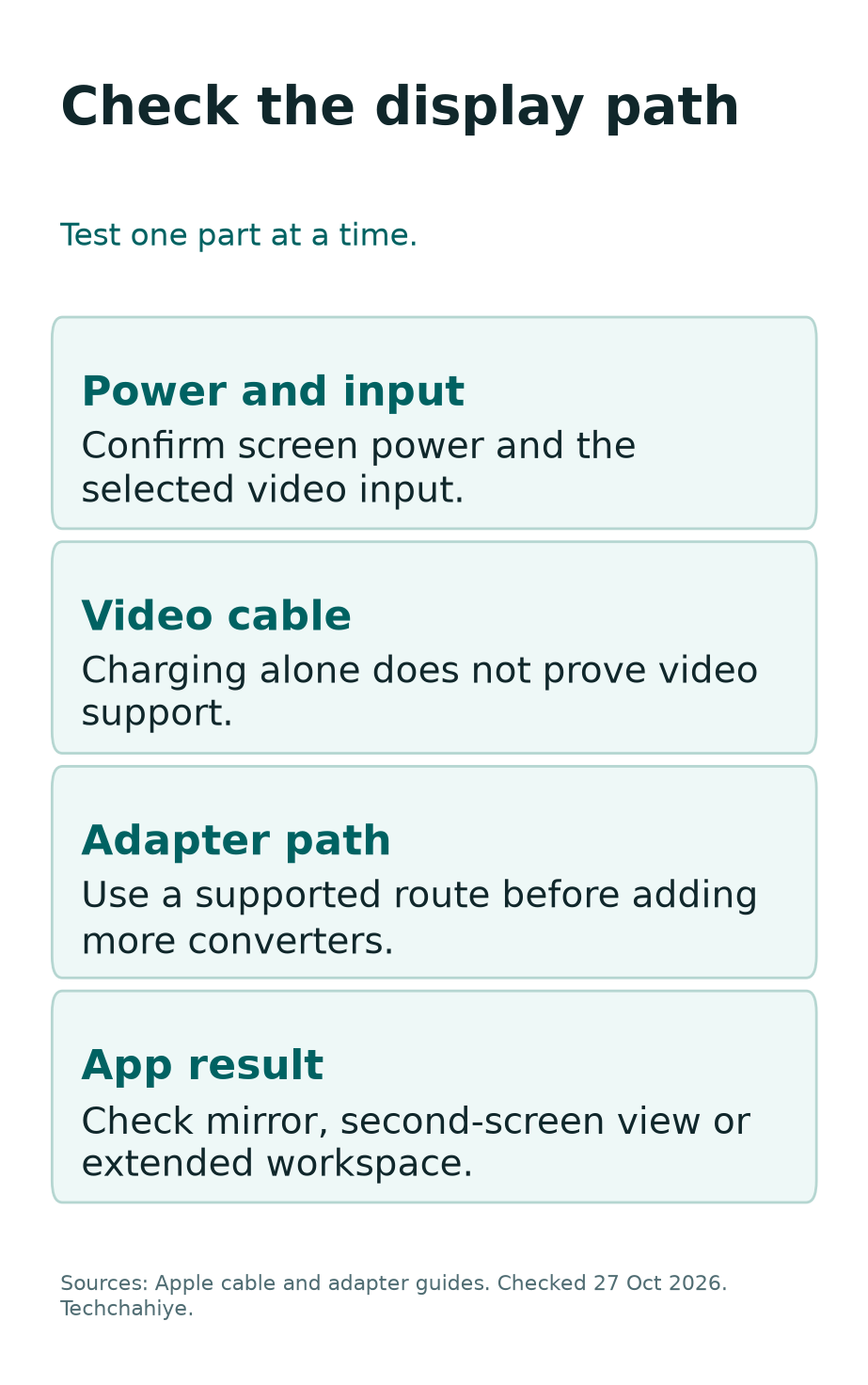
Work through one change at a time. If a direct route works but the hub route fails, keep that result. It narrows the question to the added path without proving which part inside the hub caused it.
Try a known-working cable or input only when you can identify what it supports. A second cable needs known video support to make a useful comparison.
Also, distinguish a blank display from a picture that appears only in some apps. The first can involve the basic connection. The second may involve the app or content. Keep those observations separate in your support note.
If the screen still fails, provide the full component list and exact result to the maker or Apple. Avoid unknown drivers or profiles that promise to unlock a display mode.
If the Desktop Shows but a Video Does Not
Apple’s adapter help notes that an app may not support a given adapter. It also explains HDCP. Some films, shows and streaming apps need that content protection.
If an HDCP alert appears, check the supported connection path. Do not treat it as a general iPad failure or try to bypass the protection. Use a compatible display route and the service’s own help.
Test ordinary on-device content to separate the basic picture from protected playback. Keep the test result limited to that content. Showing a photo does not prove support for every streaming service.
For an app-specific problem, check the app’s current support information and version. Tell its developer which adapter and screen you use. That is more useful than a broad report that all external video has failed.
Avoid buying a second screen based on one unexplained playback error. First identify whether the issue follows the connection, app or specific protected content. That order can prevent an unnecessary expense.
Check Audio as a Separate Part of the Setup
A visible picture does not guarantee the intended sound route. Check whether the display has speakers and check their controls. Then review which output the tablet or app uses.
Apple’s adapter guide says VGA does not carry audio. If VGA is your path, plan a separate supported audio connection. Replacing the VGA cable alone will not add HDMI-style sound transport.
For HDMI, review the adapter and app’s audio support. Also check any Bluetooth headphones or speaker you left connected. The sound may use a different route from the one you expected.
Test with content you know includes audio. Keep the volume at a comfortable level. A silent slide deck is not a useful speaker test, and a muted clip can make a working connection seem faulty.
For calls or meetings, check the microphone separately too. Sending video to a display does not establish microphone support. Check the tablet’s actual input. Verify the call setup before the meeting begins.
Make the Workspace Comfortable and Private
Once the connection works, review readability at your normal distance. A larger screen is useful only if you can read the content. Check the app’s text and layout controls before stretching an image across the panel.
For shared displays, decide what the audience should see. Mirroring can reveal the same apps and screens you open on the tablet. Close private content and test the presentation path before sharing it.
If a picture does not fill the screen, check the content’s shape and display controls. Stretching may change proportions. Choose a readable result. Edge-to-edge output is not always the correct result.
Keep the tablet supported on the desk so the cable does not pull on its port. Leave room for input devices and any charging cable. Check comfort for a long session too. A brief connection test may miss an awkward setup.
Finally, test the complete task again after arranging the desk. Check picture, input, audio and charging where needed. That is a practical stopping point for setup.
Did You Know?
Using an iPad as a second screen for a Mac is a different direction of work. Apple calls that Sidecar. It extends or mirrors the Mac onto the iPad; it is not the same as sending the mini’s own apps to a monitor.
A Checklist Before Buying a Cable or Dock
Write down the exact mini, iPadOS version and desired screen behavior. Add the display model and input. Those five details should guide the accessory choice.
Then check the adapter’s supported video mode and iPad compatibility. Include power pass-through if you need it. Ask about the exact combination. A general laptop label may not answer the iPad question.
If you can test existing equipment, do that first. Confirm the result with your real app. If you buy later, keep the source specifications and the seller’s return terms with the order.
There is no need to buy a more complex dock than the task needs. Choose based on a verified connection and workflow. A longer feature list does not guarantee more supported iPad display functions.
A simple display setup note
Record the mini model, iPadOS version and desired screen behavior. Add the display, input, cable and adapter. Check video, audio, input control and charging as separate results.
Conclusion
Start an iPad mini external monitor setup with the model and the task. Check Apple’s listed output limit and whether that mini supports an extended workspace. Then choose a compatible cable path and verify the actual result.
The A20 Pro mini changes the workspace answer in Apple’s current guide. Older minis still serve useful display tasks, but their limits differ. Test picture, app behavior, sound and input before relying on the setup.
FAQs
Can the iPad mini extend its desktop to a monitor?
Apple’s current iPadOS 27 model list includes the A20 Pro mini. It does not list the A17 Pro or sixth-generation mini for that feature. Check the exact model and installed software before planning independent app windows.
Do all USB-C minis support 4K at 60Hz?
No. Apple lists A20 Pro and A17 Pro up to 4K at 60Hz. Its sixth-generation specs list up to 4K at 30Hz. The actual connection also depends on the cable, adapter, display and content.
Why does my USB-C cable charge but show no picture?
Charging alone does not prove video support. Check the cable’s video capability and the display’s input port. Then test a direct supported connection before adding a hub or converter.
Why is there no sound through VGA?
Apple says VGA does not carry audio. Use a separate supported audio route or a suitable digital video-and-audio connection. Check the display’s speakers and the app’s output as well.
Is Sidecar the same as connecting a monitor to iPad mini?
No. Sidecar uses the iPad as a display for a Mac. A monitor connected to the mini receives output from the tablet. Decide which device should run the task before choosing the setup.
References
- Apple: Current iPad mini US technical specifications
- Apple: iPad mini A17 Pro specifications
- Apple: iPad mini sixth-generation specifications
- Apple: Identify an iPad model
- Apple: USB-C charging and display connections
- Apple iPadOS 27 guide: Connect a display with a cable
- Apple iPadOS 27 guide: Move an app to an external display and compatible models
- Apple: Stage Manager model distinctions
- Apple: Digital AV adapter help
- Apple: Sidecar uses an iPad as a display for a Mac
- Techchahiye: Android and iPhone guide
