

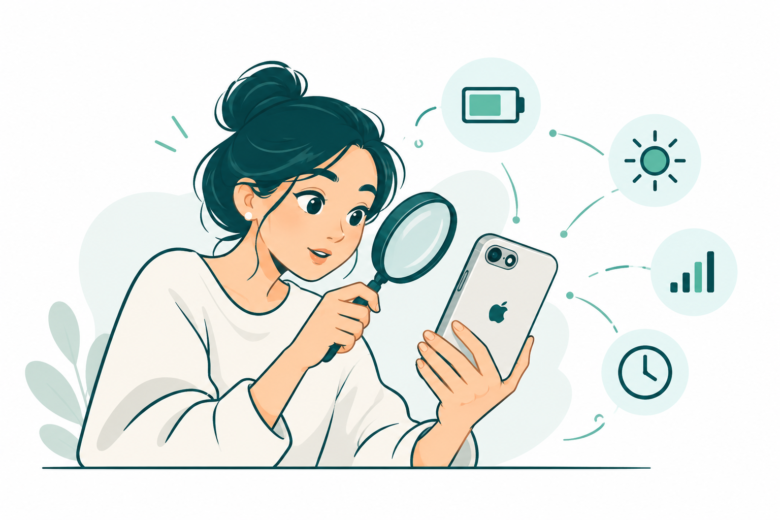
Find a pattern before changing everything
Compare the same time window. Review app activity, update work, display use and signal conditions. Use power modes for daily needs and Battery Health for a separate wear check.
Key Takeaways
- Start an iPhone battery drain check in Settings, Battery. Compare the same period and review the app activity behind it.
- A large app share does not, on its own, prove a fault. Screen time, background work and signal conditions matter.
- Apple says some update tasks continue in the background. Check the displayed Insight and review again after a few days.
- Low Power Mode can help you get through the day. Battery Health answers a different question about wear and service.
iPhone battery drain is easier to investigate when you start with the phone’s own record. Open Settings, then Battery. Choose the period you want to review. Look at the activity behind the drop before changing a long list of settings.
A day of navigation, a recent update and a worn battery can all shorten time between charges. They need different responses. The aim is to find a useful pattern and change the setting that fits it.
This guide uses Apple’s current US support and user-guide pages, checked on October 27, 2026. Some charts and controls depend on the model and iOS version. Follow the labels on your phone rather than assume every screenshot must match.
Start an iPhone Battery Drain Check With a Baseline
First, record when you charged the phone and when you noticed the problem. Add what you used it for. “It fell quickly during a video call” is more useful than “the battery is bad.”
Then note the model and iOS version. Keep those details with your observations. Does the phone lack a suggested switch? Check whether the advice fits the model before searching further.
Choose a period that includes the drain you mean to investigate. A morning-only chart cannot explain an evening event. Also, a day with heavy travel may not make a fair comparison with a quiet day at home.
Use a small private note rather than a complicated log. Note the start and end charge and the time window. Add major activities and any Battery Insight. Add details only when they help answer a question.
Do not erase the phone to create this baseline. You want the current record before a large change. That record can also help support review the issue later.
Read the Battery Usage Chart in the Right Period
Apple’s battery-usage page shows the last full charge and disconnection time. It also offers View All Battery Usage. Use that view to choose the day that matches your concern.
The current Daily Usage view compares today’s use with recent days. Apple’s guide distinguishes similar, lower and higher use. That comparison is a prompt to look closer, rather than a diagnosis of one bad app.
Check the selected date before reading the app list below it. If you tap another day, the list can answer a different question. Keep the chart and app details on the same period when taking notes.
A fictional example makes the issue clear. A reader sees a high-use message on a day with a long camera session. Comparing it with a day of short calls may show a difference in workload, not a new hardware failure.
Look for a repeatable pattern. Does the drop occur during a specific task, while idle or after a change? Those questions guide the next check. One striking screenshot rarely answers all three.
What an App’s Battery Percentage Does and Does Not Mean
Apple describes the app list as the proportion of battery use tied to apps and system work. Read it alongside the selected period and activity. A top-ranked app is a starting point for review.
Do not treat its share as proof of waste. The app you used most may account for the largest part of the recorded use. Decide whether that activity matches what you intended to do.
Also, keep the denominator clear. A share of battery use and a change in the phone’s charge level are different measures. Do not subtract one from the other or call them the same percentage.
For example, imagine a fictional list in which one app leads the others. Check its use time and the selected window too. A ranking alone cannot predict the phone’s runtime. It cannot identify a faulty battery either.
Open the app’s details and look for context. Was it visible for a long session? Was it active in the background? A label can help you form a testable explanation instead of deleting the app on rank alone.
Separate Screen Time From Background Activity
Apple’s user guide lists On Screen and Background as distinct activity types. Background work can include music, directions, photo sync and mail. Some of that work may be exactly what you wanted.
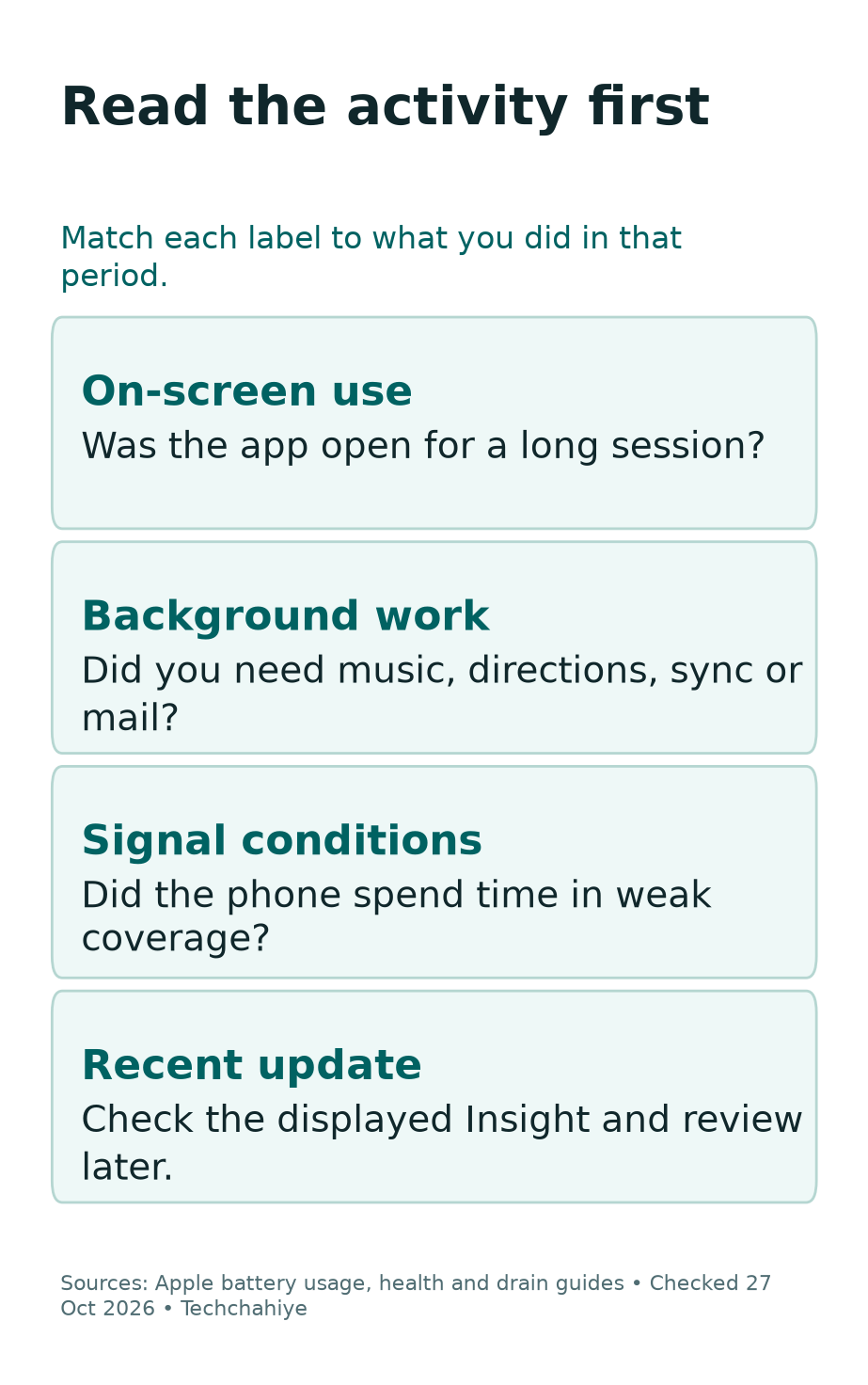
First, compare the task with your memory of the period. If you listened to music with the screen off, background time can fit normal use. If the activity surprises you, review that app more closely.
Then check which function you need. A navigation app may need location while a route runs. A mail app may check messages. The right choice depends on the task, rather than a rule to disable all background work.
Change one relevant setting at a time. Note what you changed and what feature it affects. That makes it easier to judge the result and restore a feature if the cost outweighs the benefit.
Avoid calling every background entry a hidden process or security problem. The chart describes use. If you suspect an account or security issue, review its own evidence. Use the app’s official help for that task.
Check Battery Insights After an Update
Apple says update tasks can continue after the phone becomes usable. They can affect energy use and warmth for a while. The Battery screen may show an Ongoing iOS Update Insight during that work.
If the timing fits, record the Insight and when you updated. Apple advises waiting a few days and checking again. That is more specific than assuming every new release permanently reduces battery life.
Keep normal use in view during the comparison. A day spent restoring files and reinstalling apps can differ from a settled day. Try to compare similar tasks once the setup or update work ends.
However, do not turn a waiting period into an answer for every symptom. A temperature warning or repeated shutdown needs its own guidance. Record the exact behavior instead of grouping it all under post-update drain.
Our iPhone update-stuck guide covers the installation itself. Use that separate guide if the phone cannot finish updating or reach its normal screen. A completed update with higher battery use is a different troubleshooting question.
Review the Display Without Making It Hard to Use
Apple’s battery guidance recommends a comfortable lower brightness or Auto-Brightness. Its Battery screen may also suggest brightness or Auto-Lock changes. Review the suggestion that your phone actually shows.
To change brightness by hand, use the brightness control in Control Center. Choose a level you can read. A screen too dim for your task is not a useful fix merely because it uses less energy.
To use Auto-Brightness, open Settings, then Accessibility. Choose Display & Text Size, then Auto-Brightness. Check how it behaves in your usual light. Do not assume a single setting will produce a fixed number of extra hours.
Review Auto-Lock too if the display stays on while the phone sits unused. Choose a timeout that fits your work. A recipe, an accessibility need and a quick message can call for different choices.
After a change, use the phone normally and review the same sort of period. Indoor reading and outdoor video recording are different tasks. Comparing them does not make a controlled battery test.
Signal Conditions Can Change the Picture
Apple’s user guide includes a Cellular Coverage activity label. Low signal can affect energy use. Did the phone struggle to connect during that period? Note the route, building or location.
If possible, compare use in a place with a stronger signal. Use a trusted Wi-Fi connection when it fits the task. Check whether the connection explains part of the pattern. You may not need to keep a radio off.
Airplane Mode changes reachability. Before using it without coverage, check the effect on cellular calls and messages. Do not switch it on blindly when you need to remain reachable.
Also, separate signal issues from app time. A long online task in weak coverage can involve both. Record both conditions rather than decide that the app or carrier must be the only cause.
For a fictional commute, note the route and task before comparing two days. If the route, signal and use all change, the result cannot isolate one cause. A simple honest comparison is better than a precise-looking claim without a fair test.
Use Low Power Mode for the Immediate Need
Low Power Mode reduces energy use by limiting some features. Apple’s current instructions differ by model. On iPhone 15 and later, open Settings, Battery, Power Mode. On iPhone 14 and earlier, the switch is under Battery.
The battery icon turns yellow when the mode is active. Apple says it turns off after charging reaches 80 percent or higher. Check the mode again before comparing two periods, because their settings may differ.
Some background functions change in this mode. For example, it affects mail fetch and automatic downloads. Photo sync can pause too. A pause in one of those tasks may be part of the mode’s tradeoff.
Use it when conserving the remaining charge matters more than full background activity. Then review any task that needs to resume later. A useful power choice should fit what you need the phone to do.
Do not treat longer runtime in Low Power Mode as proof that the battery needs service. You changed how the phone works. That result can help with daily use, but it does not measure the battery’s physical condition.
Check Whether Adaptive Power Fits Your Phone
Apple offers Adaptive Power on supported models and software. It can adjust performance when use is higher than usual. Check the current model list and the controls available on your device.
Do not infer support from the name of another power feature. Low Power Mode and Adaptive Power are separate controls. If one appears and the other does not, verify support before trying to find a hidden option.
The current user guide places Adaptive Power under Settings, Battery, Power Mode. Read the on-device description and choose whether the tradeoff suits you. Keep its state in your comparison note.
If you use it, judge the phone by the tasks you need to finish. Check whether the mode meets those needs while helping conserve charge. Avoid claiming a fixed gain without a test that can support it.
For diagnosis, record the setting. Keep it steady during the observation window. Changing several controls at once makes the result harder to explain.
Read Battery Health as a Separate Check
Battery Health describes a different part of the problem from today’s app activity. Apple explains that rechargeable batteries wear with chemical age. Capacity and peak power can decline over time.
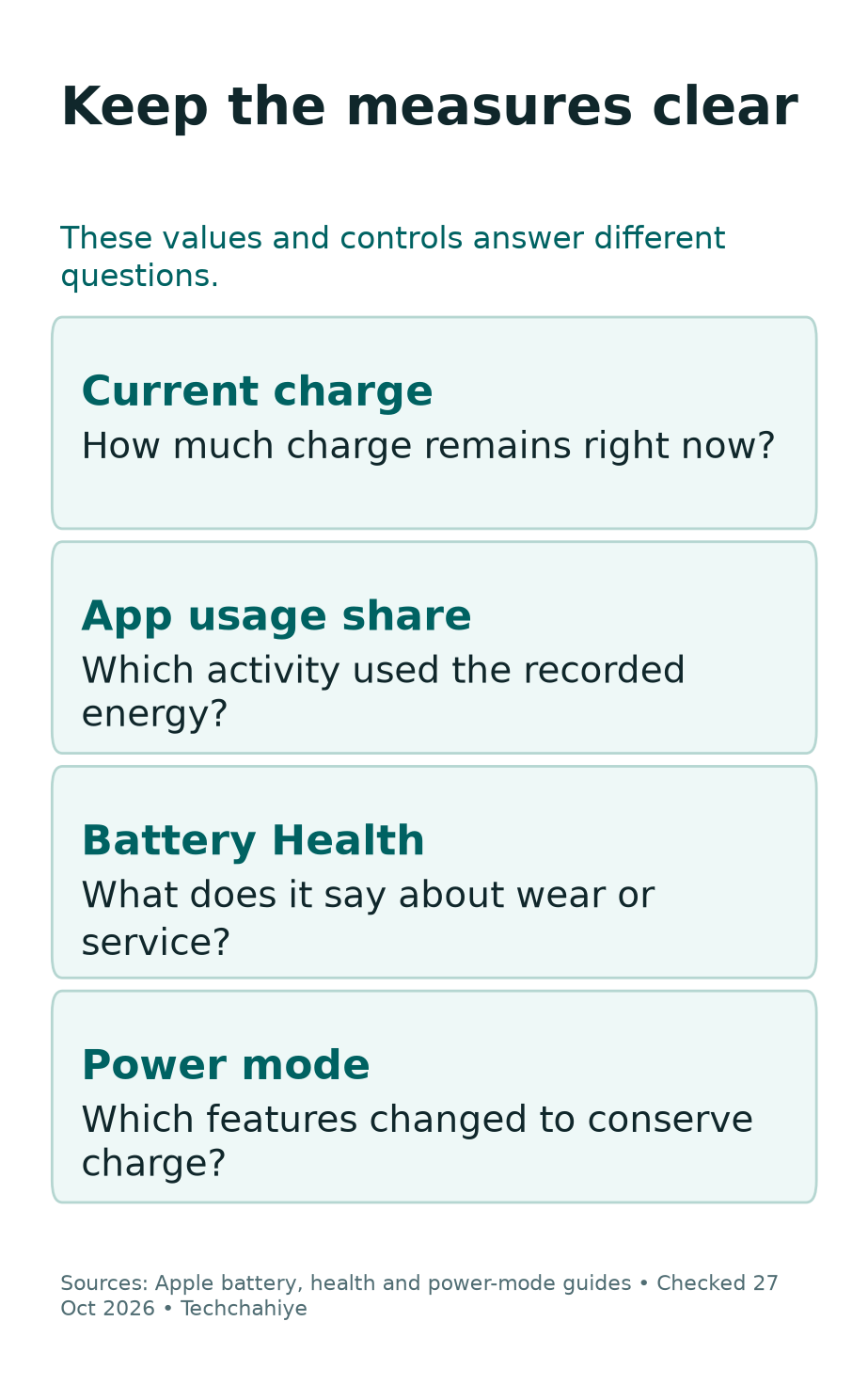
On iPhone 15 and later, open Settings, Battery, then Battery Health. On iPhone 14 and earlier, it uses Battery Health & Charging. Read the status and any service guidance shown there.
A charge-level percentage and battery capacity are not the same value. One describes the current charge. The other relates capacity to the battery when new. Keep those labels distinct in any support note.
Do not make a replacement decision from an app’s usage share. Similarly, a capacity reading may not explain one unusual afternoon. Review wear and current workload as separate pieces of evidence.
If the phone shows a service recommendation, follow its service route. Apple points readers to Apple or an authorized provider for battery work. Back up important data before service and ask what the visit requires.
Heat and Charging Need Their Own Checks
Apple’s temperature guide gives an operating ambient range of 32–95°F, or 0–35°C. Hot or cold conditions can change behavior. A charging pause is not automatically a faulty charger or a failed battery.
Check the message. Charging On Hold and a temperature-warning screen describe specific states. Follow the matching guidance. Reconnecting a cable does not resolve a hot environment.
For a temperature warning, Apple says to turn the device off. Move it away from direct sun to a cooler place. Then let it cool. Do not continue a heavy task while ignoring that warning.
Also, distinguish charge received from energy used. A phone that did not charge as expected can start the day lower. That may feel like faster drain. But the first problem happened during charging.
Record the charger, starting level and any hold message if charging is part of the issue. Avoid adding several new accessories at once. You want to know which result changed before deciding what to replace.
Run a Small, Fair Comparison
Choose one clear question for the next observation. For example: does a comfortable brightness change help during the same reading task? Keep the task, location and period as similar as practical.
Record the starting charge, ending charge and elapsed time. Note whether the phone was charging during any part of the period. Keep major calls, camera use and navigation in the note too.
Then change only the setting you meant to test. Keep other major factors steady. Changing the network, system version and game use adds too many variables.
This is a personal comparison, not a laboratory benchmark. A single result can suggest what to review next. It cannot prove a universal runtime gain for every iPhone or every user.
If the pattern improves, decide whether the tradeoff is worth keeping. If it does not, decide whether to restore the setting. Then test the next explanation that fits the evidence. Keep the process small enough that you can understand the result.
A private battery comparison note
Record the time window and start and end charge. Note the task, signal and charging periods. Add the one setting changed and the result. This is a personal comparison, not a benchmark.
Did You Know?
Battery life and battery lifespan mean different things. Apple uses battery life for time between charges. Lifespan describes the period before the battery needs replacement. A power-saving setting and a service decision answer different questions.
When to Stop Tweaking and Ask for Help
Ask for support if the problem persists after a clear review. Also follow any Battery Health service advice. Repeated shutdowns or a temperature warning also deserve their own attention. Do not keep stacking unrelated settings changes.
Prepare a concise note. Include the model, iOS version and chart period. Add the main activities, health status and exact messages. Add one or two changes you tested and their results.
Keep screenshots private if they reveal app habits or account details. Share needed records through the provider’s proper support route. Never put passwords or sign-in codes into a public battery discussion.
A useful stopping point is a working explanation or a clear support question. You do not need to disable every feature to call the review complete. The goal is a phone that meets your needs with understandable power use.
Conclusion
Start iPhone battery drain checks with the Battery screen and a fair time window. Review app activity and recent update work. Check display use and connection conditions too. Then choose a change.
Use Low Power Mode for the immediate need. Review Battery Health for wear and service. Then compare the result honestly. A small check tied to evidence is easier to trust than a long list of blanket fixes.
FAQs
Why does my iPhone use more battery after an update?
Apple says some update tasks continue in the background. Check for an Ongoing iOS Update Insight and review again after a few days. That explanation does not replace help for a temperature warning or repeated shutdowns.
Does the top app in Battery prove it has a bug?
No. Read its share alongside the period and activity. An app used for a long session can lead the list without a fault. Check whether the recorded use matches your task.
Does Low Power Mode repair battery wear?
No. It changes power use by limiting some features. Battery Health and service guidance address a different question about the battery’s condition. Keep those decisions separate.
Should I turn off Wi-Fi and Bluetooth all day?
Apple says they draw little power when not connected. It recommends leaving them on for the best experience. Review your actual use and signal conditions first. Keep the connections that you need.
What should I save before contacting support?
Keep the model, iOS version, chart period, main activities and exact messages. Add Battery Health status and the result of any specific change you tested. Leave passwords and sign-in codes out of public notes.
References
- Apple: Battery drains too quickly
- Apple: Check battery usage
- Apple user guide: Understand battery usage and health
- Apple: Low Power Mode
- Apple user guide: Power Modes
- Apple: Battery and performance
- Apple: Charge and maintain your battery
- Apple: Temperature guidance
- Apple: Maximize battery life and lifespan
- Techchahiye: iPhone update stuck
- Techchahiye: Android and iPhone guide
