

Check the screen before changing the phone
Separate a slow download, a progress bar and the recovery screen. Use the model’s current Apple guide. Confirm the backup and understand Update versus Restore before an erase.
Key Takeaways
- An iPhone update stuck on a download screen needs a different check from an Apple logo with a progress bar.
- Keep power connected during installation. Apple says a progress bar can advance in small steps or appear still.
- Check backup status before recovery work. Update and Restore are different choices; Restore erases the phone.
- Use the exact model’s button sequence and current Apple instructions. Keep any error code for support.
An iPhone update stuck on one screen can make a reset feel urgent. First, identify the screen. Are you still in Settings? Is the phone installing software? Does it show a cable and computer? That answer determines the next useful step.
Apple’s current support pages separate these states. A slow bar does not by itself prove a failed install. A download problem does not by itself call for an erase. This guide helps you choose a path while keeping your data in view.
The steps here use Apple’s US support guidance checked on October 27, 2026. They do not assume that one named iOS release has a new fault. Use the version your own phone offers and the exact message it shows.
Start With the Screen You Can See
Write down what the phone displays before pressing buttons. A short description is more useful than “the update froze.” Include whether Settings still opens and whether the phone responds to touch.
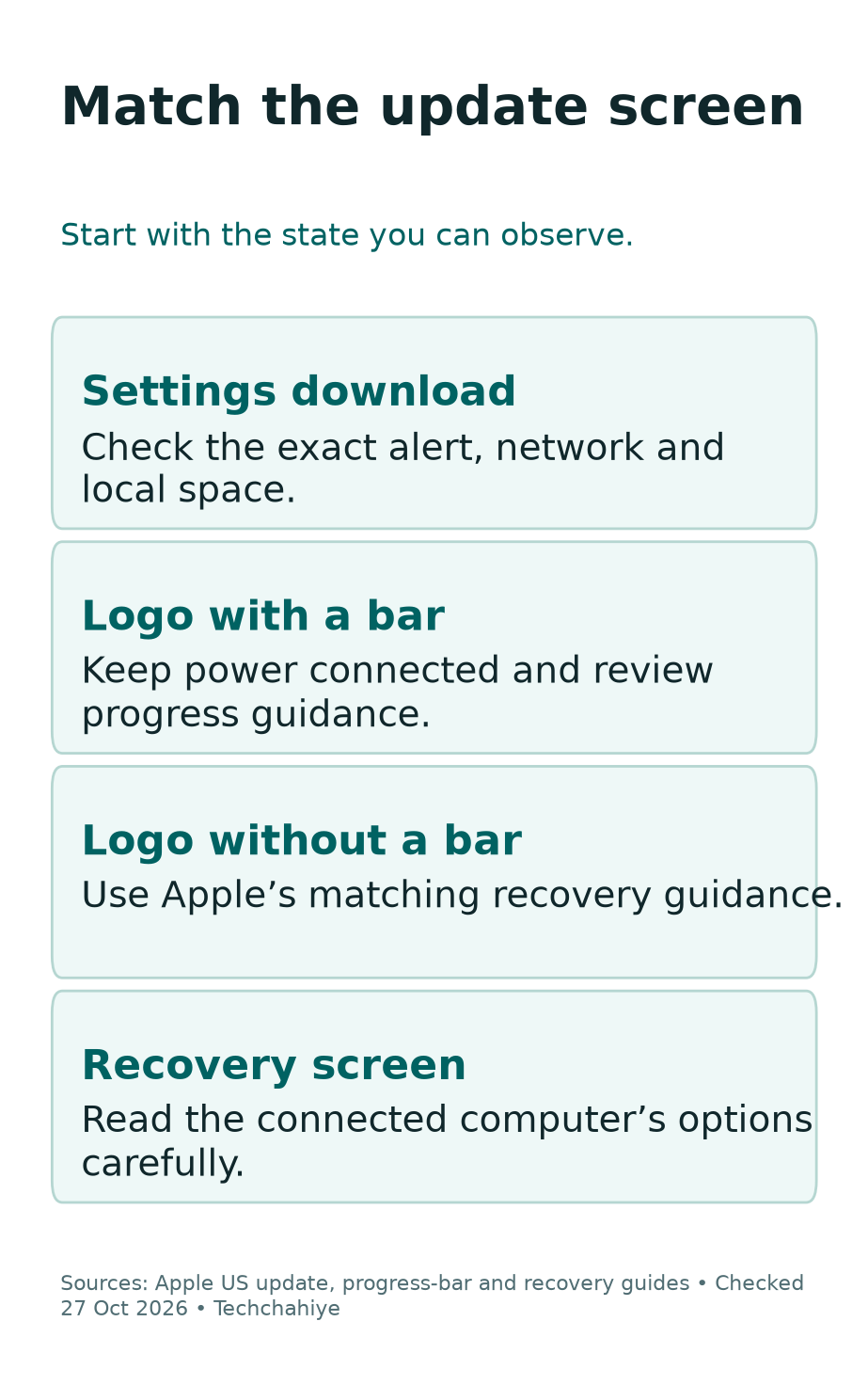
| Current state | First question | Suitable starting point |
|---|---|---|
| Download or preparation in Settings | Can the phone reach the update and use enough local space? | Check the alert, network and storage |
| Apple logo with a progress bar | Is the process still running? | Keep power connected and review progress guidance |
| Apple logo without a progress bar | Does it persist, and can a computer see the phone? | Review Apple’s recovery guidance |
| Connect-to-computer screen | What does the connected computer report? | Follow the current recovery route |
Do not combine these states into one countdown. The screen can change as the process advances. If that happens, note the new state and follow the relevant branch rather than repeat the last step.
For example, a fictional reader sees a slow download while still using Settings. Another sees an Apple logo after a migration. Both may describe an iPhone update stuck. But the first question for each reader is different.
Check Your Backup Before Recovery Work
Apple recommends a backup before an update. Its backup guide offers iCloud, Mac and PC routes. Use a method you can verify. Signing in to an account does not prove that a recent backup exists.
Does the phone still work? Check that the backup finished before a more disruptive step. Check which device the record belongs to. An old phone and a current phone can have similar names in a household.
A backup is a recovery resource, not a reason to erase without checking. Know the date and what you would need to restore it. If you cannot confirm that information, keep the uncertainty in your plan.
If the phone no longer opens Settings, do not claim that you can create a fresh backup from its normal menus. Explain the current screen to Apple Support. Ask about data risk before choosing an erase when important files have no confirmed copy.
For a work or school phone, involve its device manager before recovery changes. They may have a required support route. Keep management settings intact. Do not install an unknown profile to force an update.
Verify the Model and Offered Software
Apple lists device support as one reason a wireless update may not appear. Identify the exact model, then check its current support list. A similar product name or a friend’s newer phone is not a compatibility test.
When Settings works, Apple’s normal route is Settings, General, Software Update. That page shows the installed version and any offered update. Record both when you need help with a missing or failed offer.
Do not install a file merely because a search result names a newer release. Match the phone and use Apple’s own update path. A headline about new software cannot establish that every device can install it.
Also, separate a missing offer from a stalled install. Deleting more files will not make an unsupported model compatible. If it offers the update but shows an error, preserve the error and follow that branch.
A useful note names the model and offered version. Add the error shown in Software Update. That is a description of an observed result. It gives support a firm starting point without guessing the cause.
If the iPhone Update Download Stalls
Apple says update downloads depend on the update size and connection speed. It recommends Wi-Fi and avoiding other downloads. Review those points while the phone still downloads. The install may not have started yet.
Check whether normal internet use works on the same phone. That comparison does not prove every Apple service is reachable. However, it can reveal that the issue affects more than the update screen.
Then note any displayed error. A server-check alert and a storage alert point to different checks. Keep the exact wording. A connection error may need a different check from a space alert.
If another person shares the connection, ask whether a large download is running. You do not need to reset every device on the network as a first move. Start with the smallest relevant check and observe the result.
Finally, keep the phone available long enough to finish the current download. Avoid switching between several networks or restarting repeatedly without checking what changed. Each attempt should answer a clear question, such as whether the same error returns.
Check Local Storage, Not Only Cloud Space
An update needs available room on the phone. Cloud storage and local storage answer different questions. Buying more cloud space is not, by itself, proof that the phone has enough working room for an install.
Use the phone’s own storage view to review large items. Before removing anything, decide whether it has another copy and whether you can get it back. A downloaded film and an original video may have different value to you.
Do not follow a universal free-space number from an old article. The update and device state can differ. Use the current prompt and Apple’s storage guidance for the case in front of you.
If the system offers to remove apps temporarily for the update, read the prompt. Apple’s update guide explains that it can reinstall those apps afterward. That offer is different from choosing to erase the whole phone.
For a fictional example, a reader finds a large offline media download. Removing that replaceable file may fit the task better than deleting family photos. The useful decision is about the file’s value and recovery path, not only its size.
If the Update Cannot Reach the Server
Apple suggests trying the same network again. If the alert returns, try another network or a computer. Follow that sequence when the error fits it. Do not assume that a social post proves a general outage.
If you move networks, use one you trust. Record whether the message changes. Success on the second connection narrows the problem. It does not prove which router or service caused the first failure.
Apple also notes that a VPN or proxy can block contact with update servers. If you use a work connection, ask its administrator about the right route. Avoid disabling managed security controls simply to test an update.
For a personal setup, review the current connection with the service’s own help. Do not install a new certificate, unknown profile or paid “update fix” app on the strength of a download error.
Do two trusted connections give the same result? Move to Apple’s next step instead of testing them all day. Keep the message, model and attempted routes together. That short record helps prevent the next helper from repeating every test.
Remove a Failed Download Only in the Right State
Does Settings still work? Apple provides a way to remove the update package and download it again. This is a package check. It is not the same as interrupting an active installation at the Apple logo.
The route is Settings, General, iPhone Storage. Find the update entry, open it and choose Delete Update. Then return to General, Software Update to download the offered software again.
Do not delete a random large app because its name looks technical. Confirm that the entry is the update package described by Apple. If no such entry appears, do not invent another item to remove.
Afterward, check the fresh attempt’s actual result. Does the same message return? Or does the process reach a new stage? Note the result. That distinction tells you whether repeating the download changed anything useful.
Apple directs readers toward a computer update if the entry is absent or the issue returns. Once that branch fits, prepare the computer route. Repeating the same package removal without a new result adds little information.
If the Apple Logo Has a Progress Bar
Apple says a progress bar can advance in small steps, appear still or restart. The time depends on the operation and files involved. Keep power connected during a wireless update. Review the current progress guidance too.
Pressing a button can reveal an updating message, according to Apple. If that message appears, the process remains underway. A screen that looks unchanged from a distance may still be doing work.
Distinguish an ordinary update from restoring a backup or moving from another phone. Apple’s separate migration guidance has a specific one-hour check. It applies when the bar has not moved for that period during the described restore or migration case.
Do not turn that threshold into a universal install deadline. Record what started the process and whether the bar moved. A photo taken at two times can help you compare position without relying on memory.
If the process never ends, review Apple’s restart or recovery help. Use the same help if the phone stops responding. If a bar persists afterward, service may be needed. A forced restart is a troubleshooting step, not a promise that the update will succeed.
Know What a Restart Changes
A normal restart uses the power-off control. A force restart uses a model-specific button sequence when the phone does not respond. Recovery mode needs a connected computer. Its button sequence has a different endpoint.
These actions can sound similar in a rushed video. Read the exact Apple instructions for the state you have. Do not copy the button timing for another model simply because its screen looks familiar.
If the phone still responds and you plan a normal restart, use the route for that model. If it does not respond, follow the linked frozen-device guidance. Keep those paths separate from entering recovery mode.
Also, identify the outcome you expect before starting. Are you trying to return to a working lock screen? Are you trying to reach the connect-to-computer screen? Knowing that endpoint helps you avoid releasing or holding a button at the wrong stage.
Stop if a required button does not work. Repeating a physical sequence cannot fix that missing input. Apple’s recovery page lists a stuck or broken button as a reason to seek service.
Try a Computer Update Before an Erase
Apple’s Finder guide covers a trusted Mac. Connect the phone, select it in the Finder sidebar, open General and choose Check for Update. Then use Download and Update and follow the prompts.
Check the computer’s own software first. Apple’s current recovery guidance names Finder on Mac and Apple Devices on PC. Older Mac guides may use iTunes. Match the route to your computer.
If the Mac uses the same iPhone’s Personal Hotspot, Apple says to use a different network for the Mac. Otherwise, the iPhone also supplies the Mac’s connection. Prepare that part before beginning the attempt.
Keep the cable connected during the process and read any alert before acting. An error code is useful evidence. Record it and the stage where it appeared. Read the alert before starting again.
A trusted computer update is a change of route, not proof that data loss is impossible. Keep the backup status in mind. Does the computer offer an unexpected erase? Stop and understand that choice before accepting it.
Recovery Mode: Read Update and Restore Carefully
Apple’s recovery guide covers a logo that persists without a bar. It also covers the connect-to-computer screen. For an iPhone 8 or later, its sequence uses quick Volume Up and Volume Down presses. Then hold the side button until the recovery screen appears.
Older models use other button combinations. Read their exact section rather than adapt the newer sequence by guesswork. Keep the phone connected to the computer and watch for the intended screen.
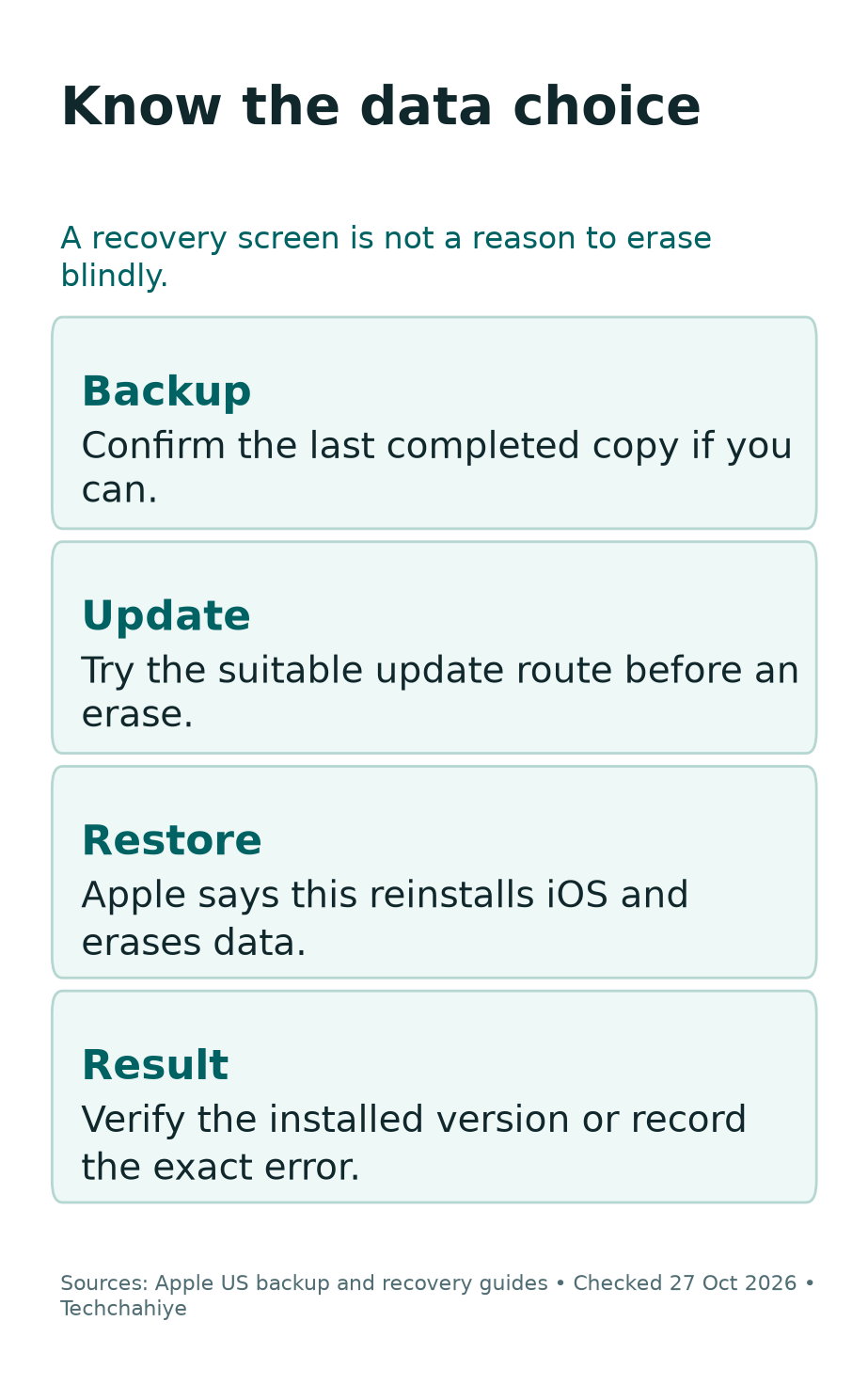
When a computer offers Update and Restore, read the difference. Apple says Restore reinstalls iOS and erases the device. If you have not tried Update, Apple tells you to try that first.
A recovery software download can also take long enough for the phone to leave that screen. Apple addresses downloads over 15 minutes. Let the download finish. Then repeat the relevant connection steps.
Do not turn Restore into a casual final checkbox. Confirm the backup and data implications first. If recovery fails, use Apple’s service route. A broken button may also need service. Avoid unknown repair tools.
Did You Know?
An iPhone progress bar can reach the end and start again during an update or restore. Apple describes that behavior in its progress-bar guide. One full pass is not, by itself, proof that the process has finished.
Verify the Result and Keep a Useful Support Note
Once the phone starts, open Software Update. Check the installed version. Compare it with the version you meant to install. A working home screen alone does not tell you which update attempt succeeded.
Then check the things you rely on: access to your account, needed files and core apps. If a separate issue remains, describe it as that issue. Avoid treating every later app problem as proof that the installation failed.
For support, keep the model and installed and offered versions. Add the current screen, exact alert and backup date. Add which network or computer route you tried and its result. Leave passwords, passcodes and verification codes out of public posts.
If the phone still cannot start, tell support which branch failed. For example, does the computer fail to see the phone? Or does recovery report an error? Keep those results separate. That makes the next decision more precise.
A private update support note
Record the model and installed and offered versions. Add the current screen, exact alert, backup date and last attempted step. Omit passcodes, passwords and verification codes.
Conclusion
For an iPhone update stuck on one screen, start with the state you can observe. Check downloads in Settings. Review active progress. Then prepare a trusted computer route if Apple’s guidance calls for it.
Most importantly, keep Update and Restore separate. Know the backup status before an erase. Use the model’s exact instructions. Then verify the installed version. A clear sequence is more useful than a rapid series of resets.
FAQs
How long should an iPhone update take?
There is no single deadline for every update. Apple says time varies with the update and device files. Its one-hour check covers a bar that stops in a specific restore or migration case. It is not a deadline for every download or install.
Can I delete an update while the phone shows the Apple logo?
Apple’s package-removal route uses the working Settings interface. It is not an instruction to interrupt an active install. Identify the current state. Then use the matching progress or recovery guidance.
Does Restore keep my data?
No. Apple says Restore erases the device while reinstalling iOS. Check the backup and try the suitable Update path first. Seek help before erasing if you have important files with no confirmed copy.
What if the computer download takes more than 15 minutes?
Apple says the phone may leave the recovery screen. Let the software download finish, then repeat the relevant recovery connection steps. Use the exact instructions for the model and current computer app.
Does a stuck update prove my battery is faulty?
No. A stalled update alone does not establish a battery fault. Keep power connected, record the exact screen and follow the relevant update checks. Diagnose any separate power or hardware issue using its own evidence.
References
- Apple: If your iPhone or iPad won’t update
- Apple: Update your iPhone or iPad
- Apple: Progress bar after updating or restoring
- Apple: iPhone freezes on the Apple logo during restore or migration
- Apple: Recovery mode when an update or restore fails
- Apple: Update with Finder
- Apple: Back up an iPhone
- Apple: Restart an iPhone
- Techchahiye: Android and iPhone guide
