

Find the failed stage first
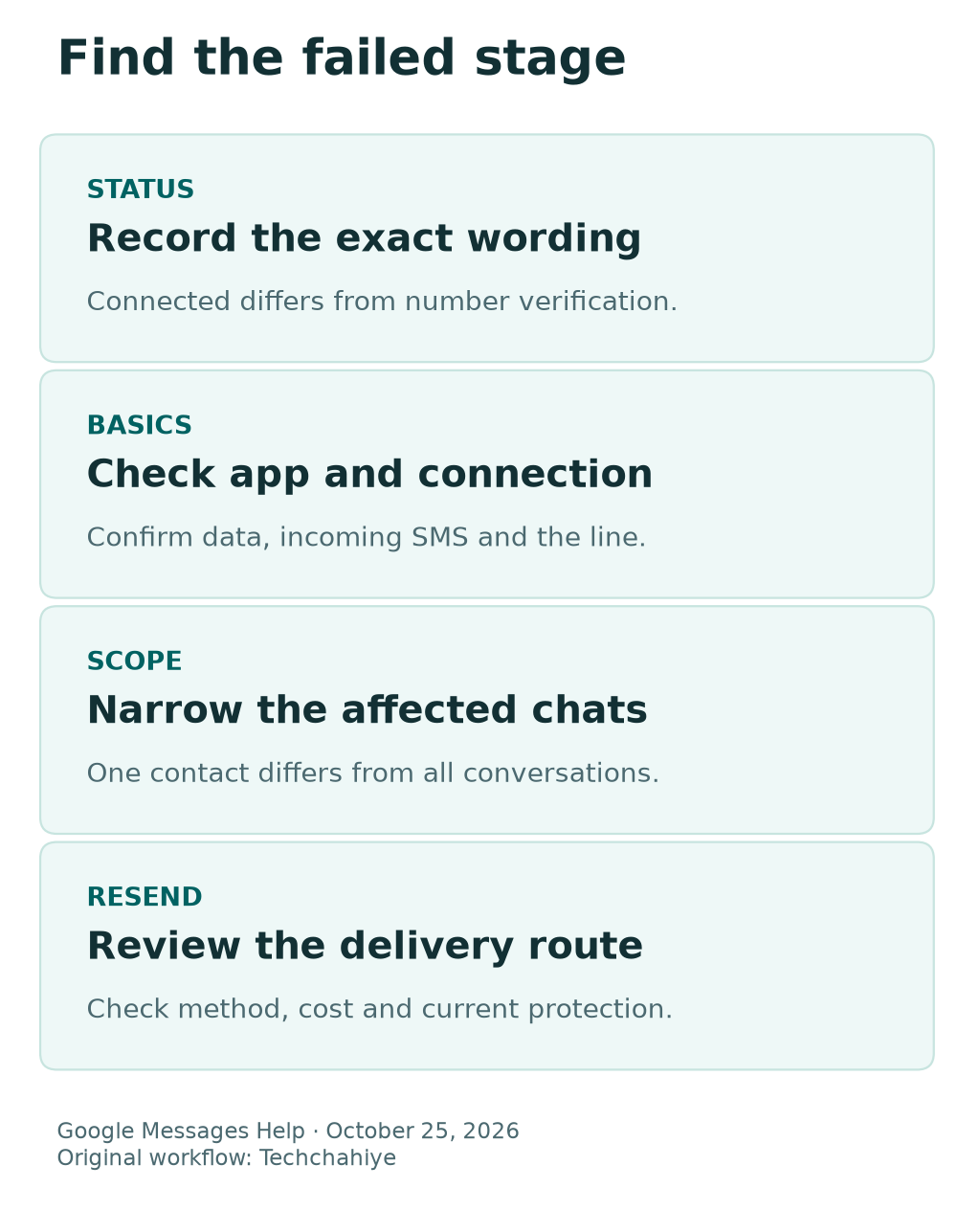
Check the RCS status, app, data and incoming SMS. Separate one-contact failures from wider problems. Review fallback costs and the chat's protection before sending again.
Key Takeaways
- Read the RCS status in Google Messages before changing settings. Connected, Connecting and carrier-disabled states need different checks.
- Check the default messaging app, internet connection and ability to receive SMS. A working browser alone does not prove number verification works.
- One contact failing differs from every chat failing. Narrow the problem before resetting anything.
- Review the delivery method before resending. SMS and MMS differ from RCS in features, charges and encryption.
If RCS is not working in Google Messages, start with the status screen. Open your profile picture or initial, choose Messages settings and then RCS chats. Write down the exact wording before changing a setting.
A missing read receipt is not the same problem as a phone number stuck in verification. Nor does a failed photo to one person prove that all RCS service is down. The most useful first step is to identify which part failed.
This guide follows Google’s current support pages, checked October 25, 2026. It focuses on Android phones using Google Messages. US readers come first. The guide also covers plan and dual-SIM checks for India. It does not claim that every carrier or device supports the same features.
There is also a security detail to check. In May 2026, Google announced encrypted RCS between Android and iPhone. It began a rollout, not instant support for every chat. Some Help wording still describes the older scope. Do not decide a conversation’s protection from its phone brand alone. Check the current chat’s encryption indicator and the supported setup.
Start with the simple checks below. If they fail, build a useful support report. Keep your chats and verification codes private. Do not keep switching RCS off and on.
Read the Google Messages RCS Status Before a Fix
Google’s status page shows whether the service is connected. It also shows when a number is still under review. Start there, rather than guessing from the color of a single message bubble.
| Status or symptom | What it means for your next check | What not to assume |
|---|---|---|
| Connected | Check the specific contact and chat | It does not prove every recipient has RCS |
| Connecting | Number verification is in progress | It is not a delivery receipt for a message |
| Trouble connecting, awaiting retry | Review verification and the time spent in this state | Repeated toggling is not a confirmed fix |
| Carrier-disabled message | Contact the carrier about the stated restriction | A different wallpaper or chat theme cannot resolve it |
| One missing read receipt | Check that chat and receipt settings | It does not prove the whole service failed |
Copy the wording into a private note. Include the time you checked it. “Connecting at 10:15” gives a support agent more to work with than “Messages is broken.”
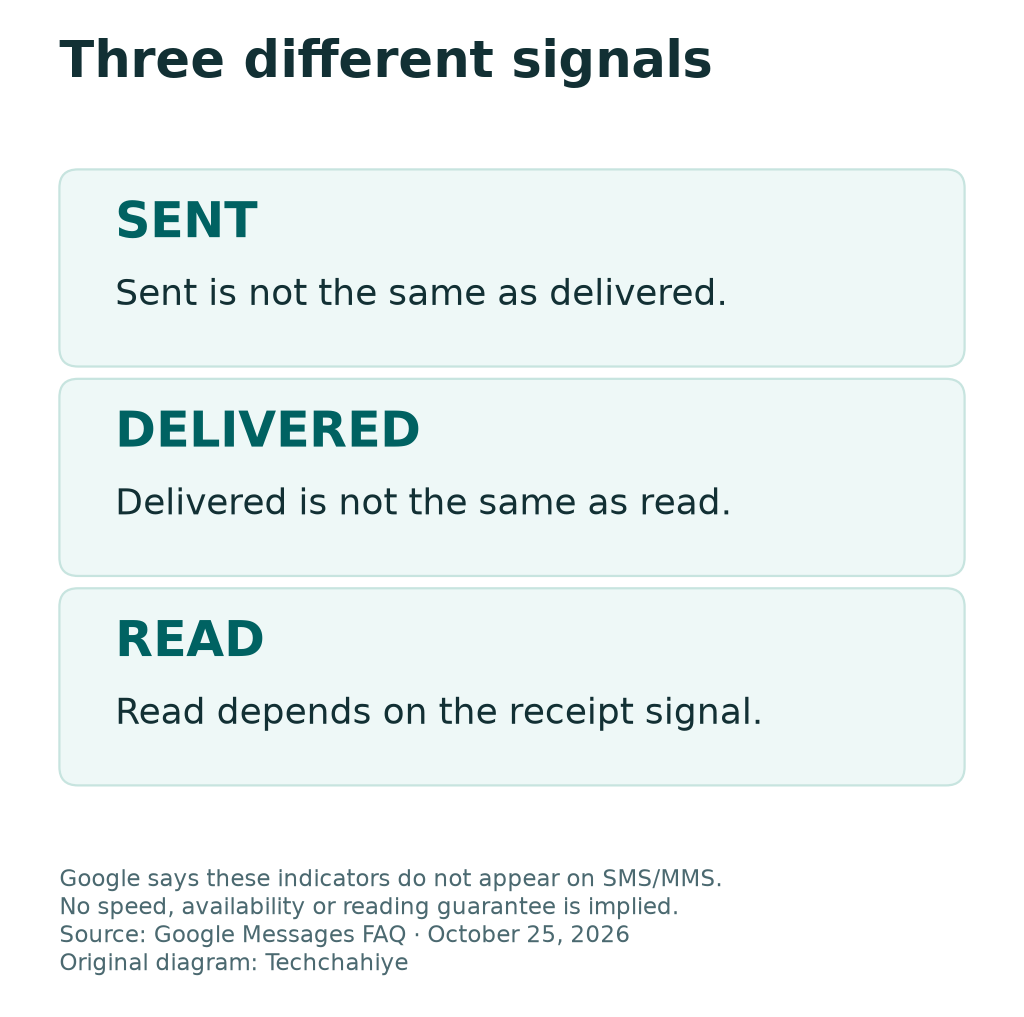
Keep status and outcome separate. Connected is the app’s RCS state. Delivered is a message state. Read is a further signal that depends on the relevant settings. They answer different questions.
Google lists more than one unsupported or disabled message. Read the full text rather than shortening every warning to “no RCS.” A carrier restriction differs from a failed data connection. Use the route that fits the warning.
If the screen changes while you investigate, note the new state too. That is progress worth recording. Do not keep applying a fix for the earlier state after the app has moved to another stage.
Check the App, Internet and SMS First
Google’s guide starts with the default SMS app. It also asks you to check data and incoming SMS. It also calls for current versions of Google Messages and Google Play Services. These are basic checks with distinct jobs.
First, confirm which app you are using. Android phones can have more than one messaging app. Opening an app with a familiar name does not prove that it is the default for SMS. Check the device’s default-app setting for Google Messages.
Next, check the internet connection. RCS uses mobile data or Wi-Fi. Try a normal trusted page to see whether the phone has usable internet access. This is a connection check, not proof that every messaging service works.
Then consider SMS separately. Google’s number verification can involve an SMS. If the line cannot receive SMS, a working Wi-Fi connection does not answer that problem. Check the active line and any known carrier issue.
Review updates through the official app store and system settings. Do not install a package from an unknown download page because it promises a faster RCS fix. Keep the app’s identity clear while you update it.
You can record the results in a small checklist:
- Confirm Google Messages is the intended default texting app.
- Check usable internet on the phone.
- Confirm that the intended line can receive SMS.
- Review official Google Messages updates.
- Check Google Play Services and the RCS status again.
Change one thing, then retest the same symptom. Avoid making several changes at once. You could lose track of which check changed the result.
Understand RCS Number Verification
Google says Connecting means it is checking your phone number. Its FAQ treats Trouble connecting for more than 30 minutes as a verification problem. That timing applies to that state, not to every delayed message.
If Verify your number appears, follow that option and confirm the intended number. Google says it sends an SMS for the check. Keep any code private and enter it only into the expected verification flow.
If that option is missing or the guided steps do not help, Google’s FAQ points to Details and Submit feedback. The goal is to report the actual failed state, not to invent a hidden reset sequence.
Check the number carefully before blaming the app. A recent SIM change, a ported line or two active numbers can make it easier to look at the wrong identity. Record which number should use RCS without posting the full number publicly.
Keep a short timeline. Note when you changed the SIM or app, when verification began and which status remained. Do not assume that every earlier event caused the failure. A timeline is evidence for support, not a diagnosis by itself.
Avoid repeated off-and-on cycles as a routine fix. Google’s setup guide warns against toggling RCS this way and says it can remove you from group chats. Follow a specific official instruction if your situation calls for deactivation.
If you need to contact support, describe the screen and the time spent there. For example, report “Awaiting retry for 45 minutes.” Note that you checked the intended line. It is more precise than saying the whole phone has no messaging.
Check RCS Dual-SIM Choices Without Guessing
Two SIMs add another identity check. Google’s RCS FAQ tells dual-SIM users to make sure the call SIM is also set as the data SIM. Check the actual device settings and carrier setup before making a change.
This can matter to readers in both the US and India. Do not assume that the line used for cheap data is also the line registered for the chat you are testing. Read the labels and numbers shown on the phone.
Here is a made-up example. A reader uses one personal number and one work number. Mobile data uses the work line, but they are troubleshooting chats for the personal line. The first useful task is to map the settings to those two lines.
That example does not prove a dual-SIM mismatch caused your issue. It shows why the settings need names. A label such as “SIM 1” may not be clear. Note which line handles calls, data and the intended messages.
Before changing the data line, consider the plan. Roaming and data charges can differ. A troubleshooting guide should not quietly move a reader onto a costly line. Review the carrier’s current terms for that account.
Retest the same conversation after an intended change. Note the RCS status and the delivery method shown in the compose bar. Keep the old setting in your notes so you know what changed.
Do not remove a SIM or replace a plan simply because you have two active lines. Start with the visible settings and the carrier’s supported configuration. Escalate the specific mismatch if the phone cannot use the required setup.
RCS Not Working for One Contact? Check the Scope
When the status is Connected, narrow the scope. Is one contact affected, one group affected or every known RCS conversation affected? That distinction keeps the next step focused.
Google says everyone in an RCS conversation needs RCS enabled. Your own connected status cannot enable it on another person’s device. The other person’s carrier, app, device and connection can affect the available method.
Use an agreed, harmless test with someone who expects it. A short message is enough to check the path. Do not send personal files or a stream of repeated messages just to create a delivery signal.
For one affected contact, check the number and country code. Google’s general troubleshooting page also suggests checking whether the contact is blocked. Start with review before you delete or rebuild a contact record.
For a group, remember that its members and message method are part of the problem. Do not assume a group behaves exactly like a working one-to-one chat. Record which conversation failed without sharing its private contents.
RCS Not Working for Photos? Record the Method
If only photos fail, say that. A short text can work while an attachment fails. Record both results. Note the send method and visible error for the failed item.
A simple scope note helps:
| Test result | Useful conclusion | Next area to review |
|---|---|---|
| One person fails, another works | The failure may be conversation-specific | Contact identity, recipient setup and current method |
| Every tested RCS chat fails | A broader local or service issue remains possible | Status, app, connection and carrier |
| Text works, attachment fails | Not all sending is failing | File, connection and delivery method |
| No read receipt appears | Reading has not been confirmed by that indicator | Receipt settings and the actual message state |
These are branches for investigation, not automatic diagnoses. Use them to ask a better next question rather than declare a phone or person at fault.
Read Sent, Delivered and Read as Different States
A message can leave your phone without being read. Google’s FAQ describes these RCS icons. A timer means sending. One check means sent, and two mean delivered. Filled double checks mean read. It says these indicators do not appear on SMS or MMS.
Look at the individual message you are checking. An older delivered message does not establish the state of a new one. A chat that worked yesterday may fail today. Check the current connection.
Read receipts also depend on settings. Google’s setup guide says the other person must turn them on for you to see that they read a message. Missing that signal is not proof of an RCS fault.
Use neutral language when you follow up. “I cannot confirm delivery from this screen” is accurate. “You read it and ignored me” goes beyond what a missing indicator can show.
For a time-sensitive matter, use another trusted route that fits the situation. Do not keep sending the same file to force a read receipt. A new channel may be more useful than another app setting change.
Once the issue seems fixed, send one agreed test and check its actual state. Note what changed. A cleared warning is useful. Also check that the intended message used the intended route.
Review RCS SMS Fallback Before Resending
Google Messages can offer SMS or MMS when RCS is unavailable. Google’s setup page explains that the send control shows the intended delivery method. Read it before tapping, especially after a connection problem.
Fallback can change the features and the cost. Check your plan’s current SMS or MMS terms, including roaming and international use. Do not assume a mobile-data allowance covers every fallback message.
It also changes the security context. Google says SMS and MMS are not end-to-end encrypted. An earlier RCS message may have had end-to-end protection. Do not assume a text fallback keeps that protection.
Read the SMS with a link option with care. Google warns that its media link may be public and outside Google’s control. Read the option carefully. Do not choose it for private media without understanding that scope.
Choose the route for this message. Review the future fallback policy as a separate decision. Changing a general resend preference for one test can affect later conversations too.
If you are unsure, keep the draft while you check the route. You do not need to send private content to learn whether a button says SMS or MMS. Review the method first, then decide whether it fits the message.
After any intentional fallback, confirm what arrived with the intended recipient. A different route may get a message through. That does not prove RCS now works.
Check Encryption in the Current Conversation
A current RCS guide needs to reflect the rollout, not just older assumptions. Google announced encrypted Android-to-iPhone RCS in May 2026. It described a beta start with iOS 26.5, supported carriers and the latest Google Messages.
Google says the rollout takes time. Look for the lock indicator in Google Messages. That does not establish support for every current phone, carrier or conversation. Check what the actual chat shows.
Some Google Help text still says that only Google Messages supports encrypted RCS. That wording is narrower than the newer rollout announcement. We do not use it to claim that cross-platform encryption is impossible.
Nor do we claim that every RCS message is encrypted end to end. Supported software, carrier support and the conversation’s current state still matter. SMS and MMS fallback do not gain this protection from a phone’s brand name.
If protection matters to the content, verify the chat’s current indication before sending. Do not rely on bubble color or an old screenshot. A product headline alone is not proof either.
This guide is about restoring a supported messaging route. It is not a reason to weaken your message protection to make a test succeed. Choose a route that fits both the practical need and the information you intend to send.
Why the date of the source matters
Google announced a cross-platform encryption rollout on May 11, 2026. Some Help text has a narrower description. Check current device guidance and the chat’s lock indicator. Do not assume every chat has it.
Build a Useful Support Report
If the basic checks do not resolve the issue, collect a small report. Keep it factual and free of message contents. A few precise observations can save a long cycle of repeated suggestions.
Include the phone model, Android version, Google Messages version and carrier. Note whether one or two SIMs are active. Record the exact RCS status and how long it stayed there.
Next, state the scope. Does the issue affect one contact, one group, attachments or every tested chat? Say whether ordinary internet access and incoming SMS work. List the checks you actually completed.
Keep private details out of public posts. Mask full phone numbers, account addresses and message bodies in screenshots. Support needs the error state, not a copy of a private conversation.
Use the route that fits the warning. A carrier-disabled message belongs with the carrier. Google’s app guidance points unresolved verification problems toward in-app feedback. Do not pay an unknown person who promises an unofficial activation.
Finally, keep unrelated settings steady during the review. Keep a record of any new state. This preserves the evidence. It also helps explain a later successful test.
Did You Know?
Google says the familiar RCS sent, delivered and read check marks do not appear on SMS or MMS messages. A missing pair of checks can therefore reflect the delivery method. Read the compose bar and message details before treating it as a read-receipt failure.
Conclusion
When RCS is not working, start with the exact status in Google Messages. Check the app, internet, incoming SMS and intended line. Then narrow the issue to a number, contact, group or attachment.
Before resending, review the method, costs and protection. If the issue persists, use your short status report with the right support route. A clear diagnosis is more useful than a reset that hides which step failed.
FAQs
Why does Google Messages stay on Connecting?
Google says this state means number verification is in progress. Check incoming SMS and the intended number. Has Trouble connecting lasted more than 30 minutes? Use Google’s verification guide and feedback route. Do not keep toggling RCS.
Can RCS work over Wi-Fi?
Yes. RCS can use Wi-Fi or mobile data. Number verification and carrier support are separate checks, though. Wi-Fi alone does not prove incoming SMS works. Check the intended line too.
Why does RCS fail with only one contact?
The issue may involve that conversation’s setup or delivery method. Google says all participants need RCS enabled. Check the number and your blocking settings. Review the current chat method before blaming the whole device.
Should I keep turning RCS off and on?
No. Google advises against routine toggling. It warns that you can lose group-chat membership. Use official deactivation steps when they fit the task. That can include a relevant app or device change.
Is every RCS conversation end-to-end encrypted?
No. Google has announced a cross-platform rollout. Support and the current chat state still matter. Check the lock indicator for the actual conversation. Google says SMS and MMS lack end-to-end encryption. That includes fallback messages.
References
- Google Messages Help: Can’t turn on RCS chats
- Google Messages Help: Turn on RCS chats and understand status
- Google Messages Help: RCS chats FAQ
- Google Messages Help: Fix sending and receiving problems
- Google Messages Help: How end-to-end encryption provides more security
- Google: Android and iPhone encrypted RCS rollout announcement, May 11, 2026
- Techchahiye: Android and iPhone guide
- Techchahiye: Android theft protection
