

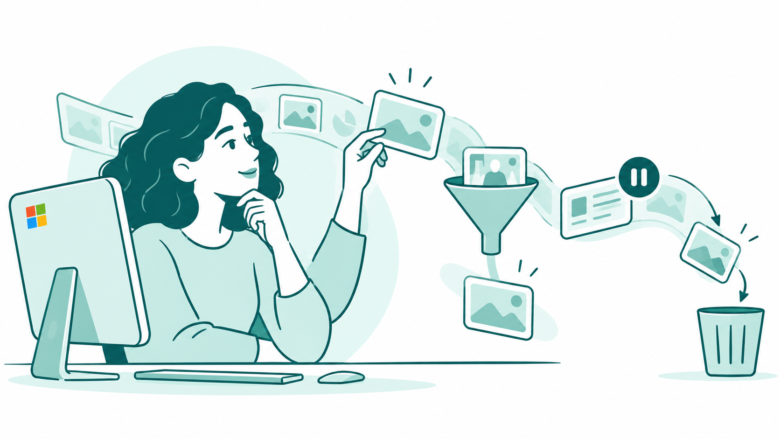
Choose the scope before changing a control
A pause stops capture temporarily. Filters affect selected future content. Deletion and retention controls need their own review. Confirm each result on your PC.
Key Takeaways
- Windows Recall saves snapshots only after you opt in on a supported PC. Check your own settings.
- Pause, turn off, filter and delete have different effects. Choose the action that matches your goal.
- Website filters depend on supported browsers. They do not erase browser history or stop website tracking.
- Review storage limits and existing snapshots separately from future capture settings.
Windows Recall has several controls for saved screen snapshots. Do you want less capture, less saved history or a smaller budget? Choose the goal first. A pause and a deletion do not do the same job.
Open Settings, then Privacy & security and Recall & snapshots. Review whether saving is on, which filters apply and how much space is used. Work through one change at a time so you can confirm the result.
This guide uses Microsoft’s current Recall preview guides, checked October 25, 2026. It is a controls guide, not a hands-on privacy test. Availability and organization policies can affect the options on your PC.
Check Whether Windows Recall Applies to Your PC
Recall is a Copilot+ PC feature with specific requirements. The presence of a Copilot button or app does not prove that Recall is available. Check the exact PC model and current Windows settings.
Microsoft’s consumer guide lists hardware and security requirements. Check the NPU, memory and storage requirements. Review device encryption and Windows Hello setup too. Use the current official list rather than an old launch headline.
A missing menu can have several causes. The PC may not qualify. Software or security setup may be incomplete. A work or school policy may control the feature. Do not install an unofficial package to force it onto an unsupported device.
Record the model, Windows version and whether the PC is managed. Support can use those details to check availability. They can also review whether a setting is off. A clear problem record is more useful than repeated resets.
Understand What Recall Saves
Microsoft describes snapshots of screen activity and associated context stored locally. Recall can use that material to help find something you previously saw. It is not a conventional backup of the original document or website.
That distinction matters when you find an old result. A snapshot may show a passage as it appeared earlier. The live source may now differ. Open the current source before relying on an old price, date or account detail.
Treat search results as a route back to context. If you need a durable record, save the approved document through its normal system. A timeline of screen activity should not become the only copy of work you need.
Also separate the stored snapshot from anything you later copy or share. Once you place content in another app, that app’s copy has its own location and rules. Deleting the Recall item does not prove every later copy is gone.
Choose the Right Control Before You Click
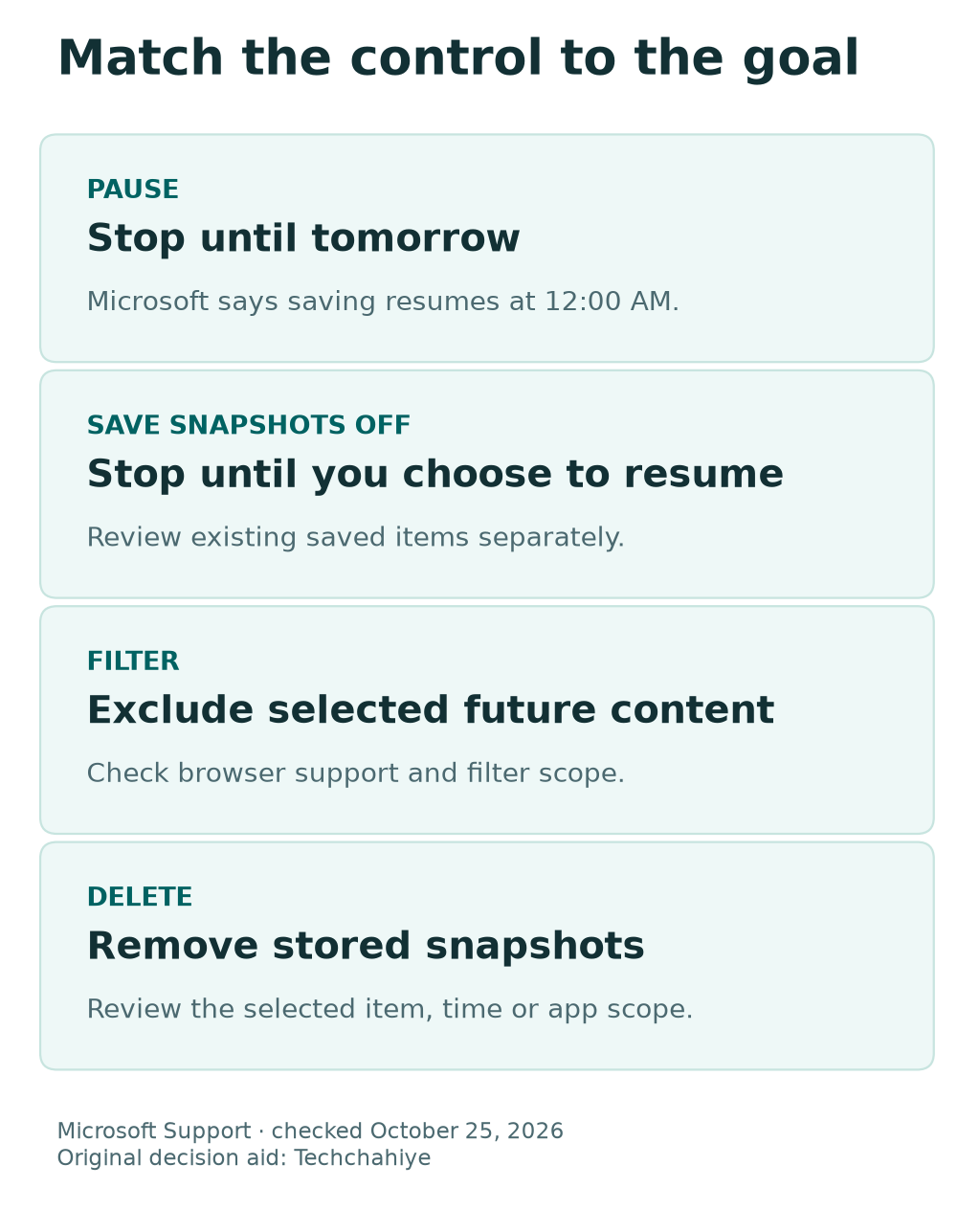
Use the goal to choose the control. The table below is a planning map. Read the exact prompt on your PC before applying a change.
| Your goal | Control to review | Separate follow-up |
|---|---|---|
| Stop capture for the rest of the day | Pause until tomorrow | Check when capture will resume |
| Stop saving until you choose otherwise | Save snapshots off | Review existing saved items |
| Exclude selected future content | App or website filter | Review older snapshots too |
| Remove a saved item or period | Delete controls | Confirm the selected scope |
| Limit retained material | Storage and duration settings | Check actual usage and age rules |
Do not make all five changes at once unless that is your deliberate goal. A small sequence is easier to verify. You can then trace an unexpected result to a specific action.
For example, if one app should not be captured, start with that app’s filter. If it was already captured, review deletion separately. A future rule is not a complete statement about the past.
Pause Windows Recall for the Rest of the Day
Microsoft documents a Recall system-tray menu with Pause until tomorrow. Its guide says capture resumes at 12:00 AM. This is a temporary pause, not an indefinite off switch.
Use it when that timing matches your intent. Before starting private work, check the current tray state. A pause you applied yesterday may no longer be in effect today.
If your work crosses midnight, choose the control with care. A late-night pause can end sooner than the phrase tomorrow feels. Read the listed timing and confirm the state again if the session continues.
Keep this review simple. Note whether you want a short pause or an ongoing stop. Then select the matching setting. You should not need to guess what a temporary menu item will do after the date changes.
Turn Off Saving Without Confusing It With Deletion
Microsoft’s storage guide places Save snapshots in Recall & snapshots settings. Turning it off stops saving. You can turn it on later when you choose to resume.
Review old snapshots as a separate task. Stopping future capture does not answer which existing items remain. Do you want to remove old content too? Review the deletion controls and choose the scope.
Before changing the switch, note its current state. After changing it, return to the page and verify the result. Complete any required authentication. Then confirm that the setting took effect.
Keep required records through their proper channels. If you have been using Recall to locate work, save the actual approved files where they belong. That avoids making future capture a requirement for finding your own documents.
Add App Filters for Content You Want to Exclude
Microsoft lets you add installed apps to the filter list. Open Recall & snapshots and review Apps to filter. Choose the intended app from the list shown on that PC.
Be precise about the application. A web version of a service and its desktop app are separate contexts. Filtering one should not be treated as proof about every way the same content can appear.
A useful checklist names the app, the reason for excluding it and the date checked. Keep the reason general if the note is shared. You do not need to expose private content to explain that a particular app is excluded.
After adding a filter, verify the listed entry and the current Recall indicator. Microsoft describes a filter badge in the system tray. Review the actual state. Opening a filter dialog does not complete the change.
Use Website Filters With a Supported Browser
Microsoft lists supported browsers in its current guide. Edge, Firefox, Opera and Chrome support both types of filtering. Other Chromium-based browsers can have different support. Check the current list for the browser you actually use.
Add the full intended website address through Websites to filter. Check spelling and the saved entry. A similar-looking address is not necessarily the website you intended to exclude.
The filtering guide explains limits. Embedded content can still show parts of a site. A tab title or history view can show its name. A filter applies to the foreground website. It does not hide every appearance of the site’s name.
It also does not stop the website, browser or network from knowing that you visited. Use the relevant browser, account and network controls for those separate questions. Do not infer complete browsing privacy from a Recall badge.
Review Sensitive Information Filtering Realistically
Microsoft says sensitive-information filtering is enabled by default. It checks for potentially sensitive information. It aims to avoid saving those snapshots. Treat that as a supported feature, not a reason to display secrets carelessly.
Make a deliberate plan for highly private work. Review the app or website filter and whether capture should be paused or off. The strongest choice may simply be not saving that session’s screen activity.
Do not test filters with a real password or payment record. Use harmless sample material when checking how a workflow behaves. A demonstration should not create the exposure it was meant to prevent.
Also think about mixed windows and copied material. A private detail can appear in an unexpected place. Keep the control review tied to the actual workflow, not just the name of the main app you opened.
Delete a Snapshot With a Clear Scope
Microsoft describes deletion from a snapshot’s options menu. Identify the item before confirming. Did you select one snapshot or a broader set? Similar menu labels can cover very different amounts of content.
You may still need the content. Save the original through its normal location first. Keep a route to essential records before deleting saved history.
Do not confuse Copy with Delete. Copying places content elsewhere. It creates another copy to consider later. Do you want to keep, move or remove the content? Decide before choosing an action.
After the action, review the result in the relevant view. Record the scope if you are handling a specific privacy issue. One search result may disappear. That does not prove every copy is gone.
Remove Snapshots by Time, App or Website
The settings page supports deletion for a selected period or all saved snapshots. A snapshot’s options also include broader deletion controls. Microsoft describes app and website scopes. Read the count and scope shown before confirming.
Choose the narrowest scope that matches your actual goal. A single private session may need a time-window review. A service you no longer want stored may need both old-item deletion and a future filter.
Consider boundary times carefully. Work may have crossed midnight. A calendar-day label may not cover the whole session. Use the available controls to check the range. Do not assume a label covers the full session.
Keep future and past actions on separate checklist lines. For example: review existing snapshots, then confirm the filter for later use. That makes it easier to see whether both parts of the task are complete.
Understand Recall’s Storage Budget
Microsoft publishes storage space limit options based on device capacity. The default space limit is 25 GB for a 256 GB device, 75 GB for a 512 GB device and 150 GB for a device with at least 1 TB.
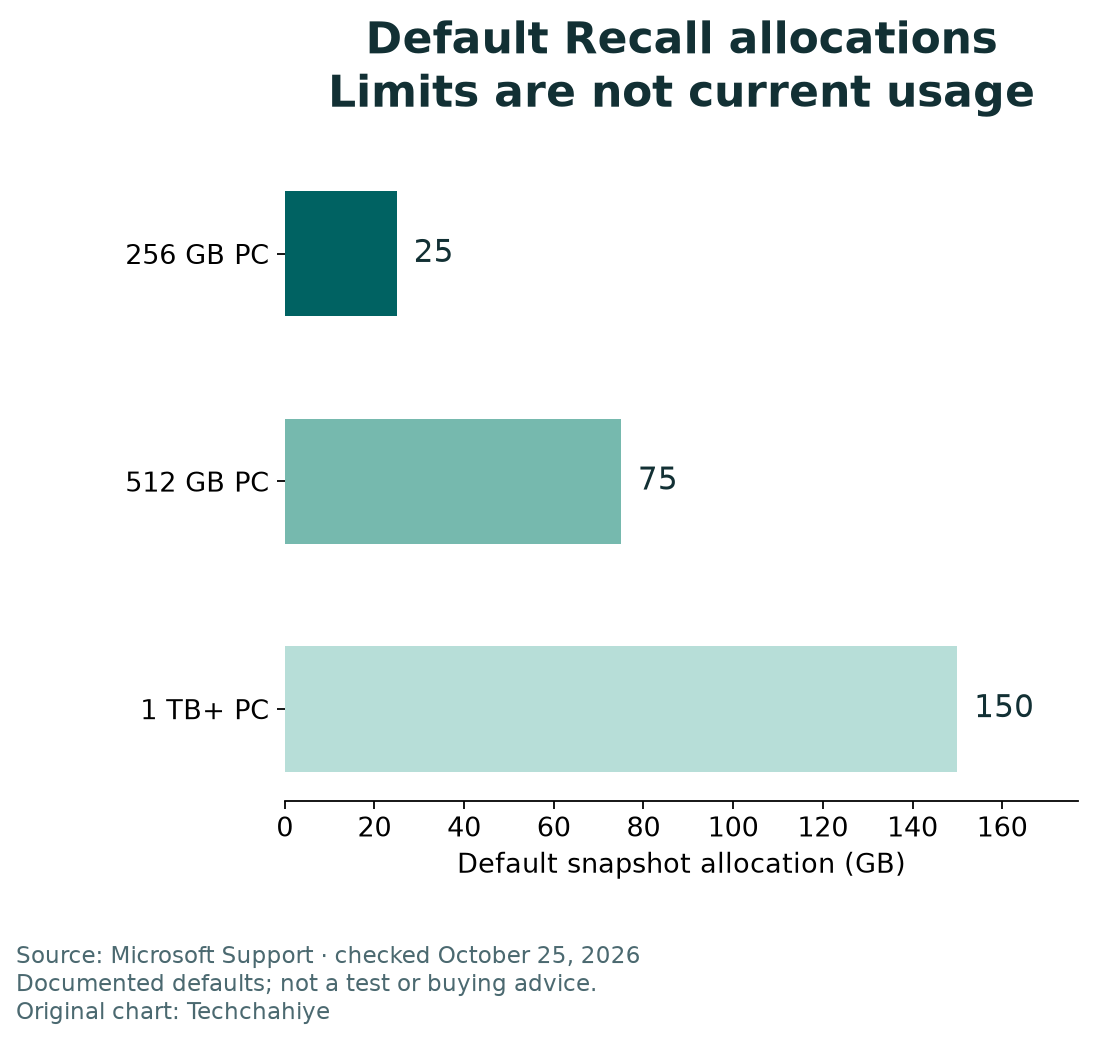
Those values describe allowed snapshot storage. They do not prove that this space is already used. Check current usage in Settings. A set limit is not a measured footprint.
| Device capacity in Microsoft’s table | Default Recall space limit |
|---|---|
| 256 GB | 25 GB |
| 512 GB | 75 GB |
| 1 TB or more | 150 GB |
The table is not a buying recommendation. A larger device does not mean you must retain more screen history. Choose an available limit that fits your needs. Review the rest of the PC’s storage separately.
Set a Duration as Well as a Space Limit
Microsoft’s storage guide lists duration choices of 30, 60, 90 or 180 days, plus unlimited. It also explains that age and space limits can remove older snapshots. Review both controls when deciding what should remain available.
A space limit answers how much material can be stored. A duration answers how old it may be. The same space budget can represent different spans of activity for different users.
Do not predict a fixed number of screenshots from a GB value. Screen content and capture behavior vary. Use the chart to compare listed options. It does not measure your daily workload.
Write down why you chose a particular duration. That helps you review the choice later. If your work changes, the old plan for saved history may no longer suit what appears on screen.
Work Through a Simple Storage Example
Consider an illustrative PC with a 512 GB capacity entry in Microsoft’s table. Its listed default Recall space limit is 75 GB. Suppose Settings currently shows 8 GB used. The maximum and the current use are different readings.
In that made-up example, 75 minus 8 leaves 67 GB below the set limit. This is arithmetic for explanation, not a forecast of how much data will be saved or how long it will remain.
Reducing a limit also differs from freeing unrelated storage. A large game, downloaded video or app cache still has its own footprint. Review system storage to identify the category that actually explains a low-space warning.
Use before-and-after readings if you change a storage control. Note the selected limit, current usage and the result. Use those readings to explain the change. Do not guess how much space the PC should gain.
Read the example as a calculation
The assumed current use is 8 GB and the documented default limit for the example is 75 GB. The 67 GB difference is arithmetic, not a forecast of future capture or a storage test.
Handle Managed PCs Through the Right Owner
Microsoft’s management guide distinguishes personal and managed devices. An organization can control whether Recall is available and can set policies. A user should not try to evade those controls through an unofficial installation.
If an option is unavailable on a work or school PC, ask the administrator about the intended policy. Provide the device model and the exact setting or message. Avoid sending private snapshot content unless the approved support process requires it.
For mixed personal and work use, clarify the organization’s rules before enabling capture. A personal device can still display employer or client material. Ownership of the hardware does not settle permission to retain every screen.
Keep the request specific. Ask whether Recall is allowed for the workflow and which restrictions apply. That is more useful than asking for every disabled option to be enabled without context.
Distinguish Reset, Removal and Exported Copies
Microsoft says resetting Recall removes its snapshots and settings. Removing the optional feature also affects saved snapshots. These are broader actions than pausing capture and deserve a separate review.
A reset does not delete previously exported material. Copies shared into another app can remain too. Identify those copies on their own. Trace each current copy. It may live outside the place where the content began.
Before a broad reset or removal, establish your goal and preserve required records. Read the current confirmation. Do not use an irreversible operation as a casual test of whether a smaller control works.
If your goal is only to stop future saving, review that setting first. For a clean start, follow Microsoft’s current reset guidance. Review copies outside Recall too.
Did You Know?
Microsoft says Pause until tomorrow resumes snapshots at 12:00 AM. It is not a rolling 24-hour pause. Your private work may continue across midnight. Check whether the temporary pause still meets your needs.
Conclusion
Windows Recall has controls for future capture and saved history. Review them as separate tasks. Pause for a short period. Turn saving off for an ongoing stop. Filter selected content and review deletion scope.
Then check storage and duration limits. Confirm each result on your own PC. Keep a clear record of each change. One setting does not remove every later copy.
FAQs
Does pausing Recall delete existing snapshots?
No. Treat capture state and stored history as separate tasks. Review the existing snapshots if removal is part of your goal. Choose the deletion scope clearly. A pause does not handle old items.
Does a website filter make my browsing invisible?
No. Microsoft explains what a filter cannot do. Browsers, sites and network providers may still know about a visit. It also describes limits involving embedded content and other views. Use the right controls for each privacy question.
Is the storage space limit the amount Recall already uses?
No. A set limit and current usage are different readings. Check both in Settings. Do not subtract the whole space limit from free space as if it were a measured file size.
Can I use the same instructions on any Windows PC?
Recall has specific Copilot+ PC requirements and can be subject to management policies. Check the exact device, Windows version and current guide. A missing option is not a reason to install an unofficial workaround.
Will resetting Recall delete snapshots copied into other apps?
Microsoft says exported copies can remain after a reset. The same applies to shared copies saved elsewhere. Review those locations separately. Deleting content in one system has a specific scope. Other apps, folders or services may retain copies.
