

Choose a setup you can use and understand
Keep Auto Blocker on and read the exact warning when a task fails. Check app sources and your work setup. Review travel and sharing needs before you change a broad setting.
Key Takeaways
- Samsung Auto Blocker checks where apps come from. It limits other routes into your phone too.
- Standard protection and Maximum restrictions are different choices. Read the extra limits before you choose the latter.
- A blocked app does not prove an attack. Read the exact message and check the app’s source.
- Keep work, travel and photo-sharing needs in mind when you review stronger settings.
Samsung Auto Blocker can explain why a Galaxy phone refuses an app that you used on an older device. It can also help you choose a more guarded setup before you need one. Open Settings, then Security and privacy, then Auto Blocker to see its current state. Check the extra Maximum restrictions choice on supported software too.
Start with the task you want to do. Are you checking a new phone, setting up a work app or trying to open a message? Each question calls for a different check. Read the message first. Find the setting it names. A broad change can hide the cause of the block.
This guide uses Samsung’s US support and Knox guides. We checked them on 1 November 2026. Menus and support vary by model, carrier and software. The examples below are planning examples. They are not tests of a particular Galaxy model or claims that an app is safe.
What Samsung Auto Blocker does
Samsung’s Knox guide places Auto Blocker on Galaxy devices with One UI 6 or later. It groups several controls in one place. Its base controls cover apps from outside approved stores and commands through USB. They also cover harmful images in messages and unofficial system software. These controls cover several routes into a device. Unwanted software or commands may use those routes.
Think of the feature as a set of gates. A gate can refuse a type of action without deciding everything about the person who asked for it. An app installer may stop because of its source. That is different from a finding that the exact file contains malware. The distinction matters when you ask for help.
For example, imagine that a local club sends a file and says it is its new app. A source-based block tells you to check the distribution route. Did the club send that message? Does the file match its intended app? Why does the club need a separate download? The block alone cannot answer those questions.
Keep the message visible long enough to read it. Write down the feature named in it and what you were doing. A note such as “Auto Blocker refused an app from this website” is much more useful than “Samsung broke my app.” It gives support a clear starting point.
Check Samsung Auto Blocker settings before you choose
Use the settings path rather than a screenshot from another phone. Open Settings, choose Security and privacy, then Auto Blocker. Samsung’s US guide recommends keeping the feature on. Read your own screen. Do not assume that a new phone or an update chose the state you expect.
Samsung notes that an update from an earlier version to One UI 6.1.1 keeps the prior Auto Blocker setting. The practical lesson is simple: an update is a reason to review your setup. It is not proof that a switch changed. A friend’s new device may have a different starting point from your updated device.
Record the model and One UI version if you need help. You do not need to post a serial number, account password or recovery code in a public forum. A useful support note identifies the software, the blocked task and the text of the warning. Leave private account details out of it.
Then check which level you are looking at. Is it standard Auto Blocker or its extra restrictions? A single description such as “security is on” hides that difference. It can lead you to change a broad setting when only one optional limit explains the problem.
Standard protection or Maximum restrictions?
Maximum restrictions adds stronger limits. Samsung describes it as an extra choice. Do you use store apps and normal phone tasks? Samsung says standard Auto Blocker suits most people with those needs. That does not make the stronger choice wrong. It means the choice depends on the work the phone must do.
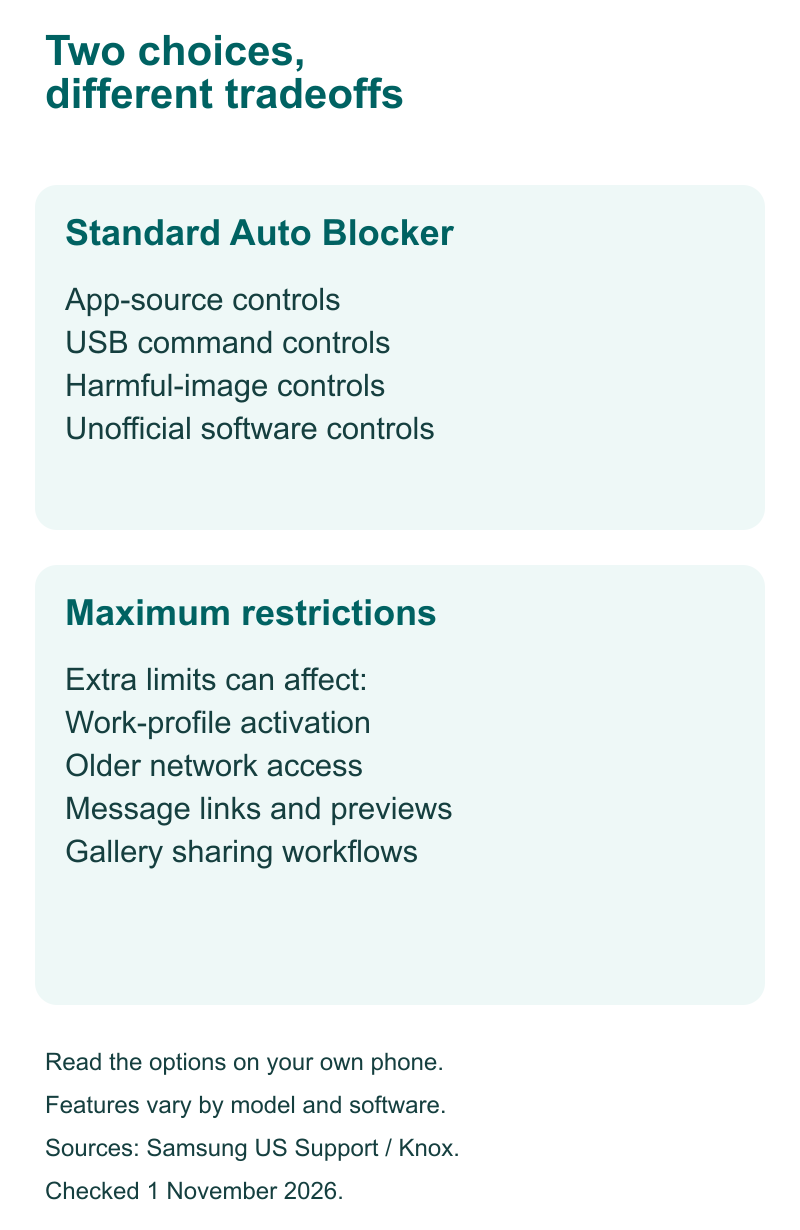
The US support page lists the extra limits. They affect work profiles, older networks and unsecured Wi-Fi reconnection. They also affect message links and some Gallery features. Read the list on your own phone. A short label cannot show every effect on every software version.
Choose with a small list of real tasks beside you. Include only things you use. That may be a work sign-in or a shared family album. Think about booking links and trips with patchy service too. The goal is to see which extra limits affect you before they appear at an awkward time.
| Your situation | What to review before choosing extra restrictions |
|---|---|
| A personal phone with store apps | Read the standard controls and confirm their current state |
| A phone used for work | Ask IT about work profiles and managed app setup |
| A family photo workflow | Check how Gallery sharing will change |
| A trip with uncertain coverage | Check the network limits and your carrier’s route for help |
| A message that will not open a link | Read the message-related limit before changing unrelated settings |
Do not judge the choice by how many switches you can enable. Judge it by whether you understand the limits and can use the phone for its necessary tasks. A setup you understand is easier to maintain than a list of settings you copied without context.
When an app install stops
First, identify where the app came from. Did you open its listing in a store, follow a web link or restore a download from an older phone? Those are distinct routes. Write down the route rather than calling them all a download.
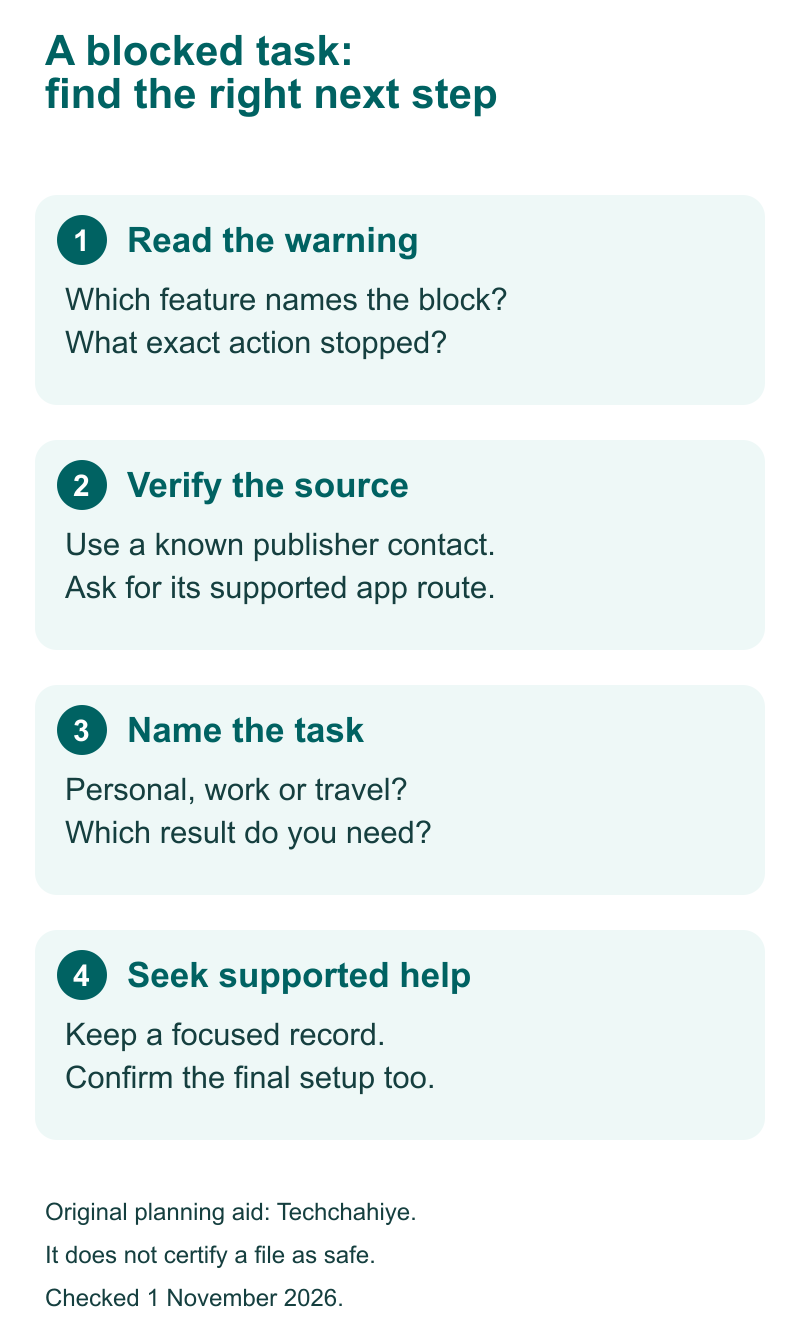
Next, verify the publisher through a route you already trust. A message that uses a familiar name is not enough. Go to the organization’s known website or ask its support team how it distributes the app. Do not use a reply from the same unexpected message as your only check.
Suppose a fictional school asks parents to use an app. Its message points to a file rather than a store listing. A useful next step is to ask the school for its published setup guide and supported download route. That resolves a real question. Repeatedly trying the same file with fewer controls does not.
If you still need an app from outside a store, decide whether you have enough evidence to trust that route. Check who maintains it, how it receives updates and who will help if the install fails. A one-time install is only the start of an app’s life on your phone.
Samsung’s US FAQ covers app updates too. Auto Blocker can stop updates for apps from outside authorized stores. Include future updates in your plan. An app may have opened once. That does not prove its update route will work with every later setting.
Keep work setup with the device owner
Maximum restrictions can affect work setup. It can block activation of a work profile or device administrator app. Samsung lists this effect in its US guide. If this is a work or school device, ask the owner or IT team which setup it supports. Do that before removing a profile or changing controls to copy a personal-phone guide.
Give IT a concise report. State the app name, whether you are creating a profile or updating an app, and the exact warning. Mention which extra restrictions are active. Those details give IT a useful starting point. Leave passwords and private work screens out of the report.
Do you use a personal phone for work? Ask how the organization keeps work and personal data apart. The answer helps you understand the requested setup. It also lets you decide whether the phone meets the work need before you put files or accounts on it.
A fictional employee might need a work profile for a company app. Their right next step is an approved setup from IT. A forum post may suggest fewer controls. It cannot tell you what your company supports. The person who owns the work policy needs to resolve that part.
Plan for messages and photo sharing
Samsung’s Knox documentation explains that extra restrictions can limit message attachments and links. It also describes changes to shared albums and location data in shared pictures. Use those facts to review your own workflow. Keep other people’s private data out of your checks.
Did you expect the message? Can you reach the service through its known app or website? Start with those questions. A booking code can often serve as a reference when contacting the provider. You do not need to open an unexpected link merely because a message claims that a deadline is near.
For photos, separate the picture itself from the details attached to it. Ask what the recipient actually needs. A family member may need the photo, while a repair team may need a clear view of a fault. Neither request automatically calls for a record of where you took it.
Do you need a shared album for an event? Check that your chosen setup supports that flow first. Have the person who runs the album confirm the invitation route. If that feature is missing, choose another supported route. Match it to the files and the people who need them.
This is also a good time to review the content of a picture. A control that removes location details does not remove a home address visible on a parcel in the photo. Look at the image itself before sending it. One setting does not solve every privacy risk.
Review travel and connection needs early
Samsung’s US guide says Maximum restrictions blocks 2G connections. Only 2G may be in range. Samsung says calls, texts and mobile data then will not work with this limit active. It also limits automatic reconnection to unsecured Wi-Fi. Check those effects before a trip. Connection failures can have different causes.
Ask your carrier about coverage and supported service for the route you plan to take. A phone setting cannot establish whether a carrier serves a location. Save the carrier’s contact route and your travel details. Keep a copy you can reach without a new connection.
For a hypothetical trip, imagine that you need a ticket, a hotel address and a contact number on arrival. Prepare those items before travel. A later delay might come from coverage. It might come from an account or a connection limit. This plan gives you a fallback for those cases. You do not need to guess which failure will happen.
Avoid using an urgent travel problem as the first time you read a security setting. Review your choice at home, while you can ask questions. Does a task conflict with your chosen protection? Decide on a supported route before you leave. Do not wait until another person is asking you to change several unfamiliar options at once.
Auto Blocker and Google Play Protect have different jobs
Google says Play Protect checks apps for harmful behavior. It checks apps from other sources too. It may warn about, disable or remove harmful apps. Google recommends keeping it on. Auto Blocker’s source and device controls do not turn those checks into the same feature.
Open the Google Play Store to review it. Select your profile icon, then choose Play Protect. Read its current result. Use the feature’s own wording when asking for help. Both features may show a message during an install. Read which one produced the message. Do not treat the names as the same.
For example, a source restriction and a harmful-app warning raise different questions. In the first case, you need to establish the intended distribution route. In the second, you need to take the named warning seriously and seek help from the app publisher or Google. Neither becomes a clean bill of health because you can dismiss a screen.
Keep your notes organized by the feature that produced them. That makes it easier to see what you know and what you still need to resolve. That helps you weigh a search result. A suggestion needs to fit the named problem before you use it.
Use a small, clear troubleshooting record
When a task fails, pause and record what happened before trying broad changes. A short record protects you from mixing several problems together. Support gets a focused account of the task. You can leave your private files out of it.
Write the task in ordinary words, such as “install the app from the school website.” Add the feature named in the warning, the software version and the time. Use that record to ask support one clear question. Which supported route should you use for this task?
If support proposes a change, ask what it affects and how you will check the result. Keep track of the change you chose. Afterward, confirm both the task outcome and the intended protection state. A task that works is one result. Knowing what setup remains is another.
Leave out a full private message thread when one warning is enough. Crop or transcribe only the relevant text if you share evidence. Leave out account codes and email addresses too. Keep other people’s information out of a public post. A focused report is usually easier for a helper to read too.
A concise support note to keep for yourself
Task: __. App source: __. Exact warning and feature named: __. Model and One UI version: __. Supported route confirmed by: __. Change chosen and final protection state: __. Keep passwords and account codes out of the note you share.
Did You Know?
Google treats Play Protect app checks and device certification as separate things. Its help page explains the “Device is not certified” error. Use the device certification help for that error. Keep the exact error wording. A broad label such as phone security can hide which help you need.
Conclusion
Keep Samsung Auto Blocker on as Samsung recommends. Then review the extra Maximum restrictions choice. Does it fit your tasks? Start troubleshooting with the exact message, app source and feature name. Ask the relevant provider about work, travel or app requirements. A clear plan lets you choose protection with an understanding of the limits you will live with.
FAQs
Does an Auto Blocker warning prove that a file is malware?
No. A block based on where an app came from does not establish the contents of that exact file. Treat the warning as a reason to verify the source and intended setup. Do not read it as proof that the file is safe either. Ask the publisher for its supported distribution route.
Why does my updated Galaxy differ from a newly bought phone?
The starting software and prior settings can differ. Samsung says a device updating to One UI 6.1.1 keeps its existing Auto Blocker setting. Check the state on each phone. Do not assume a shared model name or a recent update means that every security option matches.
Should I ask an app publisher for a store link?
Yes, asking for the official supported route is a useful first step. Use a known contact channel rather than an unexpected download message. Ask how the app gets later updates too. An answer should fit the specific app and device, not simply tell you to ignore every warning.
Can I use this guide to change a company-managed phone?
Use your organization’s supported instructions for that phone. Tell IT about the blocked task and the exact message. Maximum restrictions can affect work profiles and device administrator apps. The organization should resolve how its required apps fit its device policy. Do not remove management controls to follow a personal-phone example.
What should I do if the menu shown here is missing?
Search your phone’s Settings for Auto Blocker and check the One UI version. Samsung documents the feature from One UI 6, with extra restrictions added later. Names and support can vary. Ask Samsung about your exact model if you still cannot find it. Do not install an unrelated app with a similar name.
