

Protect the handoff and plan the restore
Maintenance mode hides your personal account during repair. Check a backup, keep a separate sign-in route and note any expiry date before you hand over the device. Confirm the mode is active after the restart.
Key Takeaways
- Samsung Maintenance mode hides your personal data. A repair worker gets a separate account.
- Make and check a backup first. A repair may still need a reset or new storage.
- Check your Samsung account access on a second device before handing over your phone.
- Temporary Cloud Backup has a time limit. Save its expiry date and plan your restore.
Samsung Maintenance mode hides your personal account during repair. Use it on a supported Galaxy phone or tablet before a handoff. Open Settings, choose Device care, then Maintenance mode. Back up your data before you turn it on and restart. You can leave the mode when the device comes back.
That short path solves only part of the job. You also need a way to recover your files if the repair erases the device. And you need a way to sign in if your phone normally receives all your sign-in codes.
This guide treats those as separate tasks. First, protect the data left on the device. Next, keep a usable copy elsewhere. Then check that you can get back into the accounts you need. The steps below use Samsung’s US support guidance, checked on 1 November 2026. Names and options can vary by device, carrier and software.
What Samsung Maintenance mode protects
Samsung’s US guide describes a separate repair account. It keeps the personal account out of view. Your photos, videos, messages and contacts stay out of that account. The worker gets a place to check the device. Your normal personal space stays private.
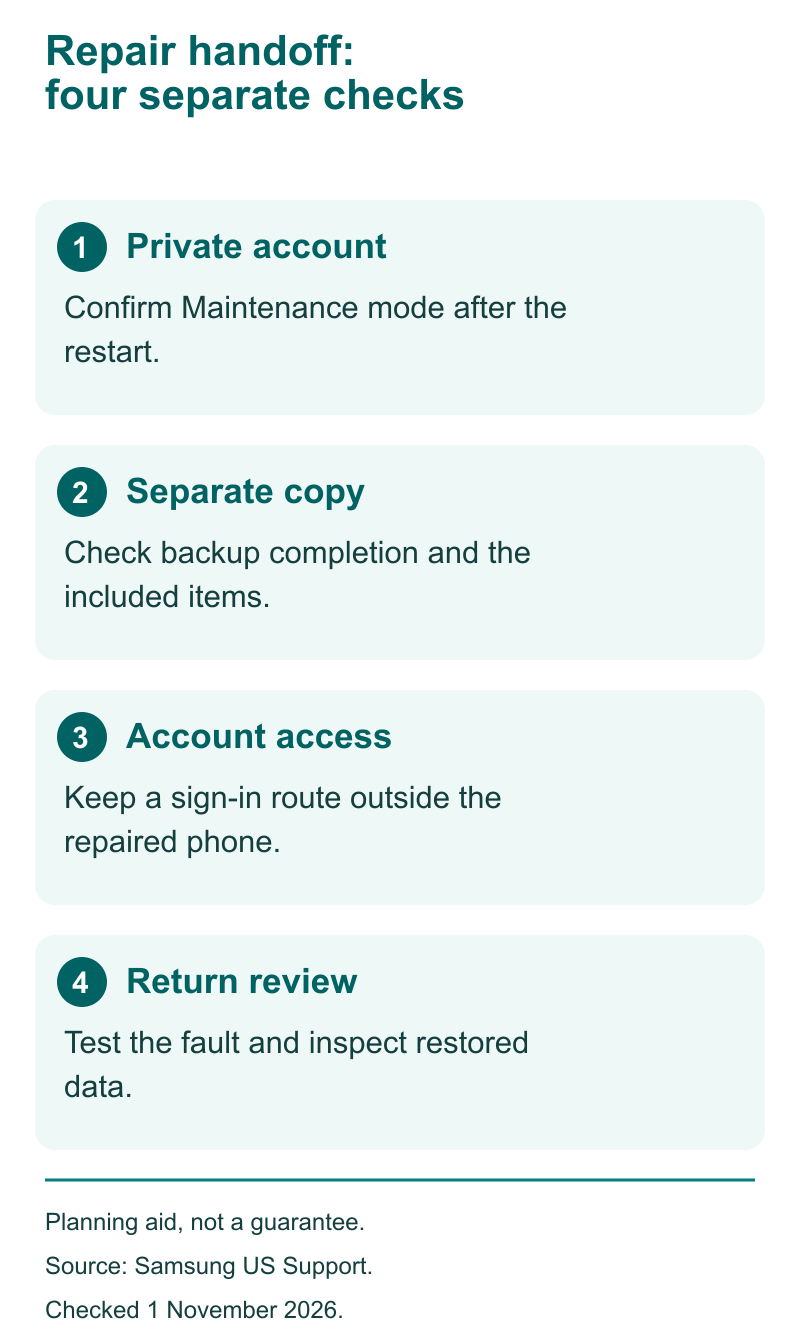
Think of the repair account as a work area. The worker can use that area for the repair task. You keep your own account behind its lock. The feature is useful because a phone can contain private files even when you have closed every app.
Do not treat this as a promise that a repair cannot erase data. A storage fault, reset or replaced part may change what remains on the phone. Samsung recommends a backup before repair for that reason. Hiding data and saving another copy address different risks.
Also, do not put new personal work into the repair account. Samsung says the mode clears its new apps and services when you leave. It does not keep that temporary work area. A note you need later belongs in a place you control, outside the temporary work area.
Ask the repair provider what it needs to test. A written fault description can be more useful than access to your personal apps. For example, say that a speaker cuts out during calls or that a charge cable feels loose. Keep the description tied to the fault rather than sharing unrelated private history.
Check your device before you plan the handoff
Samsung lists support from One UI 5 onward. Check that software rule before using Maintenance mode. Check the model and software shown on your own device. An Android version number alone does not tell you which Samsung menu you will see.
The US support page also gives free-space rules. A device with 64 GB of built-in storage needs 1.5 GB free. Devices with more storage need 500 MB free. Those are space checks for entering the mode, not targets for the size of your backup.
You need a screen lock too. If you have no lock, setup will ask you to make one. Choose a lock you can recall when the phone returns. Keep its secret in your own safe record; a repair intake note is not a good place for it.
If the menu is missing, search Settings for Maintenance mode. Also check Samsung Members. If you still cannot find it, ask Samsung or the repair provider about your exact model and software. Do not assume that an option shown in a guide for another country is present on your phone.
If the screen breaks, pause the normal steps. You cannot check a backup or a privacy screen you cannot see. Samsung links to separate guidance for backing up a device with a damaged screen. Ask the provider about that route before you agree to a reset.
Make a backup that matches your repair plan
Choose a backup based on what you must recover and how long you may be without the device. The word backup on a screen is not enough. You need to know what it copied, when it finished and where the copy lives.
Start with a short list of data that would be hard to replace. That may include recent photos, voice files, local documents, notes and app records. Then check each category in the backup tool. Some apps have their own transfer or restore rules. A device backup may not include every app’s contents. Check those apps on their own terms.
For files you can open, check a few important examples in the other location. Pick a recent file and an older one. This is a practical spot check, not a full test of every saved byte. Its purpose is to catch a wrong folder, empty copy or missing recent work before the phone leaves your hands.
Keep the phone on power and allow enough time. As a hypothetical calculation, 40 GB sent at a constant 100 Mbps would take about 53 minutes: 40 × 8,000 ÷ 100 ÷ 60. Real transfers take longer when Wi-Fi, upload speed or processing adds delay. That example is a planning aid, not a measured Samsung backup speed.
Choose temporary cloud storage for a short repair
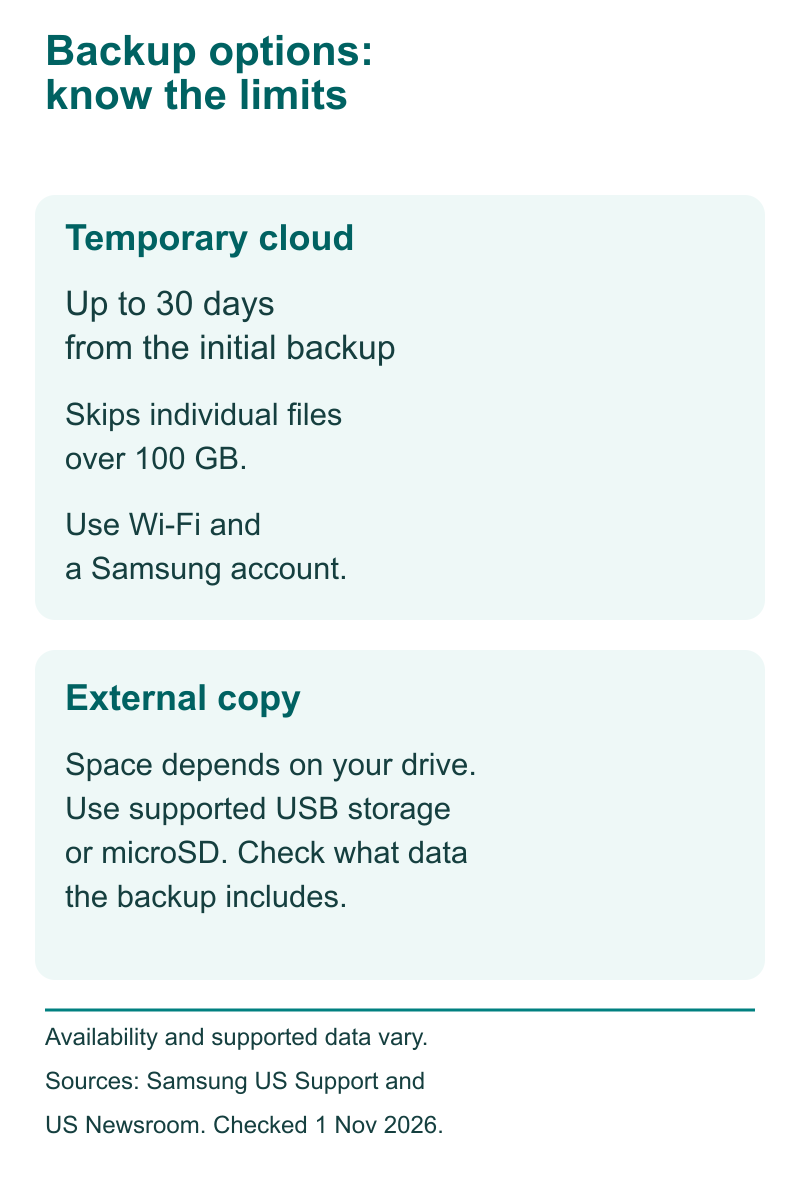
Samsung announced Temporary Cloud Backup as a free service. It keeps the copy for up to 30 days from the initial backup. It requires Wi-Fi and a Samsung account. The service skips files over 100 GB. It has no total backup-size limit. Availability varies by model, carrier and market.
Read the expiry shown for your own copy. Put a reminder before that date on a calendar you can reach without the phone. A repair estimate is not the same as a return promise. If a part takes longer to arrive, your restore plan still needs to fit the backup’s life.
For a hypothetical example, suppose the phone comes back on day 21 after you made the copy. Do not put the restore aside for another two weeks. Check access and restore promptly, using the actual date shown by the service. The point is to leave room for a failed sign-in or slow connection.
Choose external storage when you need more control over timing
Samsung’s Maintenance mode guide also offers an external backup through Smart Switch. The guide lists USB storage and, where the device supports it, a microSD card. The space on that drive or card limits how much it can hold.
Before you start, compare free space on the destination with the data selected for the copy. A drive’s label tells you its total size, not how much room remains. Keep the completed backup somewhere safe. Do not send your only copy in the same package as the phone.
For a long or uncertain repair, a copy you can keep may suit your plan better than a short cloud window. That is a choice about timing and storage. It is not a claim that one method includes every app or protects against every type of loss.
Do not confuse the different Samsung cloud screens
Ordinary Samsung Cloud, Gallery sync and Temporary Cloud Backup have different scopes. Your Samsung account name may appear at the top of Settings. That does not prove it copied your photos and every local file.
Samsung’s US Cloud guide explains how Gallery sync works. Photos and videos use OneDrive. They do not use regular Samsung Cloud backup. It also lists limits on what the web portal lets you view. A list of backed-up devices is not a browser you can use to open every file in a device copy.
That is why your check should name the service and the data. For example, write “Temporary Cloud Backup completed today.” Or record which photos you opened in your separate copy. Avoid a loose note such as “cloud done.” The more exact note gives you a useful starting point if the repair resets the phone.
Samsung’s US page lists limits for ordinary Samsung Cloud. Verizon devices and some countries do not offer it. Do not apply that limit to every backup tool. Check the specific feature on your phone. Check the service your device offers. Ask Samsung about its limits if needed.
| What you are checking | What counts as useful evidence |
|---|---|
| Privacy for the handoff | The phone has restarted into Maintenance mode |
| Data kept elsewhere | A completed copy, with selected items and destination known |
| Time to restore | The expiry date for the actual temporary cloud copy |
| Account access | A sign-in route you can use without the phone you send for repair |
Keep a route back into your accounts
Before the handoff, think through what happens if the phone returns erased. Can you sign in to the Samsung account holding the copy? Can you reach the email address or other method used to check that sign-in?
Do this check on a device you own or trust. The aim is to know that the route works. You do not need to give the repair worker a password, a recovery code or access to your inbox to make that plan.
Does the account rely on that phone alone for sign-in? Review its supported recovery options before the repair. Follow the account provider’s own steps. Keep any recovery material private and separate from the repair package.
For a work or school phone, ask the device owner or IT contact first. A managed account can add its own rules for backup and repair. Do not remove a work profile or change its controls to match a guide.
Also plan for daily tasks while the phone is away. Make a list of travel details, contacts or tickets you need. Move only the necessary copies to a place you can use. Get those items ready before the visit. Then you will not need to open a personal account at the counter to find them.
Turn on Maintenance mode and confirm the result
Once you finish the backup and account checks, use the path Samsung gives in its US guide:
- Open Settings and choose Device care.
- Open Maintenance mode.
- Review the backup options if you still need a copy.
- Choose Turn on and follow the restart prompts.
Samsung also lists a route through Samsung Members. Open its Support tab, choose Maintenance mode and follow the setup. Use the path your device actually offers. A missing menu is a reason to check model guidance, not to install an unknown tool with a similar name.
Wait for the restart to finish. Confirm that the device shows it is in Maintenance mode before you hand it over. Do not count a tap on Turn on as the final result if the restart has not completed.
If setup reports a space issue, compare it with the free-space rule for your storage size. Remove only items you have reviewed and can afford to lose, or move a checked copy elsewhere. Avoid a rushed bulk cleanup that erases the files you want to protect.
If setup still fails, note the exact message for Samsung or the provider. Find out what the message means before trying again. A repeated tap does not prove the mode is active.
Write a repair note that helps the technician
A clear intake note can reduce the need for follow-up questions. State the fault, when it appears and what the provider needs to reproduce. Keep the note factual. For example, “the main board is dead” is a guess. A more useful note is “the screen stays black, but the phone vibrates when I call it.”
Record the device’s visible condition and which items you hand over. If you include a cable because it is part of the fault, note that. If the provider asks for another item, ask why they need it and add it to the intake record.
Keep your own copy of the service reference and the contact route. Add the backup location and expiry to a private note, not the copy you give the provider. Those details serve different people and do not need to travel together.
Ask how the provider will seek consent for a reset or added work. You want to understand that process before the phone is away. Maintenance mode cannot answer a repair consent question for you.
Finally, agree on how you will receive updates while the phone is unavailable. A call to that same phone may not reach you. Use the provider’s supported contact method and keep it current for this repair.
A private handoff note to keep for yourself
Fault and reproduction steps: __. Service reference: __. Backup method and completion date: __. Copy location and expiry: __. Account sign-in route checked: __. Items handed over: __. Return checks: __. Keep passwords and recovery codes out of the repair intake copy.
Check the returned phone before you call the job finished
Start with the intake note. Check the stated fault and the physical condition. If possible, make that check while you can still ask the provider about the work. Record an unresolved symptom plainly rather than assuming it will disappear later.
Samsung lists two exit routes for Maintenance mode. Use its notification or open Device care. Choose Exit, follow the restart flow and use your own screen lock when asked. Keep that step in your hands.
If the repair reset the device, leaving the mode will not bring back data the repair erased. You need the backup and the right account. Select the intended copy by its device and date, then follow the restore tool’s prompts.
Afterward, check the data that mattered most on your original list. Look at recent files, not only old items that may already have synced. Check the apps you rely on and follow their own sign-in or restore steps where needed.
Keep the backup until you have checked the result. If something is missing, make a note of the category, copy date and message shown. That gives Samsung or the app provider a specific problem to investigate. Do not erase your fallback copy because the home screen looks familiar again.
Did You Know?
Samsung says Temporary Cloud Backup keeps its files separate from existing Cloud copies. So a familiar device entry in ordinary Cloud is not enough. Check the temporary copy’s own completion status.
Conclusion
Use Samsung Maintenance mode as one part of a repair handoff. Check the backup and keep account access available. Confirm the restart into the separate repair account. When the device returns, test the fault and leave the mode yourself. Check your data before you remove a fallback copy.
FAQs
Can I use Maintenance mode to prepare a phone for sale?
Use the seller preparation steps for your exact device instead. Maintenance mode is a temporary repair account. Your personal data remains on the device. A sale needs a different handoff plan. Check a backup and your recovery access first. Then follow Samsung’s reset and account-removal guidance.
What if the repair takes longer than my temporary backup lasts?
Do not rely on an expired copy being available. Check the expiry before the handoff and discuss likely delays with the provider. If the timing is uncertain, plan a suitable separate copy before repair. Keep a reminder on another device so the phone’s absence does not hide the deadline.
Does a successful backup mean every app will restore unchanged?
No. Samsung notes that app policies can affect backup and restoration. Check important apps’ own guidance and keep the sign-in details you need. After repair, review the contents that matter to you. A completed device copy is a useful signal. So is a restored app icon. Neither proves that every app record is present.
Should I share my lock code so the worker can leave Maintenance mode?
Plan to leave the mode yourself when the device returns. Samsung’s exit steps use your lock to return to the personal account. Does the provider ask for account access or a lock code? Ask which test needs it. Discuss the supported repair route before you agree to the handoff.
What should I record if the backup stops before completion?
Record the exact message, the backup method and when it stopped. For a cloud copy, check the connection. Samsung says a lost Wi-Fi link pauses temporary backup. It resumes when the link returns. Confirm completion afterward. Some progress on screen does not mean the upload finished. Check the final result.
