

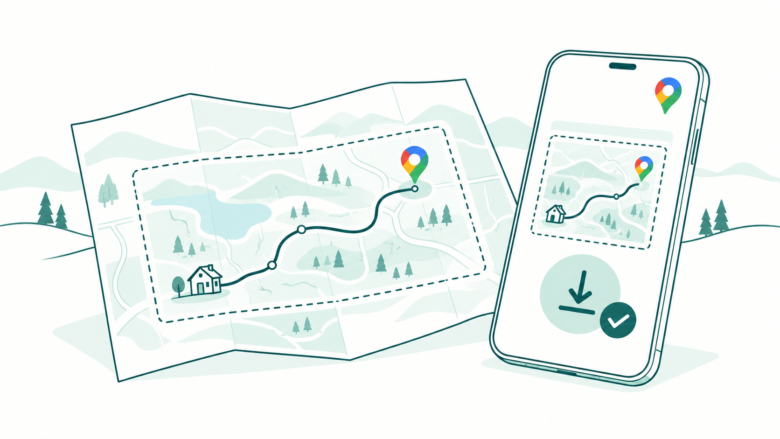
Before you lose signal
Download the whole driving area and check its expiry date. Offline Maps lacks live traffic, alternate routes, and walking, cycling or transit directions. Test your route while stopped and keep key trip details separately.
Key Takeaways
Google Maps offline starts with a complete map of your driving area.
- Download the whole driving area before you leave Wi-Fi. A saved place alone is not a downloaded map.
- Offline driving lacks live traffic and alternate routes. Walking, cycling and transit directions need a connection.
- Check the map’s expiry date and finish its update before a trip.
- Test your actual route while parked. Keep a separate copy of key addresses and booking details.
Google Maps offline can help when a drive takes you beyond a steady data connection. Download an area first, then check that it covers your full route. A pin saved to a list does not do that job.
The useful question is whether a map is on your phone. It is whether that map can support the journey you plan to make. An airport transfer, a long highway drive and a day on foot have different needs.
This guide covers the full Google Maps app on Android and iPhone. It draws on Google’s current help pages, checked on October 26, 2026. It does not describe a road test or promise coverage for every country. The steps below help you check the limits before signal loss makes them harder to solve.
What Google Maps Offline Can and Cannot Do
Google says a downloaded area can guide a drive when the full route stays inside that area. There are clear gaps. Offline Maps has no transit, walking or cycling directions. It lacks live traffic and alternate driving routes too. Plan around those gaps rather than treating the download as a full copy of the online service.
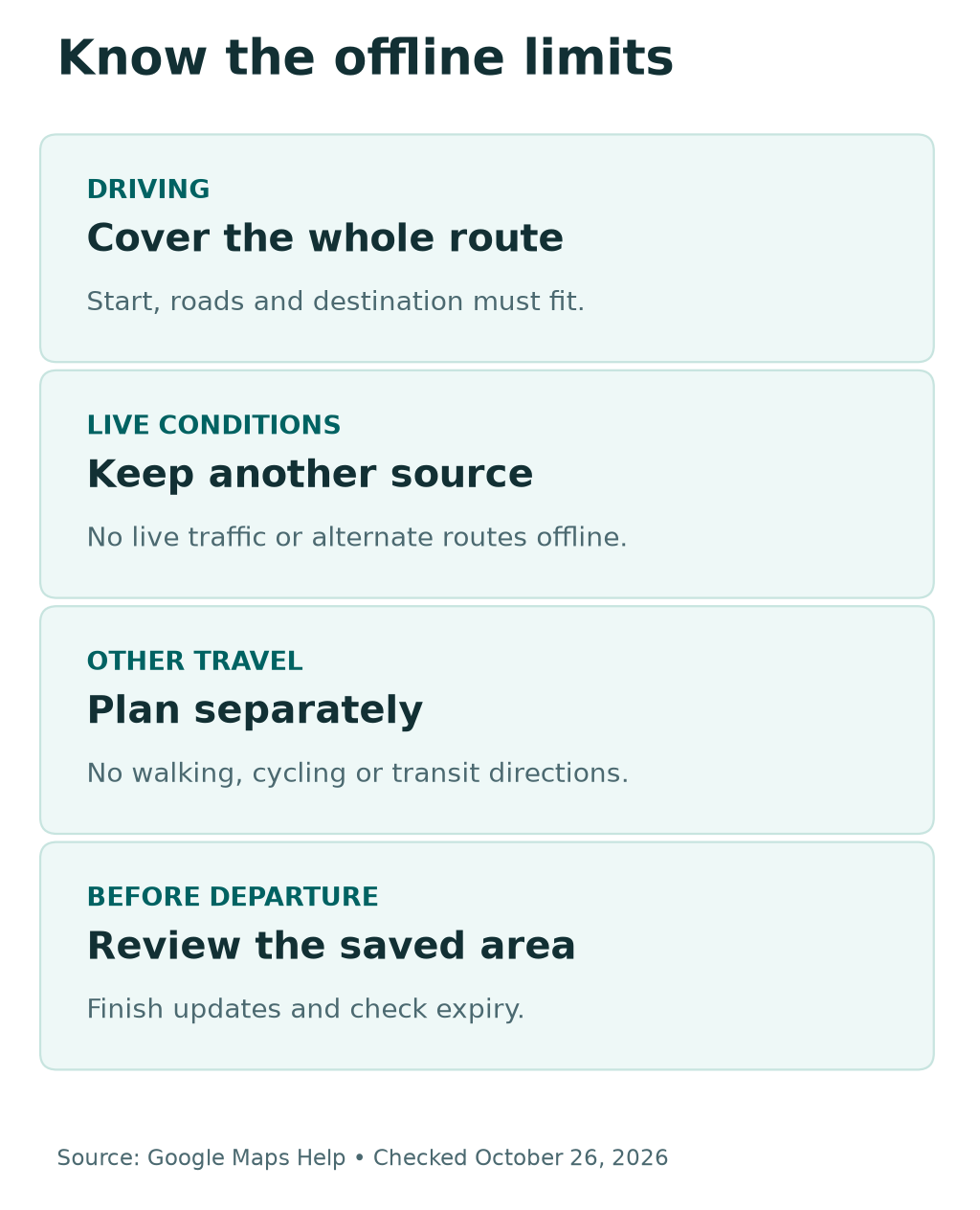
A map file holds stored information. Traffic is changing information. Those two things serve different jobs. A road can appear on your screen even when the app cannot tell you what has happened on it this morning.
That distinction matters when you leave a city. The map may still show a route, but a fresh closure, crash or delay may call for another source of information. Follow road signs and local instructions. Pull over in a safe place before you review or change the route.
Use this table to choose a sensible backup for the trip. It is a planning aid, not a claim that each feature works in every location.
| Your need | What to prepare | What still needs care |
|---|---|---|
| Drive through a weak-signal area | Download the full driving region | Traffic and route changes are not live offline |
| Reach a hotel on foot | Save the address and a separate walking plan | Offline walking directions are unavailable |
| Catch a train or bus | Keep the operator’s route and timetable | A downloaded road map is not a live transit plan |
| Visit several towns | Cover the roads between all stops | Downloading each town may leave gaps |
| Find a remote entrance | Keep exact access notes from the host | A named place may not mark the entrance you need |
Choose an Area That Covers the Journey
Before you download Google Maps offline, sketch the journey in plain terms. Where does it start? Where will you stop? Which roads connect those points? Do you need a return route as well?
Imagine a weekend drive from a city to a rural rental. This is a planning example, not a tested route. You might save the city and the rental’s village. That may leave the highway between them outside your saved areas. The useful map covers that connecting road too.
Allow for the places where you might need to stop. A fuel stop, a grocery store or a different highway exit can sit beyond a tight download boundary. You do not need to save a whole state by default. You do need room for the journey you expect to make.
The selection box in Maps helps you see what you are saving. Move it over the route and look at both ends. If you split a long journey into several areas, inspect the joins. A list of downloads is not proof that they form one covered route.
Google does not offer offline downloads in every region. Its help page cites limits related to contracts, languages, addresses and other factors. Check the actual destination in the app while you still have internet access. Do not assume a method that worked at home will work abroad.
For a US trip, use the destination’s full address when you check the route. For a trip in India, do the same and confirm the entry road with your host when needed. A familiar place name can refer to more than one location. Good address notes help in either market.
Download Google Maps Offline on Android
Open the full Google Maps app while online. Google’s Android instructions call for a signed-in account. Open Offline maps from your profile menu. Choose Select your own map. Frame the area and start the download. Keep the app available until the download finishes.
You can also start from a place result and use its menu to download the surrounding area. Use the route, rather than the place name alone, to decide whether that area is large enough. A small download around a hotel may suit local driving but miss the road from the airport.
After the download, open Offline maps again. Check that the area appears as a completed download. Rename it to match the trip if that helps you tell it apart from older files. A name such as “weekend drive north” is more useful than several areas you cannot identify.
Some Android phones support map storage on a portable SD card. Google’s help page describes that option for supported devices. Moving between internal storage and an SD card requires a fresh map download. It does not turn a missing or removed card into an available local map.
Use internal storage if that is the simpler, reliable choice on your phone. If you use a card, check that the phone can still read it before departure. Do not change card settings at the last minute without time to download and test the map again.
Maps Go is a separate, lighter app. Google says it does not support offline map downloads. Cannot find the feature? Check which app you opened first. Then review the account or phone settings if needed.
Download Google Maps Offline on iPhone
On iPhone, use the Google Maps app while connected to the internet and outside Incognito mode. Open the profile menu, then Offline maps. Select your own map, adjust its boundary and download the area. Google’s iPhone instructions also offer a download option from a place’s details menu.
Wait for the file to finish, then return to the list of offline areas. Look at the area you saved, not the name alone. A good title helps you find a map later; it does not prove that the file covers a road outside its boundary.
Keep enough phone storage for the download and other things you need on the trip. If space is tight, review old map areas you no longer need. Do not remove the current trip’s map merely because its file is larger than an older city map.
Google Maps offline for iPhone is not an Apple Maps download. If you use both apps, check the one you plan to open during the journey. A download in one app is not evidence that the other app holds the same local data.
This is also worth checking on a spare phone. You may have used the same account to save places, yet never downloaded a map on that device. Before you call it your backup, open its own offline list and verify the local file.
Test the Map Before You Set Off
Do a short check while parked or at home. Start with the destination and confirm that the app selects the place you mean. Review the driving route and compare it with the area you downloaded. Then check the return journey and any planned stops.
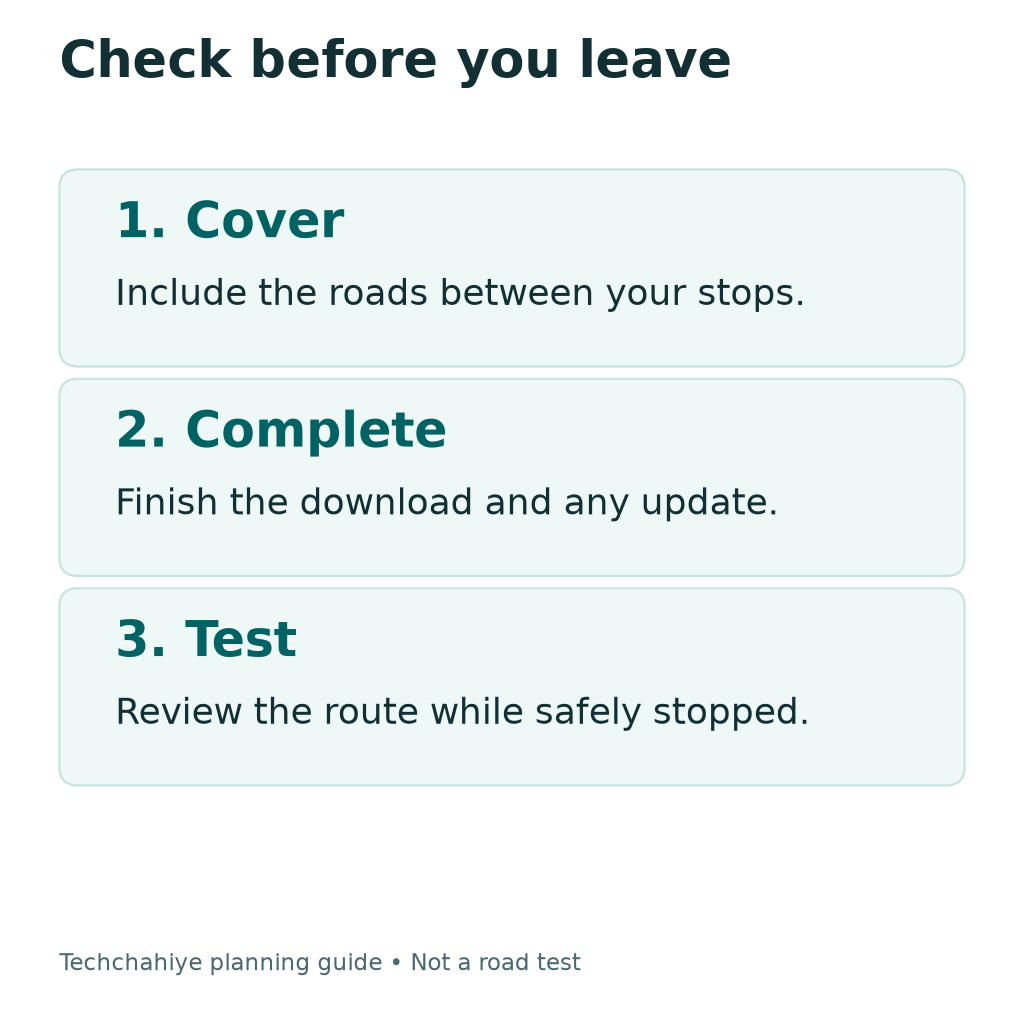
For an offline check, temporarily disconnect the phone from Wi-Fi and mobile data while it is safe to do so. Open the route again. This is a preparation step you can perform yourself; we have not tested your phone or route. Restore the connections after the check.
The goal is to find a missing map area before departure. It is not to prove that every turn will stay usable under all conditions. Road access, app behavior and the state of the phone can change. Keep another way to read the essential trip details.
Separate a map problem from a location problem. A downloaded map may be present while your location marker is uncertain. Google’s location guide explains that a wide blue circle means the app is less sure where you are. A stale or missing marker deserves its own check.
If the marker is wrong, review the phone’s location permission for Maps. Try the check in an open, safe place rather than a covered garage. A larger area will not help the phone locate itself. Check the marker as a separate issue.
Write down what failed. “No route with data off” is more useful than “Maps has failed.” So is “map visible, location marker wrong.” Those observations lead to different next steps. They also make a support request clearer.
Keep Downloads Current Without Surprises
Open the offline map list before each important trip. Check the expiry notice and update the area while you have a stable connection. Do not rely on a download you made months ago without looking at its current state.
Google says Maps tries to refresh areas on Wi-Fi when they have 15 days or less before expiry. Automatic updates help, but an attempt is not a completed update. The visible state of the map is the useful check before you leave.
If an area needs attention, select it and use Update. Leave enough time for that job to finish. Do not start an update as you walk out the door. It may not finish before your phone loses its connection.
Review the offline settings for automatic updates and download preferences. Choose settings that suit your connection and data plan. There is no single file size for every trip. The area and its detail affect what you download.
Name separate areas in a way that makes sense to you. Keep the current journey easy to find. Remove old downloads once you no longer need them. This makes the list easier to review without filling the phone with places you will not visit.
An updated map still does not provide live offline traffic. Treat “up to date” as the state of the stored area, not a promise of current road conditions. That keeps a helpful maintenance step from turning into false confidence.
Quick pre-trip check
Open Offline maps. Confirm the map is complete and current. Inspect its edges against your route. Check the return drive too. Restore your connections after testing. Keep important addresses in a separate note.
Fix Google Maps Offline When It Does Not Work
Start with the exact symptom. Can you see the area in Offline maps? Has the download finished? Does it need an update? Is the whole driving route inside it? These checks are more useful than changing unrelated phone settings at once.
If the download option is missing, check the app and the destination. Maps Go cannot make these downloads, and some regions do not support them. On iPhone, leave Incognito mode. On Android, sign in as Google’s instructions say.
If a route fails offline, check its travel mode. A walking or transit route is outside the stated offline features. Downloading the same area again will not add a feature that Google does not offer offline.
If only part of a drive fails, check the download edges. Review both the start and destination, plus the connecting roads. Add or adjust an area while online, then run the same parked check again. That gives you a clear before-and-after result.
If a download fails to finish, check free storage and the connection. Try again on a stable network before you remove useful existing maps. Keep any working downloads while you check the failed area. Deleting them all may leave you with fewer options.
The map may be present while the marker is wrong. Use Google’s location help to check that symptom. If the fault remains, record the phone model, app version, area and message. Leave private addresses out of a public support post.
Build a Useful Backup for a Real Trip
For an airport pickup, save the trip details apart from the map. Keep the terminal, meeting point and driver’s notes. A road route cannot tell you which pickup rule applies to a particular booking. Keep those details available without needing to load a new message.
For a rental stay, ask for the exact entrance if the property has more than one access road. This is a planning suggestion, not a claim that Maps has wrong data for that property. A host’s clear note can help you distinguish a public entrance from a service gate.
Taking a bus or train? Keep the operator’s current timetable and route details. A Google Maps offline download does not supply offline transit directions. Check service changes while online. Keep the key details in a form you can read later.
For a rural drive, identify sensible stopping points before you set off. Review the route with another traveler if one is coming along. Make changes while stopped. A passenger can help read notes, but the driver still needs to follow road conditions and signs.
Crossing a border? Check map downloads on each side. Review your mobile plan too. A local map does not change roaming terms. Nor does a data plan guarantee a signal on every stretch of road. Those are separate parts of your preparation.
Finally, keep the phone charged and the key addresses easy to find. These are simple steps, but they support the whole plan. The best download needs a charged phone. It also needs the correct destination. Check those details before you leave.
Did You Know?
Google Maps Go cannot download areas for offline use. Google leaves that feature out of the lighter app. Your Android phone may have Maps Go. Check the app name first. The full Maps app has different features.
Conclusion
Google Maps offline works best as a prepared driving aid. Save the full region, check the map’s state, then test your intended route while safely stopped. Give walking and transit journeys their own backup plan.
Before your next trip, open Offline maps and review one area you already saved. Check its edges and expiry date. That small review gives you a clearer answer than assuming an old download will cover a new journey.
FAQs
Can I use Google Maps offline without mobile data?
Yes, for supported offline driving within a downloaded area. Download and check the area while online first. You need a connection for live traffic and alternate driving routes. You also need it for walking, cycling and transit directions.
Do saved places download a Google Maps offline area?
No. Saving a place to a list is different from downloading its surrounding map. Open Offline maps on the phone you will use. Check that your journey fits inside a completed download.
Why does an offline map not show walking directions?
Google does not offer offline walking directions in this feature. A larger download will not change that limit. Keep a separate walking plan. Choose a suitable backup before you lose the connection.
How do I update Google Maps offline downloads?
Open your profile menu, choose Offline maps, select the area and use Update. Review its expiry notice before a trip. You can also enable automatic updates, then verify that the update actually finished.
Will a Google Maps download work in every country?
No. Google lists regional limits for offline downloads. Check the specific destination in the app while connected. The area may lack a download option. If so, prepare another source of directions.
References
- Google Maps Help — Download areas and navigate offline on Android
- Google Maps Help — Download areas and navigate offline on iPhone and iPad
- Google Maps Help — Use a lighter version of Google Maps
- Google Maps Help — Find and improve location accuracy
- Techchahiye — Android and iPhone guide
- Techchahiye — Apps and productivity guide
