

Choose by files, space and offline needs
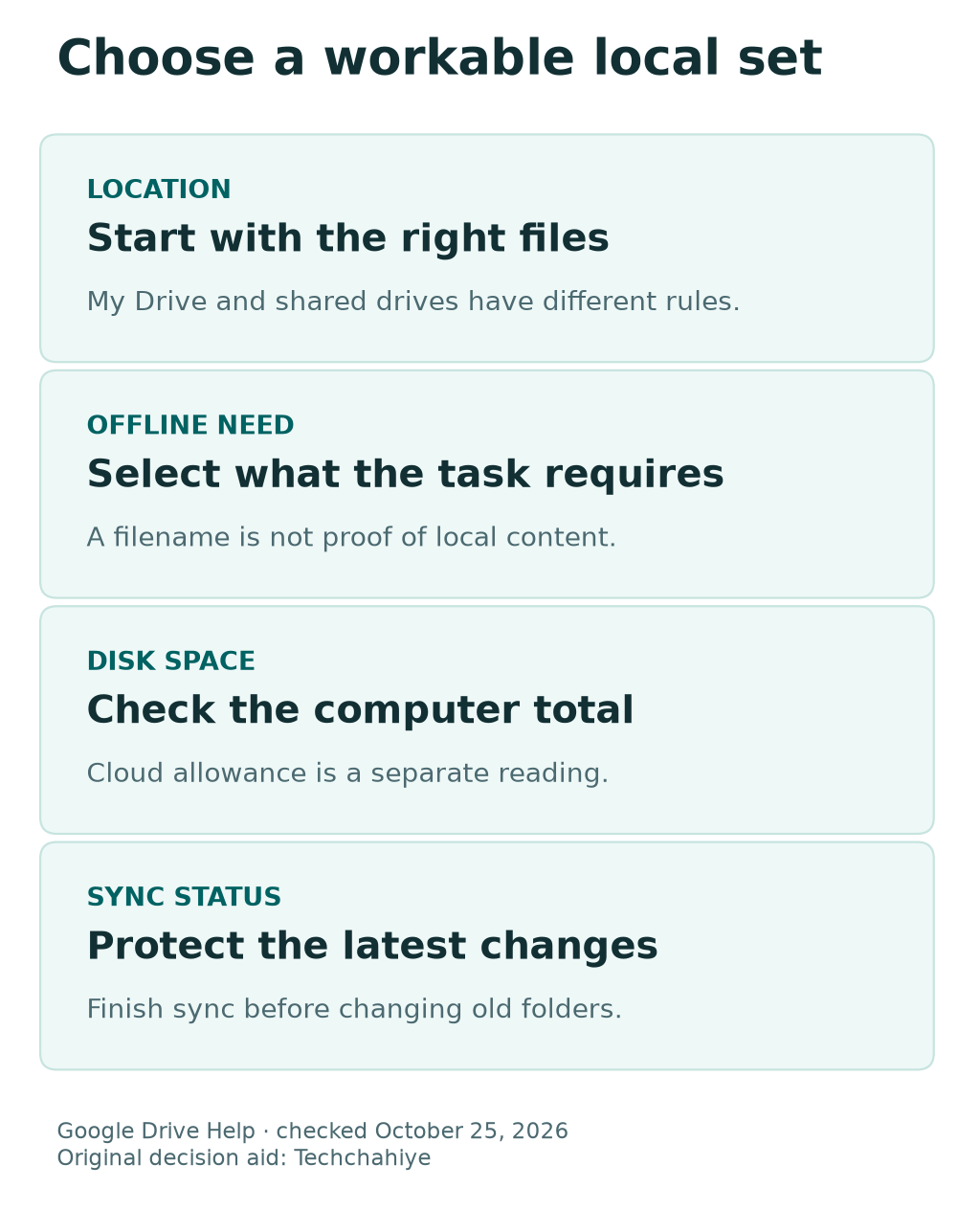
The modes change the local setup, not the cloud allowance. Check sync status and offline files. Preserve unsynced work before changing folders.
Key Takeaways
- Google Drive stream vs mirror is a choice about local files. It does not increase your Google Account storage allowance.
- Streaming keeps files mainly in the cloud. Mark the needed files for offline use before travel.
- Mirroring keeps a full local copy of My Drive. Allow enough computer storage and time for downloads.
- Check sync status before changing modes or removing old folders. Treat an independent backup as a separate task.
Google Drive stream vs mirror comes down to one question: how much of My Drive should live on this computer? Streaming can suit a smaller disk. Mirroring can suit work that needs a full local copy.
Choose by your actual files and workflow. A visible filename does not prove that its contents are ready offline. A full local copy does not make the cloud account larger or turn sync into an independent archive.
This guide uses Google Drive Help checked October 25, 2026. It covers Drive for desktop on a supported computer. The storage examples are made up for explanation. They are not measurements or promises about your device.
Identify the Files You Are Choosing For
Start with My Drive, not every location shown in the app. Google allows My Drive to stream or mirror. Drive for desktop can stream shared drives. It cannot mirror them.
Make a small inventory of what you actually need. Include the folder, file type, owner and approximate size. Mark the files you need without a connection. A selective travel set may be much smaller than the whole library.
Also distinguish ordinary files from Google Docs, Sheets and Slides. Their offline setup uses the web workflow described by Google. Do not assume that every item shown in a desktop folder behaves like a local document file.
This first review prevents the wrong comparison. If your task involves only a shared drive, a My Drive mirror option is not the answer. If it involves a few PDFs, a full-library download may be unnecessary.
Compare Streaming and Mirroring Clearly
Google describes streaming as keeping files mainly in the cloud. Local storage is used for accessed or offline files and related cache. Mirroring keeps a full copy of My Drive on the computer.
| Question | Streaming | Mirroring |
|---|---|---|
| Where is the main file set? | Primarily in the cloud | In the cloud and a local folder |
| How much local storage is needed? | Depends on use, cache and offline selections | Room for the full mirrored set |
| What should I check before travel? | The selected offline files | The completed local sync |
| Can My Drive use this mode? | Yes | Yes |
| Can shared drives use this mode? | Yes | No |
Both modes sync changes. Think of them as access and storage choices. Do not treat one as a frozen historical copy of the other. An independent archive needs its own retention and checking plan.
Choose the mode that fits the computer’s role. A lightweight travel laptop and a main editing workstation may have different needs. They do not need identical local file sets to use the same cloud account.
Check Computer Space and Google Storage Separately
Google’s current desktop guide distinguishes the two storage totals. Its local space tracker concerns the computer’s disk. It is not the same reading as your Google Account’s cloud allowance.
Write down both totals before making a change. Label the device reading and the account reading. This simple step prevents a full laptop from being mistaken for a cloud billing problem.
Mirroring downloads a full copy and uses local disk space. Streaming can reduce the need for that full local set. Neither choice increases the cloud allowance for files counted against the account.
Shared files can also use computer space when kept locally. The fact that a file is shared does not make its local bytes disappear. Check the actual owner and account rules when investigating cloud usage.
Match the Mode to Your Daily Work
For mostly online work, streaming can be a practical starting point. You can choose a smaller set for offline access. This suits a computer that does not need the whole library locally.
For frequent offline work with many My Drive files, mirroring may fit better. First confirm that the disk can hold the set. Also allow time for the initial download and later sync work.
Google notes that some demanding editing workflows can work better with mirrored files. Evaluate the actual application and file type. A large video project has different demands from reading a small PDF.
Do not choose solely by a mode’s name. Write the task in plain language. For example: open these ten files on a flight. That specific goal may need only a checked offline set, not a full-library mirror.
Find My Drive Syncing Options
Google documents the mode choice in Drive for desktop Preferences. Open the app’s settings, then Google Drive. Under My Drive syncing options, review Stream files and Mirror files.
- Save work in the files you are editing.
- Open Drive for desktop on the intended computer.
- Confirm the Google Account.
- Open Settings and Preferences.
- Review Google Drive and My Drive syncing options.
- Read the current mode before selecting another one.
Keep the account check near the start. Drive for desktop supports multiple accounts. A familiar folder name does not establish which account owns the current view.
Menu details can change with the desktop redesign or operating system. If your interface differs, use Google’s current guide and the app’s labels. Avoid moving folders around simply to make them resemble an old screenshot.
Prepare Drive Offline Files Before Travel
For streamed non-Google files, Google provides an Available offline control. Use the documented file or folder menu in Finder or File Explorer. Review the resulting offline status before leaving.
Choose the files needed for the actual trip. Include supporting files where an app requires them. A presentation may depend on linked media. A project may need more than the one file you usually open.
Marking a folder offline can include its contents and new items added later. Keep the selection purposeful. A broad parent folder can use much more space than the small set you had in mind.
Open the intended files after preparation. Test the workflow without depending on a live connection. Check contents, dates and required media. A visible filename or shortcut is not a complete offline test.
Keep Google Docs Offline Setup Separate
Google’s offline guide treats Docs, Sheets and Slides separately from ordinary streamed files. Their web offline setup has its own requirements. Use that guide for the browser and account you intend to use.
Do not confuse a desktop shortcut with a full local office file. Opening a Google document can take you to a browser. Its offline behavior needs the right setup. Its appearance in a desktop view is not enough.
Before travel, open the specific document through the intended offline workflow. Check that it is the correct version. If you need to edit it, verify that the planned editing path works too.
Keep the preparation note narrow. Record the document and date checked. You do not need to duplicate private content in a shared checklist. The purpose is to know which work is ready, not to create extra uncontrolled copies.
Understand Why the Desktop App Still Matters
Google says streamed files need Drive for desktop running, including files marked offline. Mirrored files can be accessed without the app running. That difference matters when planning a disconnected session.
Check how you normally start work. You may want to open files before the sync app starts. Check whether the mode supports that. Do not discover the dependency only after boarding a flight.
This does not mean the app can never be closed. It means you should understand what your chosen setup relies on. Use the current guide for the exact mode and operating system.
If a file fails to open, identify the layer involved. Is the app running? Is the file marked offline? Is the correct account connected? These questions are more useful than repeatedly downloading an unknown replacement copy.
Switch From Mirroring to Streaming Carefully
Google says local files should finish syncing before a switch. Confirm the sync status and resolve errors first. Keep any unsynced work safe before changing the folder arrangement.
After the switch, the old mirrored folder no longer syncs. The streaming location becomes the active route. Identify both locations so you do not keep editing an abandoned folder by mistake.
Follow Google’s current removal instructions for the old mirrored folder. On Windows, its guide says to quit Drive for desktop before removal. Do not delete a folder merely because its name looks like a duplicate.
Check the cloud files and the new working location first. Keep a clear record of which path is active. Resolve any uncertainty first. The local set may contain changes that have not uploaded.
Switch From Streaming to Mirroring With Space Ready
Google says My Drive downloads to the selected local folder when you switch. Prepare that destination and enough free space. A successful selection is not the same as a completed download.
Keep the computer powered and connected as needed for the sync. Watch its current status. Large file sets can require more time than the menu change itself.
After completion, open important files from the new location. Check that the contents and dates match your intended work. Review the shortcuts and folders your apps use so they point to the active set.
Shared drives and other stream-only locations remain different. Do not assume that selecting Mirror files changes every area shown in Drive for desktop. Review each location according to its supported mode.
Work Through a Storage Planning Example
Suppose a made-up My Drive library contains 80 GB of ordinary files. The laptop has 30 GB free. A full 80 GB local copy would not fit within that free space.
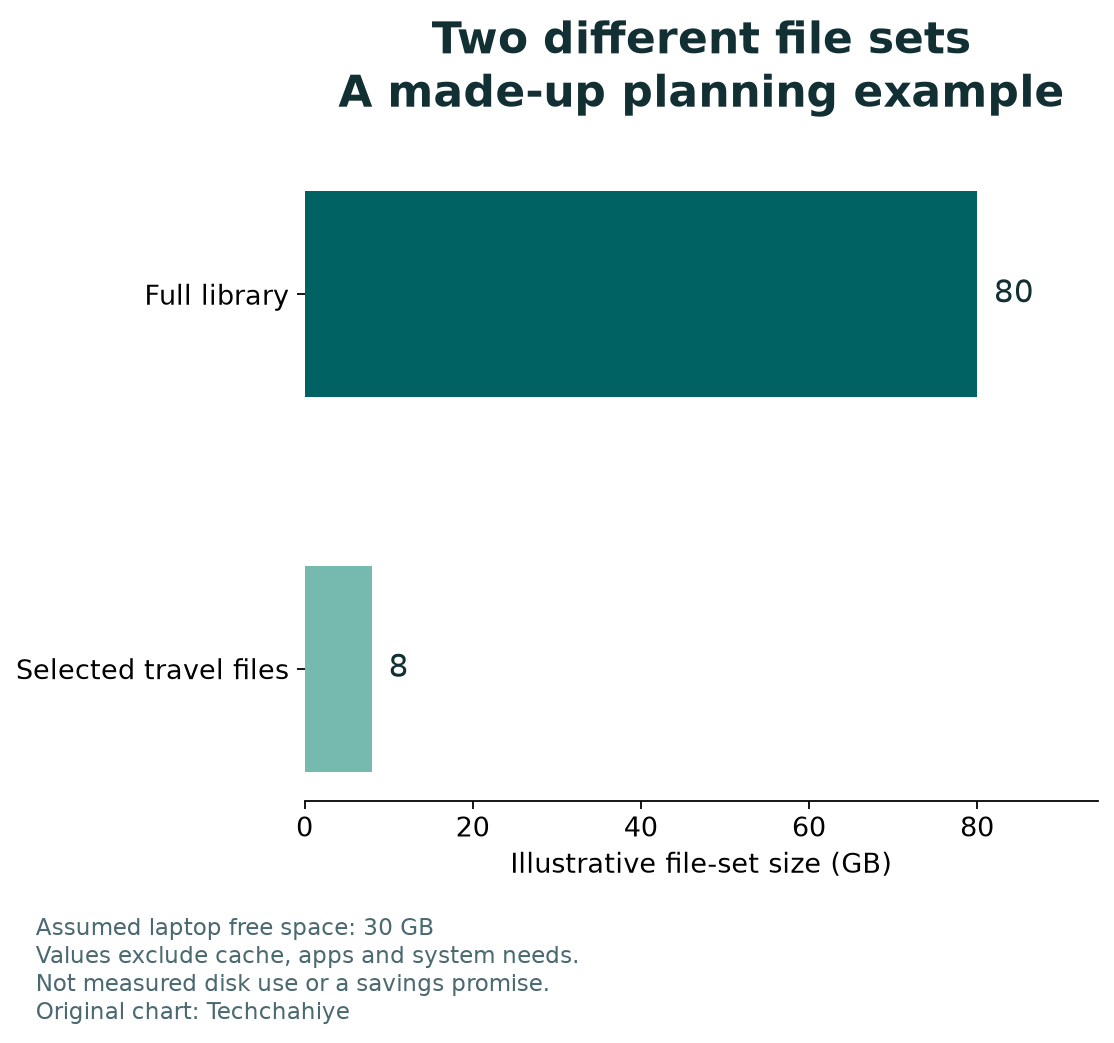
Now suppose the travel set is 8 GB. That is a different planning scope from the whole library. The simple comparison is 80 GB for the full set versus 8 GB for the selected files.
The arithmetic leaves 22 GB after subtracting that 8 GB from 30 GB. This is only an illustration. It does not include every cache, app or system need. It is not a prediction of the disk’s final free space.
Use the example to choose what to measure on your computer. Check the actual set, available disk space and current sync behavior. Do not copy the example’s numbers into a storage plan for a different device.
What the arithmetic does and does not mean
The example compares an 80 GB library with an 8 GB travel set. Thirty minus eight is 22 GB before other storage needs. It does not predict the final free space on a real computer.
Keep Sync and an Independent Backup Distinct
Sync helps keep working files current across locations. It is not the same as preserving an unchanged copy from a particular date. Decide whether your files need that separate protection.
For important work, define what the backup should preserve. That may include a dated approved version or an original media set. Keep it in a location you can identify and test.
Do not call a folder independent merely because it lives on the same laptop. Ask whether it is still part of the active sync arrangement. Also consider what would happen if the computer itself were lost.
A useful backup check opens the files you intend to retain. Review their contents and dates. A reassuring folder name is not evidence that the right files are present or readable.
Diagnose a Sync Problem Before Changing Modes
Changing modes is not a general cure for every sync error. First read the actual message. Google’s troubleshooting guide separates local storage, account storage and permission problems.
| Symptom | Useful first check | Avoid a premature action |
|---|---|---|
| Local disk is full | Computer storage and offline selections | Buying cloud space without checking the disk |
| Cloud account is full | Account storage and ownership | Assuming streaming increases the cloud limit |
| Changes do not upload | Sync status and the exact error | Removing the only unsynced local copy |
| A shared file cannot be edited | File permissions | Switching modes to bypass access rules |
| A travel file will not open | Offline status and app state | Assuming a listed filename means local content |
Keep the failed file safe while investigating. A sync error can mean the cloud does not yet have your latest work. Find the copy that has your needed changes. Do this before removing a local set.
For support, record the account, device, message and affected file path securely. Avoid sharing private document contents in a public thread. A precise error description is often enough to begin the investigation.
Be Careful With Account Disconnection
Google says disconnecting a streaming account removes its offline files. Mirrored files remain. Understand that distinction before using disconnection as a casual troubleshooting step.
The troubleshooting guide also warns about unsynced files in Lost & Found. Protect those files before disconnecting. A sign-in reset should not become accidental loss of work that never reached the cloud.
Confirm which account and device you are changing. In a multi-account setup, similar folder names can be misleading. Keep the intended account visible while following the current steps.
Use an approved process to reconnect. Then review sync status and offline needs again. An account change can affect earlier travel preparation. Review what is ready offline again.
Review a Work or School Setup With Its Administrator
Google notes that organizations may restrict or manage Drive for desktop. If an option is unavailable, ask the appropriate administrator. Do not copy restricted files to a personal account to avoid a policy.
Explain the task you need to complete. For example: edit these approved files offline during travel. That gives the administrator a concrete need to assess.
Keep sharing permissions separate from local storage mode. Mirroring a file does not grant new rights to it. Streaming does not solve a request for edit access. Use the file owner’s normal permission process.
US and India users can apply the same file-location review. Account types and organizational rules may differ. Check the rules for the actual account. A personal-account tutorial does not override workplace requirements.
Keep the Setup Understandable Over Time
Record the account, mode, active folder and review date. Add the folders intentionally kept offline. Keep the note short enough to update after a device or workflow change.
Review the setup before a trip, a new laptop or a large editing project. Those events can change storage needs. A choice that worked for last year’s library may not fit a much larger one.
Remove old assumptions from the note when you change modes. Identify abandoned folders clearly until they are handled through the correct process. That reduces the chance of editing a stale local copy months later.
Finish by opening a few important files from the intended location. Check both access and content. A completed settings dialog is only one part of a working file setup.
Did You Know?
Google says shared drives can only be streamed through Drive for desktop. The Stream files or Mirror files choice applies to My Drive. Check the location before looking for a mirror option that does not apply there.
Conclusion
Choose Google Drive stream vs mirror around the files this computer needs. Streaming can suit a selective local set. Mirroring requires space for the full My Drive copy.
Verify sync before switching and test offline work before travel. Keep local disk space, cloud allowance and independent backups separate. Clear file locations make everyday work and troubleshooting easier to understand.
FAQs
Does streaming give me more Google Account storage?
No. It changes how files use the computer’s local disk. It does not increase the cloud allowance. Check the account’s storage separately from the desktop app’s local space reading.
Can I mirror a shared drive?
Google says shared drives can only be streamed in Drive for desktop. My Drive supports both modes. Identify the actual location first. Then choose instructions that apply to that location.
Will every streamed file work offline?
Do not assume so. Mark the required files for offline access and test them. Google says streamed access also depends on the desktop app running. A filename alone does not prove the content is ready without a connection.
Does mirroring make Google Docs work like ordinary local files?
Use Google’s separate Docs, Sheets and Slides offline guidance. Their browser-based workflow differs from ordinary file access. Check the specific document and editing route. Complete this check before travel.
Should I disconnect my account to fix a sync problem?
Read the actual error and Google’s current guide first. Disconnection affects offline streamed files and can put unsynced work at risk. Preserve needed local changes before following an account-disconnection procedure.
